


Canon PRO-1100 printer review
Canon PRO-1100 printer review
Using the imagePROGRAF PRO-1100 17″ printer
Keith Cooper’s Canon PRO-1100 printer review. The 2024 updated version of the PRO-1000 [PRO-1000 review]

Keith has removed all Google ads. Too many deceptive and irritating adverts.
Any ad links left are non tracking, to companies we know, trust and we've worked with for years [Park Cameras]
Ads helped pay for site running costs, so if you found something useful, please
...Make small KoFi donation?
...Subscribe to Keith's YouTube Channel
...Get Keith's book about how to use tilt/shift lenses
Our site contains affiliate links - these help support the site. See our Advertising policies for more
The PRO-1100 is Canon’s top of the range 17″ width pigment ink desktop printer for sheet media
Keith Cooper was kindly lent one by Canon UK for a while, along with plenty of ink and paper.
His PRO-1100 printer review concentrates on using the printer for high quality photographic printing.
PRO-1100 printer review – Article Index

PRO-1100 printer review videos
Video review
PRO-1100 printer review: Setup
- Canon PRO-1100 printer initialisation and set up. Ink carts, head alignment and driver installation
- Canon printer driver updates for new Mac systems. Updating & avoiding AirPrint. New PRO-1100 driver
- Canon PRO-1100 cleaning and regular maintenance. Ink use for cleaning and how often to print
- Canon PRO-1000 printer. Replacing the MC-20 maintenance cart [waste ink tank]
- Canon PRO-1000 and PRO-1100 How much ink is used for cleaning? How often & what can you do about it
PRO-1100 printer review videos: Using the PRO-1100
- New Canon PRO-1100? What are the best papers to use? How I pick the best papers for my prints
- Greeting cards on the Canon PRO-1100 printer. Is it any good for printing cards and postcards?
- Printing your own large art prints with the Canon PRO-1100 pigment ink printer & high quality paper
- How to print graphical artwork on the Canon PRO-1100. Basic colour management and colour spaces
- Canon PRO-1100 vs PRO-1000. Printer profiling. Are the inks really that different? Will you notice?
- Printing a HUGE 10 foot [3m] panoramic photo print on the Canon PRO-1100 17″ width printer.
- Epson vs Canon. What’s the best 17 inch printer for you? P900 vs PRO-1100 vs P5300 [P5370]
- Hidden media types let you print true greyscale on the Canon PRO-1100 printer. No colour inks used
- Canon PRO-1100. Best fine art paper for photo & art? What differences are there? Do they matter
- Canon PRO-1100: Making long panoramic prints. Using roll paper for wide prints tutorial and review
- Canon PRO-1100 printer. How much ink is used up for maintenance. Why you should leave it switched on
- Canon PRO-1100 as your first art and photo printer? Getting to grips with the PRO-1100
- Canon PPL & PRO-1100: Where to edit/adjust images? Print workflow choices [Canon PPL & Epson EPL]
- Canon PRO-1100 Black and White fine art printing. Art paper and Canon PPL software
- Canon PRO-1100: Glossy Borderless A3+ Print | Canon’s Free PPL Software
- Canon PRO-1100 17″ printer arrives for testing. Review preview -AMA request
- New Canon 17″ printer: Canon imagePROGRAF PRO-1100 Features and specs – what’s new. what’s not

This is a long review – see the list of videos for some specific topics and guides to use.
Buying a PRO-1100: B&H | Amazon.com | Adorama
Canon PRO-1100 printer review
The PRO-1100 replaces the PRO-1000 which I reviewed several years ago. It’s fair to say that the lengthy product life of the PRO-1000 has led to more questions and speculation over its replacement than I’ve seen for some time, but I do now have my PRO-1100 printer review…
My 30 minute video review gives an overview of key areas of this written review.
What are the key differences between the PRO-1100 and PRO-1000?
Probably not as many as some were hoping. So, no roll paper handling, but a new media type allows for a lot longer prints from cut sheets. Other media types allow for B&W printing with no use of coloured inks.
The ink set is improved, matching the new inks introduced with Canon’s larger format printers, such as the 24″ PRO-2600 or 44″ PRO-4600. The print head is the same as used in the larger printers [and PRO-1000], but due to the way it’s used, printer icc profiles are not interchangeable.
This is what Canon suggests… I’ll address many of these in the review…
- New generation inkset has the same 12 colours but all of them are reformulated
- Improved colour gamut (significant in reds, magentas, violets and deep colours)
- Improved black density (especially on matte surface papers)
- Improved lightfastness / archival specs (mostly due to improved yellow)
- Improved scratch resistance due to crystalline wax ink constituent
The outer body of the 1100 is now a dark grey as opposed to black, but put the two next to each other and you’ll see no other changes. The 1100 uses the same basic chassis as the 1100, so it’s just as heavy or solidly built, depending on if you are moving or using it.
The 1000 is a great printer, so expecting clearly visible improvements in output simply isn’t going to happen. We are now well past the point where all good printers are capable of great prints when used with sufficient expertise.
Basically, if you can’t make a great looking print on this printer it’s almost certainly YOUR fault [goes for me too!].
However, what some might see as a ‘Don’t fix what isn’t broken’ approach by Canon, others could see as a lacklustre product refresh. Not a view I’d share, but I do feel that from a usability point of view, things like the [by modern standards] tiny LCD and non touch screen with the limited interface buttons, just feel like opportunities missed.

A simple usability* gripe…
If you want just to set a new media type/size for the top paper feed it’s a couple of button presses. If you want to set it for the rear feed, which is needed for some high quality papers, you need 17 button presses.
*Before I took up photography [20+ years ago] I did usability research and consultancy [AKA ‘UX’ these days] – I still get to test products for manufacturers and I’m just as hard on them as I was then! ;-)
My printer review strategy is always to make lots of printer profiles, since these can tell me a lot about how the printer handles printing, and the overall ‘look’ of prints, as well as give me important technical information about what the printer is producing.
As with all my printer reviews, my profiles are available on request, as is the raw profiling data for those with the interest [and software] to make use of it.
I’d also note that I use Apple Macs for all my work, so the review is entirely based on using them, but apart from some screen layout differences, the functionality is essentially the same for Windows users.
The basic specifications: [Full Specs at foot of article]
- 11+1 pigment ink system
- Gloss optimiser
- A2 – 17″ Max. width sheet paper
- Vacuum system for holding paper flat
It’s a big printer – you will want someone to give you a hand getting it out of the box. It comes in a plastic bag that -is- strong enough to lift it out of the box. I tried this several times and it really is strong enough – so keep the bag (I’ll have more to say about moving the printer later).
PRO-1100 printer review: Make space for the printer…
The printer needs a table-top area of at least 70cm x 35cm for its feet to rest on, but it overhangs that by a bit.
Once you start using larger paper, especially via the rear slot, you’ll quickly appreciate the space needed around the printer as well.
Canon suggests:

However, note here with A2 paper loaded in top and rear slots.


That’s with A2 paper. I was able to test some Red River paper at 17″ x 25″ [see the video covering this].
Even more space needed.

What do you get with the PRO-1000?
The only real initialisation needed is to remove all the packing tape and follow the instructions…
Go to https://ij.start.canon/PRO-1100
There is a single start sheet which covers this. There is also a QR code if you want to use a phone.
You will need to install the print head and all the ink carts. The printer I had to test was a test printer, so already had its print head in place.
I’ve all the rest of the process covered in a setup video.
Take the ink carts out of the packaging and give them all a gentle shake before use.

This ink would cost you over £600 to replace
The carts click into place. They are keyed, so you can’t put the wrong ones in.

They simply click into place.

Here, once all are in place.

PRO-1100 printer review: Connectivity & software setup
The printer incorporates both USB and Ethernet wired connections.
Wireless works as both part of an existing network, or you can establish an ad-hoc network for connecting phones/tablets.
- Hi-Speed USB 2.0
- 1000Base-T Ethernet
- WiFi (ac/a/b/g/n)
The physical connectors are at the back on the right hand side.

Wireless is easy to set-up when using the Canon installer, but for my PRO-1100 printer review I only tested printing with a wired network.
If on a Mac, make sure you do not accidentally install the AirPrint Driver. It’s easy to get wrong – hence this video I made…
This from the system info, after I’d accidentally installed the wrong driver.

Also, make sure your system is supported…

This looks great since I was setting up on one of my old Mac test systems – the one with 20+ years of software/tools
Not so fast though…

That means [for once] every bit of my testing was carried out on a brand new, fully updated computer…
No Mac OS before Mac OS 11 has a driver for this printer.
Web access
The printer has its own web server, so you can check on all sorts of details.

The level of detail here is way beyond what most people will ever need.
If you are inclined to experiment, just be very careful…

The page will need the printer password for most pages – this was set to a single letter by me, since entering it via the printer buttons and screen was such an irritaing process, and you need a password to use the accounting manager [see later – lets me see how much ink/paper the printer has used and costs].
Browsers on my Mac throw up a security warning every time I try and access this page – all good and well, but I’m simply never going to get round to installing certificates and the like. I like tinkering with stuff and I simply lost the will, after all the efforts with password entry on the printer.
Print via Phone/tablet?
There is software ‘Canon PRINT‘ available to print from a phone.
Works just fine but of relatively limited capabilities if print quality is of importance [blame this on the phone/tablet, not the printer]
Calibration
The printer needs its print head calibration carrying out after it’s set up. The precision required with inkjet printing is such that even tiny misalignments can show. Fortunately the setup process can guide you through this.
It’s also worth doing a general paper alignment once the printer is set up and running. This is accessible via the printer menu.

The printer can also do a basic colour calibration. Access this from the Maintenance menu section. Select ‘Color Calibration’ and then ‘Auto adjust’.
I used a sheet of Canon photo paper for this – just feed some A4 [letter] paper in as asked.

Doing this calibration helps ensure that your printer is working to specifications – so when using a printer profile from a paper supplier, your printer is more likely to give good results.
Firmware updates
Soon after I’d set up the printer, it informed me that new firmware was available. With a new printer like this it’s best to install updates when they are suggested. The printer can download and install the software. Don’t interrupt the process once it’s underway.
Printing for my PRO-1000 printer review
I’m printing from a Mac Studio and a MacBook Pro using Mac OS 15 – I’m printing directly from Photoshop [24] and Canon’s PPL print software, both stand-alone and called from within Photoshop.
The PRO-1100 printer driver is not supported on older Mac systems such as the MacOS 10.15 machine where all my many years worth of print and colour management software reside. I know I’m not alone in keeping older systems going and I’ll admit to not being entirely pleased with Canon’s level of support in this respect. However – I have newer kit and it works fine. Incidentally if you are using a Mac and find that printer options are ‘missing’, do check that you have not accidentally installed the useless ‘AirPrint’ driver [see above].
Canon’s PPL software is the same on Windows PCs, where it’s and excellent reliable print tool. We don’t have any such PCs here and I don’t use Lightroom at all, but the PRO-1100 should print like any other printer on Lightroom. All the media options and paper sizes you see here are valid,
Printing with Professional Print Layout (PPL)
I normally print images directly from Photoshop, but you can use PPL as a plugin as well as a stand alone application. Many of my print example videos show PPL since it’s both capable and looks the same on different systems.
When you first use PPL you will have to connect it to your printer, for PPL to find out what it needs to know in order to use the printer.

Other Canon software: PosterArtist
The poster artist web software is available for the PRO-1100
I’ve not used this with the PRO-1100, but have tested and used it in my Canon TC-20M printer review
Print quality settings
The different print quality settings available in the driver include terms such as ‘higher’ and ‘highest’ – it’s not immediately clear what these mean.
The range of available options also depends on the media selected, so for Pro Luster we get these…

No standard for ‘Pro Platinum’…

And ‘High’ has no place for ‘Crystal grade’.

There’s a ‘custom’ setting too, but all that does is give you a ‘Speed-Fine’ slider which only moves to some positions depending on the media.
What to make of all this?
The image you can see in the back of the screenshots is my ‘real life’ printer resolution test image. For a detailed look at its use, see the print settings articles I’ve written [start with this one]
My suggestions are:
- If ultra fine detail matters in your prints, test this for yourself!
- Send more detail to the printer driver if you have it.
- Forget about ‘magic resolutions’ and sizing images to 300 ppi or multiples.
- There is little practical difference between high and highest settings
More than that, I’d love to see more information about this from Canon [you’ll see this is a recurring theme in this review, on technical matters].
If you want the best detail – send detail to the printer driver and trust that the internal driver/printer algorithms have improved greatly in complexity, since you read on a forum somewhere, that prints should be produced at specific resolutions.
Do I feel the need for additional print software to do my printing? No. If you find yourself thinking about ultra fine detail in your prints that no-one else will ever notice, accept that it might not matter that much and perhaps it’s time to spend more time on the actual photography and images? Yes, I do have to remind myself of that, every time I do this sort of testing…
Assorted extra printer functions
The printer has a ‘Template Print’ menu option.
This prints useful lined paper types on plain paper. I’ve a big pack of A3 plain copier paper and used it to run off a load of graph paper for notes. A bit excessive given I’ve a large stationers some 250 yards from where I live, but useful nonetheless.
See also Canon’s online ‘getting more out of your printer’ page for the PRO-1100.
Changing ink on the PRO-1100
This particular printer was shipped to me directly from Canon UK, but had the print head installed for them to do some internal updates. That means it wasn’t a ‘fresh’ printer like you would receive from the store. It meant that I had to change ink carts fairly quickly, since it had been prepped for transport after they set it up. [See ‘Transporting the printer’ below].
You can run the ink carts until they are completely empty, since there is a buffer sub-tank inside the printer for each ink channel.
The printer will give a warning when it absolutely insists on changing a cart.
The carts simply push into place. If you wanted to weigh one, simply eject it – the printer detects the ink cart flap is up and will note the same cart replaced when you put it back…
The carts are self sealing – the chip keeps the printer’s estimate of how much ink is left in the cart. Remember that all inkjet printer basically go by estimates of ink used – there is no metering of ink flows.
Inside a cart – for the curious
This is from my PRO-1000 review, since the carts are identical [apart from the ink and chip].
No – you cannot swap PRO-1100 and PRO-1000 carts
The white section just levers off. Inside it is a black section containing the chip for the cart. Next up is a small white cap. Lever this off and a spring propels the ink valve several metres.

The valve unit needs cutting off.

Inside the cart were no more than 1-2ml of ink. Yes, it was indeed finally empty.

If you look carefully at the grooves along the side of the white bit, you can see physical tabs which help prevent you inserting the wrong cart in the wrong slot.
Maintenance cart
The MC-20 maintenance cart [waste ink tank] slots in round the back.
The first cart will be somewhat shorter lived since some ink and fluid is moved out once the printer is initialised.
I’ve a short [3min] video showing this:
Note that you do not have to turn off the printer to change carts [ink or waste].
Transporting the printer
Ideally, try not to…
At the foot of the Maintenance menu there is a selection marked:
“Prepare to move”
Unless you seriously want to use up all of the ink in the head/lines and several maintenance carts do not try this. If the printer is to be shipped [and tipped up], it needs draining of ink from all the internal reservoirs and tubes.
That goes into maintenance carts. The menu warns that up to three maintenance carts may be needed.
This is the same as with the PRO-1000. It wasn’t drained before transportation, when it went back to Canon – It worked fine – just don’t put the box on its side…
Don’t move the printer when turned on.
There is a sensor underneath which detects if the printer is not on a flat surface, or as Canon puts it:
“The printer has the ink supply stopper on its bottom to prevent ink leakage by stopping the ink supply when the printer detects floating of its body” [sic]
Paper Loading and Media handling
The printer has two means of feeding paper into it. The top loading slot and the one at the back.

Paper width is physically set by the paper guides.

The top slot is always my first choice, since it’s quicker to use and with photo papers, you can stack several sheets.
The rear slot guide extends out quite a bit.

Putting a sheet of paper into either will prompt the printer to ask you for media type and size.
Unfortunately, some media types cannot be selected for the top slot. Typically heavier art papers, but there are art paper media types which will go in the top. If I’m profiling a baryta paper and use the baryta settings I’m stuck with the rear slot, but if I profiled the same paper with the Pro-Luster setting [a common one to use] I can use the top.
I’m sure there are good reasons for the media types/slot distinctions but they feel quite arbitrary and add just a bit of friction from a usability point of view. Every time I have to move the printer forward to use the rear tray I wonder why I should have to go to this effort…
There is no straight through media path, so no printing on board or stiff card.
The rear feed has a button on it which enables the tray to go almost flat for accessing potential paper jams. However this isn’t a way of setting it for stiffer media – it won’t print.

Vacuum system
Once the paper goes through (from either source), the printer has a vacuum hold system to keep the paper flat as it is printed.
The diagram below (from Canon) shows how air pressure keeps the paper flat. For very thin paper, the vacuum may need reducing and for thicker papers increasing. This is taken care of in the media settings, which if need be can be used to create custom media types with the MCT tool software.

In practice I had no head strikes or smudging at corners, typically the issues most associated with paper curl.
The vacuum system is one reason the PRO-1100 is a noisier printer than many small ones, but in general it still has some of the best sheet paper handling of any desktop type printer.
There is a ‘quiet mode’ for the printer, which reduces the fan noise – but the vacuum system is there for a reason.
Media sizes
There is a sometimes a mismatch between the name of a paper in the driver and the name on the more limited printer display. This list is from Canon:

Borderless Printing
Only a sub-set of paper sizes are available for borderless printing.
In particular, Borderless Printing is not available for A5, B5, B3, 11″x17″(28x43cm), 7″x10″(18x25cm), 9″x13″(23x33cm), 11″x14″, 16″x20″ or 12″x12″(30x30cm) size paper or plain paper.
Note: Borderless will not work with custom paper sizes [true for any printer I’ve tested]
If you intend to do a lot of borderless printing, take care to keep the printer insides clean [I have a video discussing this].
Using custom paper sizes
You can define any arbitrary custom size you like, however you won’t get anywhere beyond the length available on the PRO-1000.
BUT the PRO-1100 is advertised as offering longer prints? How to do it?
PRO-1100 printer review: The ‘Long paper’ media types
There are two new ‘Long’ media types [one for matte and one for glossy] which must be selected if you want to make use of the longer print length available with the PRO-1100. I find this problematic if you want to use different media types, since you effectively need to create a custom ‘long’ media for each paper. It also means that if you use the AM1X file for a third party media to configure profile and media settings, then it won’t be available for long prints.
Here’s the media set – along with the ‘Any Size’ media size.

I’ve produced a video about making a 10 foot long print on paper from a roll.
I printed it from the Canon PPL software [loaded directly from Photoshop].
It’s a huge image. Note the very high print resolution. This follows from my earlier comments about image resolution for print.

I’ve created a new custom paper size to print.

This is now available in PPL as a paper size to use.

Select it as with any other size. Note that I’ve cut the sheet an inch or two long and left space in the layout below.

The print can be trimmed afterwards.
Before you get too carried away by this new opportunity – remember that handling 10 foot lengths of paper is no trivial task.
First there is cutting it – a good square edge is needed, and somewhere to do it. This is quite a robust paper, but you might want to avoid surface marking for example.

Here’s the ‘roll paper holder’ for the paper.

Don’t think you could get away with putting a roll of paper on that bar…
The printer needs to detect the end of the paper. Try this print with a roll and the entire roll will go through the printer on to the floor.
Here’s the finished print [on 10″ width paper].

Here’s a normal pano print, made using a standard media type and custom paper size in PPL.
This info pops up when you print. I leave the display of this panel activated, just so I can quickly check off the settings I’ve used – a moment’s delay has saved me many a large sheet of wasted paper.

A video about making that print [includes more info about settings].
Note the media type shown in the screen shot above is a ‘normal’ one, not one of the ‘long’ ones.
PRO-1100 printer review: Small media – cards
The printer handles smaller size media very well. Here I’ve loaded a 6″x4″ glossy postcard and printed a photo of the Moon.

Make sure the cards are properly flat. I was able to stack half a dozen and they fed through OK.

Media type is set to pro-luster – I’m printing this [borderless] just using the B&W print mode, via Canon PPL software.

The cards are from PermaJet in the UK.
Custom Media types – The Media Configuration Tool [MCT] and AM1X files
One of the ways you can get better results from the printer is to ensure that the media setting best matches the capabilities and characteristics of the paper. Whist profiling is part of this [which I’ll cover in a bit] the media setting is what tells the printer how much ink the paper can take, it’s thickness, or even what sort of black ink to use [for matt/glossy papers].
The MCT has been around for quite some time, indeed I’ve covered it in varying amounts of detail in numerous articles. If you want more information and examples of its uses, start with
The PRO-1100 has a range of paper types available via the menu and in the printer driver options you will see where you are printing from. Just for good measure, the names used on the printer may not exactly match those you see in the driver. That and some settings only refer to one paper loading slot.
See the manual for details, but this extract gives a good feel for why I get regular queries about which settings to use.

For optimal printing the media settings need to match what works for the paper.
The MCT software is a free download from Canon. It’s been feature of higher end Canon printers for several years and is covered in some detail in many of my reviews [such as for the PRO-1000].
The MCT user manual and installation guide is available on-line
Here’s an example from when I was making a custom media setting for a Lustre paper I use quite often.
As you can see there are plenty of options for customising data.

So what do all those settings really mean, why might you pick one over another?
How do you select optimum ‘ink usage’ for example?
I’ve no idea – this is way beyond what the MCT manual can help with. I’m assuming that the ‘real’ MCT manual has never been translated from Japanese and lives on someone’s server back at Canon HQ.
I’m not the only printer geek wanting such info – testing it with lots of paper and guessing functionality is not an ideal solution. I’ve genuine appreciation of such features being available, just not the lack of info about them.
Using that media setting
It just so happens that the media I was creating above is the one for the long pano print I made.
One slight problem – to print that big, I need to make another new custom media based on the photo paper [long] media type.
Where you might come across MCT
Normally this is the sort of software I’d not expect most printer users to need to go anywhere near, but many paper suppliers will now provide ‘AM1X files’ for their products. This combines a custom media setting for the paper to go with the appropriate icc profile.
It has the advantage that the media settings [ink density, paper feed and thickness] can be optimised for the paper, but the serious usability disadvantage for many, of needing to open up the MCT software.
I’m in the UK, but Red River Paper of the US, sent me some of the big 17×25″ samples I tested – it’s not a common paper size here.
They have written a useful guide [Mac and PC] on how to install AM1X files
One good MCT option is that your custom media type now appears on the printer screen. Here’s one I created for a Double sided Lustre paper from PermaJet.
Not enough space on the screen for a more descriptive name…

Of course, there is the option to give it a longer [i.e. different] name in the printer driver.
I tend to leave the setting mismatch option selected, since in testing a lot of papers, it’s easy to get something wrong. Setting the printer and in the print software has saved me a whole lot of waste paper, along with deciphering Canon’s often quite opaque error messages.
Just one other step to remember when you install a custom media setting to the printer. You’ve installed it to the printer, it needs updating in your printer driver. The MCT will prompt for this process, so don’t ignore it. That and you will need to repeat it for every computer you want to have access to the new media type.

Remember too that your icc profiles need installing on your system [every one you use].
With the complexity of this, all my own icc printer profiles are NOT supplied with AM1X files. I use the suggested media type from the paper maker/supplier. This name is included in the naming format I try and stick to, for my profiles, typically:
Printer-model_Paper-name_Media-setting-used__quality-setting-used-during-profiling
Matching the quality setting is not important, but there for my own use.
MCT – worthwhile?
Ok, I’m a self confessed printing geek, so I like the idea of being able to fine-tune media settings and have my custom media types appear [in abbreviated form] on the display. Personally, I find the amount of settings and information available in the MCT rather far too thin on detail. For example: how can I properly set ink limits? Just what are the real differences between the ‘standard’ media settings?
However, putting on my usability hat, I see this as a potential usability [and support] problem for the [majority of] printer users who want to ‘just print’.
This is one of those areas where I really appreciate the efforts of the likes of RR Paper, in that article I linked above.
Do you need custom settings?
There is one other area where custom setting may actually be required. In the course of my testing I noticed that some third party papers exhibited unacceptable banding. Some of this was fixed by extra cleaning cycles, but a residual banding was apparent on some. Using a custom paper, custom feed adjustment and head height/vacuum settings helped this. However I was left feeling that this particular printer might be a rather ‘delicate’ one…
I had reports of similar issues from a few people in the US, where Canon replaced printers. Given that the printer I was testing was a very early unit, I’m happy that this is just one of those things I sometimes get to see, as a side effect of testing very ‘early’ printers.
Suffice to say – if you get problems with a new printer, contact the seller. That goes for any printer I test…
PRO-1100 printer review: Printer testing
I used rather a lot of papers during the testing of this printer.
Here’s the list of profiles I created [all at the Auto CO setting]:
Canon
- 1100_PremFARough_pfa_hq.icc [Canon]
- 1100_ProLuster_plus_hq.icc [Canon]
- 1100_ProPlatinum_proplat_hq.icc [Canon]
- 1100_pm101_pm_hq.icc [Canon]
- 1100_pm101_pm_hq_opt_23-09-24.icc [Canon – 2nd version, using profile optimisation]
Others
- 1100_CansonRagPhot310_pfas_hq.icc
- 1100_EpsPremLus260_prolus_hq.icc [Epson Premium Luster]
- 1100_FSCotEtch305_pfas_hq.icc
- 1100_FSLegGlo325_baryta_hq.icc
- 1100_FSPlatCot305_pfas_hq.icc
- 1100_HMPRMatBar208_pfas_hq.icc
- 1100_HMSusPhoSat220_prlus_hq.icc
- 1100_HPArtMatCanv380_canvas_hq.icc [HP Artist Matte canvas]
- 1100_PJHBarRag310_baryta_hq.icc
- 1100_PJHEtchRag310_pfas_hq.icc
- 1100_PJHMusHer310_pfas_hq.icc
- 1100_PJHSmooRag310_pfas_hq.icc
- 1100_PJHWCRag_pfar_hq.icc
- 1100_PJTiGloss300_proplat_hq.icc
- 1100_PJTiLus280_prlus_hq.icc
- 1100_PinLus300_prlus_hq.icc
- 1100_RRBBBar310_baryta_hq.icc
- 1100_RRPDSoGloRag_prolus_hq.icc
- 1100_RRPaloDuro300_prlus_hq.icc
The ICC printer profiles I created are available on request. As with my other printer review sets of profiles, a Ko-Fi donation is all I ever request for them – email me if curious?
If you’d like to experiment and have the software, I also have the profiling measurement files for these PRO-1100 ones [i1Profiler .mxf files] for further testing.
PRO-1100 printer review: The papers I used
I started testing with some Canon papers, and then went on to other papers I had in stock including ones from PermaJet [PJ], Fotospeed [FS] and Red River [RR].
Other papers are from Hahnemuhle [HM], Canson and Paper Spectrum [ Pin – Pinnacle brand].

I also tried printing with the B&W print mode, and have more details about this in the B&W profiling section below.
The images (and many others) are available for free download on this site.
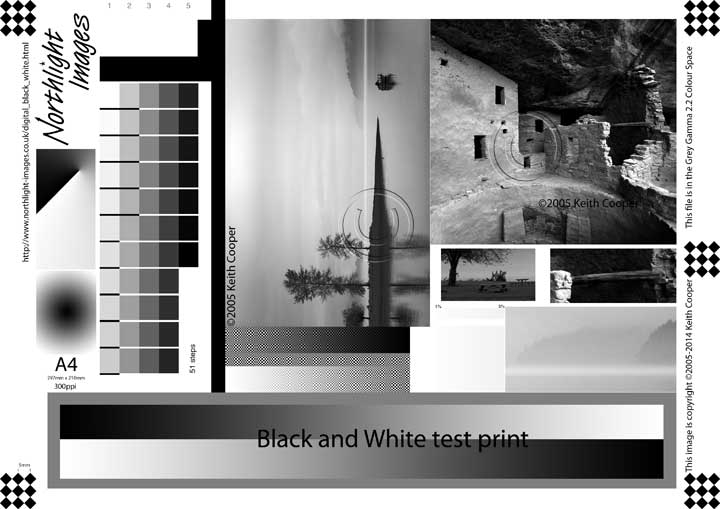

Both images have lots of components to specifically test different aspects of printer performance.
I also use both for testing the performance of printer profiles. If you use them, do be sure to read the explanatory notes that go with them.
The images helped confirm the excellent gamut of the new ink set in the PRO-1100.
I’ll come back to how things have changed from the PRO-1000 in a bit.
The gloss or Chroma Optimiser coating
One feature of the 12 inks of the PRO-1000 was the appearance of a clear coating ‘ink’. This is also present in the PRO-1100 ink set. In the original testing I noted that you could have an ‘auto’ setting and a ‘whole paper’ setting. I noted that the auto setting left paper white and near white areas of the image uncoated, leading to a degree of gloss differential. If you applied the clear coat to the whole sheet, it did that [minus a ~3mm border] but the coat went beyond the printed area. I’d hoped for a mode which just applied coat to the printed area…
There is now a new mode, but it still misses out paper white areas within the image area – so… close, but no cigar Canon.
The coating does make a genuine difference and I found it definitely helped with some glossy prints. If you have problems with whites not being coated, try the new mode? You could also reduce the image white point from 255 to 254 for example, but I don’t like doing this to images I’ve edited carefully to make use of the full tonal range available.
The new ‘wax content’ in the inks – who needs varnish?
One of Canon’s key changes in the new ink set [and one reason you can’t use the new inks in older printers] is the introduction of a crystalline wax element in the ink. This ‘sets’ on the paper after ejection from the thermal print head and is meant to improve ‘scratch resistance’ for prints and the way ink pigments cover the paper.
As I’ve mentioned, scratch resistance shouldn’t be an issue for most users of a printer like this. I’m assuming you handle your prints with some care?
However several people asked me if this meant that prints could now more easily be displayed without glass, or even outdoors?
Absolutely not – it is not a replacement for varnishing canvas, laminating or using glass for protection.
Cleaning, maintenance – auto and otherwise
When I’m testing printers I regularly run off nozzle check pages on plain paper.

Check the fine lines for breaks – run a cleaning cycle if you see any.
Normally that would suffice, but on a few test images I noticed a distinctive fine horizontal banding and the appearance of fine white lines.

A fresh nozzle check was fine… but the issue persisted.
However, after running two head cleans, this problem vanished. Going back, I could see signs of this on a few other test prints – you really need flat areas of tone to see it well. I’d also suggest making sure that the ‘reduce paper abrasion’ setting is turned OFF since it is a global setting and may produce unwanted effects on some media. If you need to adjust head height, this is best done on an individual media basis.
Could this just be the particular [early model] printer I had [as mentioned earlier, in connection with custom media settings]? I don’t know, but the issue rendered several large test prints in a state where I’d not feel happy selling them.
Initially, when looking at settings which would reduce the amount of ink used in general cleaning, I’d turned off some of the auto settings such as powering off the printer, and the ‘auto nozzle check’ function.
The amount and frequency of cleaning has been a common question about the PRO-1000 over the years and I’ve already been asked several times about the PRO-1100…

Was I too hasty with this?
This is all you get in the manual – yes, I’d guessed it can be turned on/off. How about telling me what it does or why I might need it? I assume the ‘higher elevation’ comment refers to altitude, not the height of your desk? Does this apply to somewhere like Scotland or perhaps it’s for people in Leadville in Colorado [~11k feet]… who knows?

Unfortunately, the sorts of testing I get to do for reviews is not really useful for letting me offer any firm advice, other than not turning off and unplugging the printer.
PRO-1100 printer review: Colour profiles and profiling
I like to make our own colour profiles for papers and printers I’m testing, using i1Profiler from X-rite and an i1iSis XL scanning spectrophotometer.
Whilst this lets me make prints with confidence on different papers, it also gives me quite a bit of information about how the printer performs with different paper types.
I’ve all sorts of tools for looking at profiles but I’m always loath to include too much technical info or pretty diagrams and tables, since they are meaningless for most people without lots of additional technical background. If you see a review packed full of tables of numbers without any explanation – take it with a degree of skepticism.
Just one simple example – people talk about differences in printer gamut with different papers [even ascribing meaningless gamut volume numbers] without ever mentioning that the gamut is a boundary condition much like the maximum speed of a car. Far more important is what happens inside that volume – how smooth are transitions between colours and tones for example. To stretch the car analogy, do you really want a car that goes to 180mph but takes 35 seconds to get from 0 to 60mph?
If you’re curious I have a [21 mins!] video covering some of the things I look at when deciding how much I like a paper/ink/printer/software combination.
- What do I look for comparing prints, printers and ink sets? What makes one print better than another
However, I’ll break my rule just a bit to show the gamut plot differences for the same paper used on the PRO-1000 and PRO-1100. This is using my ‘standard’ lustre paper – Pinnacle Lustre 300. I say ‘standard’ since it’s one paper I’ve used to test just about every printer I’ve reviewed in recent years.
Now, there are some hefty caveats in that my profiling software has changed a bit, I didn’t always use exactly the same profiling target, and I don’t have notes on the precise settings used… but I feel the comparison is useful. Well, that and I don’t have a PRO-1000 here.
Here’s a single view of two gamut volume plots in the Mac ColorSync Utility

The solid colour one represents the PRO-1100. It is indeed slightly larger in some areas.
Yes, this and other testing lets me say that some of the gamut [extremes of colour] on the PRO-1100 are slightly larger than the old PRO-1000 ink set.
Is it enough I could produce a print of my test normal test image on both printers and clearly show the difference?
No, not really.
I’m sure I could process a very strongly coloured image and print on both printers and make it a bit more obvious, but I don’t sell printers…
Remember – if one printer is already rather good, then it’s still rather good when a new one comes out
PRO-1100 printer review: Black and White
Canon printers like this one have a specialist black and white print mode. With the PRO-1100 you also get two special greyscale printer media types.
This is one area where pigment ink printers like the PRO-1100 typically perform rather well. I have a lot of specific B&W info directly applicable to the PRO-1100 in my article:
My black and white test image has a section which can be read by my spectrophotometer. I’ve a free download for this – which includes versions aimed at use with different measuring devices.
In general the B&W print mode is the best option for B&W. Rarely with a printer like this do you get better results using icc profiles, no matter how well they have been done. This is because the B&W mode controls ink use differently.
It’s not just using the black/grey inks though, since the pigments tend to be a little on the warm side and need some tonal adjustment.
This is the B&W mode selected in PPL.

Once you select Black and White Photo, the settings below it are inactive [they should really be greyed out to show this].
If you go to the Colour Settings tab, then there are a number of adjustment options.
I’d suggest that the printer driver is not the place to make adjustments to brightness and contrast – but it’s there if you really want to.
Such adjustment should be to the image prepared for printing – any ones here won’t be stored or associated with the image.
I’ll tend to leave ‘strength at default too for similar reasons.
Images can be toned or you can use the colour patch below that to slightly change the overall neutrality of the print.
There’s also a place to apply a curve to the image. It’s actually a very useful feature for B&W – or at least could be if Canon explained it or made it easier to use. Unfortunately I’ve been asking about this for years – so here’s another go ;-)

Some papers under some lights can show green/magenta tints to your prints. This adjustment allows you to correct that.
I’ve video and notes covering more of this
If you are not sure about adjustments, a pattern print option is available which lets you produce multiple versions.

A handy tip for using this is to cut a hole the size of an image in a sheet of the same paper. Moving this around can make it easier to see which adjustment suits your paper/lighting.
The new Matte Black
One feature of the PRO-1100 is a new improved matte black ink.
Measurements do indeed show that it is a bit darker than the previous black. This shows in Colour prints on matte papers where the darker black, combined with the slightly improved colours gives an overall greater depth to some images.. That’s fine – my icc profiles take care of balancing the blacks and dark colours. It’s very much image dependent but is probably the PRO-1000 vs PRO-1100 improvement more people have a chance of noticing.
With black and white, I create linearity curves from my test image – these show how the output black varies against input values from the original image.
Don’t worry about the details [see the links to the test image for lots more about this]
These two graphs pretty much sum up what I’m seeing in having tested this for almost every one of the matte papers listed earlier.
Here’s a typical curve from when testing the PRO-1000 [the ‘L’ values are the ones to note

Note that fairly straight line of ‘L’s. We’re getting a maximum density of ~1.66
Now look at a similar result from the PRO-1100

Anyone unduly influenced by DMax values will celebrate the improved DMax of ~1.71
Anyone printing photos will notice the distinct crunching of deep shadow detail from 92-100%
For some papers, changing the ‘strength’ setting to ‘hard’ flattened that kink in the curve a bit, but in general the extra density of the Matt Black found in the PRO-1100 seems not to be used quite optimally with the B&W printing mode.

Here’s an animation [GIF] of graphs stepping a paper though the ‘strength’ settings.

Now, this is relatively easy to correct with an adjustment curve, but I feel that I shouldn’t have to, given the performance I was seeing in the PRO-1000 B&W print mode. I’ve tested this with dozens of test prints and it seems fairly consistent with Canon and high end third party art papers.
If you’re printing on Gloss/lustre/baryta photo papers then the B&W linearity is pretty good and you’re seeing DMax values in the ~2.4 range.
The hidden bonus media types – Greyscale
There are two new media types available: ‘Grayscale print’.
One for Photo paper and one for Fine Art paper.
Selecting them in the printer driver seems to disable other options. In PPL you cannot change the tone for example.

They have no specific paper types associated and would seem to use just black and grey inks. They are there as new base media types in the MCT and could be used to create specific AM1X files for greyscale on a particular media.
However I’m surmising this since there is no significant detail or information available to aid you in this process. A bit like the ‘long print’ media settings they are sort of added in for you to find out about…
Here are two linearity checks, showing the warmth of the grey ink on the Lustre paper, which doesn’t really show nearly so much on the art paper.

Greyscale photo
Note the somewhat sharp swings of at the a/b [colour] curves above 90%
Compare this with the much more gentle [and useful] results on an art paper [Canon PFAR].

Greyscale art
Here are two close-up [USB microscope] views of my test image, first normal B&W mode, then the new greyscale mode – both on a lustre paper. [Click to enlarge]


Hopefully someone will work out the intricacies of these settings at some point, but this printer is going back to Canon and after several hundred test prints… that’s enough.
Ink use for printing and maintenance
All printers use an amount of ink for cleaning and maintenance – it’s a part of how they work.
From following remarks about the PRO-1000 after my original review, I knew that the proportion of ink used for maintenance depends on how much and how often you use the printer – use it sparsely [a print a month] and anywhere up to half your total ink use over time could be devoted to maintenance.
I cannot test this with the 1100 in a thorough way, so I’m assuming its ink use will be broadly similar.
In general, don’t switch the printer off. During testing, I was away for a week, and deliberately switched off and unplugged the printer. On return I weighed the ink carts and waste tank before switching the printer on. I have a video relating to this and general peer use/cleaning options.
- Canon PRO-1100 printer. How much ink is used up for maintenance. Why you should leave it switched on.
The printer’s own algorithm by which it decides when and how much to clean is I’m afraid largely unknown.
PRO-1100 printer review: Accounting software
Do note that to use this software, the printer must have a password set. Having a password makes testing of the printer a real pain, since entering any good password takes an age via the printer interface. The single letter I used is not advisable if you are on a corporate network…
If you’d like more info., the Accounting Manager manual is on-line.
This, from Canon:
Accounting Manager is a software program that constantly communicates with managed printers to collect job logs. The collected job logs are saved to the hard disk of your computer.
- Print Job Log Collection: This allows you to check which documents were printed from each printer, who printed them and when.
- Calculation of the Total Pages Used and the Total Cost: This allows you to use the collected print job logs to calculate totals for items such as the number of pages printed, the amount of paper used and the printing costs incurred:
- Regular Data Acquisition for Print Jobs: Acquires job logs regularly.
- Exporting Job Logs: You can export the collected job logs to a file.
The software will need configuring with basic media and ink costs in your local currency. You will need to establish a link with the printer on your network.
Here’s an example, showing where I’ve not yet fully completed setting up media costs and details [the zero values]

This software is very useful for calculating the actual costs of producing a print.
But…

PRO-1100 printer review: Actual ink use
Remember that the accounting software only shows ink for prints. Indeed there is this note in the manual
“Accounting Manager displays estimates for the amount of ink consumed per print and paper consumed. The actual consumption may be different. The average error for estimates based on the Canon ink cost measurement conditions is ±15%. Canon cannot guarantee the accuracy of these estimates. These estimates will also vary depending on the conditions of printer use.
Note also that these estimates do not include ink consumed in procedures such as forced nozzle discharges by the cleaning mechanism.”
Here’s an ink use report after printing an image on a 17″ x 25″ sheet of paper [from Red River paper]

So, £4.19 worth of ink…
Here’s one for the same print, but on a different paper [media setting]

The images are identical, but one took a few minutes longer and used a tiny bit more ink.
As to precisely why… well I’m afraid that takes far more paper, ink and patience than I have here at the moment…
PRO-1100 printer review: Conclusions
As with the PRO-1000, the PRO-1100 is an excellent printer. The improvements over the PRO-1000 are there, but are not going to jump out at you.
The inks
Probably the most obvious change is the new ink set. The inks are not compatible with the PRO-1000, even though the PRO-1000 uses the same print head.
Under the right conditions it can give slightly richer deep colours, and on matt papers, the peak black depth is improved.
These are the sorts of things you need carefully produced test prints, viewed side by side under good lighting to be able to see. Put a well lit optimal PRO-1000 print at one end of the room and an optimal PRO-1100 one at the other end and few will be able to tell the difference.
The inks are said to be more resistant to fading over time, especially the yellow. However take any Canon marketing you read about this with some care since the specified numbers are not from any independent testing and the test methodology does not quite match other well known ones.
Now, that is absolutely not saying that the numbers are wrong [the prints will likely outlast me…] but that when you read marketing materials from a manufacturer, know that you are reading marketing materials. If you see any PRO-1000 vs PRO-1100 comparison which shows glaring differences [especially on a video] then suspect an unreliable [or mistaken] comparison.
The new inks are said to be tougher and more scratch resistant. Once again not something I’d noticed as an issue with the older ink set [or the Canon large format iPF8300 I used to own], but I can see that it could be helpful in commercial use where large prints can be awkward to handle. Remember that this ink set is the same as used in Canon’s larger x600 printers. It does mean that if you have large prints made on a 44″ PRO-4600, then you can reasonably expect them to match ones from a PRO-1100. One minor point to note is that to get the print speed, the larger printers lay the ink down slightly differently – so profiles are not strictly interchangeable and prints may exhibit some very minor differences.
Should you update your PRO-1000?
If you have a perfectly good working PRO-1000 I can see no convincing reason to update it to a PRO-1100. At some point, a good few years away, PRO-1000 inks will be less common, but no time soon. If you print from an older computer system the lack of driver and software support could be a very good reason to stick with your PRO-1000.
If you have a well used PRO-1000 and like the prints it’s making then you won’t see much change. If you use the PRO-1000 in conjunction with older Canon larger format printers, then the new inks in the newer PRO-2600 will better match the PRO-1100 than the PRO-1000, but that’s not going to apply to many people…
That elephant in the room
In no way can I criticise the PRO-1100 for what it does, the quality of the output for example is excellent, and the paper handling first rate. The Canon PPL software is a useful tool and one I’d happily recommend for people starting out with the printer – or even for ‘serious’ use if you like what it does.
However, I published my PRO-1000 review in early 2016 – over eight years before the PRO-1100 was launched. I simply feel that so much more could have been done in terms of how the printer is used. I’ve already mentioned some usability aspects, which crop up all over the place, adding minor ‘resistances’ to using the printer.
How many times did I just touch the LCD screen to select something? More often than I’d expected.

This won’t work…
My close-up eyesight is not what it was in 2016 – the screen is too small. Navigation feels more like I’m on an old phone – sure, there are more hints/tips animations, but if you need to enter a complex admin password more than a few times you will curse the screen and navigation buttons.
I’m sure that for many people ‘just printing’, the printer will not seem unduly difficult to use at all.
Just remember too, that if my major complaints are about usability [which used to be my job], it’s still likely a very good printer…
PRO-1100 On-line Manuals
- Pro-1100 on-line manual
- List of error codes for the PRO-1100
- Accounting Manager manual
- MCT Manual
- Manual for PPL
Print speed
As with any printer, going for higher quality print modes slows down the printing, and with many images will offer no obvious benefit in quality.
This is a quality printer, not necessarily a fast one. That said, an A2 photo print in ~4 mins [or 6-7mins at highest quality] isn’t too bad. See also, the accounting manager examples earlier.
Margins and paper sizes
Margin limitations for some media can be over-ridden, but borderless is only available for a sub-set of pre-defined paper sizes. To use the longer print capabilities, one of the ‘Long’ media types needs to be used. Paper feeding for a 10 foot long sample print was reliable and didn’t wander, but don’t underestimate the issues in handling long sheets of paper.
If you really want roll paper support – to my mind it is best to buy a printer with roll paper support, such as the PRO-2600.
The printer supports a good range of paper sizes and can accept a stack of several sheets of thin card.

Moving the Printer
Apart from the 35kg+ weight of the printer, it really does not like being moved. There is a mechanical sensor under the printer which will detect if the printer is not on a flat surface. If you want to move the printer, try not to tilt it. The internal ink tanks [buffers filled from the ink carts] can leak ink [inside the printer] if tilted beyond some 15º-20º.
There is a shipping procedure for the printer which empties the sub tanks into one [or more] maintenance carts. You will need to re-fill the sub-tanks when setting up again. That makes a ‘full’ shipping sequence very thirsty on ink and maintenance carts.
PRO-1100 printer review: Ink and consumable costs
The accounting manager can give the amounts of paper and ink you’ve used for printing, but gives no information about how much total ink has been used. One approach to finding this is to keep note of cartridge and maintenance cart replacement dates. If you have sufficiently good scales it’s worth weighing the maintenance cart, but remember that it’s open so that some of what’s in it might evaporate [likely not a lot]. [Update] See more about this in my Jan ’25 video How much ink is used for cleaning?
One way of minimising ink use is to make sure you don’t switch off the printer at the wall for example. Ink use for cleaning can be ‘just part of the cost of printing’ or a serious impediment to experimenting and getting a lot of use from the printer, depending on your attitude and circumstances. Think about ongoing costs before you launch into producing lots of 17″ x 25″ prints…
That and what you intend to do with them…
PRO-1100 printer review: Summary
Solidly built 17″ width printer for sheet media.
If you want to make large pigment ink based prints which will last, then the PRO-1100 is a great printer. With good papers and profiles, a wide range of media can be used from small cards up to large sheets.
11 pigment inks and a colour optimiser coat give good image reproduction for colour and B&W.
Cut lengths of paper from a roll can be used to print long panoramic images up to 3 metres long.
Paper handling, with the vacuum assist system is solid and reliable, but there is no straight through print path for stiffer/thick media.
Compared to the previous PRO-1000 model, differences are relatively minimal. There is the longer paper support and the new ink set is somewhat improved in several ways [gamut, longevity, depth of blacks]. Likely not enough to warrant replacing a good working PRO-1000.
Accounting manager software, once set up, offers very detailed recording of media and ink costs – does not record ink used for cleaning though.
Custom media support is improved allowing paper suppliers to provide optimised files for their media.
If you’ve any question or feel I’ve missed anything, feel free to email me or comment on any of the YouTube videos I’ve produced.
PRO-1100 printer review video
PRO-1100 printer review videos: Setup
- Canon PRO-1100 printer initialisation and set up. Ink carts, head alignment and driver installation
- Canon printer driver updates for new Mac systems. Updating & avoiding AirPrint. New PRO-1100 driver
- Canon PRO-1100 cleaning and regular maintenance. Ink use for cleaning and how often to print
- Canon PRO-1000 printer. Replacing the MC-20 maintenance cart [waste ink tank]
- Canon PRO-1000 and PRO-1100 How much ink is used for cleaning? How often & what can you do about it
PRO-1100 printer review videos: Using the PRO-1100
- New Canon PRO-1100? What are the best papers to use? How I pick the best papers for my prints
- Greeting cards on the Canon PRO-1100 printer. Is it any good for printing cards and postcards?
- Printing your own large art prints with the Canon PRO-1100 pigment ink printer & high quality paper
- How to print graphical artwork on the Canon PRO-1100. Basic colour management and colour spaces
- Canon PRO-1100 vs PRO-1000. Printer profiling. Are the inks really that different? Will you notice?
- Printing a HUGE 10 foot [3m] panoramic photo print on the Canon PRO-1100 17″ width printer.
- Epson vs Canon. What’s the best 17 inch printer for you? P900 vs PRO-1100 vs P5300 [P5370]
- Hidden media types let you print true greyscale on the Canon PRO-1100 printer. No colour inks used
- Canon PRO-1100. Best fine art paper for photo & art? What differences are there? Do they matter
- Canon PRO-1100: Making long panoramic prints. Using roll paper for wide prints tutorial and review
- Canon PRO-1100 printer. How much ink is used up for maintenance. Why you should leave it switched on
- Canon PRO-1100 as your first art and photo printer? Getting to grips with the PRO-1100
- Canon PPL & PRO-1100: Where to edit/adjust images? Print workflow choices [Canon PPL & Epson EPL]
- Canon PRO-1100 Black and White fine art printing. Art paper and Canon PPL software
- Canon PRO-1100: Glossy Borderless A3+ Print | Canon’s Free PPL Software
- Canon PRO-1100 17″ printer arrives for testing. Review preview -AMA request
- New Canon 17″ printer: Canon imagePROGRAF PRO-1100 Features and specs – what’s new. what’s not
This written review will be updated as needed.
Review Info: I’ve no business relationship with Canon UK, and they had no advance sight, control or influence over my written or video content. The printer was a loan – I simply can’t afford to buy kit like this for reviews. See our full written Review Policy for more information.
This site is supported from advertising and donations [Ko-Fi] and via my YouTube Channel.
Buying [afil, links] a PRO-1100: B&H | Amazon.com | Adorama
PRO-1100 Specifications from Canon
Product Specifications
- Class17″
- Ink Type12 Inks : MBK/PBK/C/M/Y/PC/PM/GY/PGY/R/B/CO
- Maximum Print Resolution2,400 x 1,200 dpi 1
- Printing SpeedA2 (LU-101 colour): Approx.3mins 40s 2
A2 (PT-101 colour or mono): Approx. 6mins - Dimensions, WeightApprox. 723 x 435 x 285 mmWeight approx. 32.4kg (including print head and inks)
- Power SupplyAC 100-240V(50-60Hz)
- Power ConsumptionPrinting (Approx. 38W) 3
Standby (Sleep) (Approx. 1.2W)OFF (Approx. 0.1W)Sleep mode (Erp Lot26) Approx. 2.3W - Operational EnvironmentTemperature: 5-35℃, Humidity: 10-90%RH (no dew condensation) 4
- Acoustic Noiseapprox. 42.5 dB(A) – Plain Paper(A4, Color) 5
approx. 43.0 dB(A) – Photo Paper Pro Platinum (PT-201) (4×6, Color, borderless) 6
- Operation Panel Display3.0″ (320 x 240 TFT LCD), Key x 9, LED x 222 Languages Selectable:Japanese/English/German/Italian/Spanish/BrazilianPortuguese/Dutch/Polish/Russian/French/SimplifiedChinese/Traditional Chinese/Korean/Thai/Indonesian/TurkishCzech/Danish/Swedish/Norwegian/Finnish/Ukrainian
- Memory1GB
INTERFACE TYPE & SOFTWARE
- Supported Operating SystemsWindows 7 SP1, Windows 8.1, Windows 10, Windows 11 7
Windows Server 2008 R2 SP1, Windows Server 2012 R2,Windows Server 2016, Windows Server 2019, Windows Server 2022Mac OSOS11.7.10 – OS14Chrome OS - Supported Mobile Systems iOS / Android
- InterfaceUSB B Port: Hi Speed USB
- ProtocolsSNMP, HTTP, TCP/IP(IPv4/IPv6)
- Wired LANSupported Standards :
IEEE802.3ab (1000BASE-T) / IEEE802.3u (100BASE-TX) / IEEE802.3 (10BASE-T)Transfer speed :
10Mbps / 100Mbps / 1000Mbps (Auto switching)Security :
IEEE802.1X(EAP-TLS/EAP-TTLS/PEAP) - Wireless LANSupported Standards :
IEEE802.11n / IEEE802.11g / IEEE802.11b / IEEE802.11a / IEEE802.11ac2.4GHz Channel :
EUM / EMB5GHz Channel :
GB ONLYRange :
Indoor 50M**depends on the transmission speed and conditionsSecurity :
WPA-PSK(AES)WPA2-PSK(AES)WPA3-SAE(AES)WPA-EAP(AES)*WPA2-EAP(AES)*WPA3-EAP(AES)** IEEE802.1X(EAP-TLS/EAP-TTLS/PEAP) available - Direct connection (Wireless LAN)Available
- Smart device & Cloud appsCanon PRINT app (iOS or Android)Cloud LinkApple AirPrintMopria for Android
- Camera directWi-Fi Pictbridge
- SoftwareProfessional Print & Layout
PRINT HEAD
- TypeCanon Bubble-jet on Demand
- Head Configuration12 colors integrated type (4 colors chips x 3)
- Nozzle Pitch600dpi x 2 lines
INK TANK
- ModelLUCIA PRO II Ink Tanks:PFI-4100MBK/ PBK/C/M/Y/PC/PM/GY/PGY/R/B/CO
- Page yield (4×6″ PT-101)Number of 10x15cm photos 8
Matte Black (MBK): 6070 photos*Photo Black (PBK): 2220 photos*Grey (GY): 1870 photos*Photo Grey (PGY): 3685 photos*Photo Cyan (PC): 4785 photos*Cyan (C): 5420 photos*Photo Magenta (PM): 4050 photosMagenta (M): 4735 photos*Yellow (Y): 3415 photosRed (R): 5675 photos*Blue (B): 5580 photos*Chroma Optimizer (CO): 925 photos* Estimated Supplemental Yield - Page yield (A2 PT-101)Number of A2 colour photos 9
Matte Black (MBK): 1315 photos*Photo Black (PBK): 206 photos*Grey (GY): 133 photos*Photo Grey (PGY): 348 photos*Photo Cyan (PC): 555 photos*Cyan (C): 700 photos*Photo Magenta (PM): 404 photos*Magenta (M): 905 photos*Yellow (Y): 320 photosRed (R): 760 photos*Blue (B): 805 photos*Chroma Optimizer (CO): 90 photos** Estimated Supplemental Yield
Media Handling
- Top TrayA5, A4, A3, A3+, A2, B5, B4, B3, Letter, Legal, 89 x 127mm (L), 210 x 594mm, KG / 4″ X 6″ (10 x 15cm), 2L / 5″ X 7″ (13 x 18cm), 7″ X 10″ (18 x 25cm), 8″ X 10″ (20 x 25cm), 9 X 13″ (23 x 33cm), 10″ X 12″ (25 x 30cm), 11″ X 14″, 11″ x 17″ (28 x 43cm), 12″ X 12″ (30 x 30cm), 13″ X 19″ (Super B), 14″ X 17″( 36 x 43cm), 16″ x 20″, 17″ x 22″ (43 x 56cm), 17″ X 25″ (43 x 64cm).
- Manual Feed TrayA4, A3, A3+, A2, B4, B3, Letter, Legal, 210 x 594mm, 8″ X 10″ (20 x 25cm), 9 X 13″ (23 x 33cm), 10″ X 12″ (25 x 30cm), 11″ X 14″, 11″ x 17″ (28 x 43cm), 12″ X 12″ (30 x 30cm), 13″ X 19″ (Super B), 14″ X 17″( 36 x 43cm), 16″ x 20″, 17″ x 22″ (43 x 56cm), 17″ X 25″ (43 x 64cm).
- Paper Size (Borderless)A4, A3, A3+, A2, B4, B3, Letter, Legal, 210 x 594mm, 8″ X 10″ (20 x 25cm), 10″ X 12″ (25 x 30cm), 13″ X 19″ (Super B), 14″ X 17″( 36 x 43cm), 17″ x 22″ (43 x 56cm), 17″ X 25″ (43 x 64cm).
- Supported Media (Top Tray)Plain Paper, Photo Paper Pro Platinum (PT-101), /Photo Paper Pro Luster (LU-101), Photo Paper Plus Glossy II (PP-201), /Matte Photo Paper (MP-101), Photo Paper Plus Semi-gloss (SG-201), Lightweight Photo Paper, Heavyweight Fine Art Paper, Japanese Paper Washi, Canvas,
- Supported Media (Manual Feed Tray)Photo Paper Pro Platinum (PT-101), Photo Paper Pro Luster (LU-101), Photo Paper Plus Glossy II (PP-201), Matte Photo Paper (MP-101)/ Photo Paper Plus Semi-gloss( SG-201), Premium Fine Art Rough (FA-RG1), Premium Fine Art Smooth (FA-SM1), Lightweight Photo Paper, Heavyweight Photo Paper, Heavyweight Fine Art Paper, Extra Heavyweight Fine Art Paper, Highest Density Fine Art Paper, Japanese Paper Washi, Canvas, Baryta Photo Paper
- Media ThicknessTop Tray: Plain paper 64-105g/m2, Canon specialty paper Max. 300g/m2,Top Tray: Thickness: 0.1-0.3mmManual Feed Tray: Canon specialty paper Max. 400g/m2,Manual Tray Thickness: 0.1-0.7mm
- Media WidthTop Tray: 89-432mm,Manual feed slot: 203.2-432mm
- Minimum Printable Paper LengthTop Tray: 127mmManual Feed Tray: 254mm
- Maximum Printable Paper Length3276.70mm
- Margins (Top, Bottoms, Sides)Recommended – Top margin: 57mm, Bottom margin: 55mm, Left/Right: 3.4mm(LTR/LGL: Left margin 6.4mm, Right margin 6.3mm)Printable area -Top margin 3mm, Bottom margin 5mm, Left/Right margin 3.4mm(LTR/LGL: Left margin 6.4mm, Right margin 6.3mm)
- Media Width for Borderless PrintingA4, A3, A3+, A2, 4×6″, 5×7″, 8×10″, 10×12″, 14×17″, 17×22″, LTR 10
Consumables
- Ink TankPFI-4100 MBK/PBK/C/M/Y/PC/PM/GY/PGY/R/B/CO (80ml)
- Maintenance CartridgeMC-20
Footnotes: Specifications are subject to change without notice.
- Ink droplets can be placed with a pitch of 1/2400 inch at minimum.
- Print speed is based on the default setting using ISO/JIS-SCID N5 and does not take into account data processing time on host computer. Print speed may vary depending on system configuration, interface, software, document complexity, print mode, page coverage, type of paper used etc.
- When printing ISO/JIS-SCID N2 pattern on A4 size Photo Paper Pro Platinum (PT-101) using default settings.
- The performance of the printer may be reduced under certain temperature and humidity conditions.
- When printing ISO/JIS-SCID N2 pattern on Photo Paper Pro Platinum using default settings.
- Acoustic Noise is measured based on ISO7779 standard.
- Minimum system reguirements is according to that of OS and application software used.
- Declared yield value in accordance with ISO/IEC 29103. Values obtained by continuous printing.
- Declared yield value in accordance with ISO/IEC 29103. Values obtained by continuous printing.
- Paper types NOT supported for borderless printing are as follows: Photo Stickers
-- --
Never miss a new article or review - Sign up for our Newsletter (2-4 a month max.)More print related information from Keith
...or use the search box at the top of any pageReference pages and test images
- Printer Test Images
- B&W printer test image
- Printer cleaning
- Paper reviews
- Printer info/news/speculation Canon | Epson
We're an Amazon.com affiliate, so receive payment if you buy via Amazon US
Keith | Dec 21, 2025 at 8:21 am
My belief is that the auto-off function is fine to use. That said, I only had the 1100 here for a while and with the sort of testing I do, I don’t really get any reliable info about this aspect of the printer. You could try some of the 1100 threads on DPReview [the printing forum] but some are quite long [the banding ones]
Tushar | Dec 19, 2025 at 11:17 pm
Thanks for the excellent, detailed review Keith! I recently discovered your you tube channel while researching printers (getting back to printing after a while). It’s refreshing to find deeply hands-on and well-researched content these days – thank you!
Quick question on the Canon 1100 power management that I couldn’t find a clear answer to (and don’t have the heart right now to experiment and risk wasting a ton of ink!) – I understand that unplugging at the outlet is ill-advised. But how about the auto power-off setting of the printer (which I believe is different from the Standby mode)? Does that also trigger a cleaning cycle similar to switching off / unplugging at the outlet? I’d assume not but wanted to check if you tested that or have knowledge of that?
Keith | Jan 7, 2025 at 10:27 am
No problem – the top slot takes quite hefty paper
Keith | Jan 7, 2025 at 10:26 am
Yes, no roll support, but it will print on lengths cut from a roll
Reece Parker | Jan 7, 2025 at 2:37 am
Hi Keith,
I concur with your assessment that the rear feed is a pain. In your review you said something about profiling a baryta paper as a luster paper so you can use the top feed. I am considering doing this with Canson Baryta Photographique, but am worried about the thickness of the paper being greater than what the top feed is rated for. How much of a problem would that potentially be?
Paul Cherblanc | Jan 6, 2025 at 4:23 pm
My Epson P800 enables me to print 432mm x 767mm (or even longer) on 17″ roll paper. If the PRO-1100 does not support this, I believe I will not purchase it.
Keith | Jan 6, 2025 at 10:52 am
The rules apply to longer leading/trailing margins – not borderless
You cannot print borderless on custom paper sizes – no printer I’ve ever tested allows this on sheet paper
Paul Cherblanc | Jan 6, 2025 at 9:54 am
Hello Keith,
Thank you for this comprehensive test! According to the manual, when the media type is set to Matte Photo Paper or Fine Art, the safety margin rules can be overridden. This allows for printing on any paper size with a full-page print area without a border. I am particularly interested in this capability for 17″ x 30″ exhibition prints without a border. Can you confirm if this is verified?
Thank you,
Paul
Keith | Dec 11, 2024 at 8:54 am
Thanks
Yes – the image does hint at that – if you read the text you will see that I was also briefly confused until I found that systems prior to Mac OS 11 were NOT supported.
I’ve added text to emphasise this and make it clearer.
This is also listed as one of my reasons you might a PRO-1000 over the 1100
Andrew Herman | Dec 11, 2024 at 12:16 am
Great review as usual. As a point of clarification, in this review one of the images indicates the Pro 1100 is supported by Mac High Sierra – the Pro 1100 IS NOT supported by High Sierra. I’m running High Sierra and tried to install the printer for a Pro 2600 – no dice. The Pro 1100 is also definitely not supported on High Sierra.
If you go to the Canon driver download page for either the Pro 1100 or Pro 2600 (https://www.usa.canon.com/support/p/imageprograf-pro-1100?srsltid=AfmBOooXWrMvaRh17xFqX75EWCQwSGtkyFHLPGuOzu1ePCVWxCsMaZeH) it appears that High Sierra IS SUPPORTED as it IS one of the OS versions you can select in the dropdown menu. However, while many of the programs associated with both of the printers (Media Config Tool, PP&L, WI-FI Connection Assistant, Device Management Console, etc.) are listed as available for High Sierra, this is extremely misleading because the actual “printer driver” IS NOT AVAILABLE for either of these printers. I’m running High Sierra as I have all of the Adobe CS6 apps and that is the last version that supports those apps. I have no desire to pay Adobe a monthly stipend to use these apps.
Keith | Dec 9, 2024 at 12:36 pm
Not a question I’d ever attempt to answer for anyone – I don’t sell printers ;-)
Paper handling is much better in the pro-1100 [and of course P5300]
Matthew London | Dec 9, 2024 at 3:28 am
Hi Keith, Thanks for another brilliant review.
As a long time Epson 17” printer user (3880, P800, P900), I am beyond frustrated with the Epson experience: Banding, visible strips at the end of borderless prints, constant loading problems with non-Epson media, questionable tech-support, etc. Most recently my P900 had to be replaced FOUR times, each time at great hassle and waste of time and (Epson’s) expense. They kept sending me refurbished units which all had the same problems. Finally they sent me a fresh unit which solved some issues, but getting paper to load properly is always a source of frustration.
BUT, and an important BUT, when everything works, the prints are sublime. I’m mostly using Canson’s Aquarelle series and just love the look.
So now the question: Should I switch to this new Canon?