


Canon TC-20M printer review
Canon TC-20M printer review
Testing Canon’s 24″ roll paper ink tank printer

No more Google ads. Too many deceptive and irritating adverts.
Any ad links left are non tracking, to companies we know, trust and we've worked with for years [Park Cameras]
Ads helped pay for site running costs, so if you found something useful, please
...Make small KoFi donation?
...Subscribe to Keith's YouTube Channel
...Get Keith's book about how to use tilt/shift lenses
Our site contains affiliate links - these help support the site. See our Advertising policies for more
Keith has been testing the Canon TC-20M printer for a while and written up this review.
There are quite a few accompanying videos showing different aspects of using the printer.
Please do feel free to ask questions, directly, via the videos or via the comments at the foot of this review.
UK price for the Canon TC-20M printer : £800 + Vat $995 in the US
Do note that because this is a ‘commercial’ printer, many UK web sites show prices excluding VAT. They are not supposed to do this but it is endemic in commercial printer sales sites.
Paper sizes/types – an Important note
Check the review carefully for what paper types/sizes are supported by the TC-20M. Check too that the roll media you want is supported – there is no native support for 3″ core rolls. There is no borderless printing. Sheet size is A3 maximum.
ICC Paper Profiles: I’ve created several icc paper profiles for this review [see below]. They are available on request. a Kofi donation is all I’d ever request for them… https://ko-fi.com/keithcooper [Thanks to all who have!]
Buying a Canon TC-20M printer from B&H helps support our site.

Canon TC-20M printer videos
- Main review overview.
Using the Canon TC-20M printer
- Testing the Fuji 30mm tilt shift lens. Two 100MP prints on the 24″ Canon TC-20M printer
- Good enough to sell? why would I sell prints from one printer but not another? Two large B&W prints
- A large Black & White landscape print – photography/editing/printing Canon TC-20M printer & Fuji GFX100S
- Canon TC20M printer ink fill, maintenance cart, media choices. 24″ width pigment ink printer
- Canon TC-20M printer: Printing photos and washing them under the tap
- Canon TC-20M printer 24″x36″ landscape print from just 11MP – image editing/processing for big prints
The Canon TC-20M printer – a desktop 24″ printer
The printer is by far the most compact 24″ printer I’ve tested – it’s the first I have sitting on a desk in my office. It’s about 250mm wider than the 17″ PRO-1000 [see my detailed PRO-1000 review] and more recent PRO-1100 review
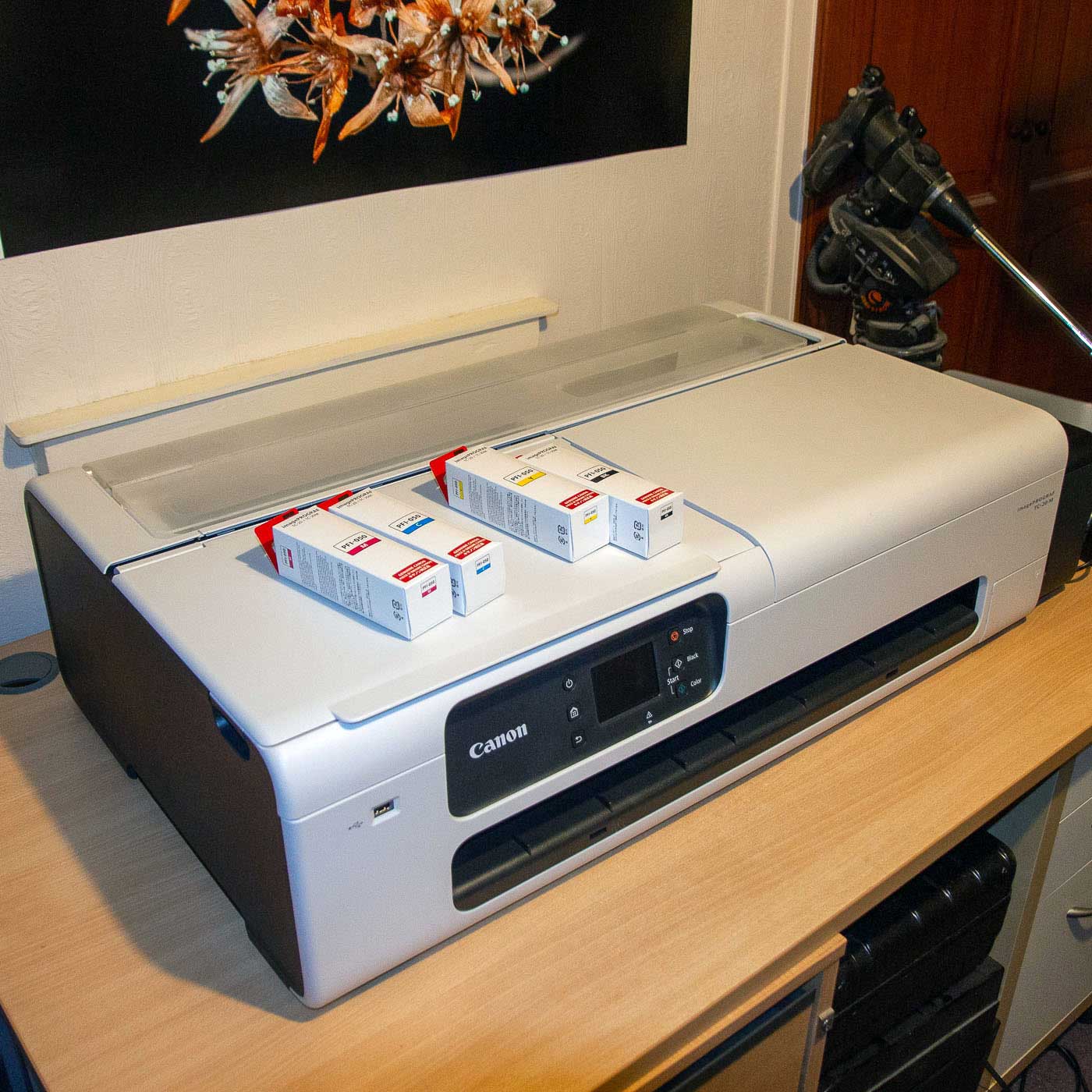
You can see the four inks, which come in 70ml bottles.
Canon TC-20M printer features
The full specs are at the foot of this article, but Canon advertise it as an office/small business printer, and nowhere push its photo printing abilities. Now, with just four inks, it might easily be dismissed as not good enough for ‘serious’ photo printing.
However, I disagree – with good paper and profiling it is capable of producing very acceptable large photo prints – several of my videos look at just this aspect.
Here’s how Canon promote it:
The Canon imagePROGRAF TC-20M is a large format, compact, and sustainable 24” desktop printer. With versatile functionality for small offices, retail shops, schools, and other industries. It is designed to be easy to use. With a user-friendly interface and a variety of features make it ideal for a variety of applications.
It features a bottle fed continuous ink system. With easy to recycle large 70ml plastic ink bottles that reduce refill frequency and can be recycled in your normal waste. Rather than sending back to the manufacturer in the post as they feature no chip so simply dispose of them locally. It features a built-in A4 flatbed scanner with 1200×2400 dpi resolution. Therefore allowing you to scan A4 size documents and produce enlarged prints. The printer also has USB direct print and scan functionality, so you can operate it without a PC.
- Features an A4 flatbed scanner equipped with the enlarge, copy, and repeat functions. This helps to produce outputs, such as flyers, customized wrapping paper, and instructional materials.
- Easily set up rolls with the shaftless roll holder and continue printing without intervention using the built-in automatic sheet feeder. Print via USB without a PC and create large format prints with intuitive and easy-to-use scanning features.
- Meet your sustainability goals with an easily recyclable 70ml plastic ink bottle, less packaging, and less energy consumption from an EPEAT Gold rated device.
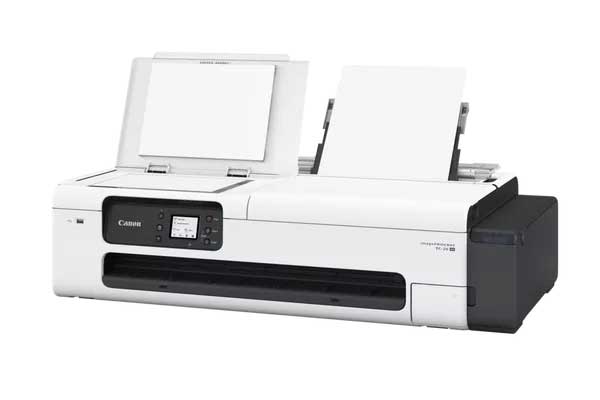
Here’e the Canon TC-20M printer with sheet paper [A3 max] and the scanner.
Options for the Canon TC-20M printer
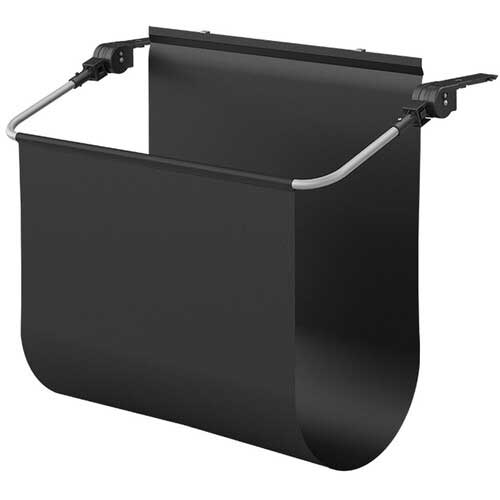
The printer I’m testing has the print catcher cloth attached. The bar is hinged and has attachments which fit under the front of the printer.
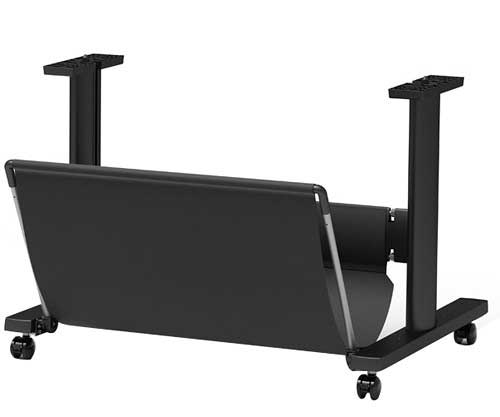
There is also an optional stand.
Would I actually pay extra for either of these? Depends a lot on how much use you think you’ll give them ;-)
Here’s the space required according to Canon
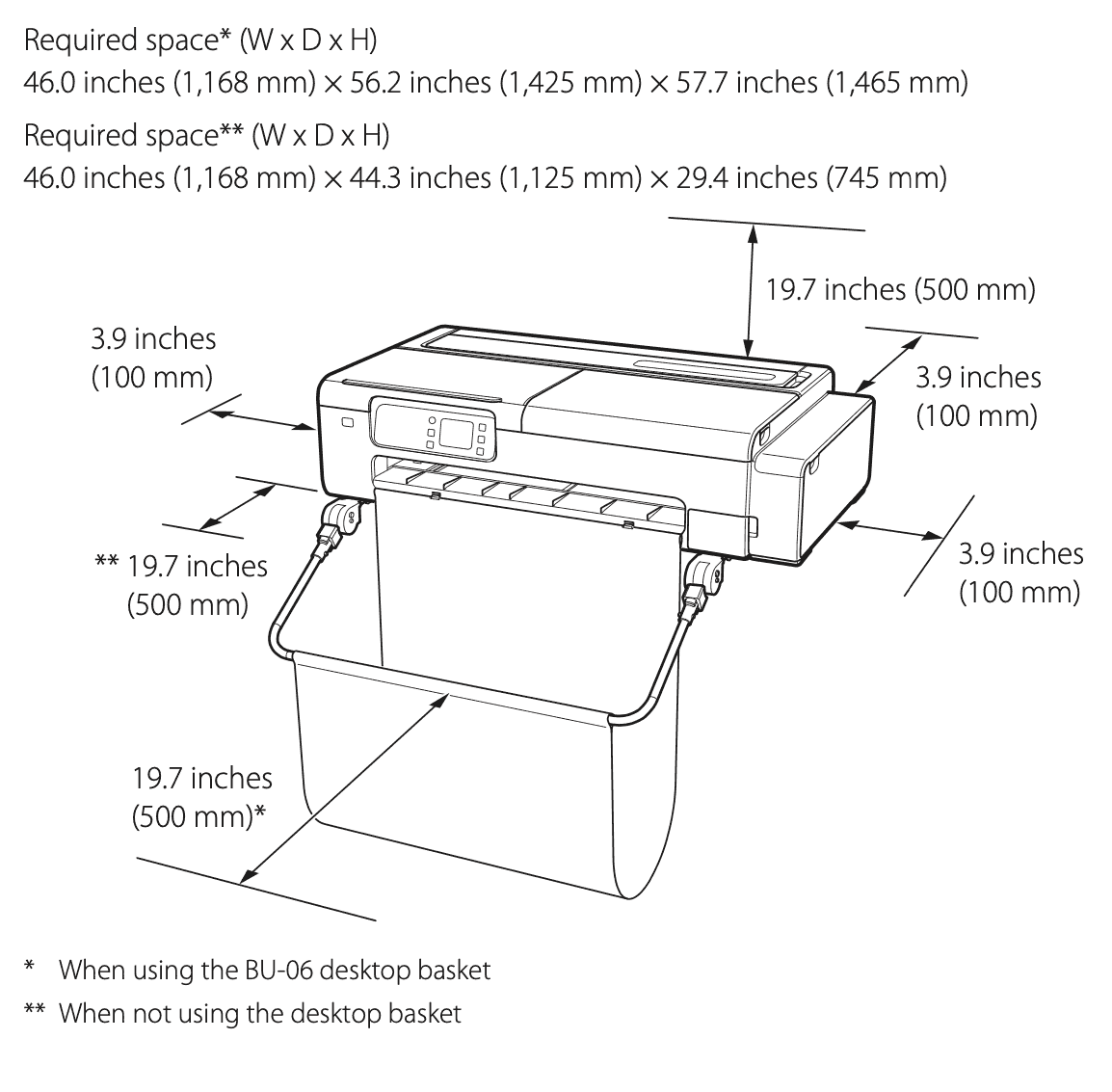
Setting up the Canon TC-20M printer
The printer comes with the following:
- Documentation
- Setup ink bottles
- Power cord
- Print head
Whilst quite bulky the printer is easily moveable. If moving with ink loaded, take care not to tilt the printer. I’d want two people to shift it any distance.
Canon lent me the printer to test, it had already been set up, so I can’t cover the print head installation and ink loading. From setting up other Canon printers over the tears, this is a pretty straightforward process.
There are some very good software guides – follow the instructions and resist the temptation to assume you already know all this stuff…
One thing to note is that you will need some roll paper to set up the printer. Once installed, the print heads need aligning [an automatic process] but it can only be done on roll paper. Head alignment is worth doing every so often if you use the printer a lot for high quality printing – I’d set a diary reminder for an annual check at least.
The Canon TC-20M printer controls and screen
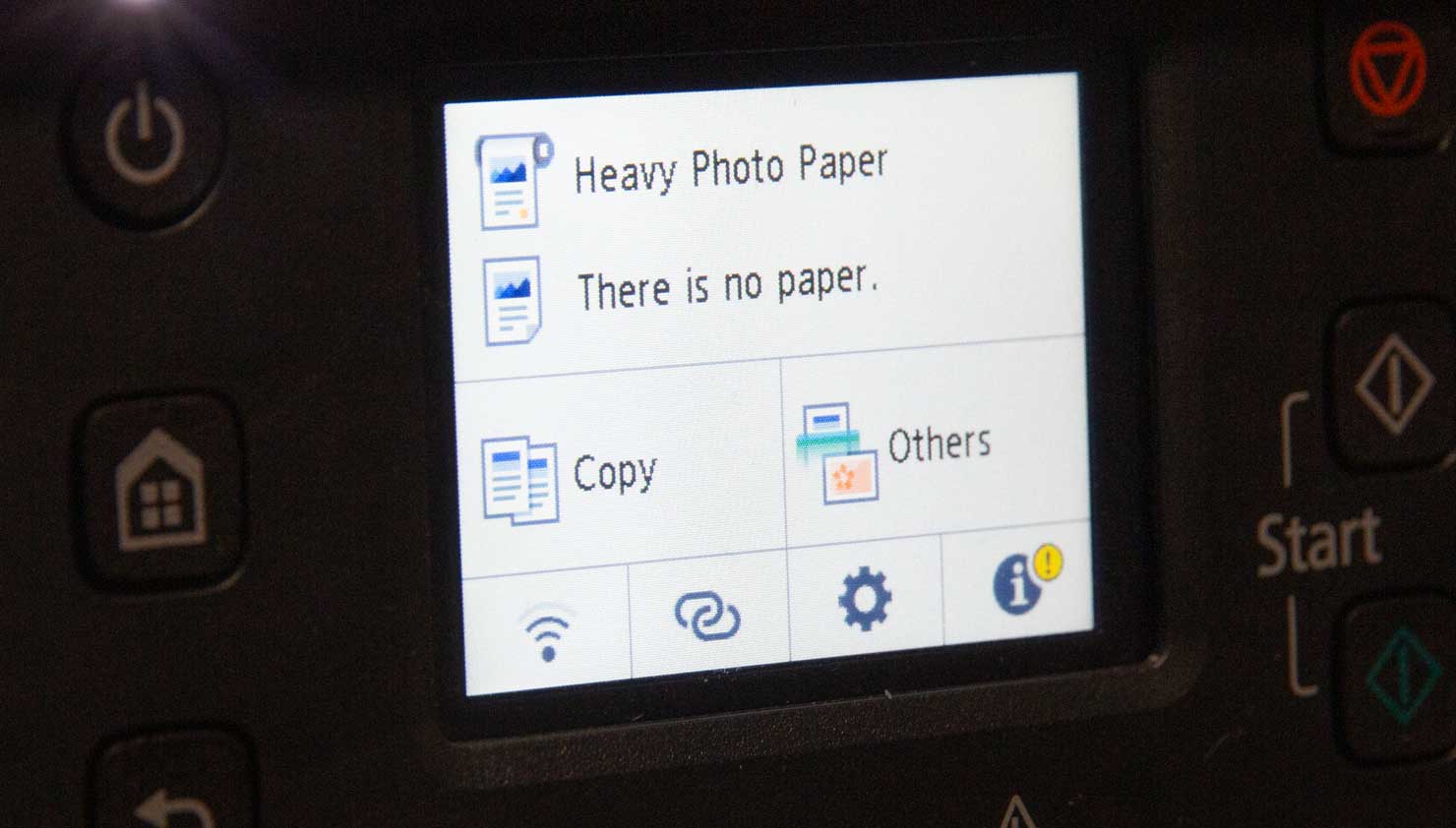
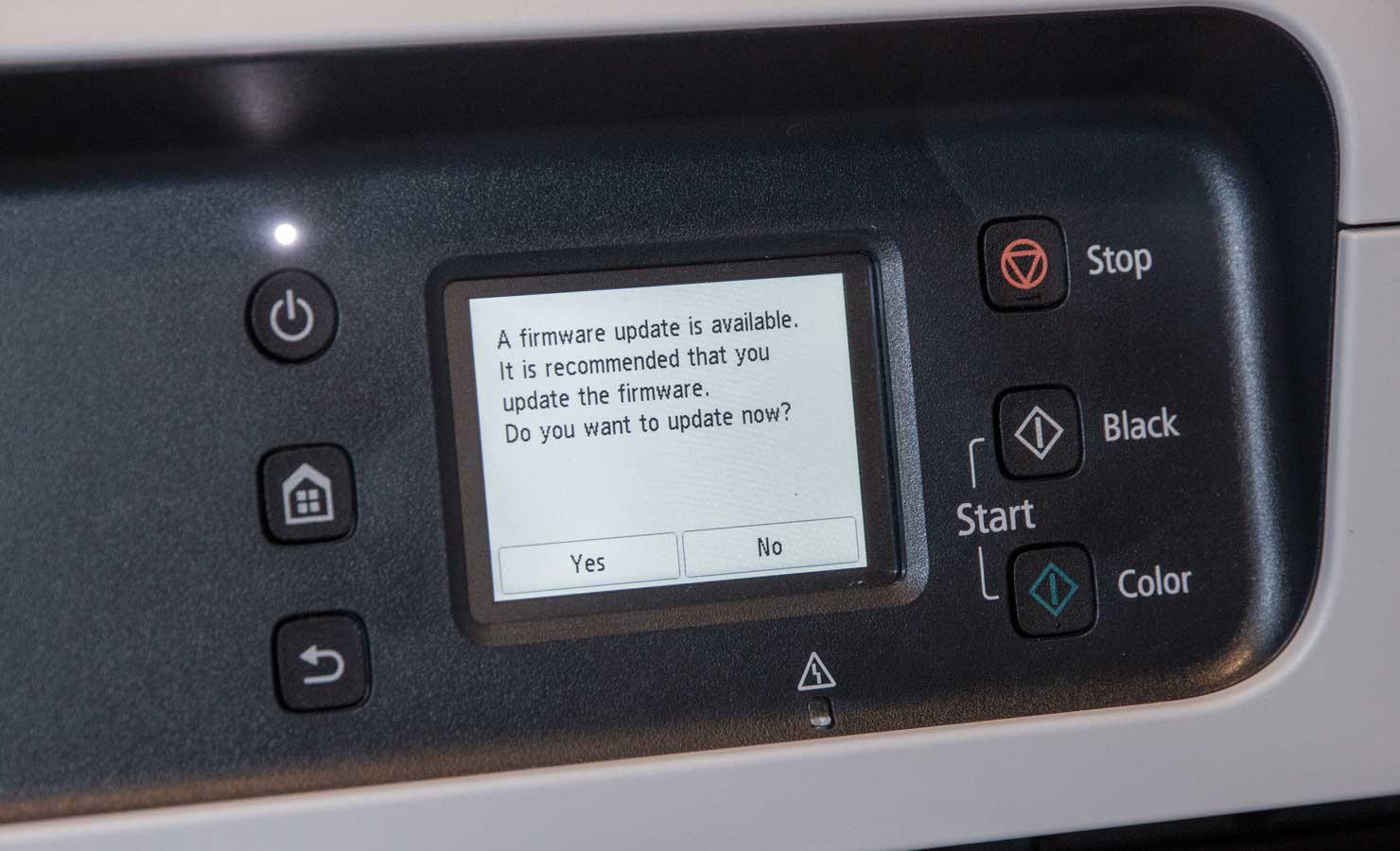
The front panel is recessed with just a few buttons. Info is fairly clear to read.
Here’s when it noted there was a firmware update available [it’s almost always advisable to accept these].
As with many images in this review click on the image to see a larger version
The controls design – in fact, the whole printer design ethos reminds me of when I used to use mini-computers in the 1980s. I could see it sitting alongside replaceable disk packs and my old PDP 11/44 [or even the 11/34a I had here for quite a while].
OK, that’s just me… However I do have an actual complaint. The touch screen can be decidedly irritating for anything beyond the simple yes/no buttons above.
When trying to select from lists it was far too easy to make incorrect choices. Some active touch areas are too small and close together in some cases. My fingers are quite slender and still I kept getting the wrong things happening. Those up/down arrow symbols are very tricky to hit.
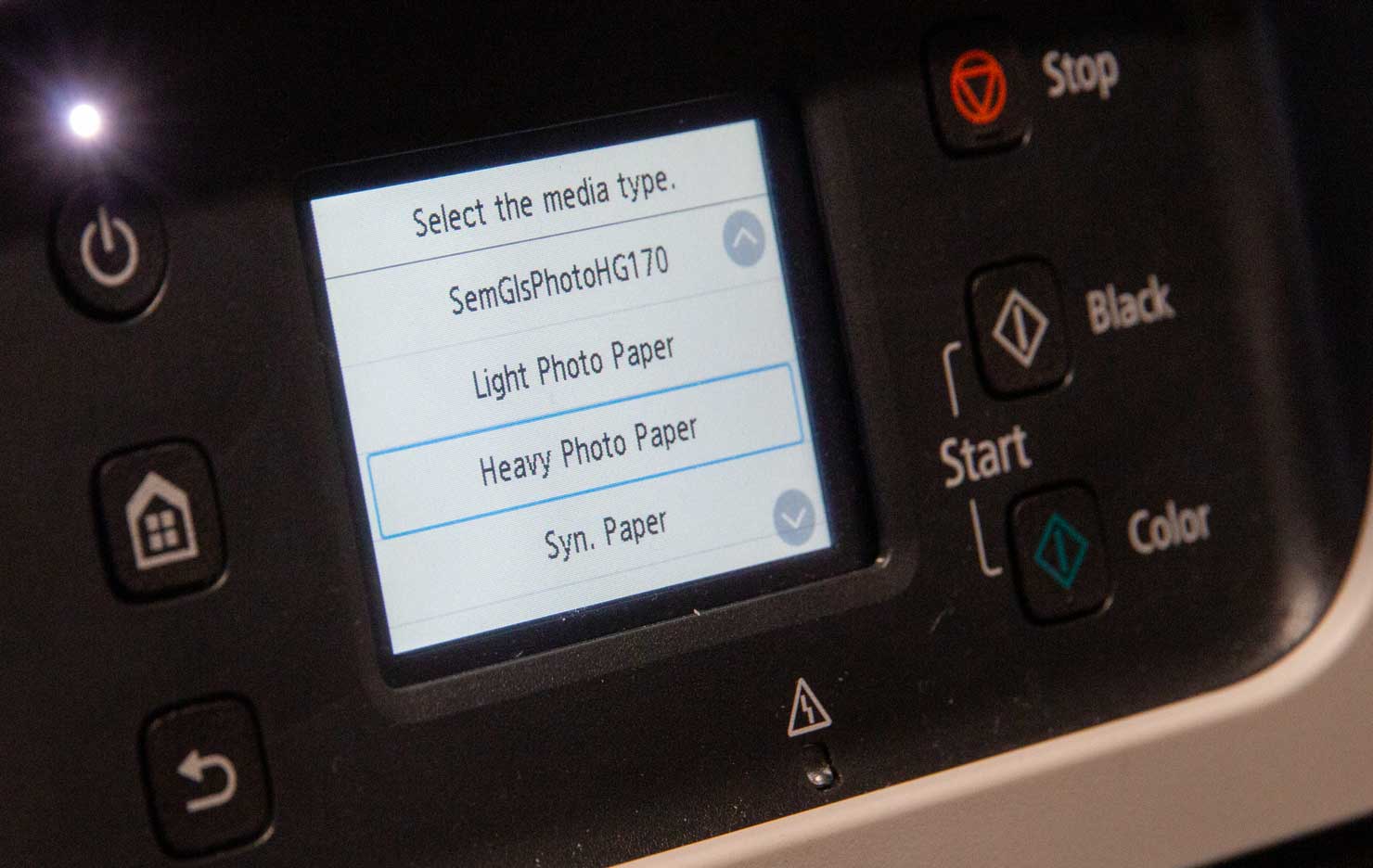
The screen is perhaps just too small, but I suppose that’s one way this printer hits the price point it’s at.
Connectivity
The Canon TC-20M printer accepts connection by wireless, Ethernet or good old USB.
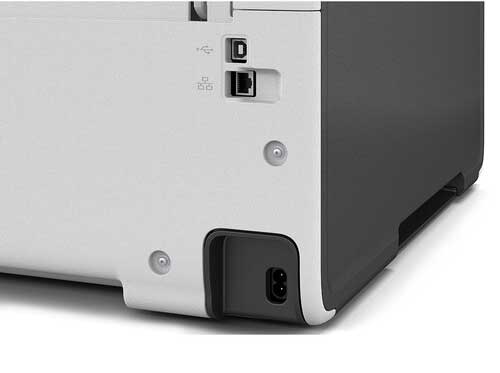
I connected it via our wireless network which was fairly easy from the front panel. Just be prepared for a lot of errors if your WiFi password is a good mix of character types. Yes, I did call the printer some choice names as a result of having to use that touch screen ;-)
However, it would have been a lot easier if setting up a brand new printer, where you should fire up the ‘Master setup’ software
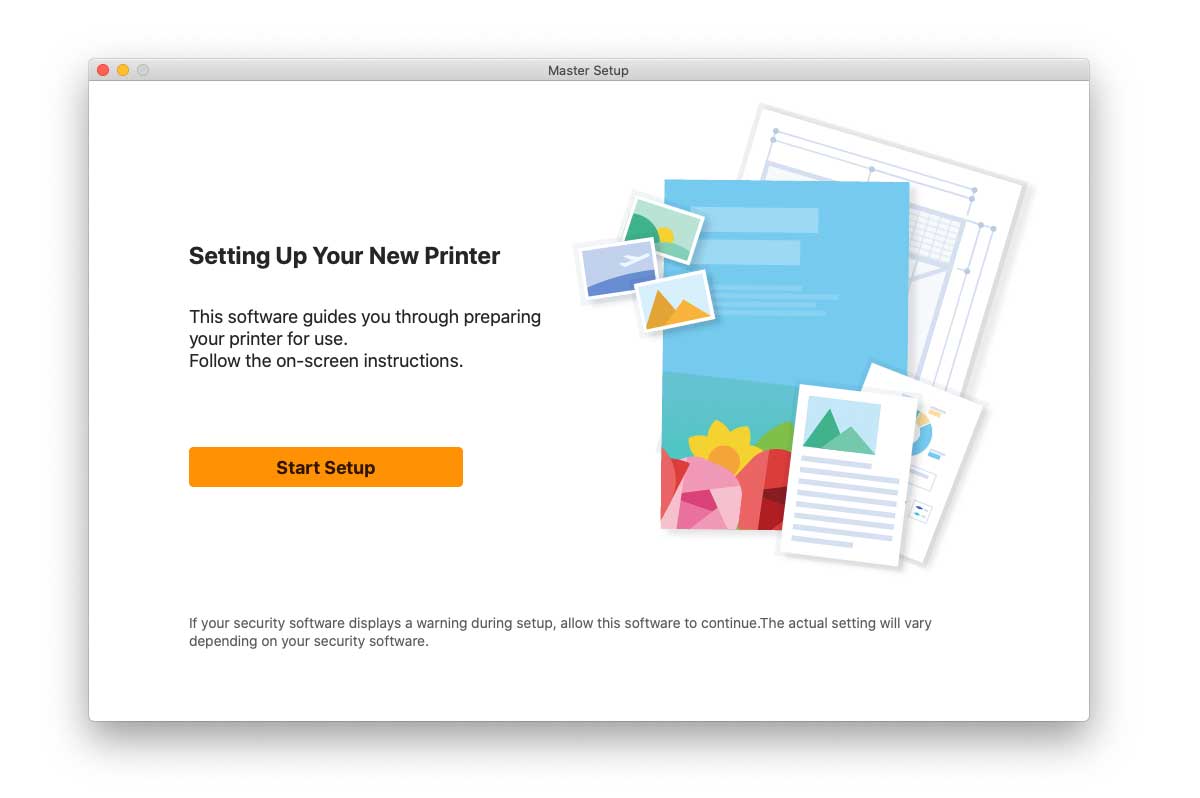
All goes well with my installation until I get to adding the printer to my computer’s list of printers.
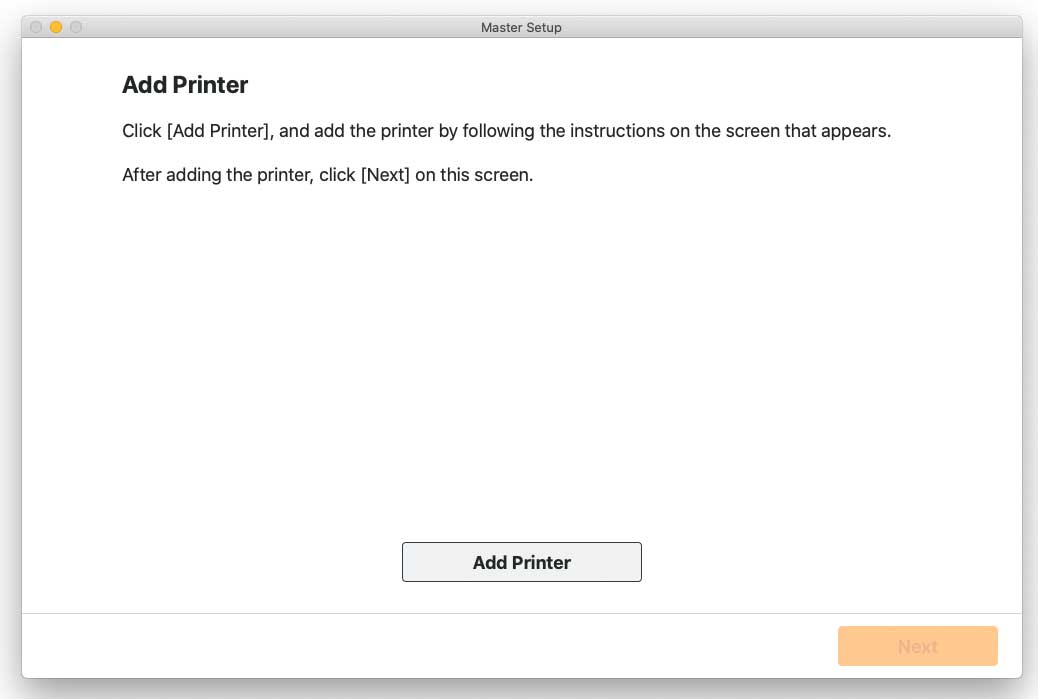
This is where you get to be able to use the printer. Here, I’ve got the list of printers the software can see [and the guidance notes in the background].

Now, I’m using a Mac here and I’m always prepared for issues at this point [Win PC users can skip the next section ;-) ]
The Mac ‘AirPrint Problem’
If you accidentally install the airprint version of the printer driver, you’ll find you get printer driver settings with ‘stuff missing’
The AirPrint driver [secure or otherwise] is a simplified interface, useful for nothing whatsoever [IMHO]
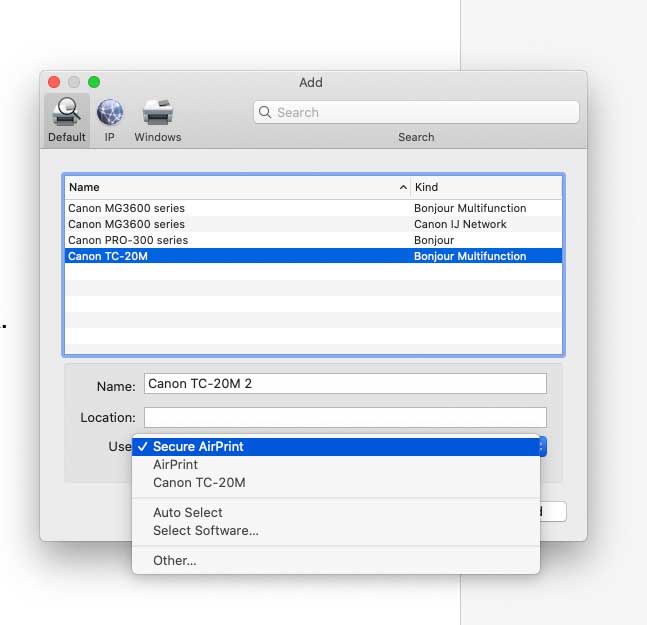
When setting up the printer I was careful to avoid any driver options with ‘AirPrint’ in the name.
The problem is that it’s easily selected as a default. It offers a simplified interface, and has over the years been a common source of ‘where have my printer settings gone’ queries on forums.
Here, I’ve selected the correct version.
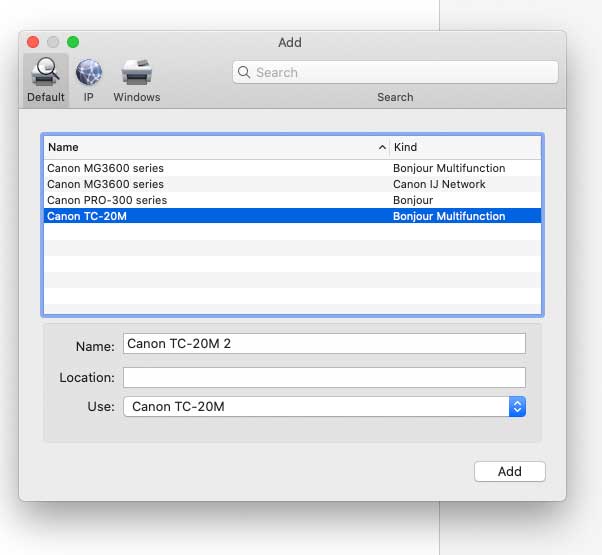
Why “TC-20M 2”? This was my second go after accidentally setting up the AirPrint driver – you can change the name.
The driver offers the usual info and utilities
Or you can see them in a browser…
Canon TC-20M printer web interface
The printer has its own web page which is good for going through various settings and options. It’s accessed on my Macs from the printer driver settings (I added a bookmark in my browser for convenience).
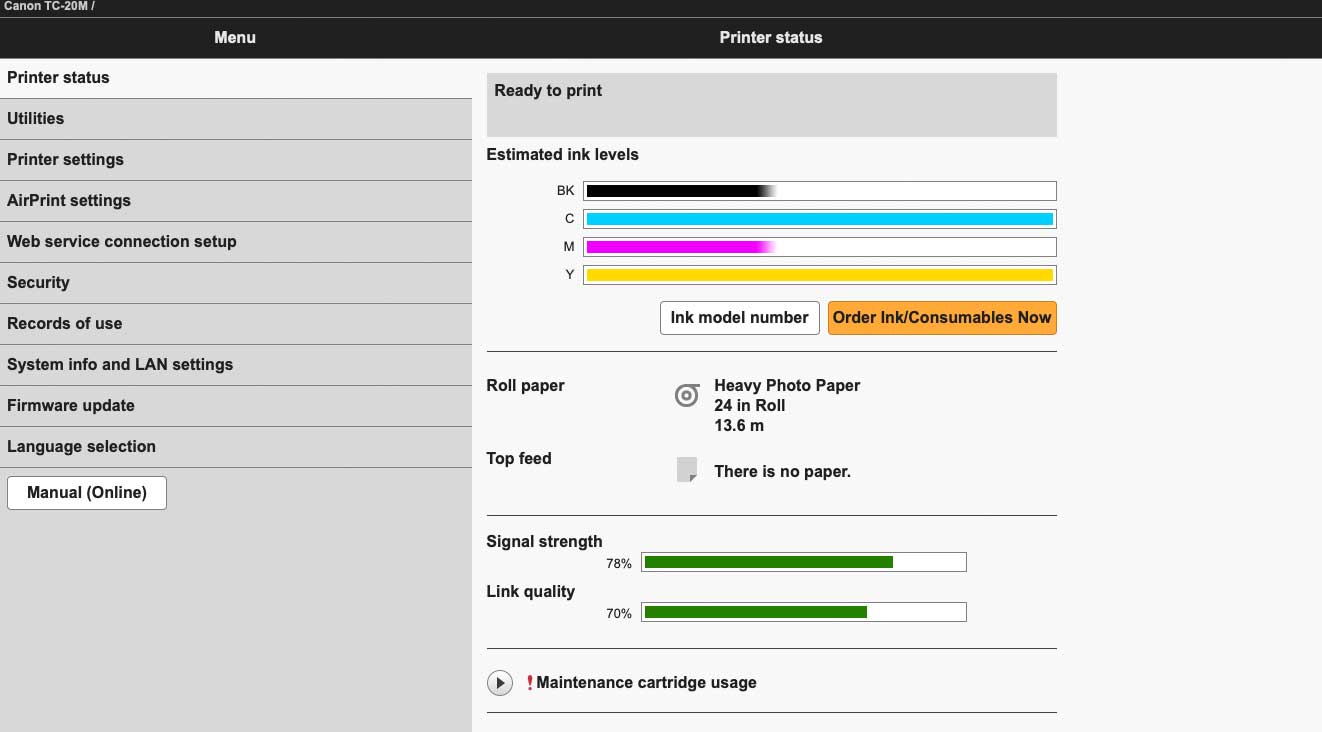
Most of the front panel options are available, along with vast amounts of technical network and comms stuff. So obscure that even here, there isn’t space to cover it.
You may find a password is needed – this can be set/deleted from the printer itself.
Ink replacement
A warning appears when ink is low – this can safely be ignored for a while.
However, unlike with ink cartridges, there is no risk of throwing away unused inks.
So, if the printer asks for it, top up the tanks. Just follow the on screen instructions.

Bottles for the Canon TC-20M printer contain 70ml of ink
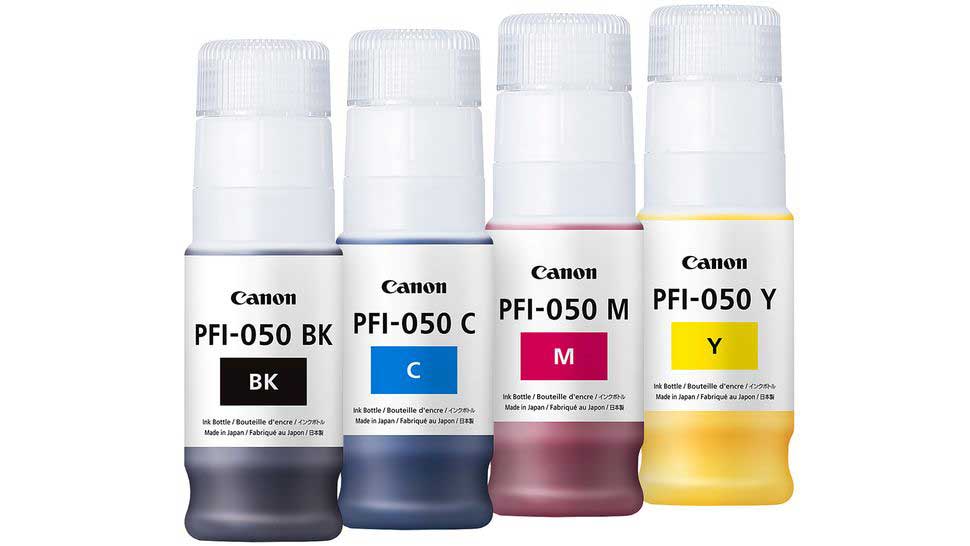
The ink fill points are under a cover

Lift the tank cover for access
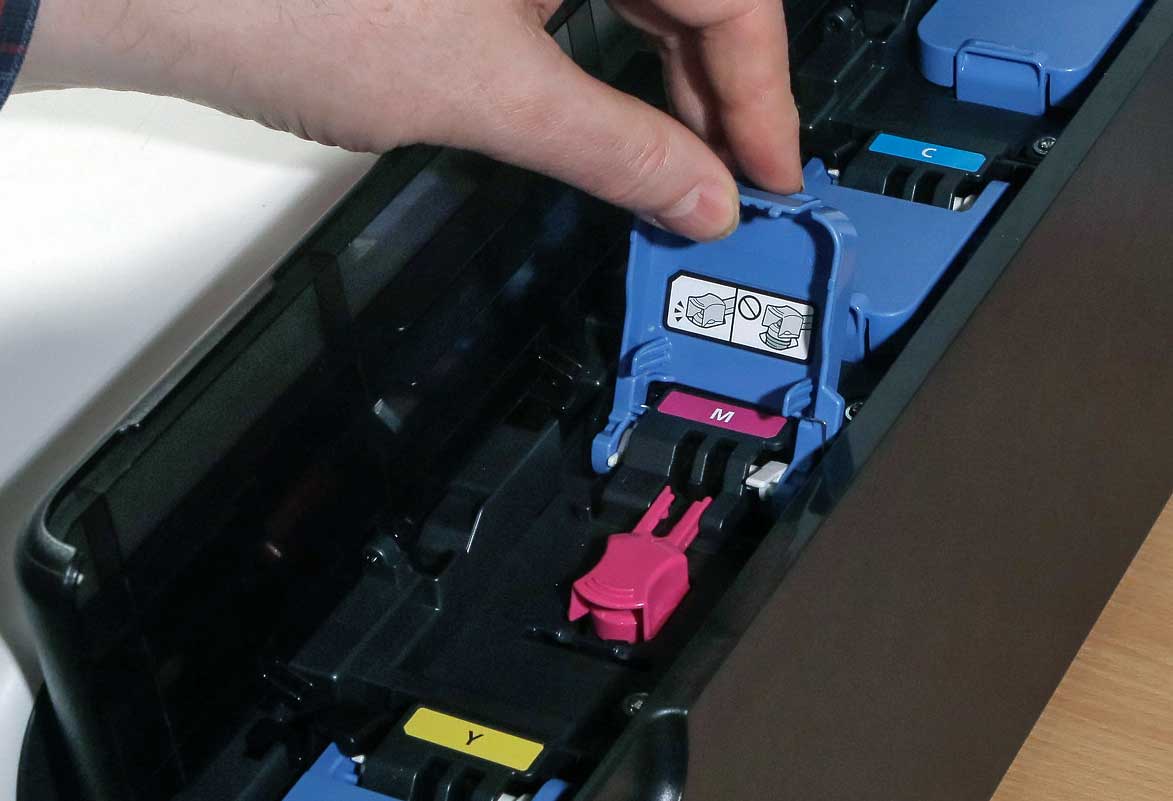
A second tank seal gives access to the fill point
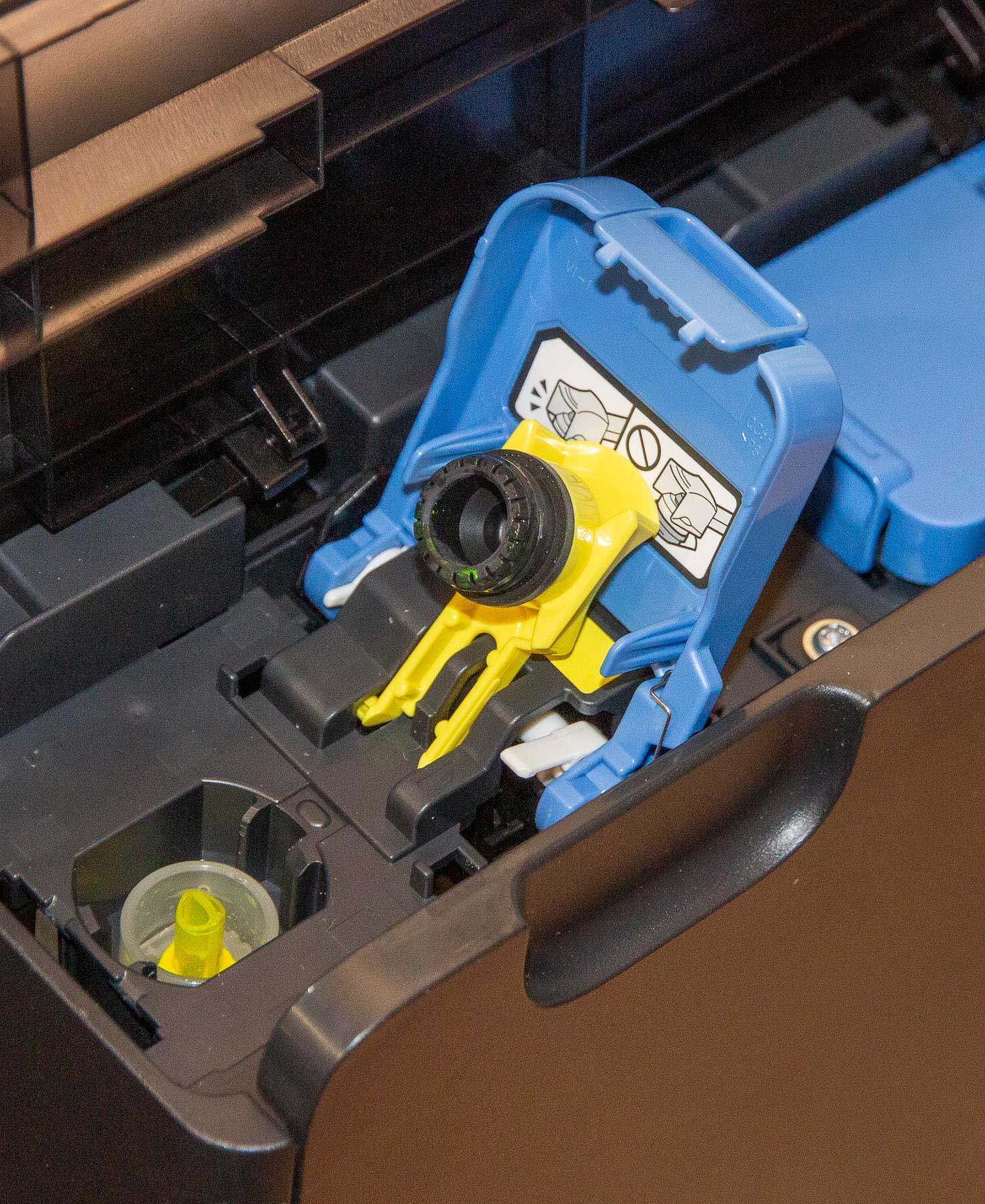
The individual bottles are keyed for each colour – they won’t fit in the wrong fill points.
There is always a feeling that ink bottles will ‘drip’ when inverted to fill – this does not happen, since they have been designed specifically for this. I knew it, but still the first time I had to top up a tank I had the concern…
Don’t squeeze or otherwise try and assist the fill process, The tank won’t over-fill. Unused ink can be kept.
How many prints from the ink bottles?
Here’s something I’m often asked but I can’t answer. I just don’t print enough prints of the same size to get any reliable data to analyse.
Quite a lot I’d say ;-)
That said if you wanted to make use of the ability to print banners up to 13 feet long, You might well find the ink tanks are still costing similar amounts to some larger desktop printer rather that what you’d pay for conventional large format printers.
Maintenance cart for the Canon TC-20M printer
There is a replaceable maintenance cart to dispose of inks used for head cleaning.

It’s behind a panel next to the ink tanks.
It’s also used for flushing out the fluids in new print heads when setting up the printer, so the first one will fill up sooner than subsequent ones. So, when you buy one for the printer, don’t bother getting a spare until the printer starts warning it’s nearly full – this goes on a long while BTW.
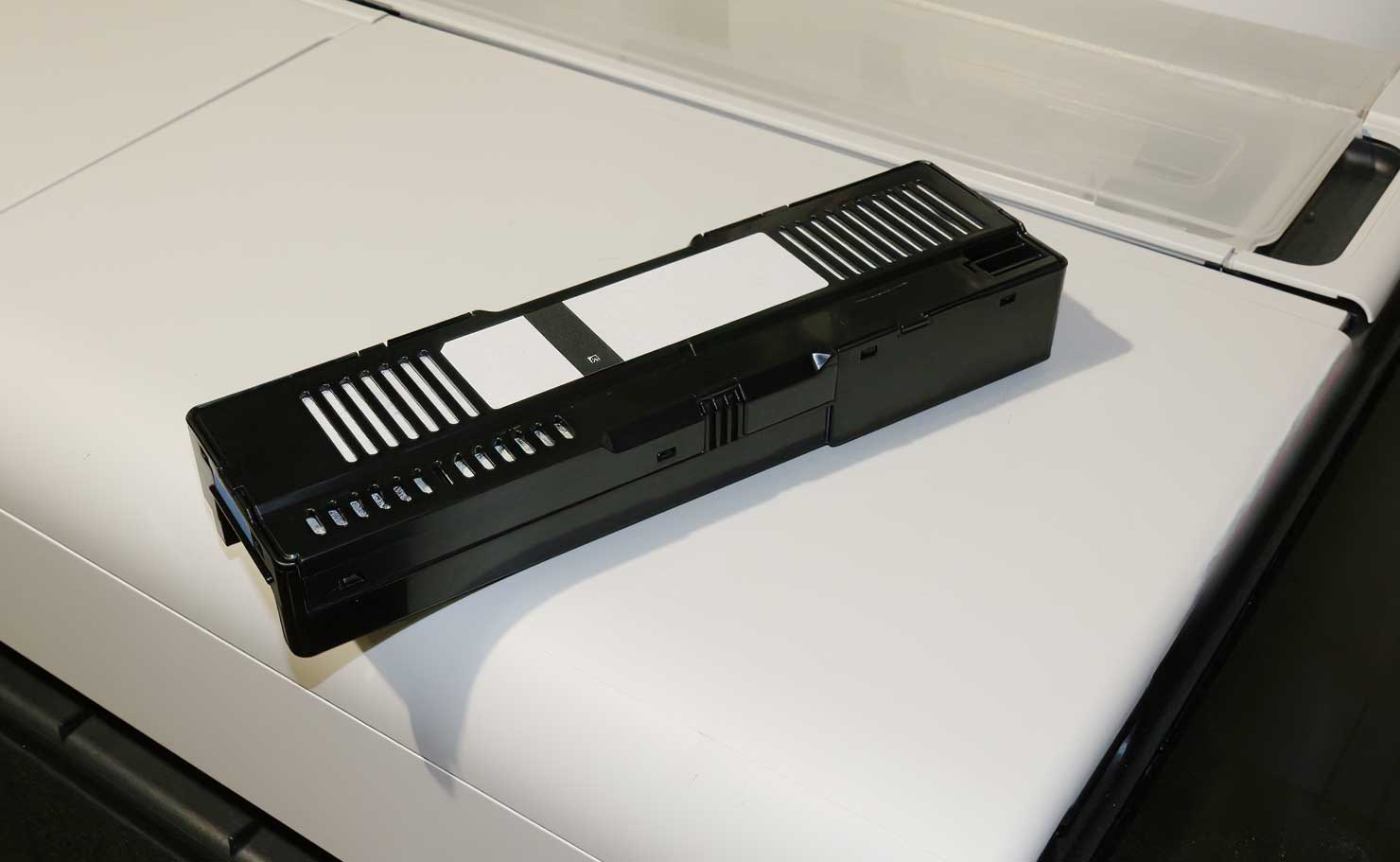
When I did replace the cart, it weighed some 71g more than the new one – my suspicion is that it could have gone on for a while longer. If I’d continued ignoring the warnings.
How fast is the Canon TC-20M printer
Slower than most large format printers I’ve looked at.
Using a coated paper, an A1 sized print took some 6 minutes at normal quality – going for ‘speed’ generally halved the print times
I was mostly printing photos or higher quality artwork – if you’re printing CAD drawings or plans the printer is decidedly faster.
A4 photo prints took just over 2 minutes, but go for the highest quality and a 24″ x 36″ photo print took around a quarter of an hour.
Whether high speed or high quality, the printer was somewhat quieter than many a large format printer I’ve tried – perfectly fine for an office.
Scanning
The scanner is a reasonable quality flatbed scanner and the 1200x2400dpi resolution means that copying an image and enlarging on to roll paper is quite feasible.
You can scan to a USB stick, or in this example I used an iPad to scan and then print the image.
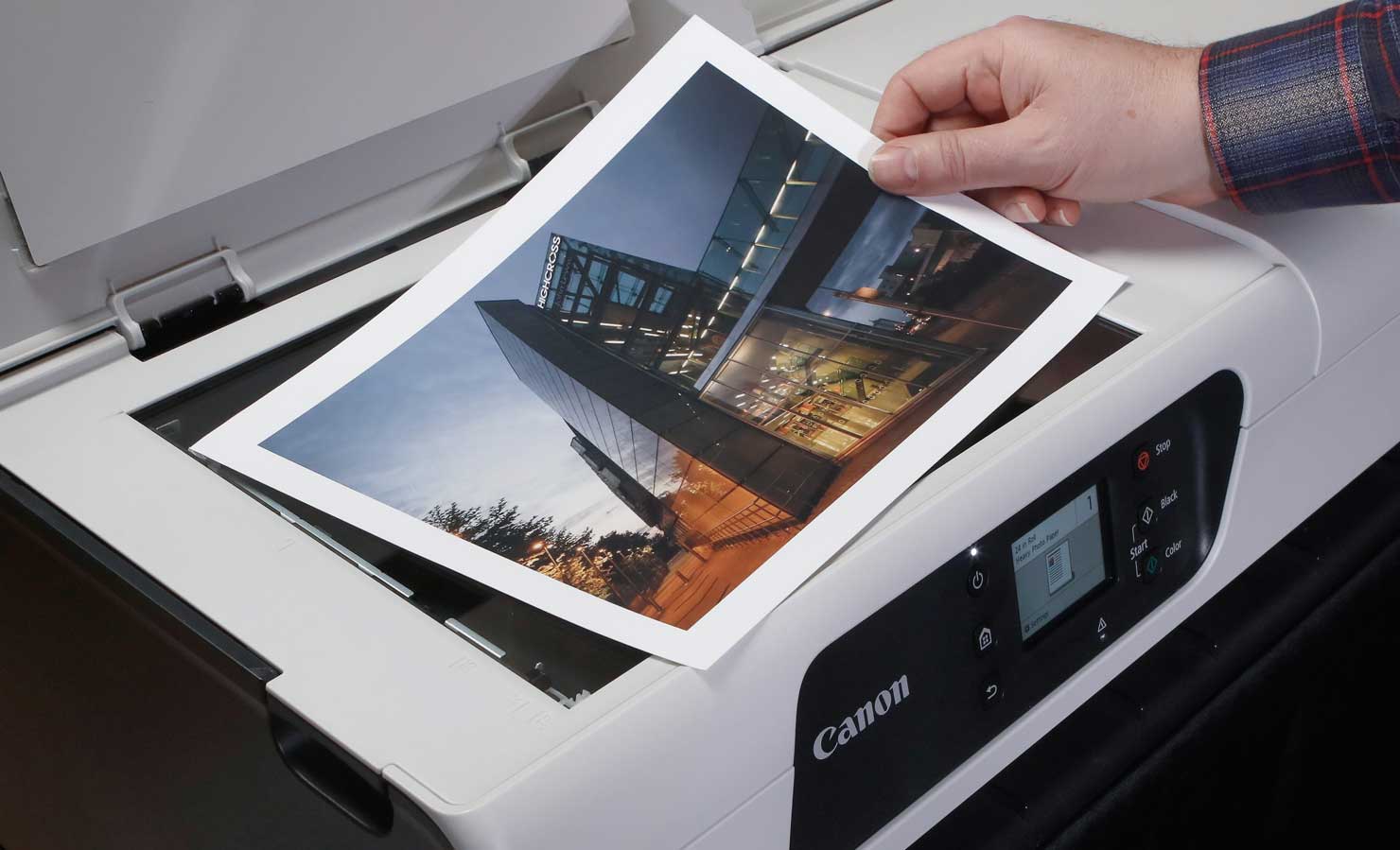
The picture I’m scanning – you position it face down and close the lid to scan.
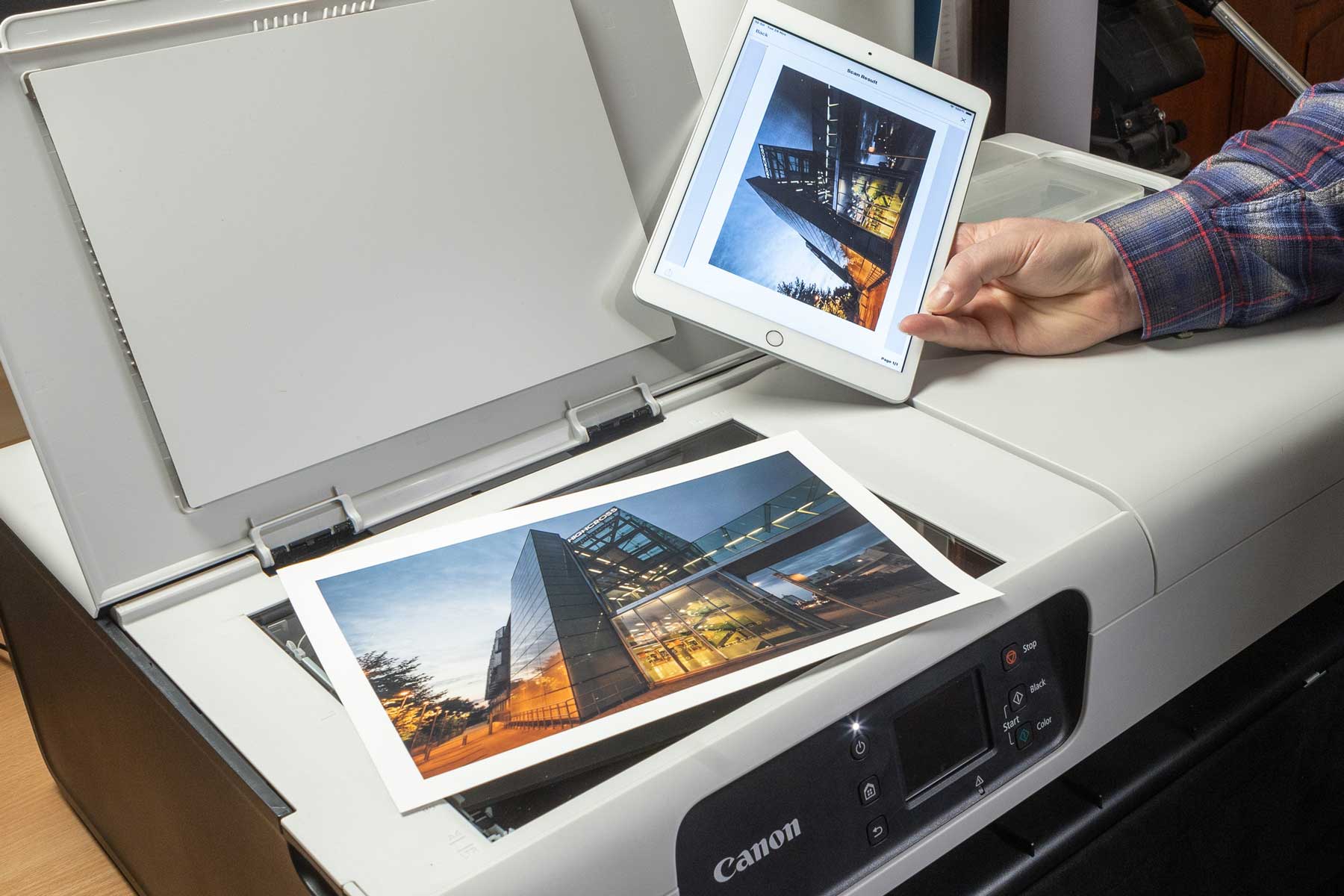
The scanned image on my iPad [using a Canon app]
I then printed the scan at 24″ x 36″
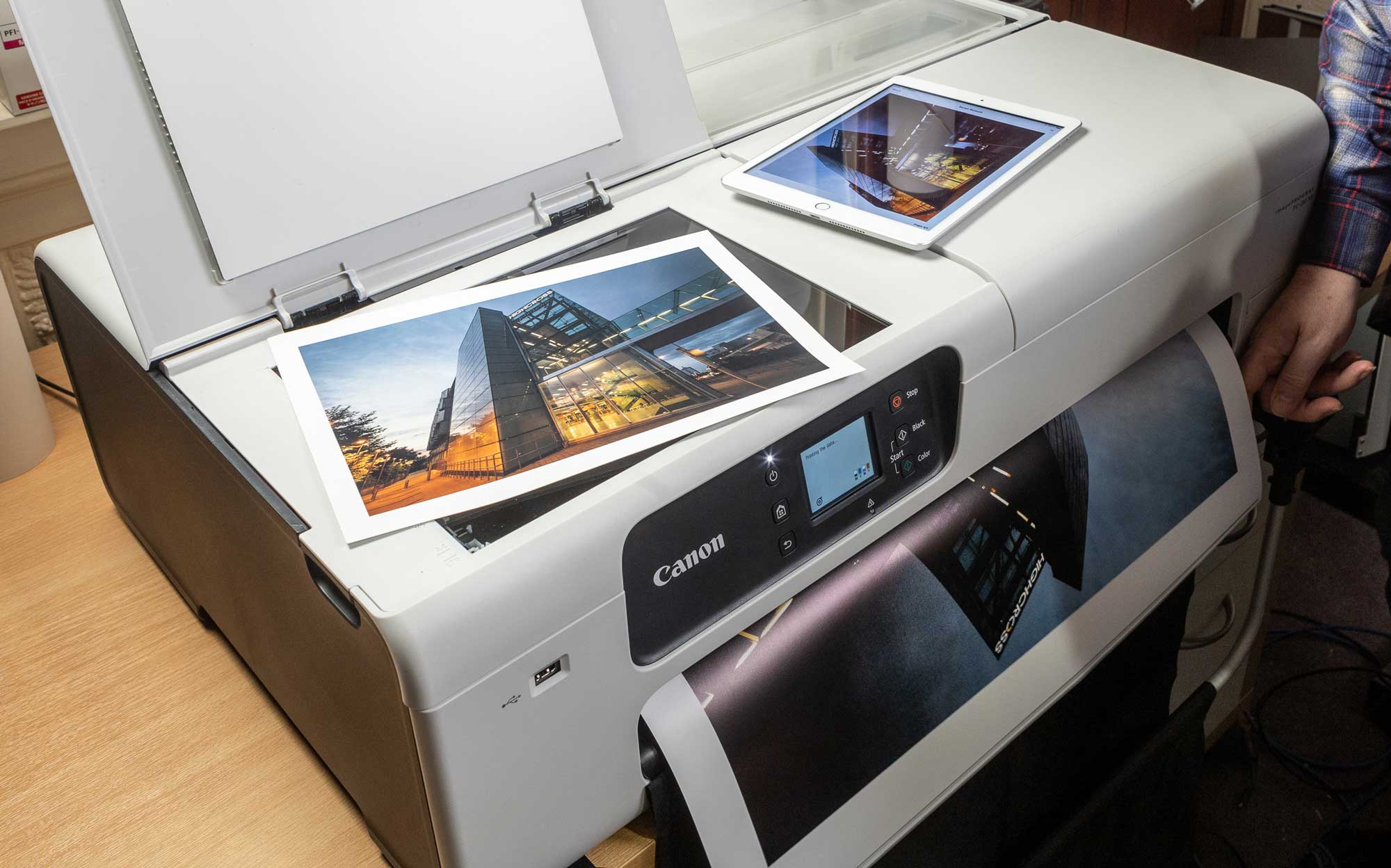
Checking the results.
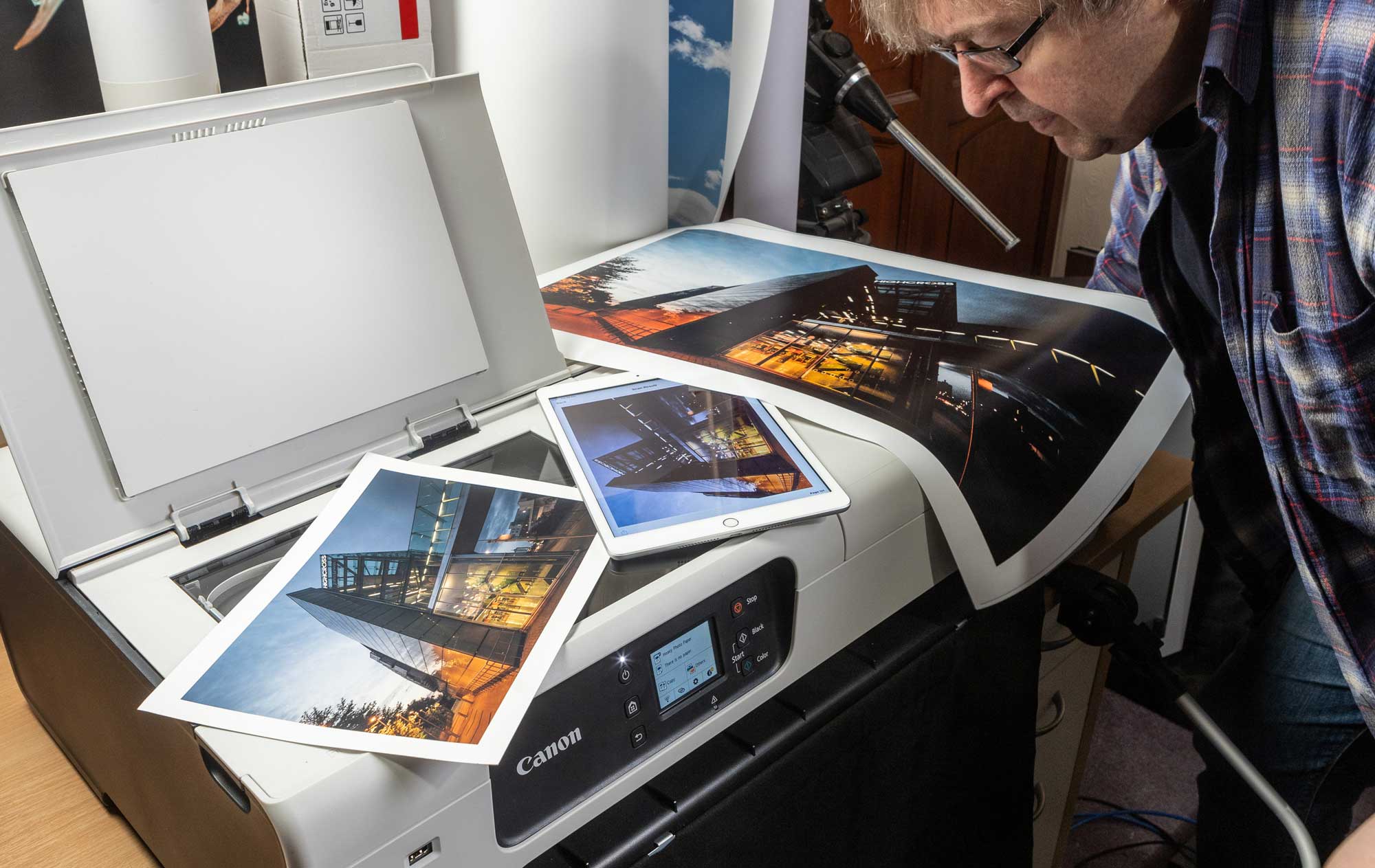
The scanner is actually quite reasonable, although I’d much rather scan and print from my computer, with working colour management, than use an iPad…
Canon TC-20M printer media handling
Pay careful attention to the media capabilities before you rush out to get a Canon TC-20M. There are some limitations which could come as an unwelcome surprise if you din’t read the fine print.
Roll media
Roll paper is very easy to load at the back – just lift the lid an put a roll into the holding slots
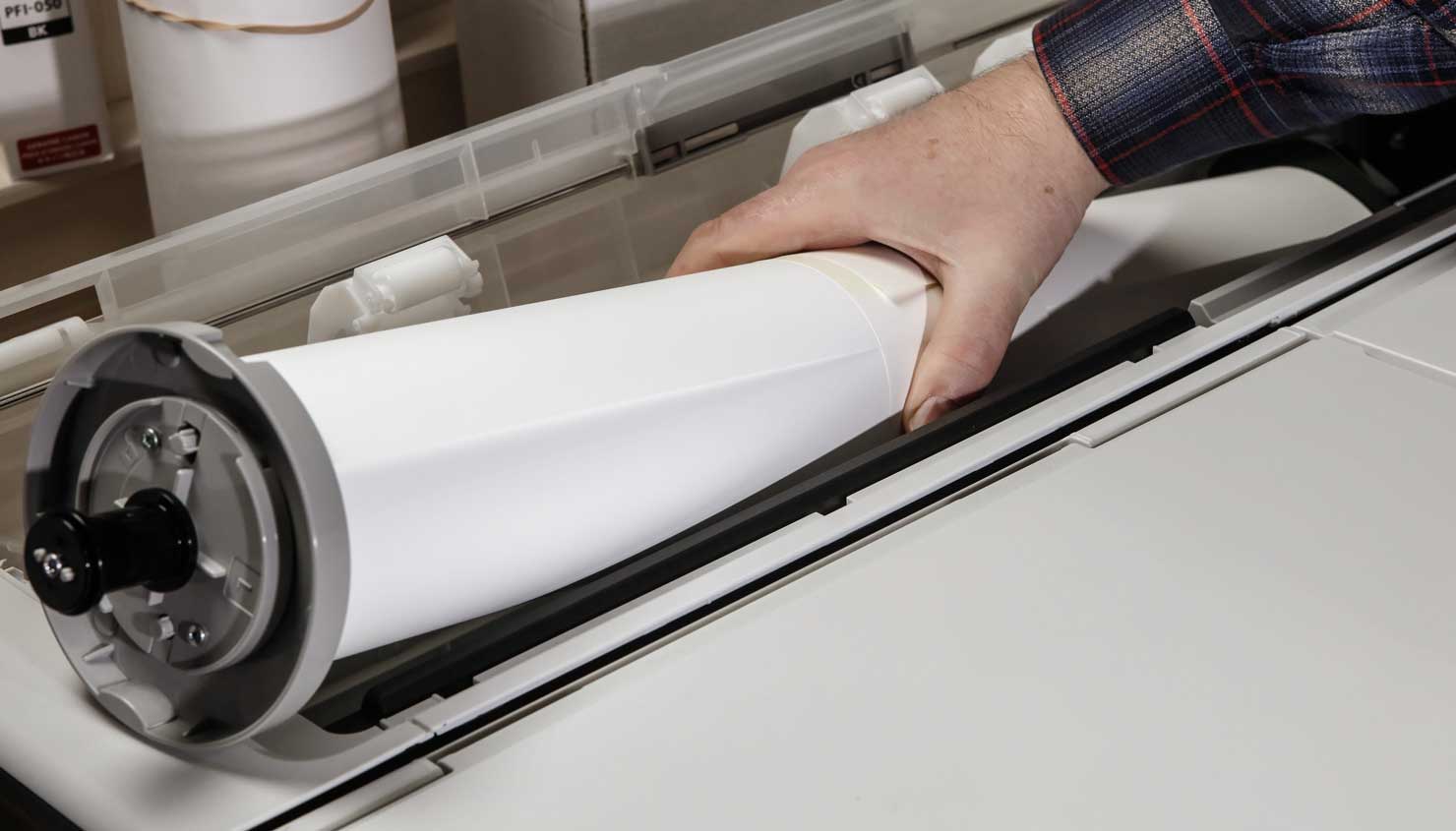
The paper edge is fed through until detected – note that you can have sheet paper and roll at the same time.
A few issues though…
The roll end holder is designed for 2″ core paper. 2″ core is not common with better quality papers, which tend to use 3″ core
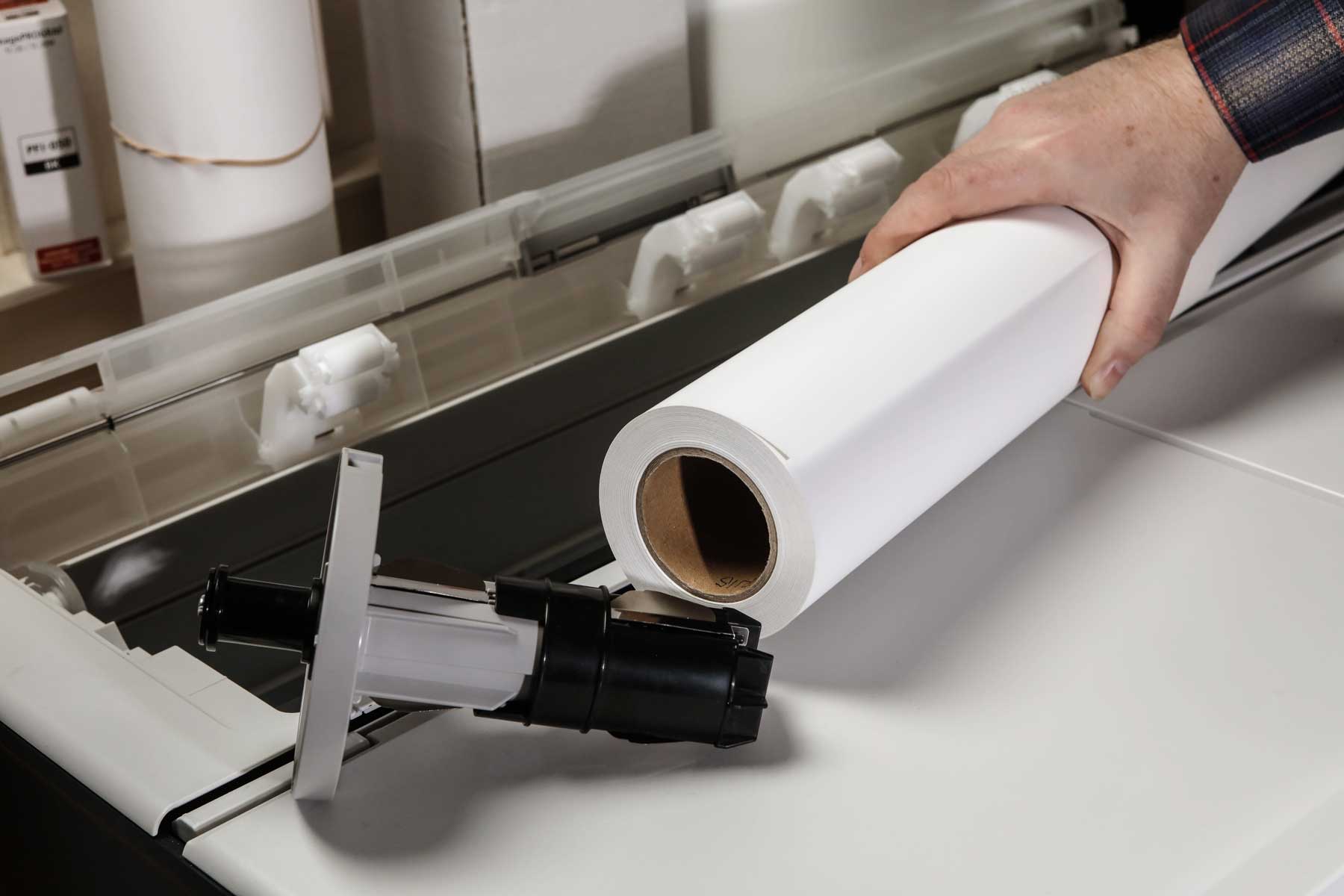
There is no paper spindle, so the normal adapter ring fix for this won’t work.

I’m sure someone will come up with a 3D printed fix for this, but until then you are limited to 2″ core media. You could also keep a used 2″ core and pad it out with some tape to fit snuggly into a 3″ core.
If you do use a 3″ roll just be aware that space is limited in the back of the Canon TC-20M printer, and you may not be able to fit a full 3″ roll of thicker paper into the printer until it’s had some paper removed.
Another issue is the limited range of roll widths supported, since you need to physically adjust the position of the left hand roll support.

Supported sizes are 24″, A1, B2, 18″, 17″, A2, B3, and A3 – no 13″.
However, there are relatively few better quality papers available in 13″ anyway.
Canon TC-20M canvas printing?
Not specifically supported. It should print if you can get it onto a 2″ core and it’s not too thick. I didn’t have any available to test this though.
I’d suspect the cutter is not up to regular cutting of canvas though. I’ve seen several printers with paper cutters warn against cutting canvas, since it dulls the blade and the additional cutting force can damage the blade transport mechanism.
Sheet media
The minimum width is 8″ and maximum is A3 [11.69″] so no small photo prints either.
There is no borderless print option, but you can stack 50 A3 sheets [100x A4]
The limit for thickness is 0.28mm, so thin card only – no heavier card stock I’m afraid
CD/DVD printing
The printer does not support this.
Canon TC-20M Software
There is quite a range of Canon software and mobile apps aimed at supporting this printer.
The iPhone app works well, but as with any mobile application, colour management is not at a level I’d expect if printing from a computer, with icc profiles and screen calibration.
Here’s an example printing a photo from my phone
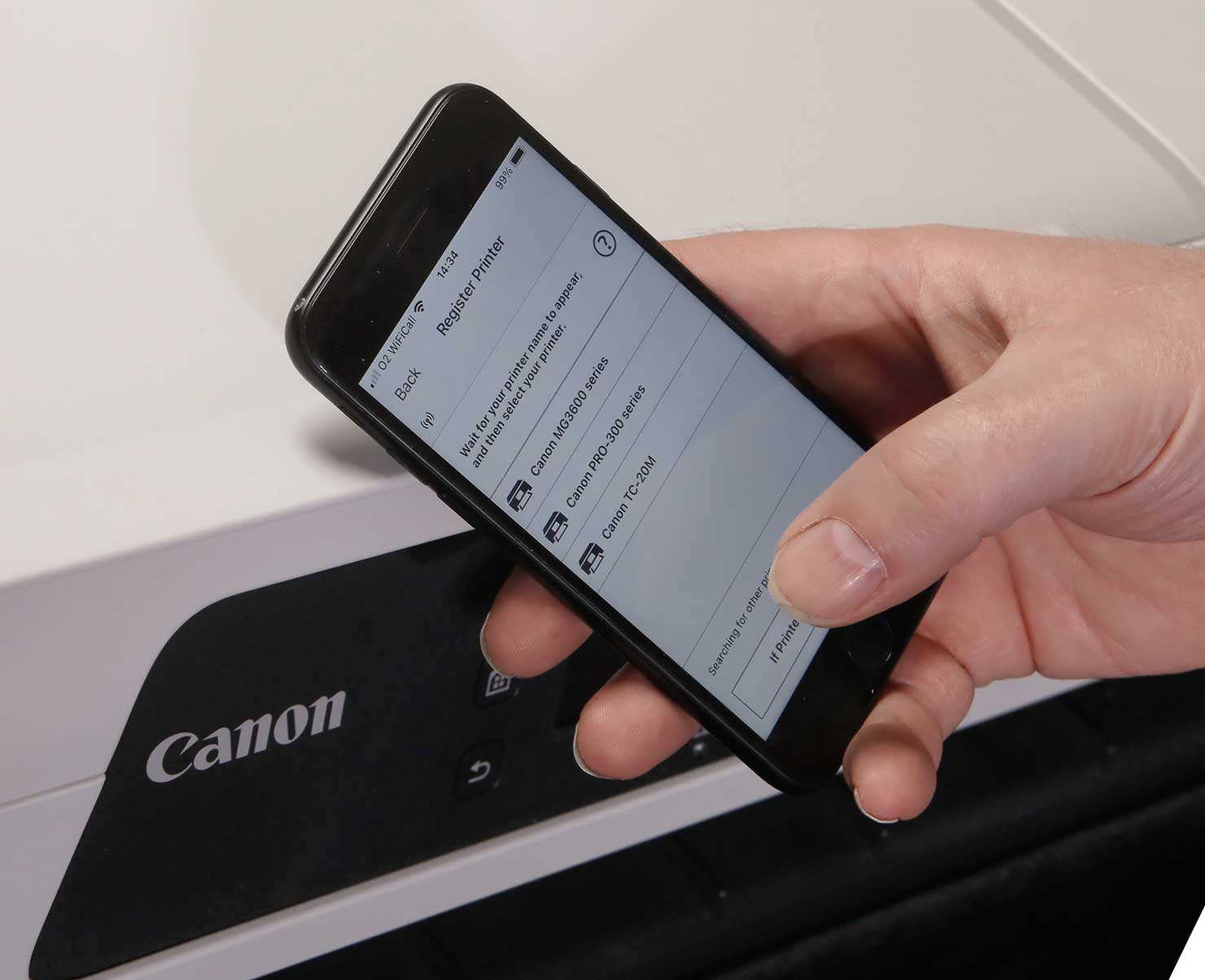
The phone finds the printer on my network.
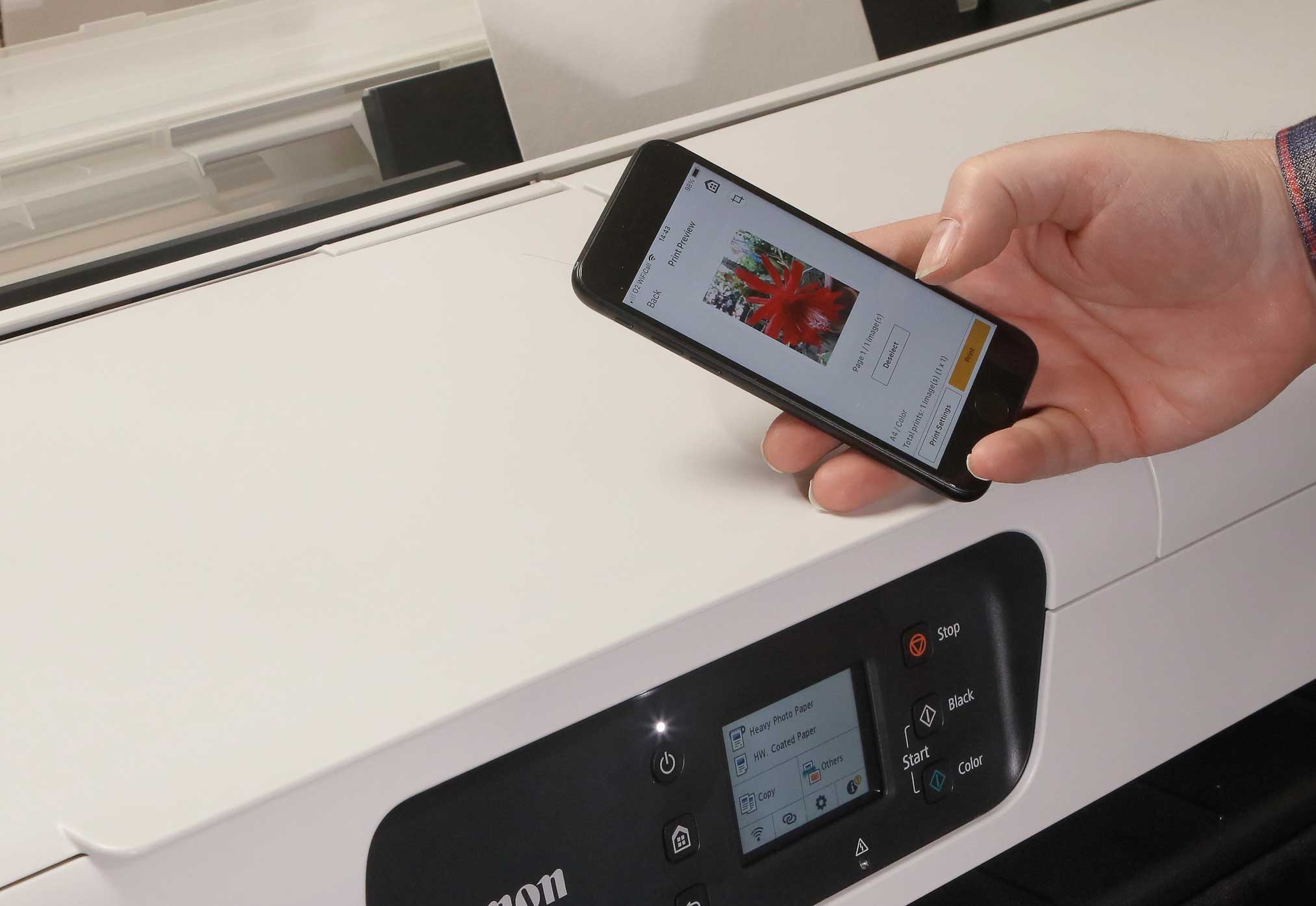
I select a photo from what’s on the phone.
Obviously it’s a phone so I’m missing all the editing/colour management features I normally use, but it works…
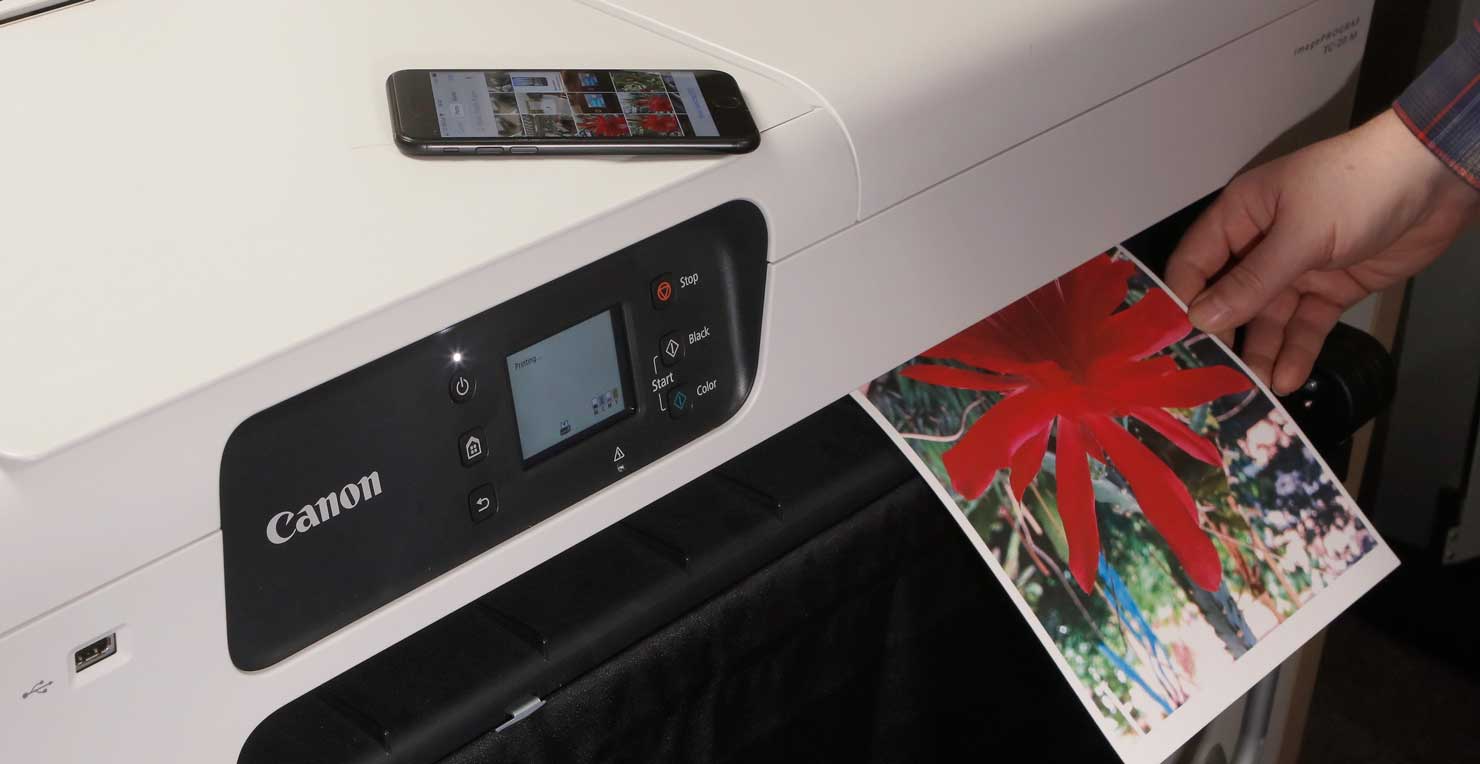
The print [a Cactus flower in our conservatory] is a tough one to print, especially on the thick art paper I’ve got loaded, but it works.
I always have to remember to try stuff like this since even though I’d never use a phone, my requirements, as a working pro photographer, may be somewhat more picky than many ;-)
Media Configuration Tool (MCT)
The Canon MCT is a relatively advanced feature that I’m used to seeing on higher end and larger printers.
If you’re curious, I have tested it with other printershave explored its use with the PRO-300 (it works just the same).
- Custom media settings for the PRO-300
- Using the MCT in my Canon PRO-1000 review
You can create your own media setting (which can include a default colour profile) based on an existing one, or you may be able to download a file from a paper manufacturer. These ‘AM1X’ files are intended to give all the information needed to print on a particular paper. This is something new for many suppliers and personally I still stick to using the plain ICC profile and the recommended media settings. Whilst I trust the accuracy of ones from Canon, others may be less experienced in getting optimal results from the system.
There is a pretty good guide for using MCT which covers the Canon TC-20M printer.
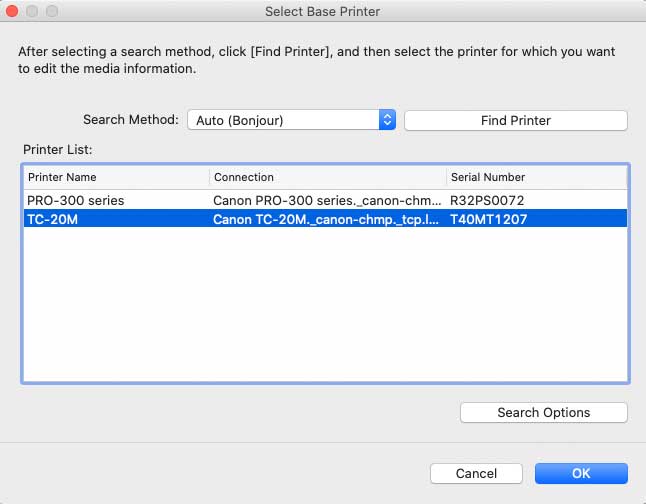
The software will scan your network for printers.
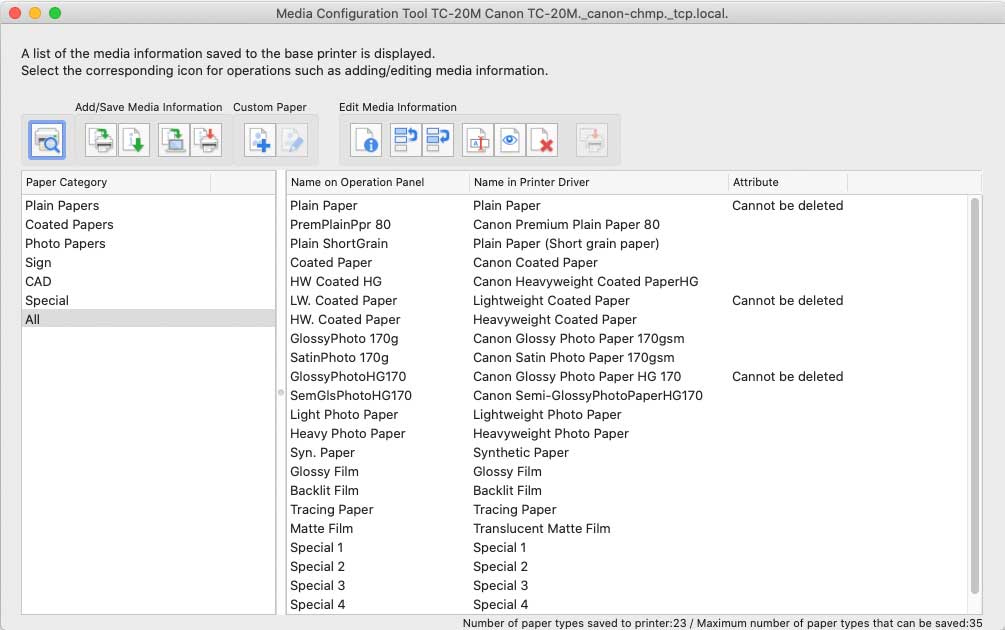
Here are the media types currently loaded.
I can create a copy of an existing media type for my desired new media.
Just be sure to give it a meaningful name, so you remember what it is when you see it on the printer display or print driver dialogue in six months time.
There are a lot of settings you can adjust.
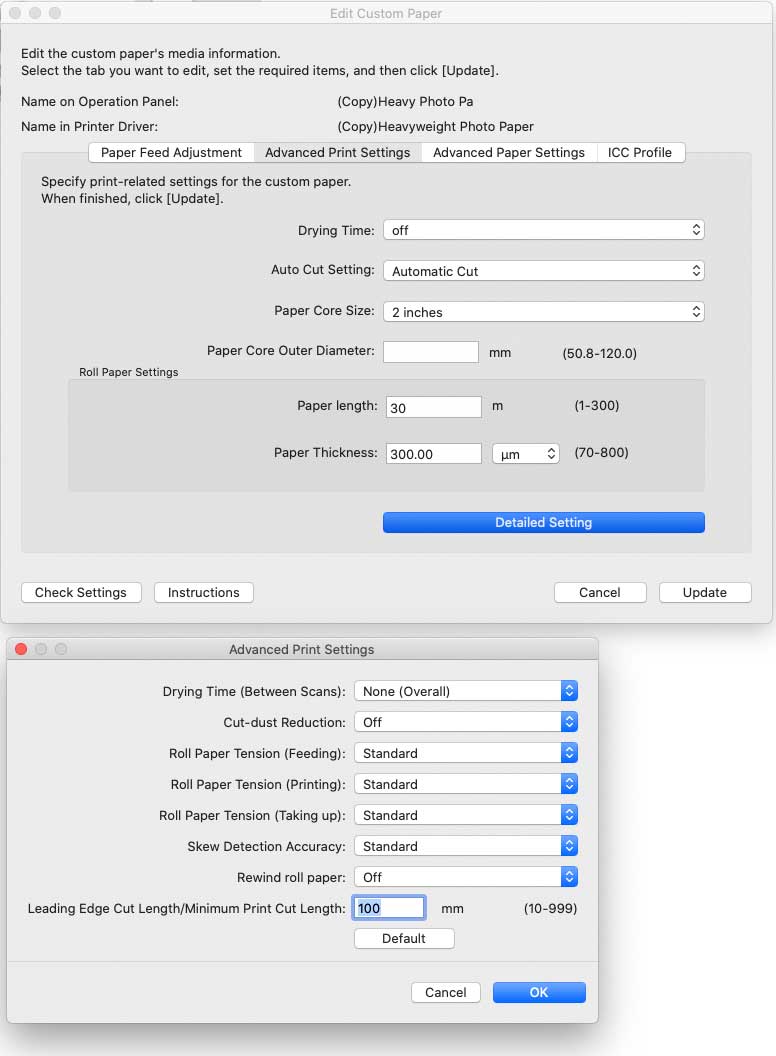
Don’t forget the head height if the media you are creating is thicker.

These options can be quite advanced, so if this is something that interests you, have a read of what I did with the PRO-1000 and PRO-300, but above all dip into the Online MCT Guide.
I should note that I used the MCT regularly when I had my Canon iPF8300 44″ large format printer here. If you intend to do a lot of printing with a few specific 3rd party papers it may be worth looking at.
Colour management and the Canon TC-20M printer
The printer software installs a few paper ICC profiles, but this isn’t a printer aimed at people who would know what an icc profiles was or was for…
I’ve created some profiles, which are available on request [for non-commercial work – email me]
- Canon Matte Coated Paper 140gsm
- Canon Water Resistant Matte 115gsm
- Pinnacle Cotton Rag Bright White 310gsm
- Pinnacle Pro Lustre 300gsm
- SpectraJet Photo Lustre 250gsm
I create profiles for papers I tested, by printing a test target. My default target fits on an A3+ [13″ x 19″] sheet.
Unfortunately – we only get sheet paper up to A3 with the Canon TC-20M printer.
No problem – it will print fine on roll paper.
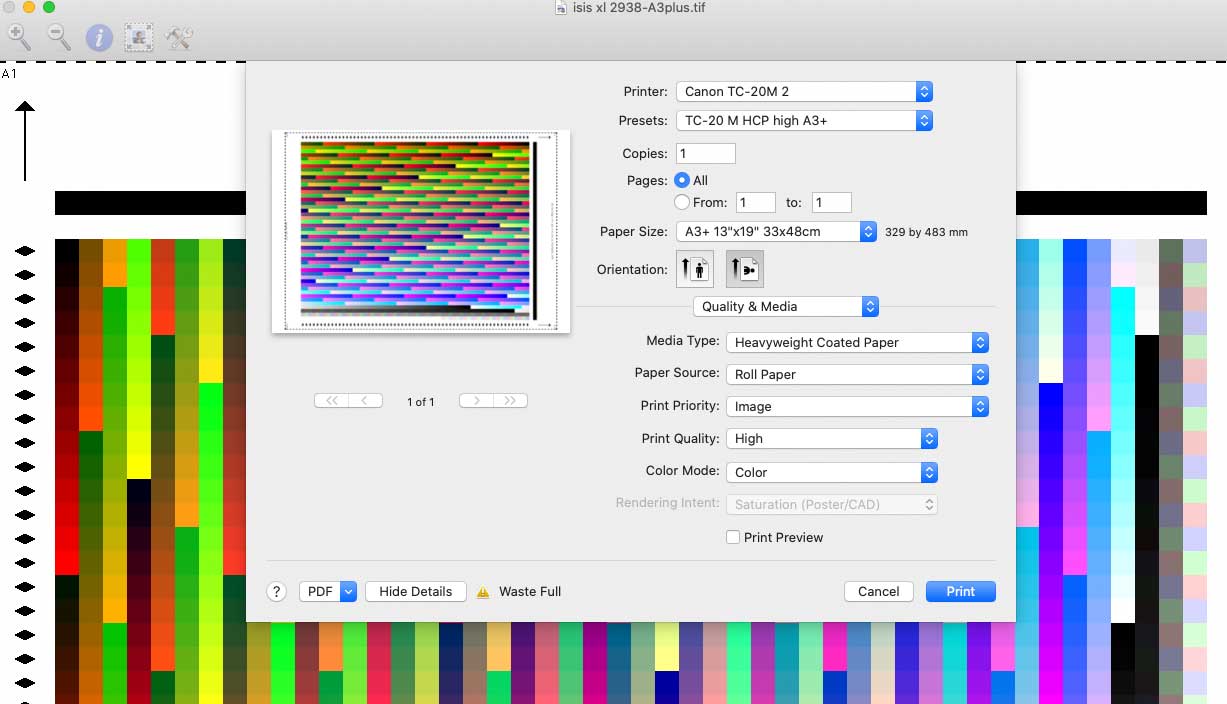
A cotton rag ‘art’ paper looks good.

Pinnacle Cotton Rag Bright White 310gsm
The colour looks good – these profiling charts are where I first get to see how well a printer/paper combination works.

Next up, a 275gsm lustre photo paper. SpectraJet Lustre 250gsm [also from Dupli here in Leicester]
This time printed from a 2″core 30metre roll.

I’m using i1Profiler to create icc profiles.
Here’s the spectral response for white on a water resistant synthetic paper – no OBA.
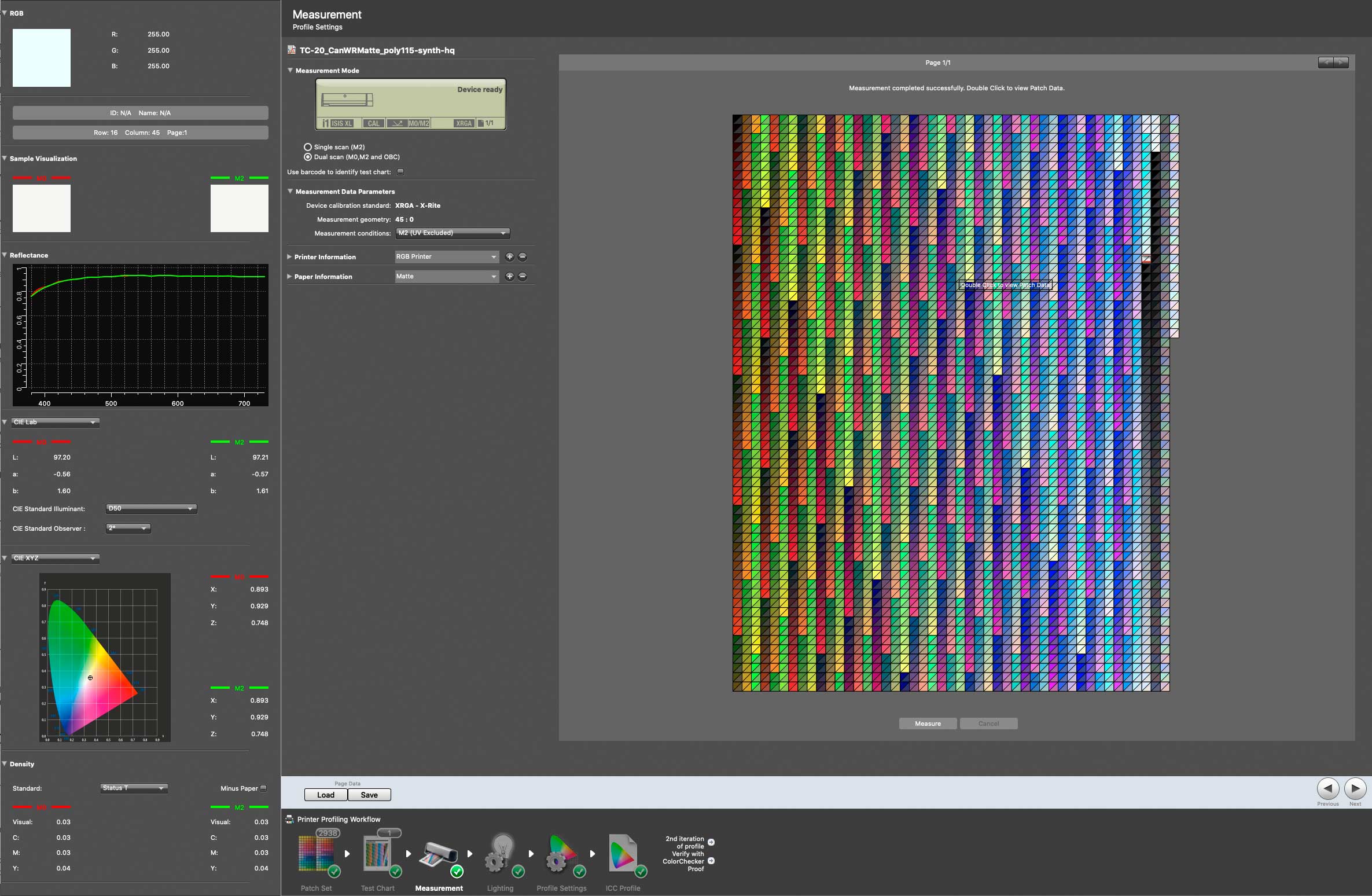
The black shows a DMax of ~1.56 – not bad for a paper like this.
It also shows a smooth flat line – no bumps at the red/IR end.
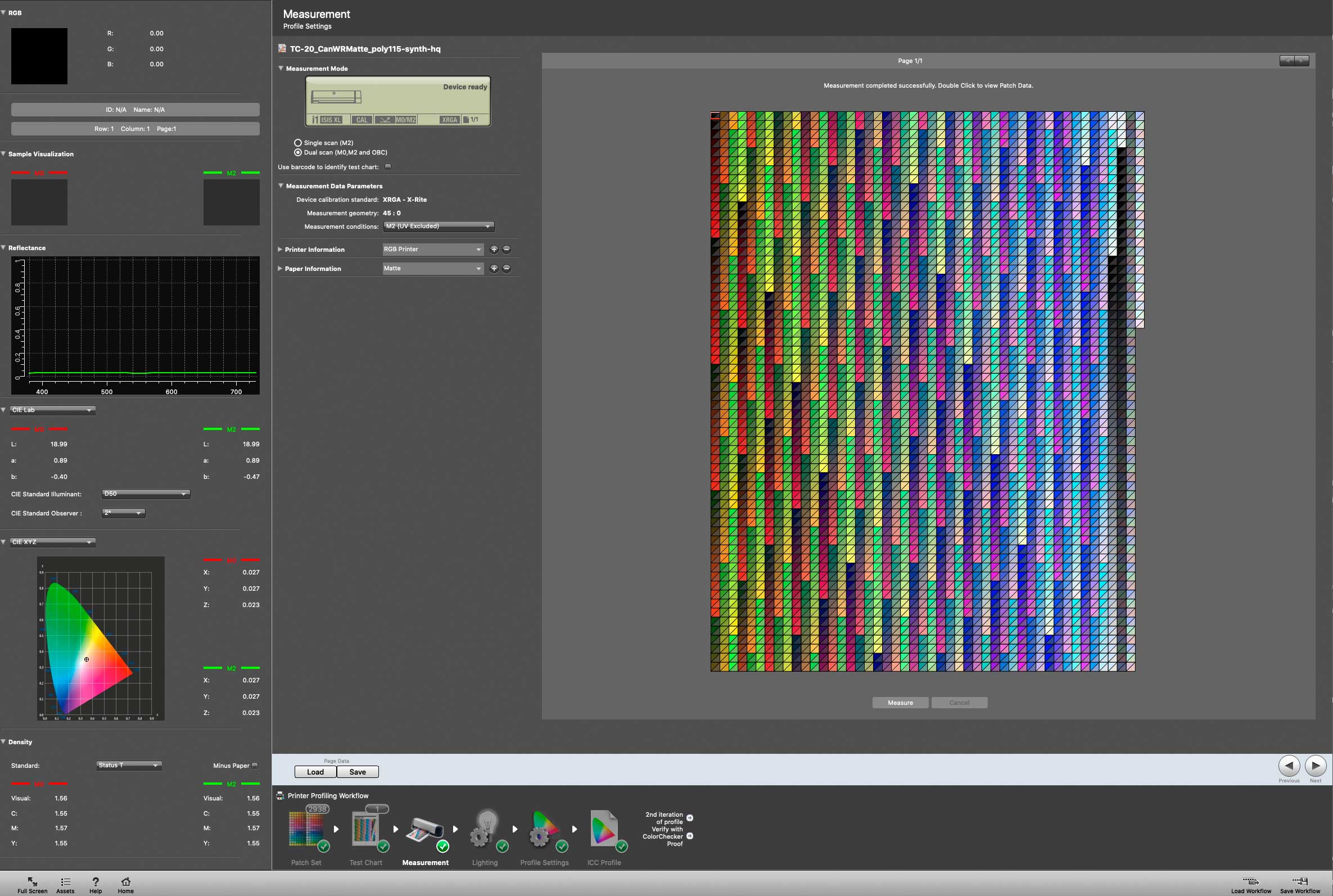
Why did this catch my attention?
Well apart from showing a good black on many papers, it suggests that there will be little of the illuminant metamerism you see on dye based printer when trying to print black and white.
In practice this meant that despite only four colours the printer was capable of quite reasonable looking B&W printing. Not up to the standards I’d want for my large B&W prints, but surprisingly good. Good enough for a print on my office wall I’d say.
Where you might notice the difference is that the Canon TC-20M printer has a maximum print resolution of 2400×1200 dpi compares to 4800×2400 for the PRO-1000.
Add just four inks to the fact that Canon printers generally have a slightly larger ink droplet size and you get prints which may look a little coarse from very close up. If you are someone who looks at 24″ x36″ prints with a strong magnifying glass and worries about it, then move along and spend the money on a proper photo printer…
Colour Gamuts – why worry?
The four colours of the Canon TC-20M printer might suggest a relatively limited range of colour for printing photos.
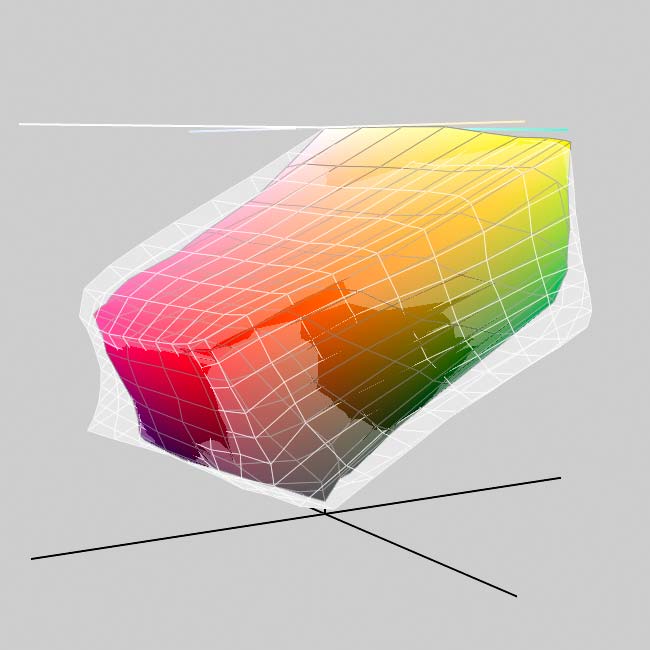
Indeed a comparison of gamuts for the same paper [Pinnacle Pro Lustre 300gsm] with the same paper on the Canon PRO-300 shows what might seem a stark difference. The PRO-300 has an excellent set of pigment inks [PRO-300 review]
The outline shape is for the PRO-300, the solid shape is for the TC-20M
Note – for indicative use only
Please don’t try and read too much into the precise shapes
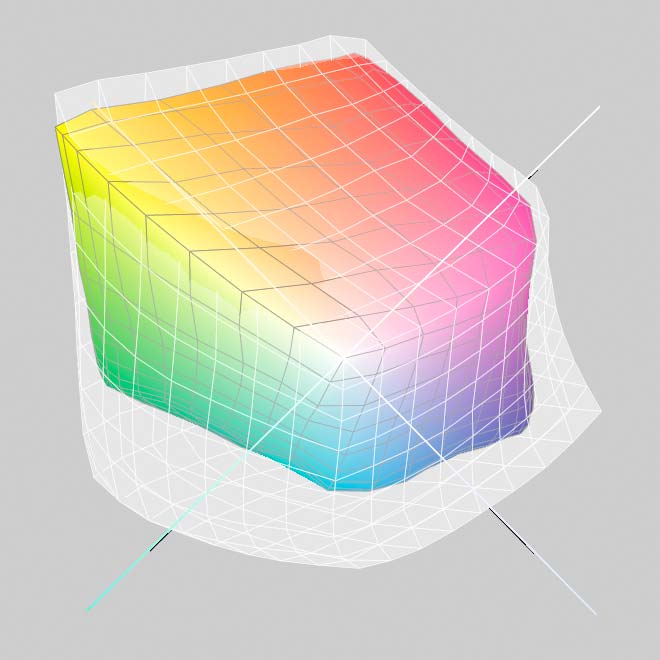
It shows that the range of colours is less on the TC-20M, more so in some areas.
A view of the gamut shapes showing that darker saturated blue-greens are a bit of a weakness,
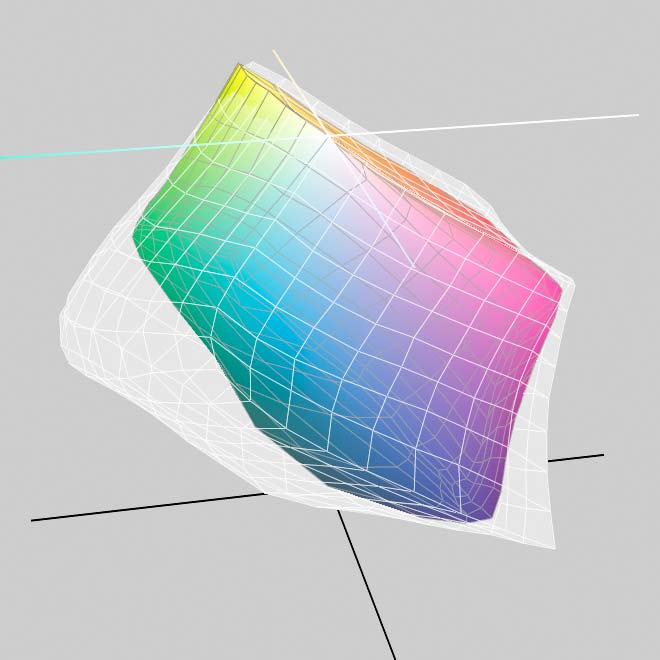
However, look at the other side.
Deep reds/oranges/yellows are as good or even fractionally better with the TC-20M
What do these diagrams mean for real life printing?
Well, in real life photos of the natural world, many colours will print just fine – the TC-20M looks particularly good for sunsets…
One reason I don’t generally include such charts as above is the many people try and read far too much into them.
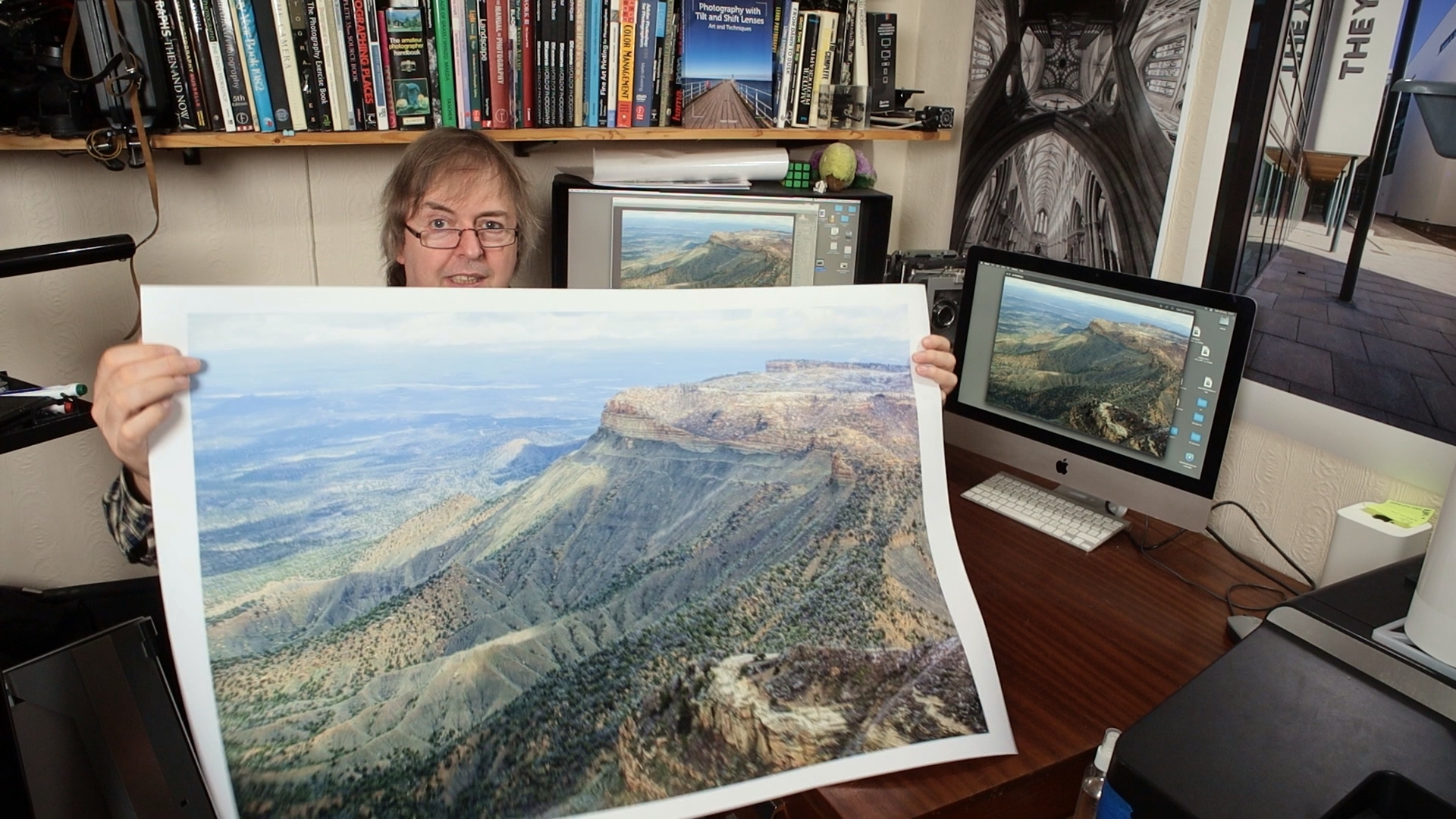
Here’s the intro to one of my videos looking at using the TC-20M
Using profiles – something to note.
With the profiles I make, and printing from Adobe Photoshop, I’ll typically print many images using the relative colorimetric (RelCol) rendering intent, ensuring that I’ve enabled BPC (black point correction) for matt papers. For some images I’ll use perceptual rendering, but it depends on the image and the paper. Soft proofing can help give a feel for the difference, but a test print trumps any screen simulation if you’re unsure.
Black and White on the Canon TC-20M printer?
4 colour B&W prints – yes it can be done.
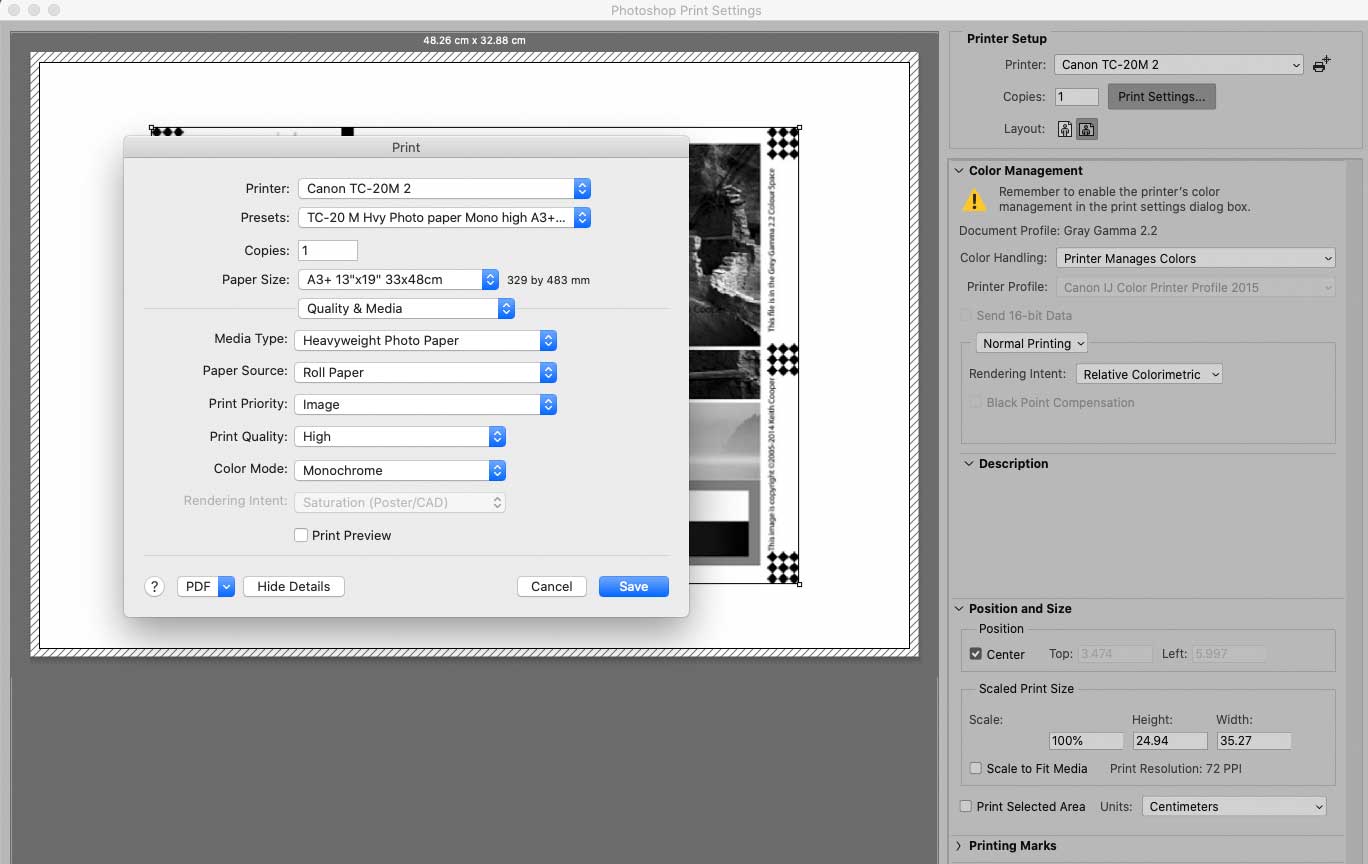
I’m using my B&W Test image here and printing on a moderately heavy lustre photo paper – I’m using the Heavyweight Photo Paper media setting.
I’ve selected the monochrome print mode and in the Photoshop print dialogue I’m selecting ‘printer manages colour’.
The test image is being printed on roll paper – I’ll trim it to size afterwards so that it can fit in my iSis scanning spectrophotometer.
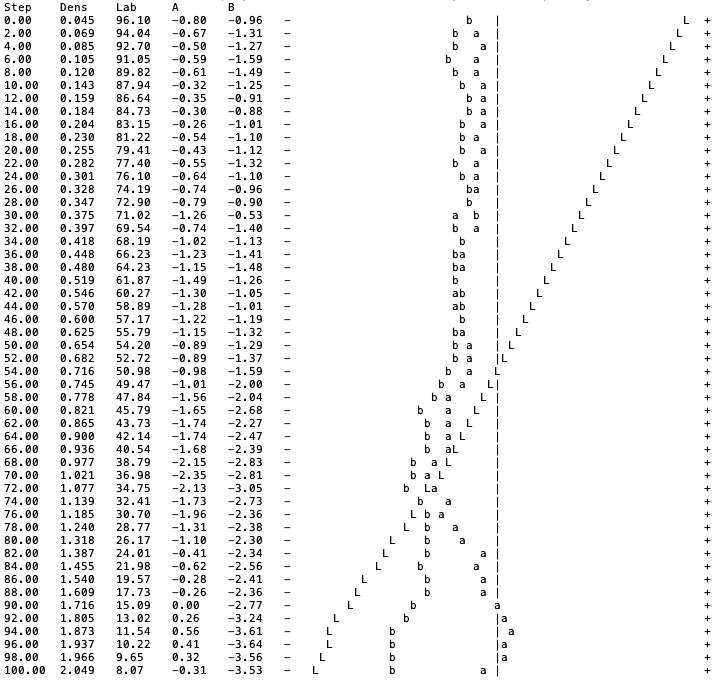
Why such care? – well, the test image contains a step wedge which can be read by the iSis, giving me numerical data about how ell the printer is reproducing that step wedge [white to black in 2% increments].
This allows me to generate text graphs like this.

Ignore the numbers, what I’m looking at is that line of ‘L’s.
They show how as we go from white [0%] to black [100%] there is a nice steady increase in darkness – well at least from 0-50%
Note the distinct kink in the lower half of the line.
This tells me that deep shadows in my image will be crushed in the print.
Ideally I want a nice straight line of ‘L’s, since then the tonality I see in my B&W image will be reproduced how I see it on the screen.
The simplest way for me to fix this is with an adjustment curve in Photoshop[. By having this as an adjustment layer, I can save it and use it whenever I want to make a B&W print with this printer and paper.
The curve is the inverse of the line in the graph above.
If you want to know more [including making this adjustment using a scanner] see my article & videos about using a B&W test image
Any way I reprinted the file with a curve and re-measured it.

Here’s the graph showing results after the curve is used.
OK, that’s linearity checked – why did I go to the trouble?
Well, initial prints on a lustre photo paper and heavy art paper looked pretty good from a tonality POV. In fact they looked really good – far better than I had expected from a four colour printer.
Now, don’t get carried away, this isn’t a printer I’d pick for fine art B&W work, but for the typical viewing distance of a 24″ x 36″ print you absolutely won’t see the dots.
If you are someone who wants to check over a print like this with a strong magnifying glass then think carefully about just who the print is for. Black and white prints for people to appreciate the image, not for those worried about finest detail that no-one else will see.
I’ve a video showing B&W printing
Papers varied in their B&W look so choose your papers based on results, not brand reputation (never a good starting point IMHO)
Canon software
Canon provide a range of applications beyond the basic printer driver. I’ve mentioned the MCT but that’s not intended for a wide audience.
Here’s some of the options for computer and mobile apps.
 .
.
PosterArtist on the Canon TC-20M printer
The web application PosterArtist [https://posterartist.canon] is a simple and free way of producing posters and other printing.
I’ve many years of experience with Photoshop and other applications for creating photos and artwork, so it’s not something I’d initially rush to explore, but it is designed to be simple and easy to use.
The poster design is done with a web based app – the final print is made via your own computer with an app which pretty much simplifies the printing process. I noted that the Poster Artist would not work when accessed from my iPad or phone, and told me to access it from a Mac or Windows machine.
A quick example: printing a calendar
I’m going to use a 2024 calendar from the clip art/samples collection. I’ll upload a photo of my own, add it to the image. This imag layer is pushed back to make it a background to the Calendar text. It’s then printed. In this instance I’m using the Canon Synthetic water resistant paper I’ll show later with a panoramic waterproof print.
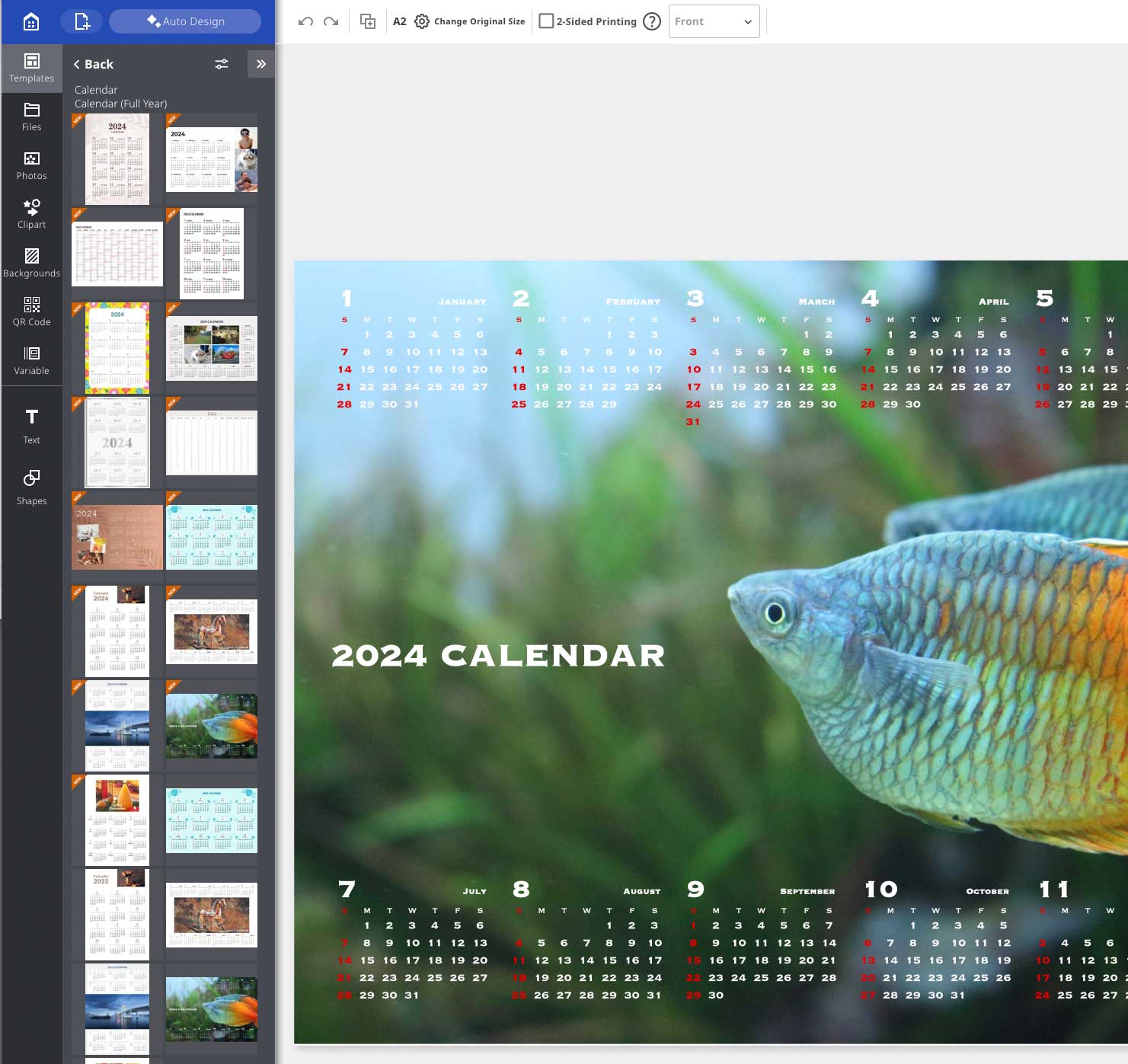
There is a wide range of supplied examples and clip art.

However, I want one of my own images for the background to the calendar.
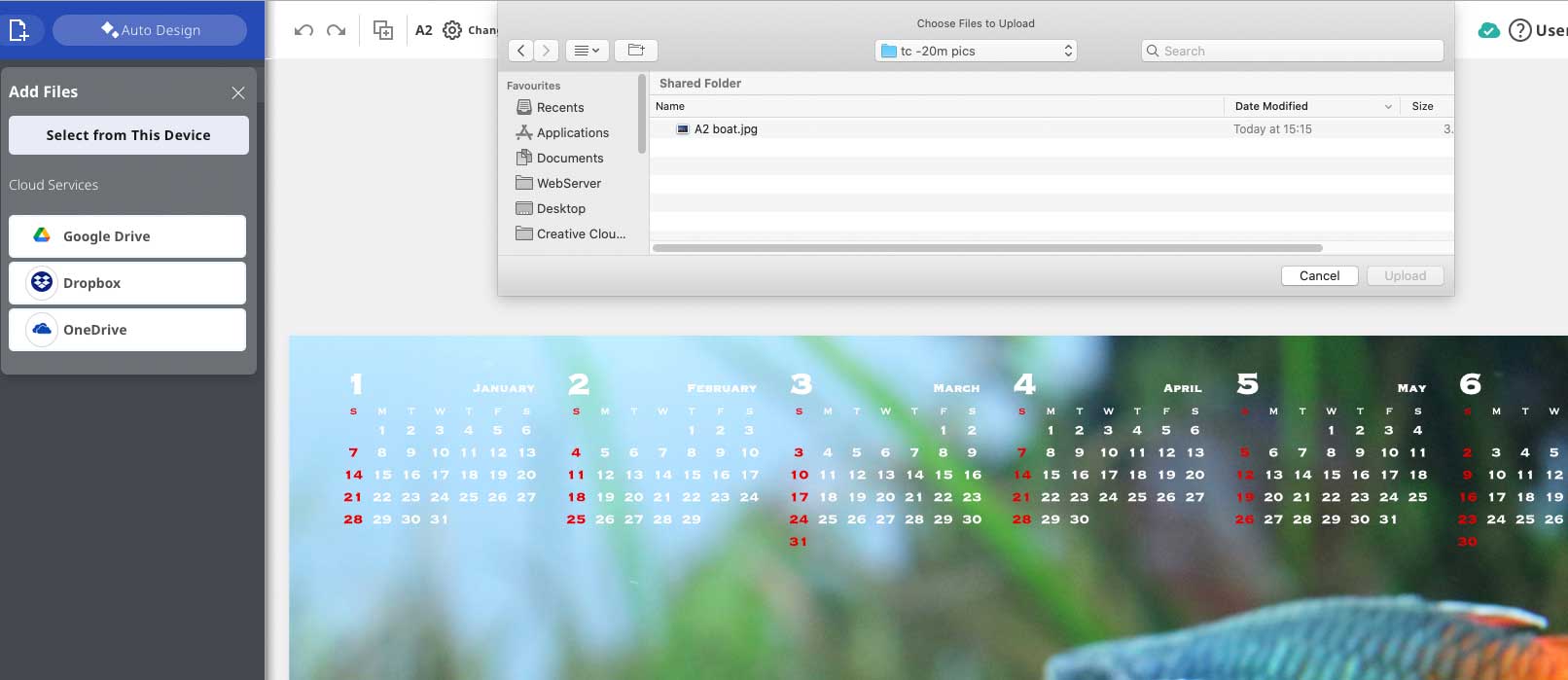
This image is big enough to print at a good size.
It’s a fishing boat unloading the catch at Amble, in Northumberland.
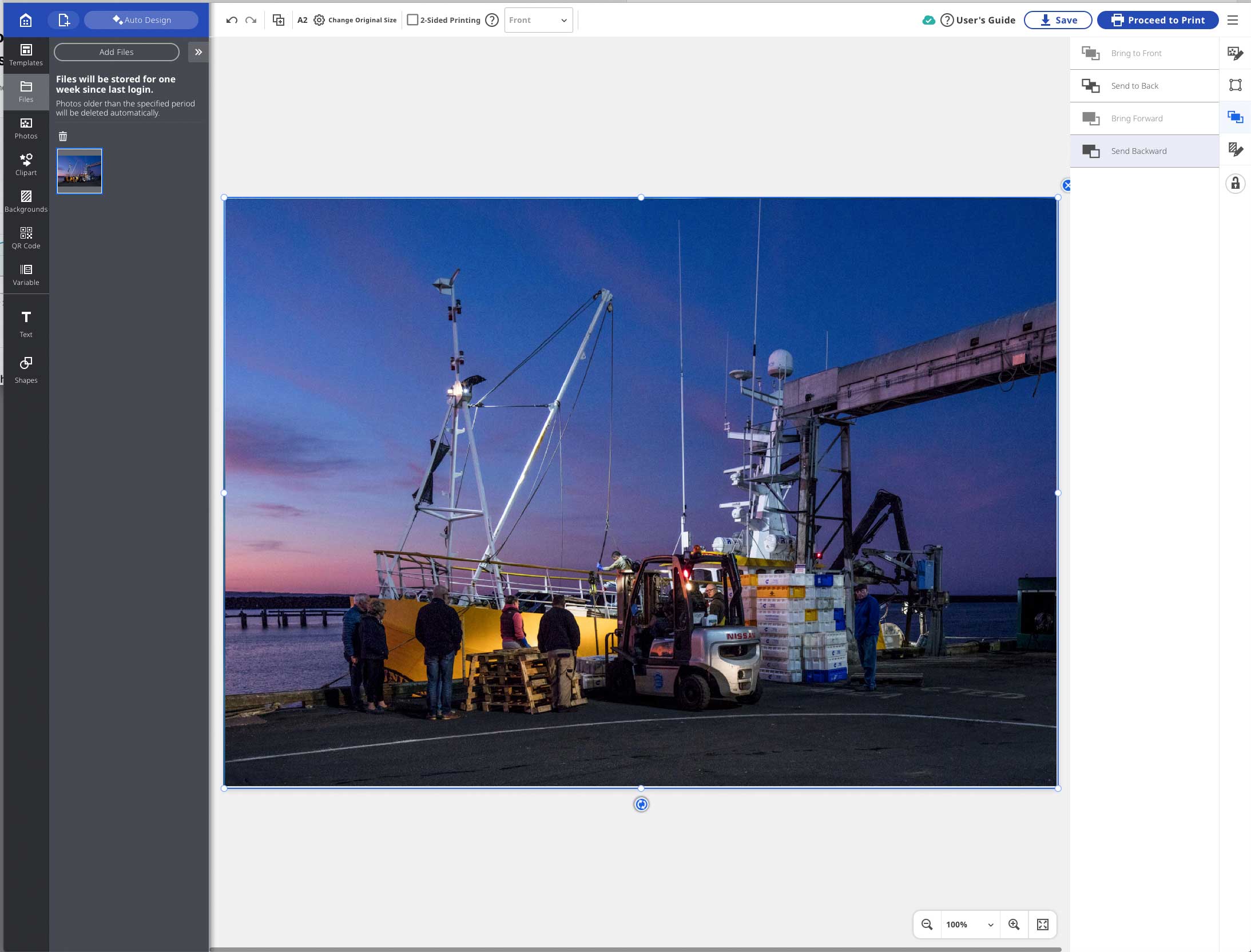
The problem is that it gets loaded on top of all the text/image elements of the calendar.
Moving the layer to the back and then one step forward to cover the fish picture gives me the calendar I want.
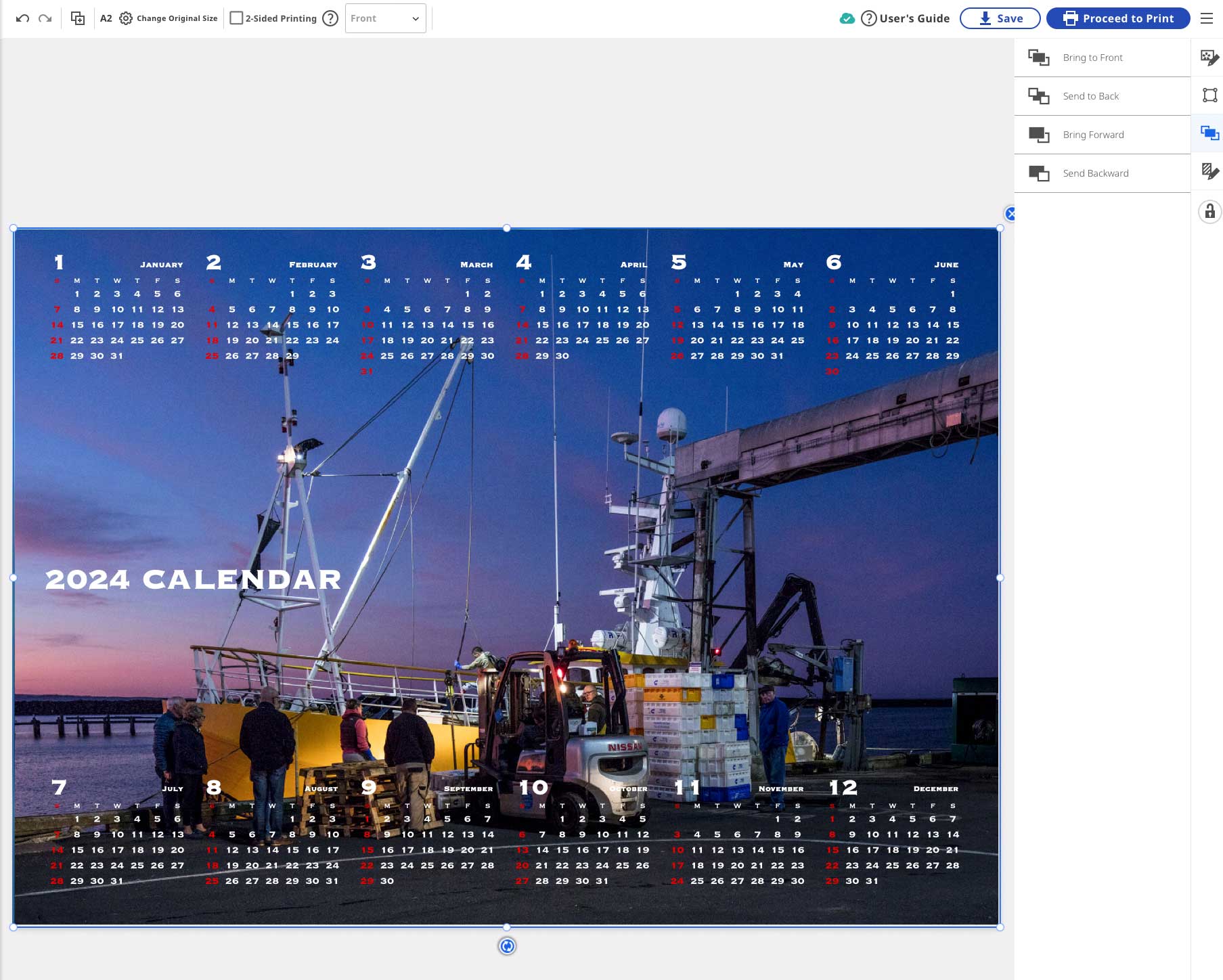
I can save the work on-line [you need to set up a free account to use Poster Artist]
It’s going to be printed locally with print software that’s on my computer.
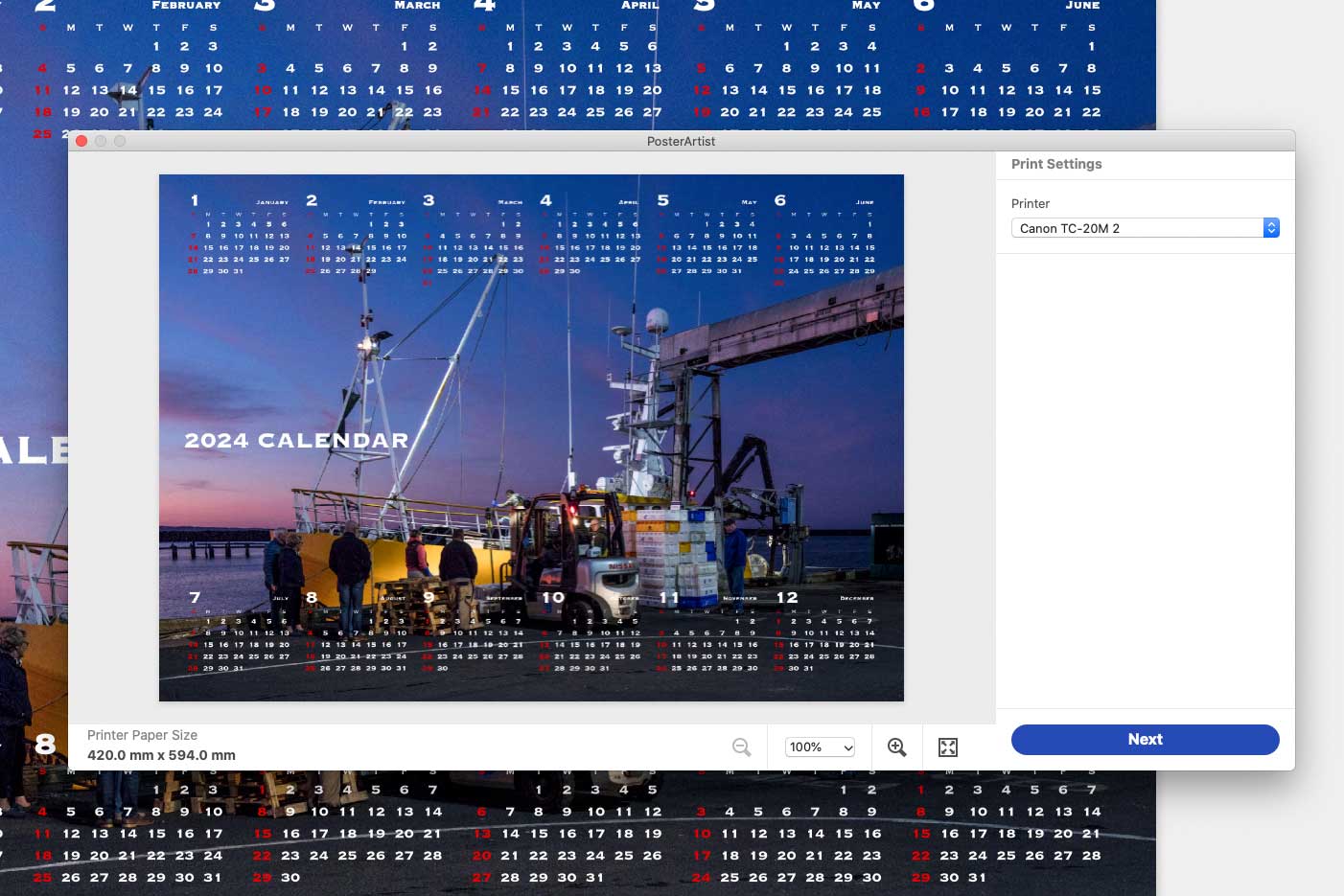
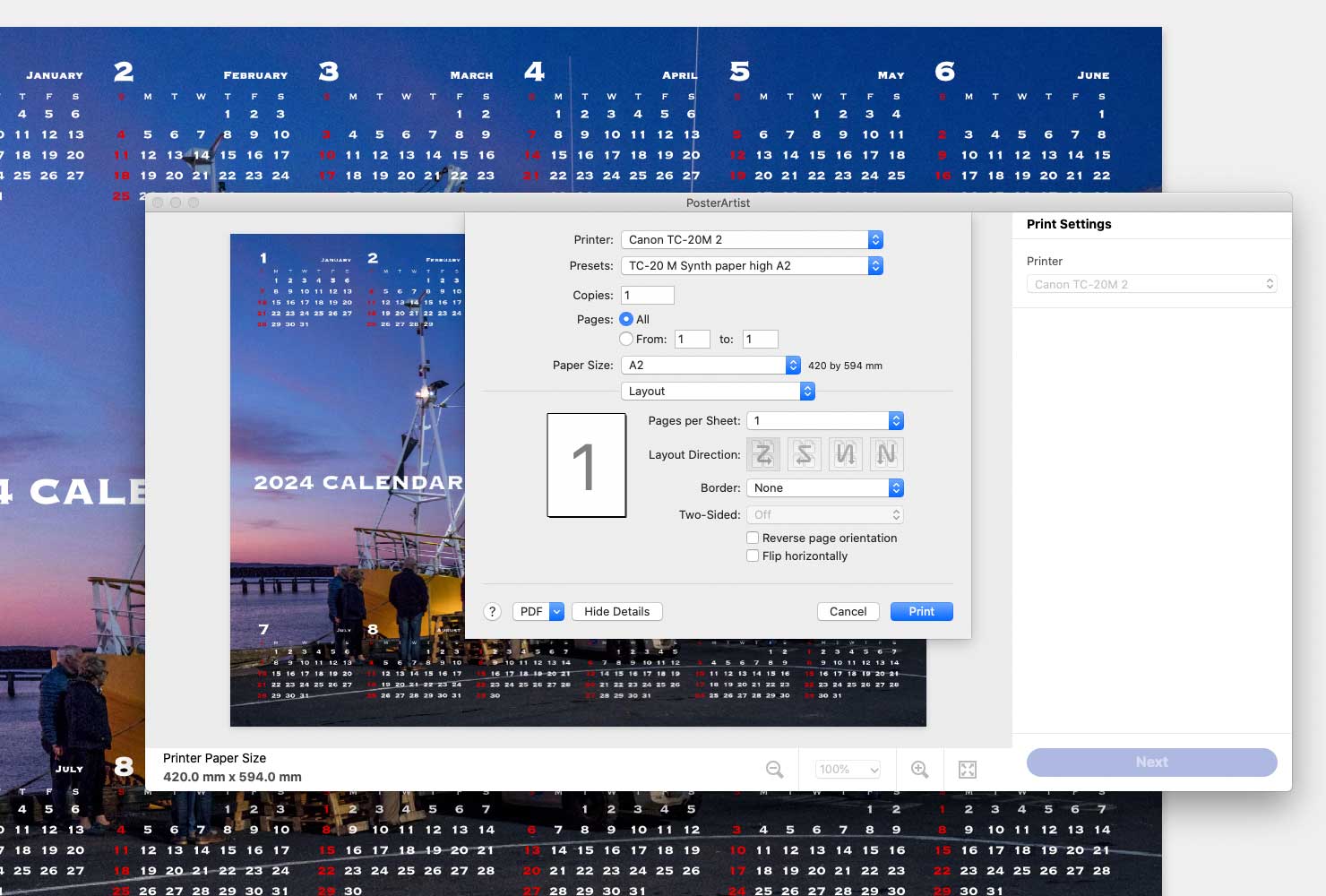
I get the normal print dialog where I set the output size to A2
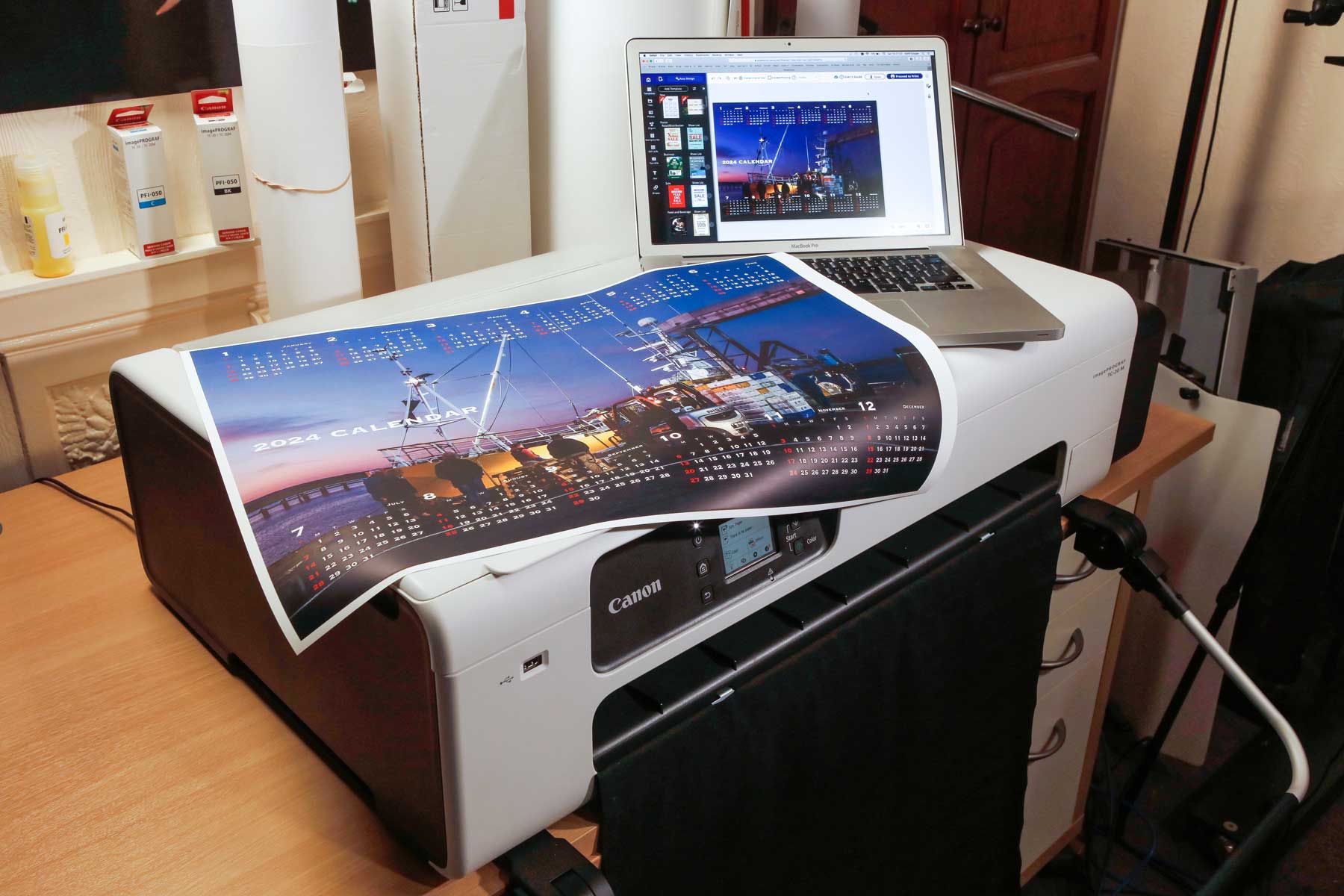
Here’s the print starting to come out of the printer, with my MacBook Pro showing the web application.

Lastly, the print sitting on top of the Canon TC-20M printer.
Really quick and simple to use – actually much faster than I could have done in Photoshop.
Poster Artist is much more capable than this with options for linking to data sources and all sorts of other whistles and bells. You can download your source files, but they are I believe in an entirely proprietary format.
If you’ve any use for occasional printing of posters, give it a look over and don’t be in a rush to dismiss it…
Printing experience with the Canon TC-20M printer
During my testing I’ve created quite a few prints, using a mix of Canon and third party papers. The papers profiled well and as I’ve shown, B&W printing was one area where the printer clearly surpassed my expectations.
Sheet and roll paper is easy to load and it’s very easy to switch between them.
The roll paper cutter works well and cuts cleanly.
You’ll notice that I have the printer at the edge of the desk. This is partly because I’ve got the print catcher in place, however even without it I would choose to have the prints coming out, and with roll paper hanging over the edge.
When I first set up the Canon TC-20M printer it was further back. I noticed that as a roll paper print came out, the leading edge touched the desk and caused the print to lift up at the point where it came out of the printer mechanism. This caused the print to push into some of the paper guides and left slight ‘pizza wheel’ marks on the surface of glossy media.
Once I let the print hang over the edge, all was fine.
There is quite a distance from where the ink is laid down and where you can see the surface of the print coming out of the printer. This means that several times [especially at higher quality settings] I was wondering where the print was…

Not an issue when you are expecting it, but still caught me out a few times.
Note too, the ink line locking wheel [grey] in the far right corner – this is for transportation of the printer. Check this in the manual if you need to move the printer any distance.
The printer feels much more like a desktop printer than previous large format 24″ printers I’ve used.
Borderless
Sorry – you are out of luck… It’s not supported.
Panoramic printing on the Canon TC-20M printer
I’ve quite a collection of very wide panoramic images and having a roll paper printer means you can print them at the aspect ratio you want, just by setting a custom media size in the driver.
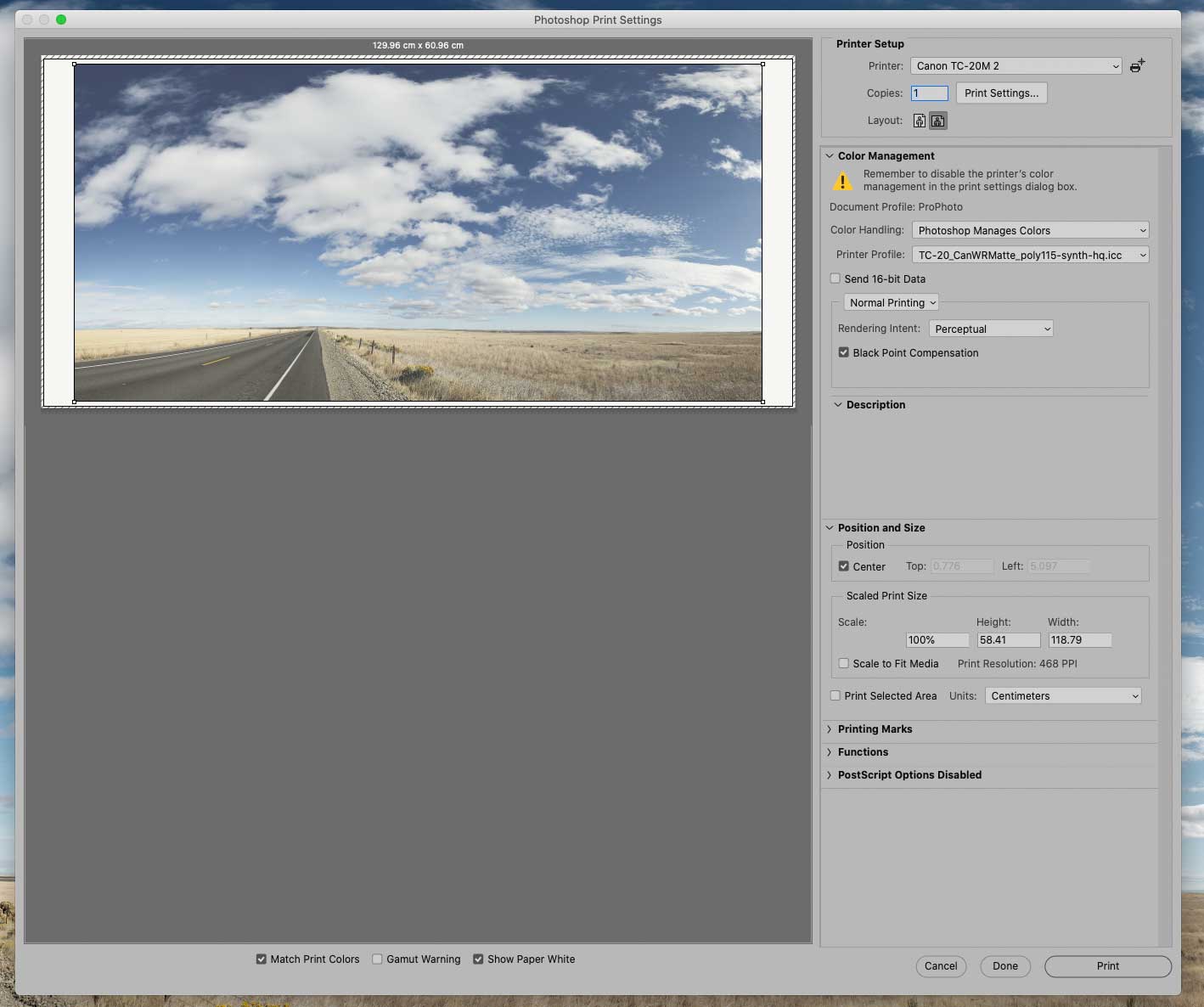
It’s easy to set a range of custom sizes with driver presets.
Here I am with the print [this is from one of my videos]

The paper is an interesting one. It’s a Canon synthetic water resistant paper, which I first tested when I reviewed the Canon PRO-2000 several years ago.
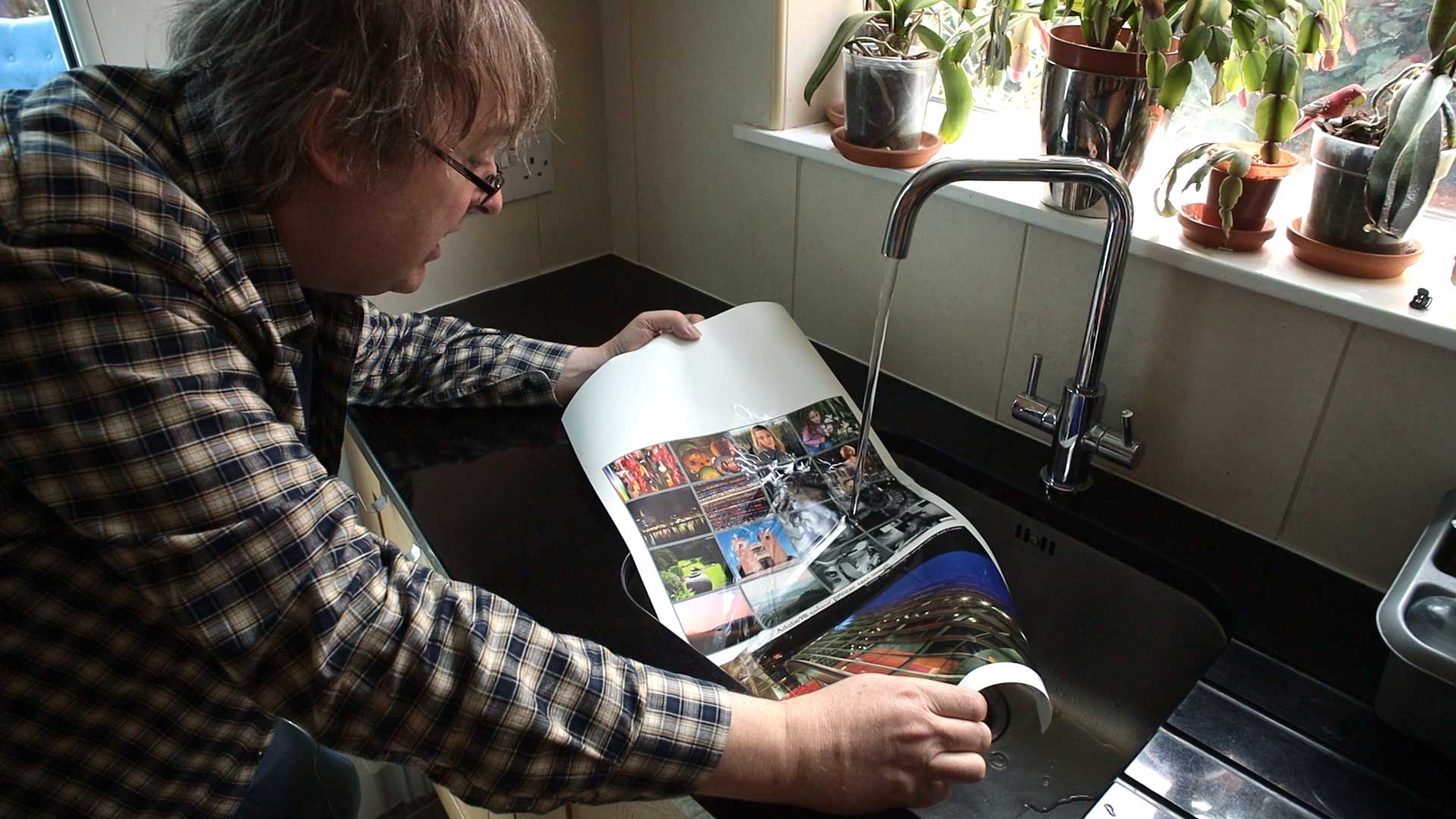
Water resistant?
Yes, here I am rinsing a print under the tap with virtually no effect…
Canon TC-20M printer: Conclusions
The smallest and cheapest 24″ printer I’ve ever reviewed. All previous 24″ printers I’ve looked at were just 24″ versions of a range of large format printers, usually available in 44″ and 60″ width versions as well.
Canon pitch this printer to the CAD and Poster printing market – I’ve shown that with paper choice and good icc profiles it is capable of far better photo printing quality than many would assume from the specs.
The Canon TC-20M printer asks if you really want 24″ width, and what’s important to you in what you produce.
I’ve come across many photographers would dismiss this printer without a second thought. Sure I could print a picture with strong intense colours and compare it with a print on say the Canon PRO-2000 [or near identical PRO-2100] and see the differences. If that matters, find the space and money for a bigger printer, or look at a smaller one like the PRO-1000 [PRO-2000 review | PRO-1000 review ]
It is a flexible printer though… I even used some plain paper on a roll to produce some custom Christmas wrapping paper,
Inks
Yes – the inks work very well on a wide variety of media. They are not so colourful as a dye set of inks, but they are more permanent and as a bonus can give quite reasonable B&W performance.
As shown earlier, the printer gamut is a bit limited by the four inks – but look at some of the images I printed? Many ‘real world’ images have gamuts well within what the TC-20M can cover on a good paper.
The ink bottles do come in a bit pricy if you are printing large volumes of posters. This printer comes in at a print cost nearer to desktop printers than large format ones.
However…
At this point you may be thinking what’s not to like? Check whether any of these things matter?
- The limitation of A3 maximum sheet size – I like A3+ [13″ x 19″] Its lack is an inconvenience.
- The roll support limited to 2″ core media restricts choice unless you are able to make some form of adapter.
- There is no borderless printing.
- Very few paper suppliers will have profiles for the printer
- PosterArtist won’t work on an iPad – a lot of people use them for craft/art
- The touch screen is too small – it is not that my fingers are too big… ;-)
I have to say though, that this printer produced results well above my initial expectations, and definitely above what Canon was advertising it for…
Questions?
Do feel free to email me at Northlight…
—
Thanks to Canon UK for loaning me the printer. I have no business relationship with Canon other than using their cameras and lenses for some of my work as a professional photographer.
—
Improving your own printing?
I’ve lots of printing related articles on the site…
- Better photography through printing your photos
- Choosing the best paper for your photos
- What goes into a great print
- Printing – articles and reviews index page
Full Canon TC-20M Printer Specifications
Scanner Technology
- Scan Technology: Flatbed CIS colour scanner
- Maximum Resolution (dpi): Main scan X sub scan: 1,200 x 2,400 dpi*Optical resolution is based on the ISO 14473 standard and represents the maximum sampling rate for scanning documents.
- Scanning Depth (Input/Output): Colour: RGB each 16bit / each 8bitGreyscale: 16bit / 8bit
- Line Scanning SpeedColour: 3.5 ms/line at 300 dpi
Grayscale / Monochrome: 1.5 ms/line at 300 dpi - Maximum Document SizeA4/LTR(216 x 297mm)
Printer Technology
- Printer Type: 4 Colour 24″
- Print TechnologyCanon Pigment ink 4 colours integrated type (4 chips per print head x 1 print head)
- Print Resolution: 2,400 x 1,200 dpi
- Number of NozzlesTotal : 4352 nozzles BK : 1280 nozzles C, M, Y : 1024 nozzles each
- Line Accuracy: ±0.1% or lessUser adjustments necessary. Printing environment and media must match those used for the adjustments.
- Nozzle Pitch: 1,200 dpi x 2 lines
- Ink Capacity : Bundled Starter Ink: 280ml (70mlx4 for BK, C, M, Y)Sales Ink: 70ml (BK, C, M, Y)
- Ink Type: Pigment inks : 4 colour BK/C/M/Y
- OS Compatibility32 Bit: Windows7, Windows 8.1, Windows 10
64 Bit: Windows 7, Windows 8.1, Windows 10, Windows 11, Windows Server 2008R2, 2012, 2012R2, 2016, 2019, 2022
Apple Macintosh: macOS 10.14.6~macOS 12.x - Other Supported Job Submission ProtocolsApple AirPrint, Mopria, Chrome OS
- Printer LanguagesUSB Memory Direct Print : PDF, JPEG (Exif ver2.2/2.21/2.3)
- Standard InterfacesUSB A Port: USB Memory (Direct Print) – PDF/JPEG (Exif ver2.2/2.21/2.3)
USB B Port: Hi-Speed USB
Ethernet: IEEE802.3u(100BASE-TX) / IEEE802.3(10BASE-T)
Wireless LAN *: IEEE802.11n/IEEE802.11g/IEEE802.11b
*Please refer to the user manual how to activate / deactivate the wireless LAN
Memory
- Standard Memory: 1GB – Expansion slot : No
- Hard Drive: N/A
Print Speed
- CAD DrawingPlain paper (A1, B&W):
0:33 (Standard)Plain Paper (A1, Colour):
1:03 (Standard) - PosterPlain Paper (A1)
1:10 (Fast)
2:08 (Standard)Coated Paper (A1)
3:10 (Fast)
6:05 (Standard)
Media Handling
- Media Feed and OutputRoll Paper : One Roll, Front-loading, Front Output
Cut Sheet : Auto sheet feeder - Media WidthRoll paper : A3, A2, A2+, A1, B2, B3, 18”, 24”, 17”
Cut sheet: 210mm – 297mm - Media Thickness: Roll/Cut : 0.08mm – 0.28mm
- Minimum Printable Length: Roll/Cut : 203.2mm
- Maximum Printable Length:
Roll paper : 4m
Cut sheet : 432mm - Maximum Media Roll Diameter: 110mm
- Media Core Size: Internal diameter of roll core: 2″
- Margins Recommended AreaRoll paper: Top: 5mm, Bottom: 5mm, Side: 5mm
(some photo mode: Top: 30mm, Bottom: 30mm)
Cut sheet: Top: 5mm, Bottom: 5mm, Side: 5mm - Margins Printable AreaRoll paper: Top: 5mm, Bottom: 5mm, Side: 5mm
(some photo mode: Top: 30mm, Bottom: 30mm)
Cut sheet: Top: 5mm, Bottom: 5mm, Side: 5mm - Media Feed CapacityRoll Paper: One roll
Cut Sheet: 100 sheets(A4), 50 sheets (A3) - Media Take-Up Roll Unit: N/A
- Borderless Printing Width (Roll Only): N/A
- Maximum Number of Delivered PrintsDesktop Basket (BU-06): Standard position – 1 sheet
Power and Operating Requirements
- Power SupplyAC 100-240V (50-60Hz)
- Power ConsumptionOperation: 28W or less
Sleep mode: 2.4W or less
Default setting for the time to enter the Sleep mode: Approx. 5 minutes
Power off: 0.3W or less - Operating Environment: Temperature: 15~30℃, Humidity: 10~80% RH (no dew condensation)
- Acoustic Noise (Power/Pressure)Operation: Approx. 41.5 dB(A) (Plain paper, Standard mode, Line Drawing/Text mode)
Standby: 35 dB(A) or less (Measured on ISO 7779 standard) - Regulations: CE mark, UKCA mark
- Environment Certificates: CB certfication, EPEAT GOLD
Canon TC-20M printer dimensions and weight
- Physical Dimensions and WeightW x D x H
Main Unit
968 x 545 x 395 mm (ASF Opened)
968 x 525 x 245 mm (ASF Closed)
33 kg (exclude ink bottle, include print head)Main Unit + Desktop Basket (BU-06)
968 x 825 x 965* mm (Basket Opened)
968 x 525 x 965* mm (Basket Closed)
34 kg (exclude ink bottle, include print head)
*Height above which cloth does not touch the floor when opening the desktop basket
Main Unit + Stand + Basket (SD-24)
968 × 870 × 874 mm (Basket Opened)
968 × 707 × 874 mm (Basket Closed)
42 kg (exclude ink bottle, include print head)
- Packaged Dimensions and WeightPrinter (Main unit): 1120 x 726 x 406 mm, 45kg
Desktop Basket (BU-06): 798 x 301 x 111 mm, 1.8kg
Stand + Basket (SD-24): 1055 x 824 x 268 mm, 16kg
What’s Included with the Canon TC-20M printer
- What’s in the Box? Printer, 1 Print head, Power Cable, 1 Set of starter ink tanks, Installation Guide, Safety/Standard Environment leaflet, EU Biocide Sheet, LFP Eur Address Sheet, Flange protective materials sheet
- Software Included: Software available as Download from Web
Canon TC-20M printer options
- Optional Items: Desktop Basket: BU-06. Printer Stand and Basket: SD-24
Consumables
- User Replaceable ItemsInk Tank: PFl-050 (70ml)
Print Head: PF-08
Maintenance Cartridge: MC-32
Never miss a new article or review - Sign up for our occasional (ad-free) Newsletter
and please do subscribe to Keith's YouTube Channel

Other areas of our site that may be of interest...
All the latest articles/reviews and photo news items appear on Keith's Photo blog

Keith explains tilt and shift lenses
Keith has written a book that looks at the many ways that tilt/shift lenses can benefit your photography from a technical and creative point of view. If not in the UK check for import issues and maybe try an on-line bookshop. Keith has no connection with sales of the book.
ISBN 9781785007712
There is also a specific index page on the site with links to all Keith's articles, reviews and videos about using tilt and shift.
We've a whole section of the site devoted to Digital Black and White photography and printing. It covers all of Keith's specialist articles and reviews. Other sections include Colour management and Keith's camera hacks - there are over 1200 articles/reviews here...
Adverts removed
Keith | Mar 5, 2025 at 10:21 am
Thanks – that’s appreciated.
Hope to add many more…
Hugh Kha | Mar 4, 2025 at 8:58 am
Thanks so much for your reviews. They are one of the few sources on the internet with a sense of expertise free of commercial pitches.
Keith | Nov 23, 2024 at 8:45 am
Thanks – much appreciated!
Daniel | Nov 22, 2024 at 6:19 pm
I just wanted to pass along a message from small business owners and artists like me who really appreciate all of your reviews. I have used your reviews and guides to finalize my decisions on buying printers like this one and the Epson xp-15000. Thanks again!