


Epson ET-8500 printer review
Epson ET-8500 printer review
8.5″/A4 EcoTank printer

No more Google ads. Too many deceptive and irritating adverts.
Any ad links left are non tracking, to companies we know, trust and we've worked with for years [Park Cameras]
Ads helped pay for site running costs, so if you found something useful, please
...Make small KoFi donation?
...Subscribe to Keith's YouTube Channel
...Get Keith's book about how to use tilt/shift lenses
Our site contains affiliate links - these help support the site. See our Advertising policies for more
Keith Cooper looks at the Epson ET-8500 EcoTank printer.
The 8.5″ width A4 printer is an ink tank based printer. It has a hybrid ink set, with both pigment and dye black inks.
IMPORTANT Apart from size, the ET-8500 is identical to the 13″/A3+Epson ET-8550. This means you should check the ET-8550 review for more detail about print performance. The ET8500 and ET-8550 icc printer profiles are 100% interchangeable.
This review is much shorter than our usual printer reviews due to similarities between the 8500/8550
The Epson ET-8500 printer review is complemented with a range of short YouTube videos exploring aspects of using the printer. See also the ET-8550 videos
ICC Profiles Update 2025
I’ve made many more profiles for the 8500/8550
The best place to check is either the 8550 review or the
ICC Profiles page, which has up to date info.
Article Index
- Printer features
- Setup
- Connectivity
- Ink refilling
- Media handling
- Scanning
- Office functions
- Colour management
- Black and White
- Printing
- Epson software
- Choosing papers
- Conclusions
- Full Specifications

Videos
I’ve made a number of videos to go along with this review:
ET-8500 videos
- 8500 printer review
- 8500 rear paper feed
- 8500 Small canvas prints
- 8500/8550 best print detail settings
- 8500 panoramic landscape print
- Borderless photo printing on the 8500
- Colour photo printing on the 8500
- ET-8500 printer setup
- ET-8500 – printer intro
ET-8550 videos
- ET-8550 review (45m – complements written review)
- ET-8550 Q&A – using the printer
- ET-8550 setup
- ET-8550 Borderless photo print
- ET-8550 Panoramic print
- ET-8550 Black and White
- ET-8550 B&W Pano print on roll paper
- ET-8550 Colour fine art and paper choices
- ET-8550 Canvas printing
- ET-8550 Double sided photo prints
- ET-8550 Poster board printing
- ET-8550 Printing on clear film
- ET-8550 Art scan and greeting card print
- ET-8550 paper/card choices for greeting cards
- Selling your ET-8550 prints?
- i1Studio/CCStudio – making ET-8550 icc profiles
- Epson Ecotank ET-8550 ET-8550 maintenance tips. Things to keep your inkjet printer healthy
- ET-8550 advanced cleaning
- How long will inkjet prints last? [Ecotank 8550/8500] Photo and art print lifetimes. Finding answers
Related articles
Video review [50 mins]
ET-8500 printer review – overview
The Epson EcoTank ET-8500 is a 6 ink A4 (8.5″ width) multifunction printer. In this review I’m primarily concentrating on its use for printing photos and artwork, and how to get the best results from its interesting hybrid ink set.
Printer features: ET-8500 Printer review
The printer includes a flatbed scanner, so is marketed with the ability to ‘print,copy and scan’.

It’s this ‘home office’ pitch which has left many wondering if it’s a good option for photo printing?
How does it compare with dedicated photo printers? This was one of the main reasons for making my ET-8550 printer review and this follow-up ET-8500 one
The answer is as always ‘it depends’, but for those daunted by the length of my written reviews, the answer is ‘very well …with the right paper choices’
The ink system has two interesting features compared to the normal photo printer.
No cartridges
You fill ink tanks from bottles. Essentially the ink from the bottles is used to fill the tanks from above,
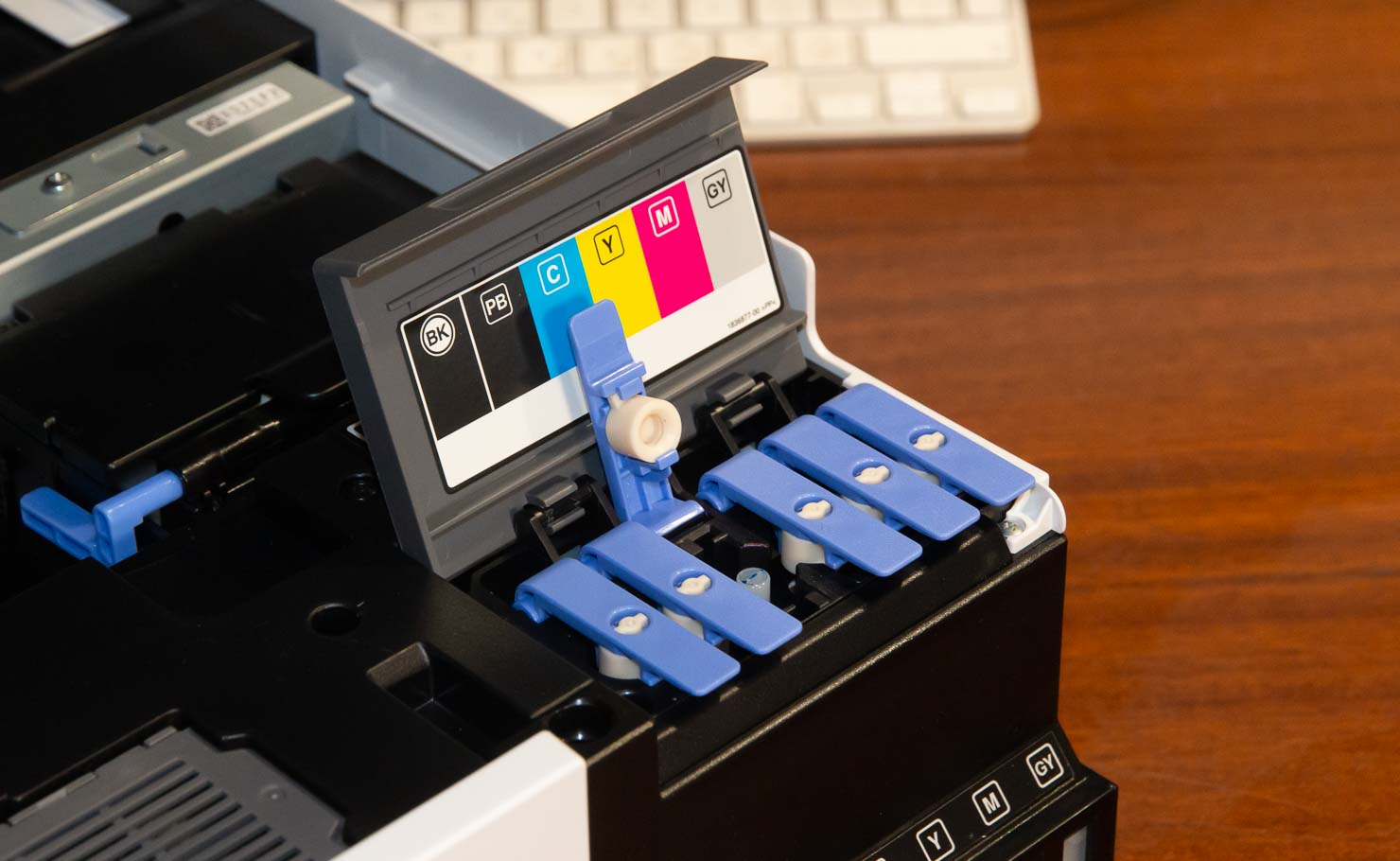
The blue tabs seal the ink tanks.
The bottles sit on top and freely drain to the correct fill level [do not squeeze them]
Hybrid ink set
The ink set has two blacks, a dye one and a pigment one. There is a grey dye and the traditional Cyan/Magenta/Yellow dye based colours.

This mixed ink set means that the print characteristics are not simply like a dye or pigment ink based printer, but a hybrid, the results of which depend on paper type and media settings used when printing. The results of this are clear in my creation of colour ICC printer profiles and printing in both colour and black and white.
ET-8500 printer review: A more modern interface?
The large (10.9cm) colour touch screen is easy to work with, but if you like, there is an Epson App (Smart Panel) which duplicates many control functions via a phone or tablet.
The printer also has USB and SD card sockets at the front, allowing for direct printing, and the use of these devices as network storage. Whilst you might not want to go out and replace your file servers yet, both devices appeared on my local network as storage.

The screen is clear to read and tilts upwards.

8500 Printer review setup
This particular printer was lent to me by Epson, and although new, had been set-up, so I can’t show ink filling.
However, given the identical internal features of the 8550…
My detailed look at the full 8550 setup process in its own article. Also, a video looking at the 8550 setup process.
Filling the ink
This is the different bit – no ink carts to load, just fill the six tanks from bottles.
Note that the ink bottles are physically keyed to fit the right fill ports. It would take some real effort to use the wrong inks

The filling automatically stops when the tank reaches its ‘full’ level.
After filling, there is ink left in the bottles. This can be used later to top off the tanks.
The Epson install software (on my MacBook in this instance) is fairly smart, giving you a number of ways of connecting the printer.
On Macs – make sure you don’t accidentally select an AirPrint version of the driver. This is the correct version for a current [MacOS 13 Ventura] setup – note that the ‘kind’ does not say ‘AirPrint’.

Once set up, there is a range of software you can install in addition to the printer driver.
Note that during printer driver setup, various Epson paper ICC profiles will be installed on your system. I’ll come back to profiles later, when looking at colour management, since along with media choices, they are key to getting optimal photo printing results from the 8550/8500.
I’m going to suggest installing all of the options, since some of the software many be more useful that you’d thought.
Connectivity
As well as the wireless option I’m using for testing, the printer has Ethernet (10/100MB) and USB-B connections at the back.

Note that you can have multiple connection methods for an individual computer, but each one will appear as a ‘different’ instance of the printer. So, since I also used USB when testing, I have two 8500 printers in my (MacBook) printer list – one USB and one on the network (wirelessly).
The printer also has an SD card slot and USB socket at the front. These can be used for memory cards and sticks, as well as a ‘PictBridge’ connection to cameras.
The devices attached can be shared on your network, as well as being an optional repository for scans made with the built in scanner.
Here’s A USB stick with 5 photos on it – the server is mounted on my MacBook desktop [this from the 8550 review]
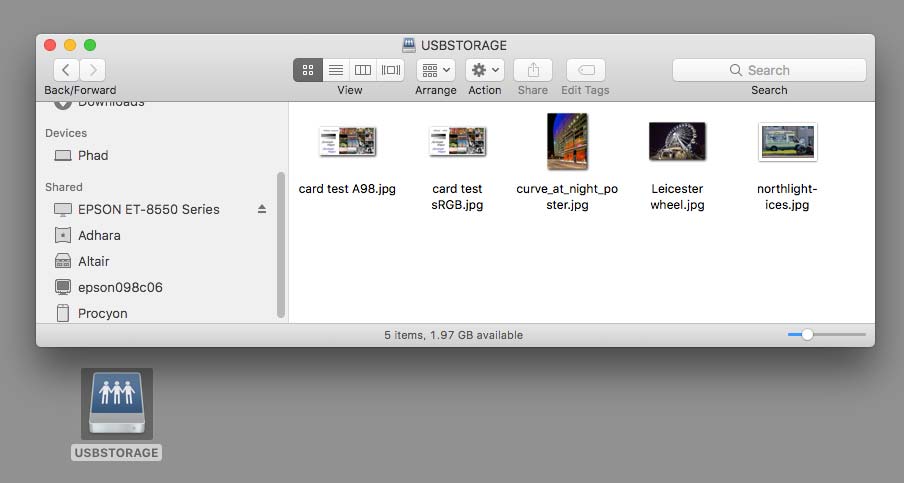
Note how it appears as two servers: ‘Epson ET-8550 Series’ for Mac and ‘epson098c06’ for windows users.)
ET-8500 printer review: Ink refilling
One of the key features of the 8550 is that you get to refill the ink tanks once they get low.
You need to keep an eye on levels, although the printer will warn if it is low.
After filling, the printer will ask you to confirm which colours are now full again.
DO NOT SKIP this setting.
The printer has no way of detecting ink levels – it relies on knowing when full and how much ink it has used from each tank.
Maintenance cart [8500/8550]
There is a maintenance cart to the left of the ink tanks,designed to soak up ink used in cleaning over time. It is easily replaceable, but I suspect will last a long time – I’d not bother getting a spare until it started showing as very low in capacity.
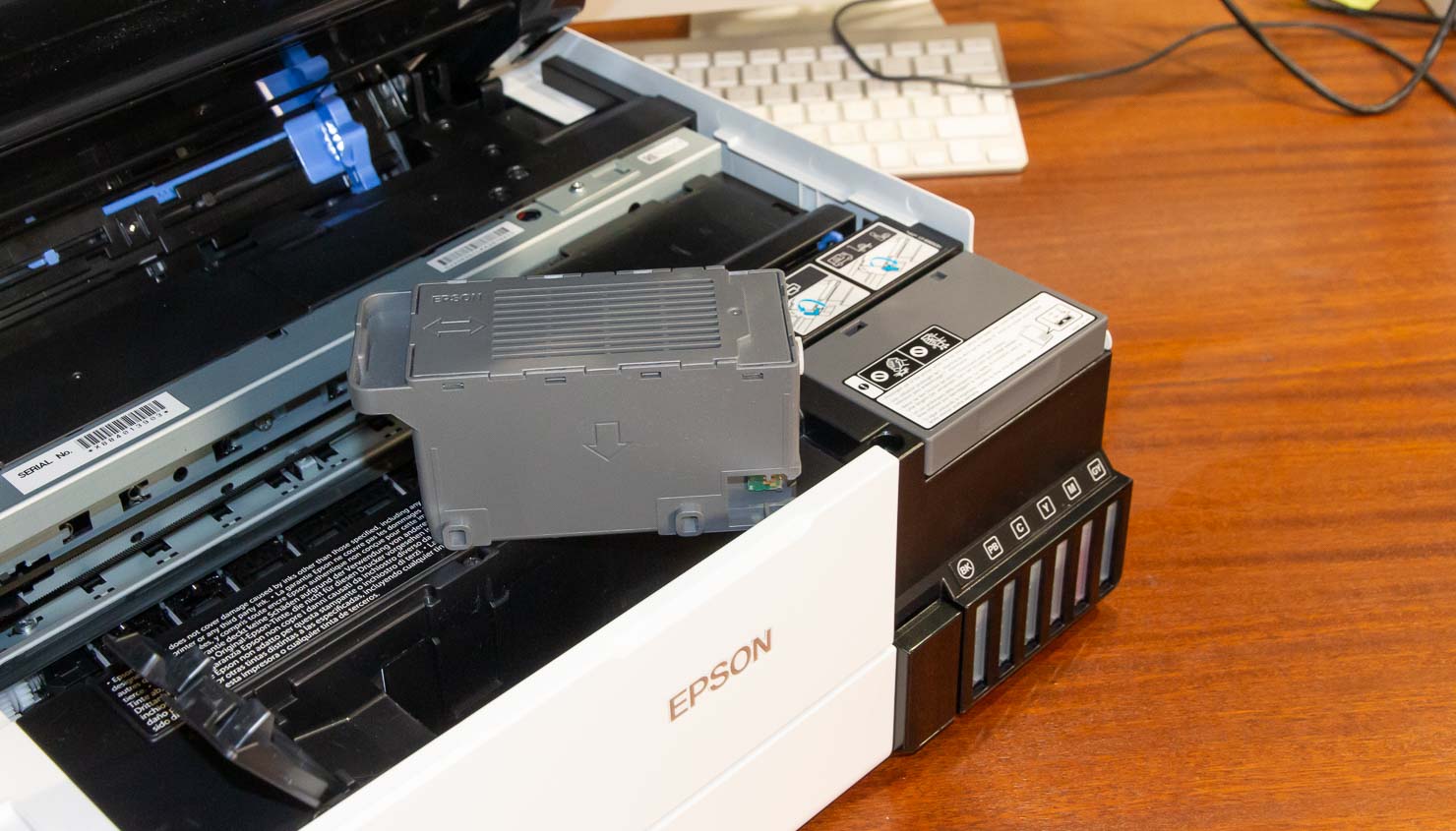
Transport lock
With the ink feed system, you really don’t want the print head moving whilst transporting the printer. It’s possible for ink to syphon through the pipes and head if tilted too much.
So, there is a head locking mechanism which should be engaged if moving the printer


That does not mean you can now tip the printer on its side. It does make spills rather less likely. Interestingly enough, Epson supply a big plastic bag for transporting the printer – just in case.
Head alignment
After setting up the printer, it’s worth running through the head alignment process to optimise print quality. Although it’s possible to do this with plain paper, I found that using a photo paper made it easier to check the test prints.
The head adjustment is accessed via the maintenance menu. There are two settings to adjust
Several sheets are required (same for 8500/8550)

Fortunately, this is only really needed the once.
It’s something that is of more benefit if you plan on printing at higher quality settings and with lots of detail in your images. The printer worked just fine before it, but I always carry out such adjustments if offered, with any printer I test.
Media handling
The printer has a range of ways of getting media through it.


The paper sizes and media types are set from the front panel when loading paper.
It’s possible for the computer settings to override the settings on the printer, but I always make a habit of setting the correct paper and size if possible, on the printer first. This has, over the years, saved me an awful lot of wasted paper though mistakes, in return for a few seconds setting the printer…
The top feed
This is where almost all my printing started.
There’s a cover over the extensible guides – Extend it as needed for the paper size in use.

The output tray is motorised and will extend as needed, and retract at power-off, of via the menu.
Smaller paper
The printer supports a number of smaller paper sizes which may be used for cards and the like. Borderless printing is available for some paper sizes, but not others (A5 and A6 for example).
Custom paper
The top feed can also take custom sheet sizes.
The rear feed
Paper can be fed through the back of the printer, where the print path is direct and unbent through to the front.

This feed supports board ip to 1.5mm thick.
The rear duplex unit needs removing, as shown in this short video looking at the rear feed setup and use.
ET-8550 printer review: Scanning
The built in scanner can be used as a basic copier onto plain paper. It has no document feed, but to be fair if I want document feeding I’ll buy a full time office printer. For myself, the ‘office functions’ of this printer are a distant second in my concerns compared with art/photo printing.
The scanner is a smaller version of the one in the ET-8550. I have a very detailed section of the ET-8550 review covering scanning artwork, colour management and optimal scanning software.
ET-8500 printer review: Office functions
The printer works well with plain paper, single or double sided. The pigment black gives good crisp text although the dye colours give just the sort of slightly washed out I’d expect printing colour on plain paper.
That’s not an 8500 complaint – if I want vibrant pie charts and sales graphs on plain paper, I’ll get a colour laser printer and accept that it won’t be much good for photos…
It’s not bad though and faster than using specialist photo printers, which with their smaller cartridges always make me think about ink use when printing the odd document.
The main tray takes just over 100 sheets of plain paper – not huge, but once again more than enough for my would be use of printing the odd invoice or letter. A single sheet of text prints in only a couple of seconds, with a bit of a delay if it needs duplexing.
Copying works fine (with enlargement too) and the printer has an array of preset documents you can print – from calendar and reminder sheets, to musical score sheets and graph paper. Access these from the aptly named ‘Various Prints’ menu option.
You can scan to an attached USB memory stick and print images from devices in various formats as in the example shown earlier.
From my limited (recent) experience of office printing, the printer doesn’t feel particularly fast (or slow), and if it’s home/office printing that you really want then this printer, with its emphasis on creative imaging is perhaps less likely what you are looking for.
I can’t say much more since testing office printers is way beyond my area of interest, but I’m sure you’ll find some more general reviews/comparisons where the concept of ICC profiles never entered the reviewer’s thought process ;-)
Colour management
The hybrid ink set of the 8550/8500 can be thought of as a CMYK dye based printer with the addition of a grey dye ink and a pigment black ink optimised for text printing. I have subsequently looked at the more basic ET-2850 which has only four inks.
The grey ink allows for mixing with the strong colours, and along with variable drop sizes helping negate some of the need for light colours – usually light cyan and light magenta. It also helps in greyscale reproduction delivering better B&W printing (I’ll be returning to B&W in a bit).
At first thought, the black pigment ink might be thought of a primarily for text printing, but a closer analysis shows that for the VFA media setting it is used with the dye inks.
Making profiles 8500 and ET-8550
The Epson installer places a range of Epson ICC profiles for different Epson media onto your computer. That’s fine, but I also wanted to test the printer with an assortment of other papers.
The profiles are the same for the 8500 and 8550 – you can use them for either.
Profiles Update 2025/2026
I’ve made many more profiles for the 8550 which work for the 8500.
The best place to check is either the 8550 review or the
ICC Profiles page, which has up to date info.
Epson ICC profiles
Since writing this review, Epson have started producing a few more ICC profiles for the 8550. They are available from some Epson web sites
Original Profiles created for the ET-8500 printer review
- Pinnacle Cotton Rag 310
- Pinnacle Cotton Rag Bright White 310
- Pinnacle Etching 310
- PermaJet Oyster 271
- PermaJet Titanium Gloss 300
- PermaJet Watercolour Art 250
Profiles created for my original ET-8550 printer review
- HP Artist Matte Canvas 380
- Hahnemuhle Smooth Fine Art 265
- Hahnemuhle Watercolor 210
- Canson Rag Photographique 310
- Fotospeed Platinum Cotton 305
- Fotospeed Etching 285 (used with the scanned artwork cards earlier)
- Epson CPN
- Epson HPB
- Epson TPP
- Epson PGPP
- Epson Premium Lustre
- Pinnacle Lustre 300
- Pinnacle Matte 230
- PermaJet Titanium Lustre 280
- PermaJet Double sided Lustre 295
Extra profiles made during later testing of paper for greeting cards [Paper Spectrum]
These are covered in a YT video: Card choices for the ET-8550
- Pinnacle Semi Gloss 300
- Pinnacle Photo Gloss 240
- Pinnacle Double sided Matte 300
- Pinnacle Etching 310
Individual profiles are available on request for non-commercial use and experimentation – email me with which specific ones you want – they are ~3MB each.
If you’re curious about making your own profiles for the 8550/8500, I have a video about this:
Using the i1Studio/CCStudio with the ET-8550
It was in looking at the measurement I noticed some distinct changes in results with the same paper, but using different media settings. In particular it seems that the VFA setting uses CMY colour with grey and the pigment black ink. Now, I suspect it also uses the dye black to some extent, but this is far from certain.
See the more detailed analysis in the 8550 review
Black and White
Again – a reminder that the ET-8550 review covers this in much more detail
In most examples I tried, the ABW mode of the printer driver was superior to printing using either Epson’s or my own ICC profiles.
The lack of media settings for some papers means that you may well need to do a bit of experimenting to see if a particular paper looks good with B&W printing on the 8550/8500.
As part of my testing I printed dozens of A4 test images. This particular version of my B&W test image is designed for quick measurement with an i1iSis spectrophotometer, but I have many other versions of the test image freely available.
The upshot of my testing is that the ink set of the 8500 is capable of creating good looking B&W prints, but once again you need to see whether your paper is OK for your needs.
Much as I’d love to give an ‘approved’ list of papers for B&W, I can’t. I get a steady stream of people from the US asking if paper X or Y is OK? Sorry, I’m in the UK and only get to test papers available here – even then, some companies have never asked me to look at their papers and especially in current times I can’t afford to buy rolls/boxes of expensive paper on a whim…
Printing
Most images during my testing were printed from Photoshop – albeit an old version (CS6). Some were printed directly and others using the Epson EPL software.
Borderless works well [for supported sizes], but do be careful with the image expansion. If you’re not careful, it’s possible to get a fine white margin. This didn’t happen with the EPL software, but you have to remember that borderless relies on expanding the image beyond the page edge.
Note that if you want to print a lot of borderless prints, there will be overspray, and you will need to clean the inside of the printer to prevent ink buildup. I used absorbent kitchen roll to dab the plastic and foam under the print area.
Image quality and speed
The high quality setting was used for making most of my profiles and many prints it’s slower, but not enough to seriously bother me. At around a minute for a standard quality A4 borderless, it rises to over 4 minutes at the highest print quality setting. The B&W print mode and some media settings will require the higher quality setting.
If you’ve images with fine detail printed at high resolution it’s worth doing a few test prints to see if it makes a visible difference to your prints.
For my testing of the ET-8500 I carried out some detailed comparisons, looking at print detail. Looking at how sending more detail to the printer and the high quality settings affected print quality.
High quality may be slower but could well be worth the wait.
Custom sizes
The printer accepts custom paper sizes up to just short of a metre. Some printer marketing points to lengths up to 2m, but not on my Mac.
Epson software
The Epson Print Layout (EPL) print software is not installed with the driver, but is available directly from Epson
Now, it doesn’t mention the ET-8500 specifically and I did find some glitches in setting custom paper sizes, but when it worked it worked just fine.
Mac users – if you can’t see the printer listed, make sure you’ve not accidentally selected the AirPrint driver.
Choosing papers
In previous printers I’ve looked at, the distinction between pigment inks and dye based inks was clear. In general, pigment inks gave superior B&W prints and with the usual increased number of inks, often finer gradations and smoother output and better performance with strong dark colours.
Similarly, dyes excelled with bright colourful images, especially on glossy papers.
Pigment inks were for prints that could last for many years and dyes for snaps that were not to be kept.
Well, dyes (with the 8500) now look to push the 30-50 year mark which with good media and storage/display will suit many purposes.
A limitation of the ET-8500 is the limited range of media types available in the driver – that and the current lack of ICC profiles for third party media.
I expect more paper supply companies to offer profiles, and some will even build a custom profile if you order some paper.
The 8500 produced good results on gloss and lustre papers – this is just using the dye inks and results are broadly what I’d expect, probably with an improvement over straight CMYK printers with the addition of the grey ink.
Baryta style papers such as the Epson TPP looked good, but these usually excel on pigment ink printers.
Where the pigment black ink comes in, and I believe it’s only at the VFA setting, it makes a considerable difference to performance with matt art papers. The differences are quite distinctive, as I showed earlier.
Unfortunately, there’s no way I know of knowing which category a particular art paper will fall into without testing.
So, a Hahnemuhle 210gsm watercolour paper was in the ‘big gamut’ category, whilst the Fotospeed Platinum Cotton 305 was in the small gamut camp (and hence much better for B&W). For some colour images (such as the scanned watercolour) it worked well, but paper choice should partly be driven by what sorts of image you want to print.
So, if someone on a forum tells you a paper is ‘great’ and hasn’t tried it with the 8500/8550, take the advice with a suitable pinch of salt. Even more so if they just mention a brand.
The Epson supplied profiles are OK to start off with, but a limited range of papers.
ET-8500 printer review conclusions
The printer is small and compact for an all-in-one printer
My thoughts about the 8500 really are identical to the 8550 – other than the size of media
No parts of the printer left me feeling I was likely to break them, although I come across a vocal subset of printer users who seem to feel that if there are not steel girders in its construction somewhere it’s not worth using. They will pass it by.
The paper tray seems best used for plain paper and thin photo paper – almost all my photo prints and cards went in via the top.
The initial one-off alignment process is fiddly and I was glad I had my old geology hand lens to look at the printed details.
The photo speed at highest printing quality feels slow, meaning that I’d not want to be printing a large number of greeting cards unless I had something else to do whilst feeding/minding the printer. It’s not really slow, just I come across people wanting to print large volumes of prints and forgetting the time element in their (general lack of) costing calculations.
The office functions are advanced enough that they will handle basic home office needs. It copies – great. It doesn’t have a document feeder, so what? This isn’t the office copier…
I can’t offer any good guide to ink usage, given the very varied nature of printing/testing I do, however after a lot of prints, the ink levels had not moved very much – yes it is almost certainly quite a bit cheaper to run than many other desktop printers I’ve looked at.
Ink loading and refilling is pretty much idiot-proof, but of course it’s possible to squirt ink all over the place, but you really would have to be quite incompetent to manage it ;-)
To answer some assorted questions I’ve been asked after some of my videos:
- No it doesn’t work with dye-sub inks
- If you want to print cards on cheap card stock, the results will look awful
- No it doesn’t print vinyl stickers – it needs media designed for aqueous inkjet printing
Epson ET-8500 printer review: Who is it for
I can see the printer appealing to a designer/photographer who wants to get into printing more seriously, but without the desire to go up to the dedicated pigment photo printers. Here, the office functions are in the useful category and help offset what is still not a cheap printer.
The 8500 is a choice for where space is limited – I’d pick the 8550 every time, but the difference in purchase price might matter…
Print quality can be excellent but is very dependent on paper choices and profiles. This is fine for some users, but if you are just looking for something ‘that works’ the limitations of available media may be an issue to start with.
This is a printer that can fire the printing enthusiasm – sure, paper will cost and the inks will need filling up, but it’s easy to use.
Given my background using big large format printers, it’s not a printer I’d choose for prints I would sell, but definitely one where I’d happily put the prints on my wall.
–oOo–
Questions are always welcome – email me at Northlight.
Full specifications
From Epson
Technology
- Printing Method 6-colour inkjet printer
- Nozzle Configuration 360 Nozzles Black, 180 Nozzles per Color
- Ink Technology Claria™ ET Premium
- Printing Resolution 5,760 x 1,440 DPI
- Category Home, Photo
- All-in-One Functions Print, Scan, Copy
- Number of colours 6 colour
- Printing Speed ISO/IEC 24734 16 pages/min Monochrome, 12 pages/min Colour
Printing Speed 32 pages/min Monochrome (plain paper 75 g/m²), 32 pages/min Colour (plain paper 75 g/m²), 25 Seconds per 10 x 15 cm photo (Epson Premium Glossy Photo Paper) - Print from PC, MAC, USB, Mobile Device (WiFi Direct), Mobile Device (Wireless)
- Colours Black [Pigment], Photo Black [Dye], Cyan [Dye], Yellow [Dye], Magenta [Dye], Grey [Dye]
Scan
- Optical Resolution 1,200 DPI x 4,800 DPI (Horizontal x Vertical)
- Output formats BMP, JPEG, TIFF, multi-TIFF, PDF, searchable PDF, PNG
- Scanner type Contact image sensor (CIS)
Media handling
- Number of paper trays 3
- Paper Formats A4 (21.0×29.7 cm), A5 (14.8×21.0 cm), A6 (10.5×14.8 cm), B5, B6, C6 (Envelope), DL (Envelope), No. 10 (Envelope), Letter, 10 x 15 cm, 13 x 18 cm, 100 x 148 mm, User defined
- Duplex Yes (A4, plain paper)
- Rear paper path (special media) Yes
- Thickness Single Sheet 1.3 mm
- Media Handling Automatic duplex (A4, plain paper), Borderless Print, CD/DVD print, Fine Art, Rear specialty media feed, Thick Media Support
General
- Energy Use 17 Watt (standalone copying, ISO/IEC 24712 pattern), 0.8 Watt (sleep mode), 7.5 Watt (Ready), 0.3 Watt (Power off), TEC 0.16 kWh/week
- Supply Voltage AC 220 V – 240 V, 50 Hz – 60 Hz
- Product dimensions 403 x 369 x 162 mm (Width x Depth x Height)
- Product weight 8.4 kg
- Noise Level 5 B (A) with Epson Premium Glossy Photo Paper / Photo RPM mode – 37 dB (A) with Epson Premium Glossy Photo Paper / Photo RPM mode
- Compatible Operating Systems Mac OS X 10.6.8 or later, Windows 10 (32/64 bit), Windows 7 (32/64 bit), Windows 8 (32/64 bit), Windows 8.1 (32/64 bit), Windows Vista (32/64 bit), Windows XP Professional x64 Edition SP2 or later, Windows XP SP3 or later (32-bit), Windows Server 2003 SP2 or later
- Included Software Epson Photo+, Epson ScanSmart, EpsonNet Config
- Interfaces USB, Ethernet, Wireless LAN IEEE 802.11a/b/g/n/ac, Wi-Fi Direct, USB host, SD Card Slot
- Mobile and Cloud printing services Apple AirPrint, Mopria, Epson Smart Panel App, Epson Connect (Email Print, Remote Print Driver), Epson Connect (Email Print, Scan-to-Cloud)
- What’s in the box AC cable, Driver and Utilities (CD), Ink set, Quick Start Guide, Warranty document
Colour White
Other features
- Panel Type: Color, Touchscreen, Diagonal: 10.9 cm
- Memory Cards SD, SDHC, SDXC, MiniSD*, MicroSD*, MiniSDHC*, Mini SDXC*, MicroSDHC*, MicroSDXC* (* Adaptor required, not supplied in box)
- Features Touchscreen, PictBridge, Direct Print, Direct print from USB
- Warranty 12 months Carry in, 50,000 pages
Never miss a new article or review - Sign up for our occasional (ad-free) Newsletter
and please do subscribe to Keith's YouTube Channel

Other areas of our site that may be of interest...
All the latest articles/reviews and photo news items appear on Keith's Photo blog

Keith explains tilt and shift lenses
Keith has written a book that looks at the many ways that tilt/shift lenses can benefit your photography from a technical and creative point of view. If not in the UK check for import issues and maybe try an on-line bookshop. Keith has no connection with sales of the book.
ISBN 9781785007712
There is also a specific index page on the site with links to all Keith's articles, reviews and videos about using tilt and shift.
We've a whole section of the site devoted to Digital Black and White photography and printing. It covers all of Keith's specialist articles and reviews. Other sections include Colour management and Keith's camera hacks - there are over 1200 articles/reviews here...
Adverts removed
Keith | Nov 18, 2024 at 11:04 am
Thanks – Close for borderless sizes, but A5/6 are specifically not listed as borderless in the driver – I’ll check again when I set one up
Tom van Peer | Nov 17, 2024 at 4:45 pm
I just chcked the datasheet for the ET-8550 and there it is mentioned explicitly: https://mediaserver.goepson.com/ImConvServlet/imconv/fbcb45c7c28778a22cae0d0254a476868a50b4e8/original?assetDescr=EcoTank-ET-8550-Printer_Specification-Sheet_CPD-59933R2-Final.pdf Same for the ET-8500: https://mediaserver.goepson.com/ImConvServlet/imconv/a645d30d636e52fa6b39ccc3d8f036b6e5b26dd5/original?assetDescr=EcoTank_ET-8500_Printer_Specification_Sheet_CPD-59931R5
That is if you consider A6 and 10x15cm and 4×6” to be equivalent. On a Dutch site I saw someone complaining that he could not print borderless 10×15, but I also saw a Youtube video from someone printing a stack of small 13×18 borderless prints,so maybe it’s something with the rightsettings?
Keith | Nov 17, 2024 at 11:11 am
Are you sure they are listed for borderless?
Epson do sometimes change specs, but I just opened a document and A5,A6 were not listed as borderless.
I have a new 8550 to install this week, so I’ll check and see if it has changed
Tom van Peer | Nov 17, 2024 at 10:39 am
Hi Keith, always very pleased with your thorough reviews. On the subject of borderless printing you mention that A5 and A6 paper formats are not supported. The Epson site however states that these formats are supported for borderless printing. Can you please clear up my confusion here?
Keith | Apr 26, 2024 at 9:23 am
Well spotted – it was in a graphic, so escaped my typo checking
Fixed – the printer is too small for A4
Brendan Sullivan | Apr 26, 2024 at 4:42 am
Keith, in the Media Handling section above it is stated that the Rear Paper Feeder can be used to load A3+ size paper. Is that correct, or was it copied from the ET-8550 review? I haven’t seen any other sources stating that the ET-8500 can print A3 paper, but neither have I seen any information as to the maximum paper width for the Rear Paper Feeder.
Simone Tisa | Apr 9, 2024 at 5:41 pm
Ok thanks. That’s what also others suggested as a substitute. In any case it’s very strange, seems as they lost the paper type during translation of paper names to different markets (in the US it seems to available according to the User Manual) or theyremoved the paper type but forgot the ICC profile.
Keith | Apr 9, 2024 at 4:01 pm
I created a profile using the semi-gloss setting – seemed to work OK.
Yes, I wondered where it was…
Simone Tisa | Apr 9, 2024 at 3:57 pm
Thanks Keith for this in depth review. Based on your advise, I recently bought an ET-8500 of which I’m generally satisfied. However, as someone else on the internet, I cannot find Epson Premium Luster paper type neither in the (non-Airprint) Mac driver, nor in the printer own settings. I noticed that instead you used it and also made a custom ICC profile. I’m wondering if you could check if you still see this paper type with the latest driver (13.05) and firmware (05.37.0N11N4), since Epson support was particularly useless: they simply stated that this paper is not supported by the printer (but nevertheless they provide an ICC profile, which I find somewhat weird for an “unsupported” paper….). Thanks.
Keith | Apr 23, 2023 at 2:42 pm
I’m still hoping to get one here before long
However, the different ink set means nothing in terms of gamut – there is no ‘should’ about it ;-)
Fazal Majid | Apr 23, 2023 at 2:23 pm
Here’s hoping they make an A4 version of the recently released six-colour ink ET-18100, which should have a better colour gamut thanks to light cyan and light magenta inks rather than light gray: