


Best Epson ET8500/8550 driver settings and print detail
Best Epson ET8500-8550 driver settings and print detail
What factors affect fine print detail

No more Google ads. Too many deceptive and irritating adverts.
Any ad links left are non tracking, to companies we know, trust and we've worked with for years [Park Cameras]
Ads helped pay for site running costs, so if you found something useful, please
...Make small KoFi donation?
...Subscribe to Keith's YouTube Channel
...Get Keith's book about how to use tilt/shift lenses
Our site contains affiliate links - these help support the site. See our Advertising policies for more
Is there a ‘best’ print setting for printing?
In reviewing printers, Keith has a set of test images used to show how detail in an image is printed at different printer driver settings
This article looks at the settings for the Epson ET-8500 [A4/Letter] and ET-8550 [A3+/13″] ecoTank printers
These two printers are identical from a profiling and print quality POV.
The original version of this article for the P700/900 has more detail and explanation than here. This article looks at some experiments carried out with an ET-8500 printer and using Epson’s Premium Luster paper.
There is a video [~13 mins]
supplementing this article
The short answer:
- High Quality does show improved fine detail.
- Send more print resolution than 300ppi to the printer driver if you have it
[there are no ‘magic numbers’ for print resolution]

Original 20 minute video covering the Epson P700/900 – lots more detail on this subject.
The balancing act: ET8500-8550 driver settings
This is very much a qualitative experiment and evaluation. It’s not about providing detailed optimal settings or the ‘best’ settings. If you disagree with what I suggest, then fine, please go and do some experiments with your own printer – I’m really happy to discuss practical tests, less so theoretical opinions on what one ‘ought’ to do… ;-)
This is about making prints that look good…Ones you are happy with
If you want just a set of settings to use and not think about what you want and what is important in your images and printing, then you will be disappointed. In fact I’m afraid you will be disappointed with a lot of my work, since I’ve long avoided specific step by step guides or recipes. There is no ‘best’ and there is no ‘correct’ answer in printmaking.
What am I looking at?
I’m curious about two aspects of printmaking in particular. One is how high in the printer driver ‘quality’ settings do you need to go, and secondly, does sending more image resolution to the printer driver make for more detailed prints.
I’m testing this using the Epson ET-8500 printer. This A4 printer is just a smaller version of the ET-8550. I have reviews and lots more info about the printers in articles and videos. It’s important to note that the two printers are identical from a print quality viewpoint. ICC profiles created on the 8550 work with the 8500 and vice versa
A photograph to test the best ET8500-8550 driver settings
I’m using a photo I took up in the Yorkshire Dales with my 50MP Canon 5Ds. The actual image is one I’ve comfortably printed at A2 size, so I know it has fine detail and represents aspects of what I’ll typically print.

The image has had a little sharpening applied, but that doesn’t really matter here, since I’m interested in how the printer driver translates pixels in the image into dots of ink on the page.
Sharpening is vital to the perception of sharpness in a print, and along with many other aspects of editing a RAW camera file image, is important in producing a print that you are happy with. There are lots of techniques for processing files for print and they generally only make much of a difference when the print size becomes larger.
I’ll come back to what I feel is important in prints later, but even at this stage I have to remind those of you itching to get the hand-lens out to check over prints, that real people don’t see most of what worries some photographers about fine print detail.
Remember – the original P700/900 version of this article has much more background detail, such as the differences between ppi and dpi
300/360 nozzles per inch?
With the Epson P5000 and most desktop Epson printers, the ‘native’ print resolution and settings are multiples of 360 pixels per inch. This number comes from the physical density of nozzles in the print head. Hence you get resolutions such as 360/720/1440/2880 appearing in settings.

The print head from the Epson P5000 – a larger printer I use. Each of the dark stripes contains two rows of nozzles, giving 10 sets in all. Various nozzles can be firing or not firing 40-50,000 times a second.
If I take an image at 360ppi then ink droplet calculations are a bit less complex than if the source image was at 365ppi
It’s this limitation on complexity that helped push the idea that having your source image at a particular resolution produced better results when it came to reproducing detail in prints.
Twenty years ago, the dithering patterns (how the ink drops are distributed) were simpler, they didn’t really look at adjacent pixels, and the maths for scaling and interpolation were simpler (for speed as much as anything).
Two areas I wanted to look at were whether sending extra detail (higher ppi) when printing made a difference, and whether the higher quality settings made much difference, apart from taking a lot longer to print. How much importance should you give to driver settings and print detail?
Making the prints: et8500-8550 driver settings
The image was resized in Photoshop to 1440, 720, 500 and 360ppi versions. These are the same size, but just with less resolution.
The 500ppi version is to give a feel as to whether changes from 360 to 720 are gradual or more of a step. If the differences suggest a more stepped response I might do some more versions, but that depends on what’s visible and how much difference I can actually see (and my patience…). If sending more than 360ppi doesn’t make a difference then the prints from the different images will look similar – if that extra detail shows, then it does make a difference.
The files were printed directly at one of the 2 quality settings in the (Mac) driver – the names may differ in the windows version, but the variations should all be there.
There really are just two settings – quality and high quality

The second screen shot shows the Photoshop print dialog and the fact that I’m using one of my custom icc printer profiles for Epson Premium Lustre paper.
On the ET-8500 I’m using [a UK model] there is no Premium Lustre media setting, so I’m using the Premium SemiGloss one I used when I made the custom ICC profile.

Looking at the prints: ET8500-8550 driver settings
The small images fit two to a sheet of A4 Epson Premium Luster. That gives me 8 pictures on 4 sheets.
I’m photographing parts of the prints at ~1:1 with my 50MP 5Ds and the Canon MP-E65 macro lens I use for much of my commercial macro work (mostly electronic components).

Here’s the full set of pictures, from when I was processing the RAW camera files. I’m covering the full range of ET8500-8550 driver settings other than draft.
This is a big image – open in a new window to see the detail properly

The file names indicate the source resolution [300/500/720/1440] and the quality setting [q or hq]
Here’s the part of the original full resolution image at 100%

The actual ppi for this image depends on your monitor and just how you are viewing this article.
As ever, put this small bit of the whole image in context before you think it looks a bit lacking in detail…
Looking at the dots – ET8500-8550 driver settings and print detail
This section is just lots of images from the photos. The images can be double clicked and opened in a new window to see in more detail – just remember how small the areas you are seeing are on the actual prints.
BTW – try squinting a bit to blur the dots? It can help reveal more image detail.
Image at 360 ppi

Quality

High Quality
Now that surprised me – the lines of ink dots at the quality setting are very visible.
Mind you, it takes a strong hand lens to see them visually.
Image at 500 ppi
The same image but with 500 ppi of source resolution

Quality

High Quality
The wall detail is distinctly better at 500 ppi input resolution
Image at 720 ppi
Now with the same source image but at 720ppi of source resolution.

Quality

High Quality
Noticeably more detail in the HQ image at 720
Image at 1440 ppi
1440 ppi normally makes for just larger files…

Quality

High quality
Changes from 720 to 1440 are minimal.
Important note about the fine banding
The fine banding above is really fine – no-one spotted it in prints unaided.
The key for the absolutely finest detail is to print unidrectionally
If the speed hit is not an issue, print at the higher quality setting or change the printer settings to turn off bidirectional printing
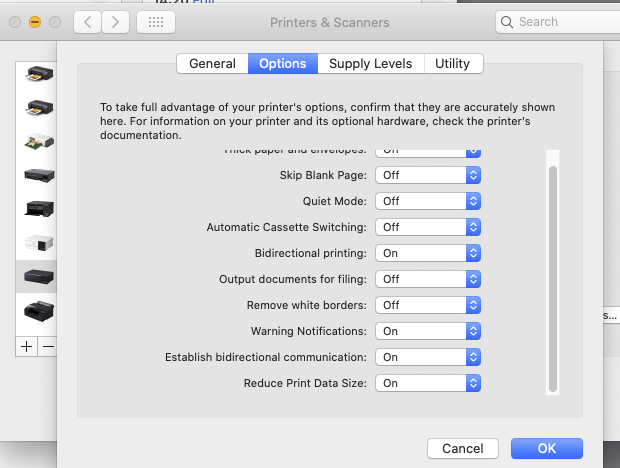
This is on my Mac [10.15] for other systems, read the manual…
How do ET8500-8550 driver settings and detail differ
OK, what practical use will I make of these tests?
My first thought at seeing the distinct lines of dots in the ‘quality’ images was that the bidirectional print head alignment might be out.
Note: These are not visible to the naked eye unless you have particularly acute fine vision and close focusing ability.
I ran another set of head alignments on the printer – no difference. I did note that you can only do the alignments on plain paper and they are actually quite fiddly to try and do well.
So, let’s ignore the difference in quality setting – I’ll now use HQ [unidirectional] for printing, even if it is a bit slower.
The difference in fine detail is really there if you send more print resolution to the driver.
So, if I have an image which prints at a native 480 ppi, then I’ll send all that detail to the printer. It also means that if I have a good quality image at say 260 ppi, then I know it will print fine, but if I use a tool like Gigapixel AI to upsample it to 520ppi I’ll get a crisper looking print. Some of my testing indicates that this upscaling is a very effective print sharpening tool.
Some context – what really matters with the et8500-8550 driver settings?
The differences in detail at the HQ settings are real, but in the real world, perhaps not that obvious. I’d note though, that with small prints like you’d get from the A4 ET-8550, people look at them closer.
However, there is much more about making a good print than poring over detail so fine that no-one is ever going to see it ;-)
What about YOUR printer/paper?
I’ve tested just the et8500-8550 driver settings in detail for this, deliberately picking a very standard Epson paper.
If in reading this you are still inclined to use highest quality settings ‘just in case’ I’d suggest you do a few small prints of a highly detailed image and actually look to see if the differences matter to you. Above all, be honest to yourself…
Don’t be unduly swayed by ‘forum experts’ and anyone who starts introducing any maths into their argument (if not backed up with actual meaningful examples). Watch out too for people extolling the virtues of any particular bit of printer driver software – demand real examples showing the benefits. Chances are they will not have carried out any real testing – not even at the cursory level I have in this article. Even if they have – is it actually relevant?
Above all – test things and learn trust your own judgment ;-)
-- --
Never miss a new article or review - Sign up for our Newsletter (2-4 a month max.)More print related information from Keith
...or use the search box at the top of any pageReference pages and test images
- Printer Test Images
- B&W printer test image
- Printer cleaning
- Paper reviews
- Printer info/news/speculation Canon | Epson
Adverts removed
Keith | Jun 28, 2026 at 2:54 pm
Screens and prints can never match exactly.
Check your monitor calibration and brightness
Test with EPL and a test image – never your own
Also use the correct profile and media setting
Jonas Fischer | Jun 28, 2026 at 12:42 pm
Thank you for your videos and articles – they helped me a lot when getting started.
One question:
On the ET8500 I have the issue that even with an ICC profile the colors do not seem to match from onScreen – to what is actually shown on the paper. Especially when printing out of Lightroom directly.
Keith | Jan 5, 2026 at 2:58 pm
Go to the profiles page – linked from the top right of almost every page
Paul Rulon | Jan 4, 2026 at 11:58 am
I would love to test out you profiles for paper . I am experimenting with a couple different paper brands at this time and expect to experiment with iliford in the future. I really appreciate the time you take to educate the masses. Please send me the details on what is needed and where to send and how to send the donation for the icc profiles. Thanks for all the hard work and sharing of knowledge.
Keith | Sep 7, 2025 at 1:41 pm
Commercial use of the profiles is charged at the top Ko-Fi tier
Keith | Sep 7, 2025 at 1:37 pm
Not questions I can really answer – I never test timings, or print runs that big, and all consumer printers tend to slow down after a few prints [to prevent the heads over-heating]
My usual attitude is if you want a printer for commercial use, buy a printer for commercial use – these are consumer grade printers, so you get what you get…
Meaningful? – depends on your market – I cannot answer
Does the 8500 work OK – if so, stick with what you know
Levente | Sep 6, 2025 at 12:35 pm
Hello Keith!
I must clear 3–4k 4×6″ glossy (plus some 5×7/A4) within ~two weeks, so I need a second unit beside my ET-8500. Locally the L18050 bottles are ~35–45% cheaper than the 8500’s, so if ml/print is similar the cost/print should drop. Two questions:
1. In Quality + unidirectional, does the L18050 reliably stay at ≤40 s per 4×6 over 100–200 consecutive prints (no throttling/extra cleans)?
2. On OEM glossy, do you see any meaningful quality difference vs 8500 (detail, neutrality, gloss uniformity, dMax)?
Given this, would you pick two 8500s for consistency, or 8500 + L18050 for throughput and lower ink spend?
Keith | Sep 6, 2025 at 11:22 am
Email me for the profiles – I request a Kofi donation [at the top tier if any commercial use]
If the results from the 8500 are OK, why run two different printers?
Levente | Sep 5, 2025 at 4:06 pm
Hello Keith,
I love your detailed reviews! :)
Please forward the ICC paper profiles for the Epson 8500.
I photograph in nurseries and kindergartens twice a year (spring and autumn). Each season I print 3,000–4,000 6×4” photos, plus 200–300 A4 (8.3×11.7”) and 800–900 5×7″prints. I currently use an Epson ET-8500 and ET-7750, with most 6×4” work running on the ET-8500.
I’m considering my next step and would appreciate advice. Would it be worth moving to an Epson ET-18100 / L18050 for my workload, or should I instead run two ET-8500 units and split the jobs? I’m not satisfied with the ET-7750’s output quality for this work and plan to replace it.
Workflow details:
• Media: Epson Premium Glossy only (no other paper types).
• Ink: OEM Epson.
• Images: color, flash-lit sessions, hand-painted canvas backdrops.
• I print exclusively on glossy papers.
Given the above, which setup would you recommend for the best balance of speed, consistency, and print quality on glossy: ET-18100/L18050, or two ET-8500s? Or one 8500+another 18100?
Keith | Jun 11, 2025 at 1:27 pm
Noise is something I deal with long before any thought about printing
I also don’t scale down for printing. I might if I was printing very small prints – but there sharpening is far more important
Daniel Hofstetter | Jun 9, 2025 at 8:55 am
Hi Keith
Thanks for your ongoing reviews and test. As far as I understand details won’t increase significantly above 720 ppi. My question is about noise. To my assessment Adobe SW does a good job reducing noise by scaling down an image. What is you experience do the printer driver, printer combination the same good job or might this be a reason to scale down before print?
Thanks for you opinion
Daniel
Keith | May 23, 2025 at 2:05 pm
Mac or PC
If Mac, check that you do not have the AirPrint version of the driver installed
Michael | May 22, 2025 at 10:31 pm
I only see General and Supply Levels tabs in the Options & Supplies window. I presume this might be a driver limitation?
Keith | Jan 8, 2025 at 7:14 pm
Profile links sent…
William W. Reed | Jan 8, 2025 at 1:03 pm
Hello Keith,
I am enjoying your perspectives on these technical pursuits. They are a feast for thought.
Please forward the ICC paper profiles for the Epson 8500. I am in the US and using Epson and HP glossy papers. Matte is sparse but I want to try it, semigloss and luster versions, too. Red River may be an option for papers, too.
Thank you,
Bill Reed
Keith | Dec 7, 2024 at 11:14 am
For anyone wanting the profiles – please email me.
Artur Błaszak | Dec 6, 2024 at 7:44 pm
Write your message here…Good day. I have been watching your videos on YT for a long time. I have an Epson ET 8550 printer. Can I ask you to send ICC profiles for the paper? I like to use Canson Fotographique II and Arches 88 paper because the manufacturer provides profiles for my printer. I would be very grateful for your help. Best regards, Artur Błaszak
Keith | Sep 7, 2024 at 10:52 am
For anyone wanting the profiles – please email me
Steve Lee | Sep 2, 2024 at 4:49 am
Hi Keith,
I would also appreciate it if you could send me the icc profiles for the papers you have.
Thanks,
Steve
Keith | Aug 30, 2024 at 1:55 pm
For anyone looking for the profiles – email me.
They are not linked here due to licensing issues
Immanuel Bloch | Aug 30, 2024 at 9:35 am
Dear Keith,
I am very much enjoying your channel! Thanks for all your work and your educational videos and articles.
I am now a happy owner of an Epson ET-8550 and am trying different papers for the printer. Unfortunately, there aren’t many ICC profiles for the Hahnemühle papers. You mentioned you were willing to share your drivers for private use.
Could you mail me a copy of the Hahnemühle paper profiles you made for the ET-8550? That would be wonderful and very much appreciated.
Many thanks and best wishes from Munich,
Immanuel
Peter B. | Aug 22, 2024 at 8:07 pm
Keith,
FYI, the bidirectional option Lionel Barker speaks off, can also be found on Mac. You have to open the printer under System Preferences/Printers&Scanners and then click “Options and supplies”. Not much information about them however.
Keith | Aug 1, 2024 at 1:35 pm
Test it and see ;-)
I only ever get to test the Mac version of things [no win pcs in the house ;-) ]
Lionel Barker | Aug 1, 2024 at 12:50 pm
I noticed you mentioned that HQ was “unidirectional”. On my windows driver I have a separate tickbox for for bidirectional – that is under the “more options” tab. So it seems that I can set unidirectional “by unticking” this, independently of of print quality (Standard, High, Best).
So do you think I should untick bidirectional when I set High/Best – or is it a case of “do some tests and take a look and see” .
I would ordinarily be in in the school of “don’t worry about time and set the highest/best quality”, until I saw your notes about bronzing on high quality. That said it “feels like” unidirectional is “safer” unless “bidirectional” might average out some errors…
Peter Anthony Brough | Aug 12, 2023 at 5:32 pm
Hello Keith,
Thank you for the video, it is one of many I have watched from you.
I am new to printing, but acting on your reviews of the ET- 8550 I have recently bought one.
I do not have any paper for the printer, but will start with your recommendation of Epsom Printer Papers.
You have suggested a ‘starter pack’ that I am keen to obtain but can you tell me what the Epsom name/code for the papers you have suggested are ?
I called into an Epsom dealer today to ask for assistance, they had no papers in stock but told me that if I could provide the stock reference – the would order the papers for me. I will purchase the papers you have suggested an ask if you might share your bespoke ICC settings for each ?
Thanks again for all your help ( the tilt / shift videos) were a bit tough to get my head around as I did not know that the lenses existed. I persevered and think I have a handle on the subject,,,,,,,
All the best
Keith | Jun 12, 2023 at 9:45 am
The profiles are listed in the main review – email me if you would like thim
Cody Holler | Jun 7, 2023 at 1:12 am
Hello. I just came across your YouTube channel and I am looking for profiles to help me print on some of the papers that you were using, including the bright white water, color paper for some larger Prints on the Epson, 8550
Or any profiles you have for Matte papers for the 8550
thank you!!
Keith | Mar 22, 2023 at 8:53 pm
Dye inks and B&W are always hit and miss.
The colour will be different in different types of room lighting as well
ABW does allow adjustment of tint – see this recent video of mine
https://youtu.be/D9mKah1lC7s
See also the actual ET-8550 review and the B&W print section
https://www.northlight-images.co.uk/epson-et-8550-printer-review/
Pierre | Mar 22, 2023 at 2:42 pm
Thanks for all your articles. After reading your review of the Epson 8550, I bought one.
I use the Epson software to print. I’m really satisfied of my b&w prints on Canson Infinity Photographic Rag paper.
On the contrary, when using the Epson Traditional Photo Paper (using Advanced b&w photo mode in Epson Print Layout software) on a b&w picture, I get a greenish picture, there’s green color in the print.
I don’t understand why.