


Epson ET-2850 printer review
Epson ET-2850 printer review
8.5″/A4/Letter sized EcoTank printer/scanner

No more Google ads. Too many deceptive and irritating adverts.
Any ad links left are non tracking, to companies we know, trust and we've worked with for years [Park Cameras]
Ads helped pay for site running costs, so if you found something useful, please
...Make small KoFi donation?
...Subscribe to Keith's YouTube Channel
...Get Keith's book about how to use tilt/shift lenses
Our site contains affiliate links - these help support the site. See our Advertising policies for more
Keith Cooper’s Epson ET-2850 printer review.
The 8.5″ width A4/Letter EcoTank printer is very much aimed at the home office market, with four inks. The black ink is a pigment ink optimised for documents and matte media, whilst the colours [C/M/Y] will work on glossy media.
Keith looks at printer performance on different media and why proper selection of media and colour management are key to getting optimal results
The review is complemented with a range of short YouTube videos exploring aspects of using the printer.
ICC Paper Profiles: I’ve created several icc paper profiles for this review [see below]. They are available on request. a Kofi donation is all I’d ever request for them… https://ko-fi.com/keithcooper [Thanks to all who have!]
ET-2850 printer review index
- Printer features
- Setup
- Connectivity
- Ink refilling
- Media handling
- Scanning
- Office functions
- Colour management
- Black and White
- Printing
- Epson software
- Conclusions
- Full Specifications

Epson ET-2850 printer review
Videos
I’ve made a number of videos to go along with this review:
ET-2850 printer review: What do you get?
The Epson EcoTank ET-2850 is a 4 ink A4 (8.5″ width) multifunction printer. In this review I’m primarily concentrating on its use for printing photos and artwork, and how to get the best results from its hybrid ink set.
Printer features
The printer includes a flatbed scanner, so is marketed with the ability to ‘print,copy and scan’.

It’s this ‘home office’ pitch which has left many wondering if it’s a good option for photo printing?
How does it compare with dedicated photo printers?
It’s very much a document printer and photos on glossy media are not up to what you’d expect from a dedicated photo printer. BUT if you print on matte media with a good profile, results can look quite good.
If you want a glossy photo printer, buy a photo printer – look at the ET-8550 or ET-8500 for example.
The ink system has two interesting features compared to the normal photo printer.
No cartridges
You fill ink tanks from bottles. Essentially the ink from the bottles is used to fill the tanks from above,

Hybrid ink set
The ink set has a pigment black [larger 127ml bottle and tank capacity]. There are traditional Cyan/Magenta/Yellow dye based colours.

This mixed ink set means that the print characteristics are not simply like a dye or pigment ink based printer, but a hybrid, the results of which depend on paper type and media settings used when printing. The results of this are clear in my creation of colour ICC printer profiles.
A small interface?
The small colour screen is sharp and detailed, but if like me you need strong reading glasses for small detail, it is extremely small. The keyboard is used for settings, but the print is also rather low contrast in average room lighting.
With familiarity, it becomes easier to set media types/size and to copy things, it’s never easy to use

But there’s a phone nearby…
There is now an Epson phone app which works well with the printer. Epson Smart Panel lets you control all sorts of functions of the printer
- Epson Smart Panel – app info from Epson
This allows for basic printing [from a device] as well as scanning and copying.
All good stuff, but for setup and if your phone is in the next room there is still the need to use that screen and keypad.
So, for example, when you load paper, the type and size needs specifying – this has to be done at the printer.
ET-2850 printer review: Printer setup
Unfortunately, the particular printer I was sent had already been set up, so I can’t do a 100% full walkthrough of the setup process, but I do have this [24 mins] video covering all the different aspects of setting up the printer and connecting it to a network.
The instructions are very clear, but I’d just make a few suggestions
- Check you get all of the protective tape – there is some inside too
- Read through the instruction no matter how many other printers you have set up
- Take care with Mac setup that you don’t accidentally set up the AirPrint driver
On older Macs watch that you don’t see this

It’s discussed in the setup video, and I have a more general video [10 mins] covering it here:
USB is the quickest connection method to set up if you don’t need to share the printer.
WiFi can also be used for direct connection to mobile devices – see the setup details for more about this.
Filling the ink
Lifting the cover and blue tank caps gives access to the fill points.
Just place the opened bottles on the caps to fill or top up. Don’t squeeze the bottles – they will not overfill or leak in normal use.
As a double check, I’d note that the bottles are physically keyed, so that the wrong ink bottle won’t physically attach to the fill port.
The filling automatically stops when the tank reaches its ‘full’ level.
After initial filling, there is ink left in the bottles. This can be used later to top off the tanks.
ET-2850 Printer review: Running the install software
The Epson install software is fairly smart, giving you a number of ways of connecting the printer.
Once set up, there is a range of software you can install in addition to the printer driver.
Connectivity
As well as the wireless option I’m using for testing, the printer has a USB-B connection at the back.
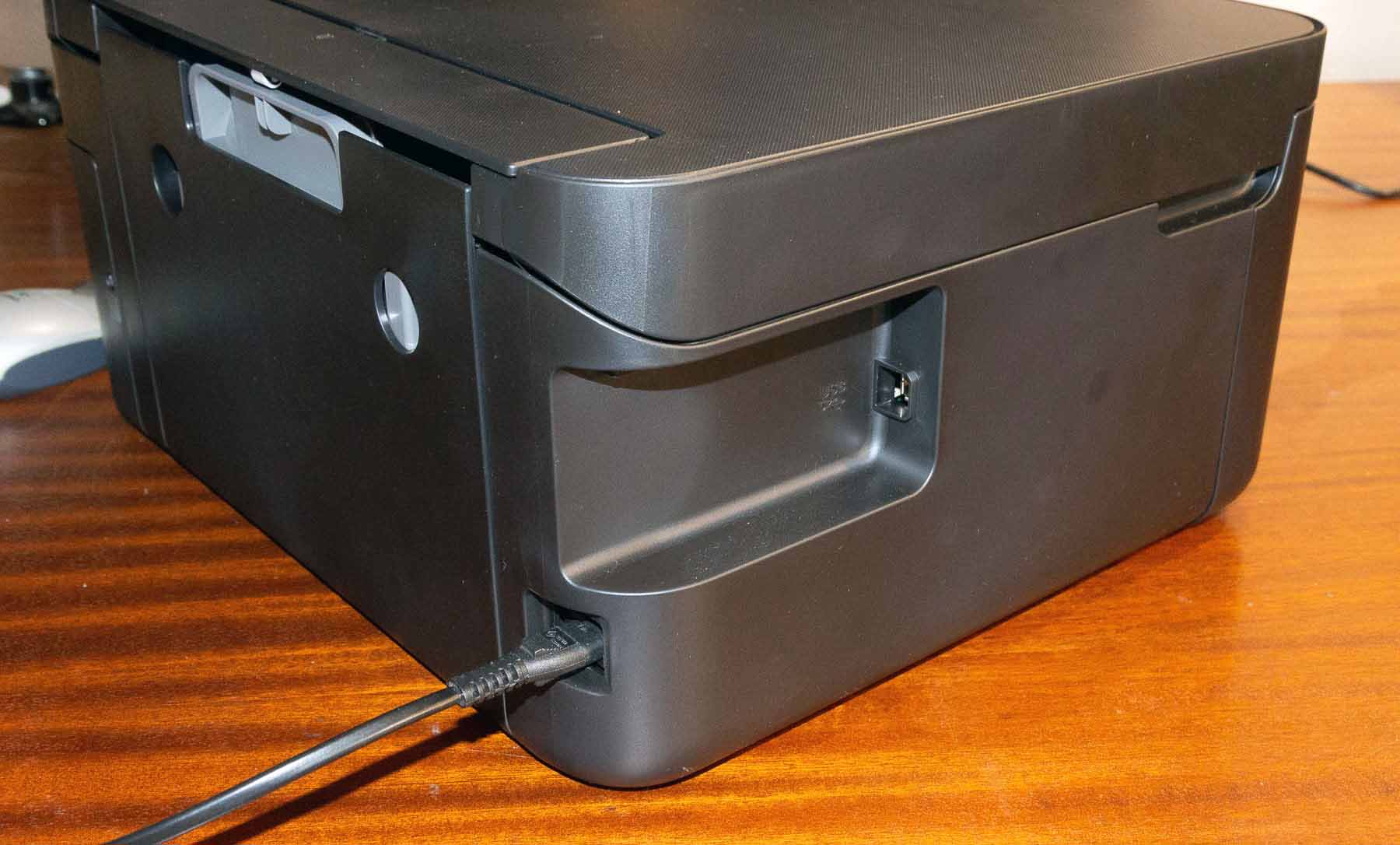
Note that you can have multiple connection methods for an individual computer, but each one will appear as a ‘different’ instance of the printer.
So, since I also used USB when testing, I have two ET-2850 printers in my (MacBook) printer list – one USB and one on the network (wirelessly).
Ink refilling
One of the key features of the 2850 is that you get to refill the ink tanks once they get low.
The printer has no way of knowing how much ink is left in each tank. This means that it’s estimating when they need topping up, based on you telling when a tank is full.

Here lies another difference from normal cartridges. With cartridges, the printer knows how much ink it started with and knows how much has been used. This give a way to calculate the ink remaining – there are no level detectors in cartridges either.
An important aspect of this is that you shouldn’t top up any inks unless you are filling them to the full mark, and registering it. If the printer doesn’t know the ink levels, there is a risk it won’t flag up an empty tank and run dry – never a good thing to do with inkjet printers.
Maintenance cart
There is a maintenance cart at the rear of the printer, designed to soak up ink used in cleaning over time. It is easily replaceable, but I suspect will last a long time – I’d not bother getting a spare until it started showing as very low in capacity.
Note that there is no mention of this cart in the manual, leading to suggestions that it is not replaceable – see below

Note the second screw holding the cart in place.

This cart has no electrical connections, so the printer will base its ‘fullness’ estimate purely on dead reckoning.

Reset the maintenance box on the et-2850
Since there are no electrical connections, the printer needs to know if you replace the maintenance box.
This procedure is not to be found in the PDF manual, however, this was suggested to me.
I’ve not tried this though
- Turn off the printer.
- Press and hold the “Power” button along with the “Stop” or “Maintenance” button for about 5-10 seconds.
- Power on the printer while still holding the buttons.
- Release the buttons when the printer initialises.
Head alignment
During setting up the printer, it’s worth running through the head alignment process to optimise print quality.
This primarily helps reduce banding when the printer is printing bidirectionally.
ET-2850 Printer review: Media handling
The printer has one slot at the rear for feeding paper. Take care with the black lid, it’s possible to unclip it if you pull on it too hard.

It will take a small stack of plain paper or matte photo paper, but if you want to use thicker art media, a single sheet is best.
At the rear is a detachable duplex unit, which reverses paper for double sided printing.

It’s here that creased/bent paper is most likely to jam. If you are printing a document double sided, take care to use fresh paper.
Smaller paper and borderless
Adjust the width of the paper guides for smaller paper. You will need to tell the printer the size and type via the front panel.
There are a range of pre-defined paper sizes available – only some of these are supported for borderless printing [note arrow mark].

The dropdown list also includes all my custom papers sizes – some are for much bigger printers BTW.
Here’s the print setup [Photoshop] for a small card, using a 5mm margin.

ET-2850 printer review: Scanning
The built in scanner can be used as a basic copier onto plain paper. It has no document feed, but to be fair if I want document feeding I’ll buy a full time office printer.
Scan size is limited to A4 length, by Letter width.

The scanner is not fast – this scan of a profiling test target took what seemed a long while [~ 1 min 50 seconds] for an A4 sized image at 600dpi. If you want lots of fast scanning buy a printer which does it…

I’ve looked at this feature a while ago in a review [i1profiler scanner profiling]
To make a profile, I needed to open the scanned TIFF [ignoring the default profile] in Photoshop and re-save it in uncompressed format. I also scanned the target using Vuescan – my normal scanner software of choice. The profiles are available for personal experimentation on request.
The profiles can help in scanning artwork – see the section about scanning a watercolour painting in the ET-8550 review.
Office functions
The printer works well with plain paper, single or double sided. The pigment black gives good crisp text although the dye colours give just the sort of slightly washed out I’d expect printing colour on plain paper.
It’s not bad though and faster than using specialist photo printers, which with their smaller cartridges always make me think about ink use when printing the odd document.
Copying works fine (with enlargement too)
I can’t say much more since testing office printers is way beyond my area of interest, but I’m sure you’ll find some more general reviews/comparisons where the concept of ICC profiles never entered the reviewer’s thought process ;-)
ET-2850 printer review: Colour management
The hybrid ink set of the 2850 can be thought of as a CMY dye based printer with the addition of a pigment black ink optimised for text printing.
At first thought, the black pigment ink might be thought of a primarily for text printing, but a closer analysis shows that for some media settings it is used with the dye inks. For any form of photo printing on matte media [art papers], use the matte setting.
Making profiles
There are no specific profiles installed with this printer. As a result of this I’ve created profiles for several papers (Epson and third party). These were made using 2xA4 target sheets with just shy of 1800 patches per target. The targets were measured with an X-Rite i1iSis spectrophotometer and profiles created with i1Profiler.

Profiles created for my ET-2850 printer review
- Epson Premium Lustre [several versions inc. one using the matte paper setting]
- Permajet Matte 240 [similar to Epson enhanced matte]
- Permajet Watercolour 250
- Permajet Titanium gloss 300
- Permajet Oyster 271
With the limitations of CMY printing on glossy papers – these profiles are probably worth trying for all sorts of other papers. In particular, the Matte and Watercolour ones should be good for many types of greeting card, where all four inks will be used [both with ‘matte’ media setting].
Individual profiles are available on request for non-commercial use and experimentation – email me with which specific ones you want – they are ~3MB each.
If you’re curious about making your own profiles, I have a video about this from when I tested the ET-8550
Using the i1Studio/CCStudio with the ET-8550
Black and White – matte and gloss
On glossy papers, the lack of black ink makes B&W photo performance of dubious utility. For matte papers B&W performance was variable.
Remember – this is not sold as a photo printer!
There is no specific B&W print mode, just a greyscale setting.

Make sure the colour controls are set accordingly if the greyscale tickbox is greyed out.

Selecting Greyscale gives excellent neutral prints…
But… only the black ink is being used [matte media setting]. This makes for very coarse detail and distinctly visible ink dots in light areas. The print linearity could do with work, since shadows are somewhat crunched up.
Printing with my profile gives even tones, more detail, but because of the dye inks, a slight magenta tinge which varied with room lighting type and in daylight.
As part of my testing I printed dozens of A4 test images.

This particular version of my B&W test image is designed for quick measurement with an i1iSis spectrophotometer, but I have many other versions of the test image freely available.
These curves show the greyscale results. First ‘Grayscale’ mode’
 The black I note the line of ‘L’s is dead is straight until you get to ~90%.
It’s the most abrupt change I’ve seen in a long while and suggests that if you did a simple levels or curve adjustment to the source image, you would get very linear results. However, still very ‘grainy’.
For the adjustment – raising the black point to ~24 would move the image data into the linear part of the curve – you’ll need to experiment though, since the mid-pint may need tweaking as well. That’s what the B&W test image is for though.
The curves for using all four inks.

Nice and linear, but the way the ‘a’ and ‘b’ curves jump about suggest that the print may well show slight coloured banding.
I see similar effects during my making of colour icc profiles.
A look at the measured spectral response of a black patch on a glossy print target [left] shows a distinct residual colour, whilst the same patch on a matte paper [right] shows the effect of the black pigment ink.


A look at the gamut volumes superimposed shows the influence [blue] of the black ink in giving a much better print.
This is the same paper : Epson Premium Lustre.
Of course that black ink use [by setting the media to ‘matte’] means that you get extreme gloss differential and is only really relevant if coating prints. It does reflect the gamut you are more likely to get on a good art paper

A gamut check [soft proofing in Photoshop] shows just how much [red areas] of my standard test image can or cannot be printed as required.

Photo paper

Matte/Art paper
What does this look like in real prints?
Here’s a shot showing the same image printed on Epson Premium Lustre paper. One version is using the premium semi-gloss photo paper media setting/ The other is printing with the ‘matte’ media setting.
Click to enlarge – Note – not fully colour balanced for room light, image is for showing the different depth of blacks.

Does this mean that you just need to use the matte media setting?
Well, no. It’s OK until there is light reflecting off the surface, and that deep black goes much lighter

Yes, you could spray coat the prints, but if you are that concerned with making glossy prints why are you not using a photo printer?
Media choices for my ET-2850 printer review
To cover all the details of how different media work with the ET-2850, I’ve a detailed look in this [24 mins] video at how to get the best results for art prints and cards.
Very thick media can show some problems with paper feed, but may just need a bit of a shove.
I tried canvas – it just wouldn’t push into the printer, which just sat there telling me there was a paper feed problem.
One point I need to repeat regularly in my printer reviews: this printer will not produce good results on ‘card stock’ – you need media intended for inkjet printing. This goes for vinyl stickers too
However, what about ‘Fine art’ prints on good media?
Yes, the matt black and coloured dyes can work together [16 mins] .
Printing
Most images during my testing were printed from Photoshop (various versions). Some were printed directly and others using the Epson EPL software. There are some more details about this in the video above.

Printing an A4 [folded to A5] card from Photoshop

Printing from EPL
Borderless works well, but do be careful with the image expansion. If you’re not careful, it’s possible to get a fine white margin. This didn’t happen with the EPL software, but you have to remember that borderless relies on expanding the image beyond the page edge.Note that if you want to print a lot of borderless prints, there will be overspray, and you will need to clean the inside of the printer to prevent ink buildup. I used absorbent kitchen roll to dab the plastic and foam under the print area.
I have a video looking at cleaning in the similar [from a cleaning POV] ET-8550
Image quality and speed
There are usually two print quality settings in the driver if printing photos/art: ‘Quality’ and ‘High Quality’
The higher quality is rather slow, you’ll be waiting several minutes for your print to come out. A close look showed slightly better fine detail, but you had to look closely – something to decide for yourself if anyone will notice…
On photo papers, the lack of black ink is obvious enough that I can see no reason you’d use the slower setting. If printing with the ‘matte’ media setting it might be worthwhile – you’ll need to decide.
Epson software
The Epson Print Layout (EPL) print software was installed with the driver, but is also available directly from Epson

The iMac shown is running the current MacOS 13 (aka ‘ventura’) – Printing was tested using my old MacBook Pro as well – running OSX 10.13 and Photoshop CS6. All worked just fine.
After installing the software, there is a plugin installer for using it directly from within Photoshop for example [via the ‘Automate’ menu].
Printing from a phone – Epson Smart Panel
Whilst looking at the remote interface software, I noted that it printed as well…
There are quite a few settings, but obviously no ‘proper’ colour management. I’ve selected the 240gsm bright matte paper I’ve used for testing.

Here’s a photo taken on my iPhone and sent to the printer.


That’s not at all bad…
Remember I said this is not a specialist photo printer – that makes the results all the better.
It does what it does well – if you want something else, like glossy photo prints, and you spot thing like gloss differential, then move along, this is not the printer you are looking for. This is a printer my Mum would have been happy with (that’s her iMac in the background) – as long a I set it up in the first place ;-)
ET-2850 printer review conclusions
Nicely compact with decidedly cheaper ink costs than the small cartridges you often find.
A general purpose ‘home’ printer/scanner which will meet many basic printing requirements.
On matte media, including thin card [needs to be for inkjet use] and art papers, the results could look very good.
Not an optimal solution if you are looking for glossy photo snaps – one of the ‘4 dye ink’ versions of the printer may be more suited, or even the much more versatile ET-8500 [A4/Letter version of the ET-8550 I’ve reviewed]. Note that I’ll be looking at the 8500 in the near future and will even do a few comparisons.
Usability – accessibility
The small screen is bright and crisply detailed, but it’s small – add to that the low contrast front panel markings and I’m left feeling that this aspect of the printer’s design was not run past much accessibility testing. This is unfortunate since I expect much better from Epson in areas of usability. I need my strongest glasses to check the details of setup menus.
That said, once it’s up and working, you can get away with minimal interaction – either using a phone or printing/scanning from a computer.
Why is this a concern Keith? Well before taking up photography, one of my careers involved usability research, where I also I gained an M.Sc in Human Factors – some old habits persist ;-)
Who is it for
The printer does what it does very well, and at the risk of repeating myself, is not marketed as a photo printer. If you want a photo printer buy a photo printer!
It copies and prints well and the larger ink tanks will be appreciated by many. Glossy photos were lacklustre, but prints on matte and art papers looked excellent – perfectly good enough to running off a few greeting cards.
It’s a home office printer – works well on plain paper, including graphics. Perhaps you might want an ADF or more advanced office features, but then you are running a more serious office, so buy a higher end office printer. In all the years of running our business, neither myself of Karen have ever needed an ADF on a scanner…
In fact Karen agreed that this is a printer she would be far more likely to use in our business, than a higher end one. We already have specialist photo printers…
–oOo–
Questions are always welcome – email me at Northlight.
My [18mins] Video ET-2850 printer review
All of my ET-2850 printer review videos
I’ve made a number of videos to go along with this review:
- ET-2850 printer setup
- Fixing the AirPrint problem on Macs
- Epson ET-2850 printer review
- Media choices for photos, art prints and cards
- Fine Art prints on the ET-2850?
Full specifications
From Epson
Technology
- Printing Method: Epson Micro Piezo™ print head
- Nozzle Configuration: 180 Nozzles Black, 59 Nozzles per Color
- Ink Technology: Pigment black and Dye colour Inks
- Printing Resolution: 5,760 x 1,440 DPI
- Category :Home
- All-in-One Functions: Print, Scan, Copy
- Printing Speed ISO/IEC 24734: 10.5 pages/min Monochrome, 5 pages/min Colour
- Printing Speed: 33 pages/min Monochrome (plain paper 75 g/m²), 15 pages/min Colour (plain paper 75 g/m²)
- Duplex Printing Speed ISO/IEC 24734: 6 A4 Pages/min Monochrome, 4 A4 Pages/min Colour
- First Page Out: Monochrome 10 Seconds, Colour 16 Seconds
- Colours: Black [Pigment], Cyan [Dye], Yellow [Dye], Magenta [Dye]
- Colours Capacity: Black [127ml], Cyan [70ml], Yellow [70ml], Magenta [70ml]
Scan
- Single-sided scan speed (A4 black): 11 sec. with flatbed scan
- Single-sided scan speed (A4 colour): 28 sec. with flatbed scan
- Optical Resolution: 1,200 DPI x 2,400 DPI (Horizontal x Vertical)
- Output formats: BMP, JPEG, PICT, TIFF, multi-TIFF, PDF, PNG
- Scanner type: Contact image sensor (CIS)
Paper / Media Handling
- Number of paper trays: 1
- Paper Formats: A4 (21.0×29.7 cm), A5 (14.8×21.0 cm), A6 (10.5×14.8 cm), B5, B6, C6 (Envelope), DL (Envelope), No. 10 (Envelope), 10 x 15 cm, 13 x 18 cm, 9 x 13 cm, 13 x 20 cm, 20 x 25 cm
- Duplex: Yes
- Output Tray Capacity: 30 Sheets
- Paper Tray Capacity: 100 Sheets Standard
- Compatible Paper Weight: 64 g/m² – 300 g/m²
- Media Handling: Automatic duplex (A4, plain paper), Borderless Print
General
- Recommended number of users: From: 1 To: 2
- Energy Use: 12 Watt (standalone copying, ISO/IEC 24712 pattern), 0.7 Watt (sleep mode), 4.3 Watt (Ready), 0.2 Watt (Power off), TEC 0.14 kWh/week
- Supply Voltage: AC 100 V – 240 V, 50 Hz – 60 Hz
- Product dimensions: 375 x 347 x 187 mm (Width x Depth x Height)
- Product weight: 5.4 kg
- Compatible Operating Systems: Mac OS X 10.6.8 or later, Windows 10 (32/64 bit), Windows 11, Windows 7 (32/64 bit), Windows 8 (32/64 bit), Windows 8.1 (32/64 bit), Windows Server 2008 R2, Windows Server 2012 R2, Windows Server 2016, Windows Vista (32/64 bit), Windows XP Professional x64 Edition SP2 or later, Windows XP SP3 or later (32-bit), Windows Server 2003 R2, Windows Server 2003 SP2 or later
- Interfaces: USB, WiFi, Wi-Fi Direct
- WLAN Security: WEP 64 Bit, WEP 128 Bit, WPA PSK (TKIP), WPA2 PSK (AES)
- Mobile and Cloud printing services: Apple AirPrint, Epson Smart Panel App, Epson Connect (Email Print, Remote Print Driver)
- Power supply: 220V, 240V
- What’s in the box: 1 set of ink (1x 127ml BK, 3x 70ml CMY) + Extra Black, Main unit, Power cable, Setup guide, Warranty document
- Colour: Black
Other Features
- Panel: Type: Color, Diagonal: 3.7 cm
Other
- Warranty: 12 months Carry in, 30,000 pages
Included Bottle Yield
- Black yield : 14,000 pages
- Colour yield: 5,200 pages
Never miss a new article or review - Sign up for our occasional (ad-free) Newsletter
and please do subscribe to Keith's YouTube Channel

Other areas of our site that may be of interest...
All the latest articles/reviews and photo news items appear on Keith's Photo blog

Keith explains tilt and shift lenses
Keith has written a book that looks at the many ways that tilt/shift lenses can benefit your photography from a technical and creative point of view. If not in the UK check for import issues and maybe try an on-line bookshop. Keith has no connection with sales of the book.
ISBN 9781785007712
There is also a specific index page on the site with links to all Keith's articles, reviews and videos about using tilt and shift.
We've a whole section of the site devoted to Digital Black and White photography and printing. It covers all of Keith's specialist articles and reviews. Other sections include Colour management and Keith's camera hacks - there are over 1200 articles/reviews here...
Adverts removed
Keith | Nov 17, 2025 at 10:26 am
Can you email me for them – different system
zack bay | Nov 16, 2025 at 1:12 am
Can you please e mail me the profiles and kudos to your effort.very educating.
Keith | May 15, 2025 at 9:49 am
No it doesn’t
The et-18100 is the only printer I’ve tested which has the holder for such media
Pete Murray | May 10, 2025 at 10:41 am
Hello Keith, do you happen to know if this printer can print cr80(credit card sized) cards, can’t find any info about it,
Thanks
Pete
Keith | Dec 14, 2024 at 9:04 pm
Probably not a good idea without very extensively draining the exisiting inks – there is no way of knowing how old/new would mix/react in the print head.
Certainly would not risk it in any printer I owned ;-)
PETER NATHANIEL SMITH | Dec 13, 2024 at 2:18 am
Hi Keith. I appreciated your post. I am pleased with my Epson 2850 which you have reviewed.
I am guessing it would not be advisable if I use a black dye that I have on hand which I purchased some time ago as “bulk ink for inkjet printer.”
I also wonder the same about a blue, yellow, and magenta bottles I have which are also dyes if they would hurt my Epson printer.
Thanks for your thoughts,
Peter
keith matthews | Jan 2, 2024 at 1:42 pm
A friend who had got sick of paying for HP cartridges ws going to buy one of these Epson ET2850s and asked for my opinion. Having heard of Epson bricking printers when the waste ink pad or tank is full and in view of your “dead reckoning” comment I did some checking and sure enough the user manual lists error E-11 in the troubleshooting section so one is indeed bricked! So after some discussions and further checks I persuaded her to buy a Canon Maxify GX4050 which was on offer at John Lewis (of all places) at a knock down price of £329 (4 weeks later their price went to £429!). We even purchased separatelly the user replacable waste ink tank for future use. It may be a printer of lesser quality on photos but she never prints anything on photo paper!
Harold Richter | Jul 20, 2023 at 8:04 am
It is interesting to note that even though you provide photos of the maintenance cart, I can find no reference to allowing the customer to install a new cart. In fact, I find the opposite in my search. That this is indeed not a user replaceable part.
Quotes such as “Hello. Unfortunately, the ET-2850 does not include a user-replaceable maintenance box. For more details, please visit our official Epson Support page. Regards, Kevin – The Epson Team.”
and
“Hello. The ET-2850 comes with an already-installed maintenance box. It is designed to last the life of the printer and does not require user replacement. Regards, Kevin – The Epson Team.” are among the items I have found regarding this matter.
The online manual does not mention the ability for the user to change the cart. Although it does mention it for other models that support this feature (such as the ET-3850).
Thank you for helping me in my search for a new printer. It has been eye-opening.
Harold
Keith | Jun 6, 2023 at 10:34 am
Email us for the profiles…
William Bartholomew | Jun 3, 2023 at 9:01 pm
Mr. Cooper, thank you so much for your review of the Epson ET-2850 printer. I decided to go ahead and buy this printer and am just starting to use it. I have ordered some Epson Premium Presentation Paper Matte and look forward to trying it out. I would very much appreciate if you could send me two of the profiles you mentioned in your review:
Epson Premium Lustre [several versions inc. one using the matte paper setting]
Permajet Matte 240 [similar to Epson enhanced matte]
Thank you in advance.
Sincerely,
Bill
yves duwelz | Jun 3, 2023 at 2:02 pm
Thank you for indeep review. Until now we used HP printers but the price of printing and these printers are complicated to repair lead me to consider Canon or Epson. To find an publication about a user experience was difficult but your detailed review convinced me. The extra 5 year (paying) warranty offered here is also another good argument. Thank you again
Keith | May 22, 2023 at 2:06 pm
For a new printer – contact Epson. This should not happen
Mr D Baker | May 18, 2023 at 8:56 am
Thanks for the full detail review.
Lot of excellent features, but my brand new ET-2850 has not been able to print anything without a blue hue. I’ve tried custom colour management in advanced print settings, but no success. An internest seach of ET-2850 produces significant similar experiences, but no successful resolutions.
I’ve never seen a brand new printer produce such a variation from screen colour. I want the benefit of large tank ink storage, but after 2 weeks of significant learning, effort with mixed settings, including standard and gloss papers, this printer is going back to the shop. And I don’t know what to by that I can rely on.
Unless NI can suggest any resolution to this true blue problem.
Sincere thanks in advance.
Don.
Keith | Mar 28, 2023 at 9:09 am
Sorry – I know even less about chromebooks than windows PCs
I assumed they were like giant phones with keyboards – does google not have a software applications store of some sort?
Blake McCully | Mar 28, 2023 at 3:07 am
I just recently purchased an Epson ET-2850. The setup and all that went very well. My biggest problem is that there is no printer software for my Chromebook. How am I able to print without any connection?
Keith | Mar 4, 2023 at 10:43 am
Thanks
The profiles are available on request [email]
However, I’ve emailed a link to the address you used here
Raja Reddy | Mar 4, 2023 at 4:46 am
Hi Keith,
First of all thanks for this amazing review and the effort you have put in gathering and sharing them. Some much of technical information but depicted in manner for a layman like me to understand. This is the only useful and non marketing review I found across whole internet.
I have purchased this printer (EPSON ET 2850) for home office use but would like to use it for occasional family photos printing to view and place at home. Wanted to know if Canon MP-101 Matte Photo Paper (4×6 and 8.5×11) would be good choice with Matt Photo paper setting that printer comes. (I am professional to understand or create settings)
Also could you share the profiles you created. I would like to print my family and trip photos for personal viewing EPSON Lustre, glossy and Matte.
Much appreciated. Thanks for all the help and knowledge you are sharing.
Regards
Raja