


Canon PRO-310 printer review
Printer review: Canon PRO-310
Testing Canon’s replacement for the 13″ PRO-300

No more Google ads. Too many deceptive and irritating adverts.
Any ad links left are non tracking, to companies we know, trust and we've worked with for years [Park Cameras]
Ads helped pay for site running costs, so if you found something useful, please
...Make small KoFi donation?
...Subscribe to Keith's YouTube Channel
...Get Keith's book about how to use tilt/shift lenses
Our site contains affiliate links - these help support the site. See our Advertising policies for more
Keith has been testing the Canon PRO-310 printer for a while and written up this review.
The Canon PRO-310 is virtually the same as the PRO-300 – there are links here to all the detailed PRO-300 articles and reviews, which are very relevant and cover more features and uses of the printer. [Canon PRO-300 review]
Many practical details and examples are now covered in Canon PRO-310 supplementary videos – all listed here.
The ink set is the same as the larger Canon PRO-1100 I reviewed a while ago.
Please do feel free to ask questions, directly or via the comments at the foot of this review.
European prices for the Canon PRO-310 are £699.99/€799.99
$899 in the US
Keith has also written a Canon PRO-200/200S detailed review and articles. This is the successor to the PRO-100 and uses dye based inks.
Buying a PRO-310 from B&H
…helps support our site
Canon PRO-310 videos
- Best 13″ printer yet? Canon PRO-310 detailed review
- Canon PRO-310 Initial printer setup. Fitting print head & inks. Setting up printer & printer driver
- Canon PRO-310 regular maintenance and cleaning – dealing with lack of use and borderless printing
- Canon PRO-310 ink cart replacement. When to replace ink carts. When are they really empty?
Info
- What does the Canon PRO-310 colour optimiser ‘ink’ do? How best to use it? Best settings to use?
- Panoramic photo printing with the Canon PRO-310. A wide panoramic landscape print, using Canon PPL
- Glossy borderless printing on the Canon PRO-310. What to look out for if you want borderless prints
- Canon PRO-310 borderless canvas printing. Create 13×19″ canvas art prints
- Canon PRO-310 fine art paper printing via the rear feed slot. Art papers
- Canon PRO-310 – making a basic colour print with the free Canon PPL software. Simple photo printing
- Canon PRO-310 printer arrives for review. How does it compare with the PRO-300?
Related written articles [more detail]
- Setting up the PRO-300 [310 is the same]
- Driver settings and detail [for 300 – applies to 310 as well]
- Black and white on the 300/310 [for 300 – applies to 310 as well]
Videos
- Canon PRO-300 regular maintenance tips [310 is the same]
The Canon PRO-310
I’ve been testing and trying out the Canon imagePROGRAF PRO-310 for a while for this review, mainly looking at printing photos using Photoshop and Canon’s PPL software.
The review covers many aspects of using the printer, including colour management and custom media, for colour and black and white.
I have a 25 minute supplementary video review of the printer which covers many of my thoughts and conclusions about the printer.
The Canon PRO-310 is very similar to the 300, so this review also covers the changes between models, as well as basic functionality and how good the printer is.
I”m doing my testing from our various Macs. Interfaces may differ, but all that’s here is applicable if you’re using a Windows PC.
Basic Canon PRO-310 changes
Differences are mostly related to the new updated inks [the same as used in the PRO-1100 and PRO-2600/4600, although 10 inks rather than 12]
- Lucia PRO II inks [better light resistance]
- Max page length increased to 1.8m
- Additional page sizes and extra borderless ones [A5 for example]
- New quality option to reduce bronzing on glossy papers
- The magenta colour gamut is extended
- The ink is supposedly more scratch resistant
This review also contains some more detailed comparison data.
Canon PRO-310 features
The full specs are at the foot of this article, but it’s a 13″ width A3+ printer with 10 ink channels.
One channel is a clear ‘Colour Optimiser’ used to print over prints to reduce gloss differential. Note that this is also called a ‘Chroma Optimiser’, but the Colour Optimiser name seems more prevalent when people ask me about it. I’ve a short videos discussing how and why it’s used in the list of Canon PRO-310 videos above.
The printer prints borderless on any standard size paper and now supports a custom page length of up to 1.8m metre – this is an increase from the 990mm of the PRO-300. There is also a new ‘Long Form’ media type.
The Canon PRO-310 should be seen as an evolution of the PRO-300, not a whole new printer.Canon
These two sites are very useful for the new [and experienced!] Canon PRO-310 user:
- Canon PRO-310 Online manual
- Getting the most from your Canon PRO-310 [software and features]
The Print Head
This is user installed during initialisation [see my detailed video covering this]. It is the same basic print head used in the PRO-300 and PRO-10 before that [see my PRO-10 review from 2013]
Max print resolution is 4800 (horizontal) x 2400 (vertical) dpi
It has a 3″ colour LCD display (not touch screen) and two paper feed paths, one from the top (multi-sheet) and one at the rear for heavier art papers (single sheet). It’s clear and sharp, but it’s just the same as the 2020 PRO-300.

Connectivity includes Ethernet. WiFi and USB. note that direct wifi connection from phones and the like is also available.
Since I was testing the Canon PRO-310 and had a 300 to look at, I was able to spot a few more subtle changes, such as the size/style of the Canon PRO-310 label on the front, but most people would not spot any of the changes.
However, when changing inks, I noticed that the order of the [not interchangeable] ink carts in the print head has been changed

I’ve seen no explanation for this. My guess [and it is that] is that it is based on testing of the PRO-300 since it came out in 2020 and makes for more efficient use/driving of the print head, and possibly improves cleaning reliability.
Setting up the printer
The process is the same as with the PRO-300 setup [detailed article]
Just make sure to remove all of the orange tape and packing parts…

I do have a full set-up video for the Canon PRO-310
The Mac ‘AirPrint Problem’ with the Canon PRO-310
When setting up the printer I was careful to avoid any driver options with ‘AirPrint’ in the name. The problem is that it offers a simplified interface, and has over the years been a common source of ‘where have my printer settings gone’ queries on forums. It may well have a use, but none I’ve yet found.

Why? – AirPrint removes many printer driver options and is utterly useless for normal printing at any quality
The easiest way to set up the printer is just go to the Canon web page linked from the setup info in the printer and click ‘start’
Go to ij.start.canon

The printer comes with the following:
- CD/DVD disc printing tray
- Documentation
- Setup ink cartridges
- Power cord
- Print head
After installation I suggest immediately doing a print head alignment. You can use plain paper, but a couple of A4 sheets of photo paper will optimise the results.
This has a real effect on print quality, so don’t be in a hurry and skip the process!
The alignment print is also important. You can run this any time. I’d suggest doing it again in 6 months, or if the printer is transported any distance.
There are quite a few guides available from the printer screen. Some include QR codes linking to on-line manuals
Software such as Canon PosterArtist works with the Canon PRO-310. I’ve covered this more in my TC-20M review
The printer has a Template Print option on the display – great if you need some graph or music paper, but an expensive way of producing wrapping paper…
Canon PRO-310 Ink replacement
A warning appears when ink is low, where you can still print. A more severe warning occurs when the printer really thinks the ink is out for a cartridge, when it will not let you continue.
The first ink to go was grey and then the (clear) CO cartridge and photo black.
Trying to print with the grey ink warning here failed with a command to replace the ink.

Experience with the PRO-300 tells me that multiple carts can run low together and that just replacing the grey cart will lead to ink being used from all – not much but enough to maybe trigger another replacement cycle…
I replaced all three…

Note that these are the original ‘setup’ carts, which are supplied full BTW.
I weighed the PBK/CO carts and they had very little ink in them.
Canon PRO-310 Maintenance
Keeping your Canon PRO-310 clean inside is not difficult – remember that much borderless printing will increase ink overspray on the foam pad.

Just be careful not to wipe off the lubricating grease when cleaning, and avoid the encoder strip

Colour Optimiser
The clear coating ‘ink’ is applied to some areas of a print to even out surface reflection from different inks on the paper. It’s the same feature that I’ve looked at in the PRO-10, PRO-1000, 1100 and PRO-2000.
It definitely helps improve the appearance of some papers, giving a slightly more even look. In general it’s best to leave it set at ‘Auto’ for known papers.
A new ‘Printed Area’ option is added to CO use. Shown here in the settings menu of the excellent Canon PPL printing software.

The differences are quite subtle – auto should do most of the time.
If you want to see more details, I’ve made a short video showing the differences.
It can make a real difference on some photo media.
How many prints?
The ink carts are the same 14.4ml capacity of the PRO-300. You cannot use Canon PRO-310 carts in a PRO-300 and vice versa.
I’d printed at least 50-60 prints before the first cart ran out. The first carts do run out a bit quicker, since they include the ‘charging’ of the point head and ink used in initialisation of the printer. Unfortunately, given the rather varied types of printing I do in testing, I don’t have any meaningful data on ink usage. There is a very useful page at Red River paper which will give a useful starting point if you are curious about costs.
There is no ‘waste ink’ or maintenance tank for the printer, ink from cleaning and overspray (borderless) is collected internally. At some point this will need replacing – this is not a user serviceable part. This is not a printer for commercial levels of use. Numbers are not available for how long the various absorbent pads are rated for.
If this worries you, then take it as a hint you might really need a bigger printer…
Canon PRO-310 connectivity
The printer accepts connection by wireless, Ethernet or good old USB. I always set printer up first with a basic USB connection, since there are no network issues to consider.
When using USB, don’t connect the cable until the printer is set up.
For Ethernet and WiFi, the printer was able to find all the relevant info and set itself up. There are clear guides via the printer screen or manual.
For Mac users, you may be prompted several times to give permission for the driver software to connect to your network and assorted other permissions – this is expected and you should accept them all.
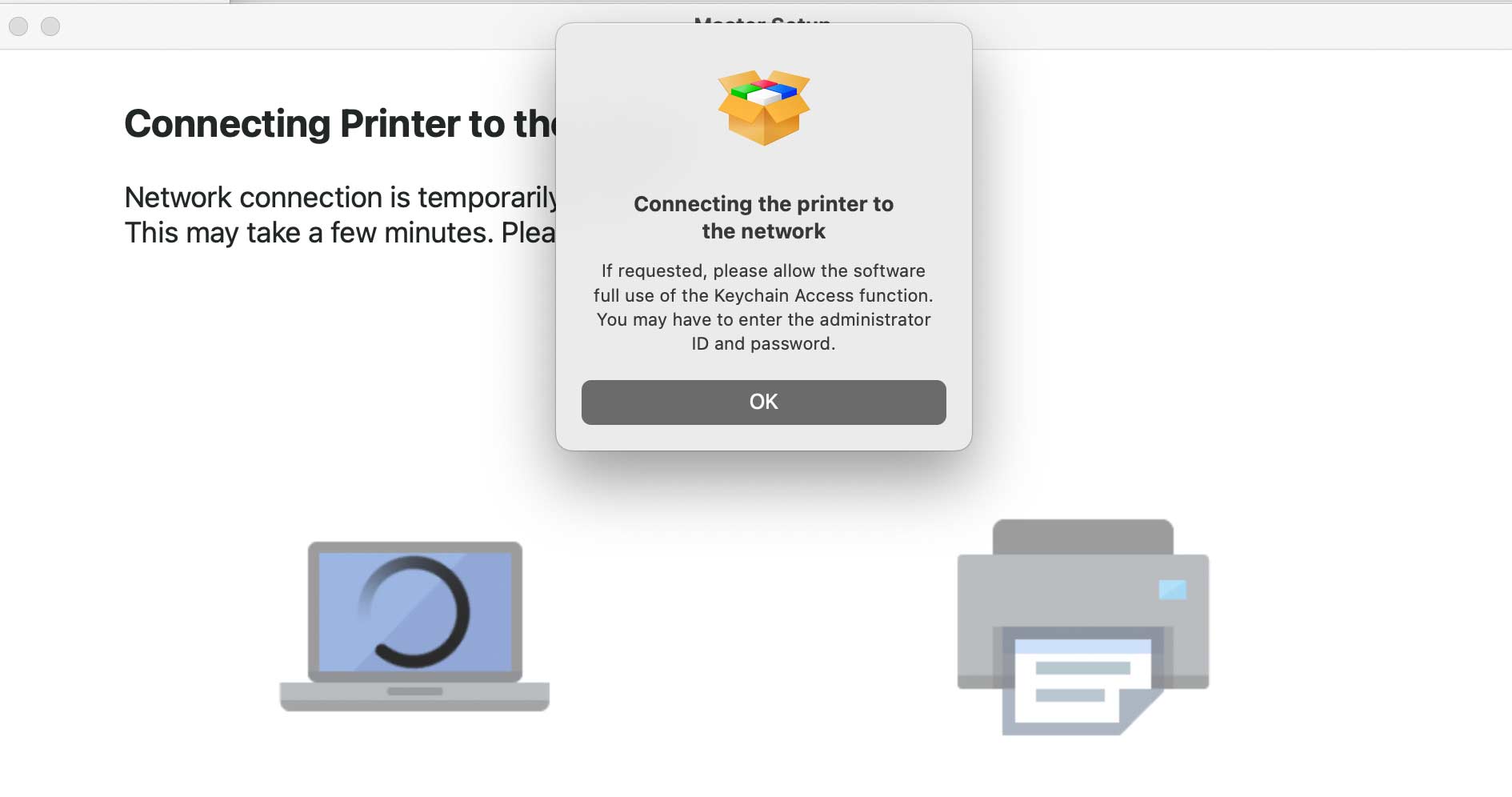
The driver offers the usual info and utilities.
WiFi Issues?
The specs for the printer suggest that it only uses the [often more crowded] 2.4GHz band. In my testing I had occasional slowdowns in printing which invariably seemed related to wireless connection issues. Deactivating the WiFi from the printer control panel for a short while seemed to re-establish a better connection. I was unable to test this in detail since we moved home during my testing and I’m in a temporary office, without the robust networking system we had before. I have seen reports of variable WiFi connectivity elsewhere.
Web interface [and Canon PRO-310 default password]
The printer has its own web page which is good for going through various settings and options. It’s accessed on my Macs from the printer driver settings.

Note that the printer will have a password set and throw up browser errors if no SSL certificate has been installed. It is safe to ignore them.
As if anyone bothers with this sort of stuff outside of a corporate IT environment? When did you last install such certificates…
The default password can be found in the ‘Printer Information’ menu item, under ‘System Information’. You will have to enable the ‘Show Password’ option to see it.
Canon PRO-310 screen and menus
The colour LCD screen is the same as the PRO-300, as are the basic controls, with solid positive buttons for navigation and selection. There are a few minor re-arrangements in the menu structure, but if you had a PRO-300 it will not be too taxing.
Some specific settings and notes…
Under the maintenance menu you will find various cleaning options. The only one you would normally need is the basic cleaning one. I never needed to use this during my Canon PRO-310 testing, and experience with a PRO-300 [same print head] only needed it after a printer had been left for six months. Even then, just once was needed, but if you are leaving the printer for a long while [not recommended] make sure you have spare ink carts ready, since near empty ones are quickly emptied, and the printer may demand replacements. If a cleaning fails, wait at least 10 minutes before doing a second, any subsequent one longer, even overnight.
The Template print option is great if you want a few sheets of graph paper or music paper – just remember the cost of ink before you start printing out whole pads of paper…
The LAN settings are not something most people would ever change. I did find that I sometimes needed to reset the WiFi connection, and just going to the Enable/Disable setting was preferable to power cycling the printer.
Under ‘Various’, the printer settings allow for the ‘reduce paper abrasion’ setting for thick paper, BUT as with most settings, unless you know WHY you need to change something then don’t. Or at least read the manual… The same goes for the Power Control settings. Remember that the Canon PRO-310 is a very different printer to the PRO-1100 in terms of ink used for cleaning and maintenance. Do not fret about ink used for cleaning and whether you need to print frequently to avoid ‘cleaning cycles’. There is a lot of uninformed nonsense doing the rounds about ink use – if ink costs are that critical for you then why are you using this printer? I would also leave the auto maintenance setting left on [default].
Lastly, don’t forget the ‘Quick Guide’ option at the bottom of the menu – I had to use it to confirm connecting the printer to my phone. I rarely ever test printing with high quality printers like this from a phone, if you need it, it works… I do have some more coverage of this in my PRO-300 review [it is identical].
Media handling
The print path is curved, so will not accept board or stiff media, although less so via the rear feed path. If you use the rear feed, do note the extra space required for access, particularly for larger papers, such as 13″ x 19″ [A3+]
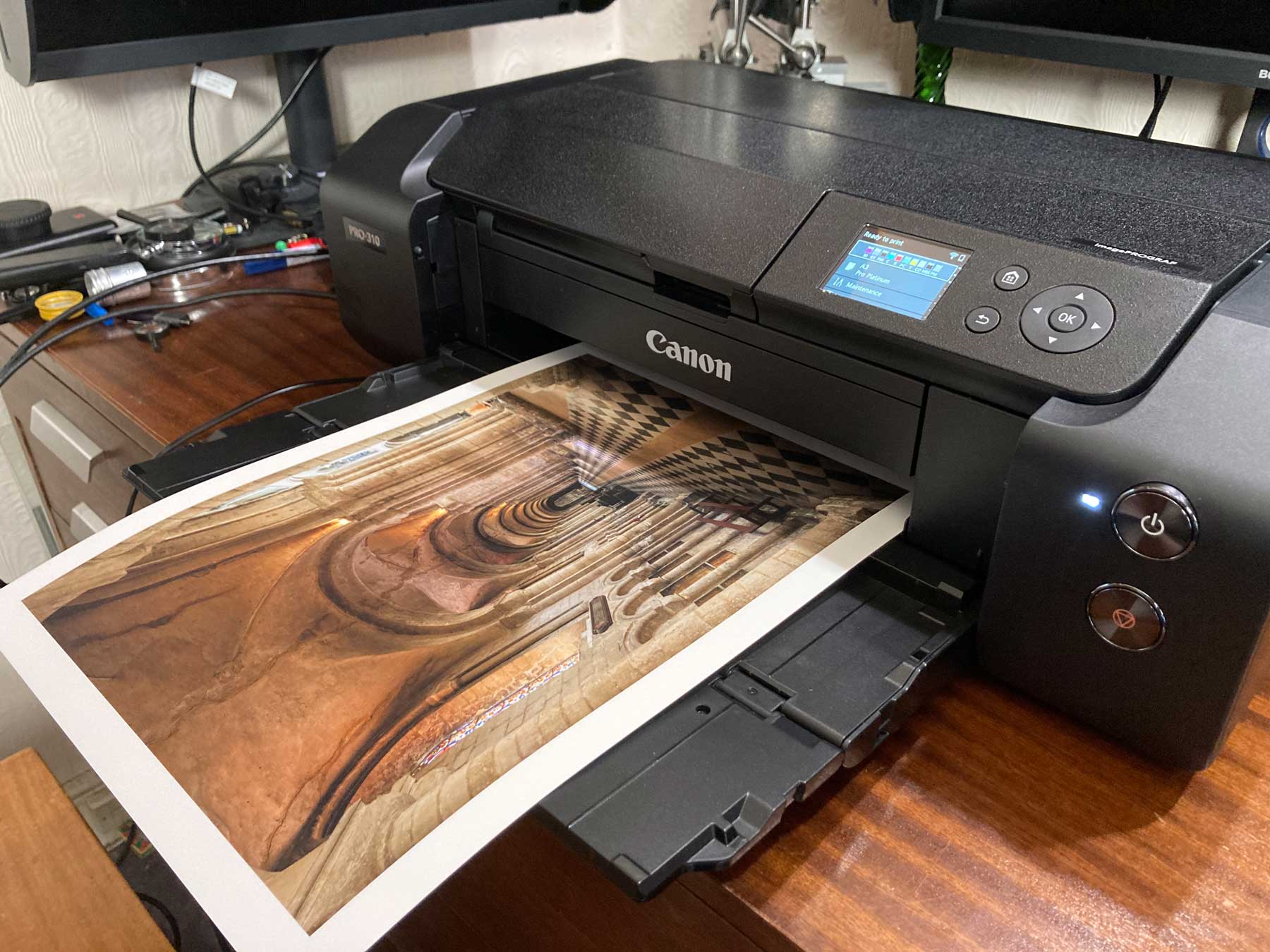
As you can see from this A3+ [13×19″] print, you need to allow sufficient space in front of the printer too.
The two paper trays open upwards and to the rear. The top slot takes sheet paper from 4″ x 6″ (10 x 15 cm) size to A3+ size [and custom sheets for panoramic prints]. The rear feed takes single sheet paper from 8″ x 10″ (20 x 25 cm) size to A3+ size [and custom].

The paper loading process for the rear slot is a somewhat more involved – you can’t just stack paper.
Slots and the missing media settings
One potentially irksome feature of this [and other PRO printers, such as the 200 and 1100] is that some papers have different names for the rear and top feeds. Pick the wrong media type in your printer driver setup and suddenly you can’t use the slot you wanted or cannot find the media name in the list. Sometimes the media name doesn’t fit the space on the display, so what you see in the driver doesn’t quite match.
This leads to users wondering if media has gone ‘missing’ and other concerns.
Part of this is the decidedly limited display on the printer – it’s bright and readable but too small [IMHO] for a ‘pro-level’ printer in 2025.
I test a lot of printers so I tend to spot this sort of stuff – especially given my previous career in usability research.
It falls into the category of ‘problems’ which some will not notice or happily ignore, whilst causing a steady source of irritation to others.
Canon PRO-310 New paper sizes
There are a number of changes to paper sizes, in particular A5 is supported for borderless printing – an omission from the PRO-300 [and many other printers] causing issues for people printing cards at what is a widely available paper size [here in the UK].
There is now a distinction between A3+ /13″ x 19″ and ‘Super B’. I thought they were the same…
However, checking more carefully, the size is listed as ‘Super B’ and is 3mm longer.


Canon PRO-310 CD/DVD printing
The printer comes with a CD/DVD holder for printing. The holder has a clip that keeps the disk in place.
For basic CD/DVD printing, make sure you have the right sort of printable disc – get it wrong and the ink will smudge. Note too how there are two different media settings available for disk printing.
In terms of layout you can use the basic Canon print software available from the printer’s Canon info page.
Media Configuration Tool (MCT)
The MCT software lets you manage the media settings files that the printer contains. When you first select the Canon PRO-310 driver, the printer is interrogated as to what media it supports.

You can delete some of the pre-installed ones, but others are ‘fixed’. Canon also has an updated Media Information File downloadable for this printer.
This can be checked for, when starting up MCT.

There were several media types available, not currently on the printer, such as the greyscale ones.

These need uploading to the printer.

Then of course, the driver on your computer needs updating to reflect the new media types on the printer.

Yes, this does seem rather involved.
I know what’s going on but still I have to double check things – I’ve long felt the MCT is not for your average printer user.
Oh, and just what are those new media settings? I’ve no idea. I only know of the greyscale ones after testing them for my PRO-1100 review, where I was able to find almost no detailed info about them.
Making your own?
Custom media settings can be created, based on existing ones, with the MCT.
I’ve written up a more detailed look at using the MCT on the PRO-300 for making a custom media setting if you want more detail.
There’s also a discussion of using the MCT in my Canon PRO-1100 review.
You can create your own media setting (which can include a default colour profile) based on an existing one, or you may be able to download a file from a paper manufacturer.
Of course this depends on the manufacturer having a printer and doing the work for making the file, so don’t be surprised if you don’t find them right away.
The Canon PRO-310 has two new ‘long form’ media settings which need to be used to print over 1.8 metres. You would use one of these with the profile for the paper, however, if the profile was not made with a standard media setting then print quality could not be guaranteed, and it’s a big bit of paper and a lot of ink to find it’s wrong…
You don’t need to know about the MCT to make good prints, but it helps make the printer a lot more usable with third party papers. I just wish the process could be easier…
What about am1x files?
Some paper suppliers are providing am1x files to install. These contain a new custom media type which may appear on the display printer and a icc profile. It is important to remember that JUST the media setting is installed on your printer by the MCT. ICC profiles are NOT installed on the printer – they reside on your computer. The printer driver and printer do need synchronising for this to work – don’t skip this when the MCT tells you that things need updating.
My own profiles are provided just as icc profiles, but with an associated media setting to be used with them. In general I don’t make am1x files with a printer like this. I have done in the past with larger printers where I want to have a roll paper in the menu and have the media setting ‘fine tuned’ for the paper, but most times I use a standard media setting.
Colour management
The printer software installs a good collection of paper ICC profiles. Whilst I’ve no complaints, I prefer to make some of my own profiles.
I use X-Rite’s i1Profiler software, here showing the patch measurement data after profiling a Canon textured art paper.

The 1.71 DMax of the paper is pretty good and in general the pigment ink set of the Canon PRO-310 gives excellent print quality on a wide variety of papers.
Using profiles – something still to note.
With the profiles I make, and printing from Adobe Photoshop, I’ll typically print many images using the relative colorimetric (RelCol) rendering intent, ensuring that I’ve enabled BPC (black point correction) for matt papers. For some images I’ll use perceptual rendering, but it depends on the image and the paper. Soft proofing can help give a feel for the difference, but a test print beats any screen simulation if you’re unsure.
With the Canon Professional Print and Layout software it seems that a different CMM (colour management module) is being used ‘under the hood’, since Perceptual is recommended and the BPC option changes the soft proof look of perceptual and RelCol intents, so needs use with some care. The PPL software also directly communicates with the printer, making a very good indicator of install issues, if after setup, you can print from PPL but not your usual choice of application.
How different are the inks in the Canon PRO-310?
Visually, prints from the Canon PRO-310 often don’t look much different to the older 300. Surely though, Canon have said they do…
The key to understanding this is that the prints from the 300 were already extremely good, on the right papers and with good profiles. We are in the era of incremental improvements. Most people simply don’t notice the sorts of improvements there are, even when it’s pointed out. People judge prints mostly on the content and meaning to them, not the sort of performance details I can tease out when making profiles. Remember that a rubbish photo makes a rubbish print, no matter how good a printer or paper you are using.
Comparisons…
I profiled several papers for the Canon PRO-310 and the PRO-300 at the same time. partly to make sure I was printing the targets exactly the same way and using the same measuring instrument.
Take for example Canon Pro Platinum [PT101] paper. These two gamut plots [from the Mac ColorSync Utility] show that yes, the gamut of the Canon PRO-310 is indeed larger in the magenta/red areas compared to the 300.
The two gamut volumes are overlayed, one solid, one wire frame, and then swapped in the second image.

Pro Platinum on 300 solid

Pro Platinum on Canon PRO-310 solid
Remember that gamut volumes are but a small part of how a profile performs [take any tables you see of actual numbers with suitable scepticism].
The DMax values for the PT101 were 2.50 for the 300 and 2.54 for the 310 – an unimportant difference.
Looking at Canon Fine Art Smooth [PFAS] a more obvious change is seen between the two, with a better range of dark colours, along with the improvement in the red/magenta area
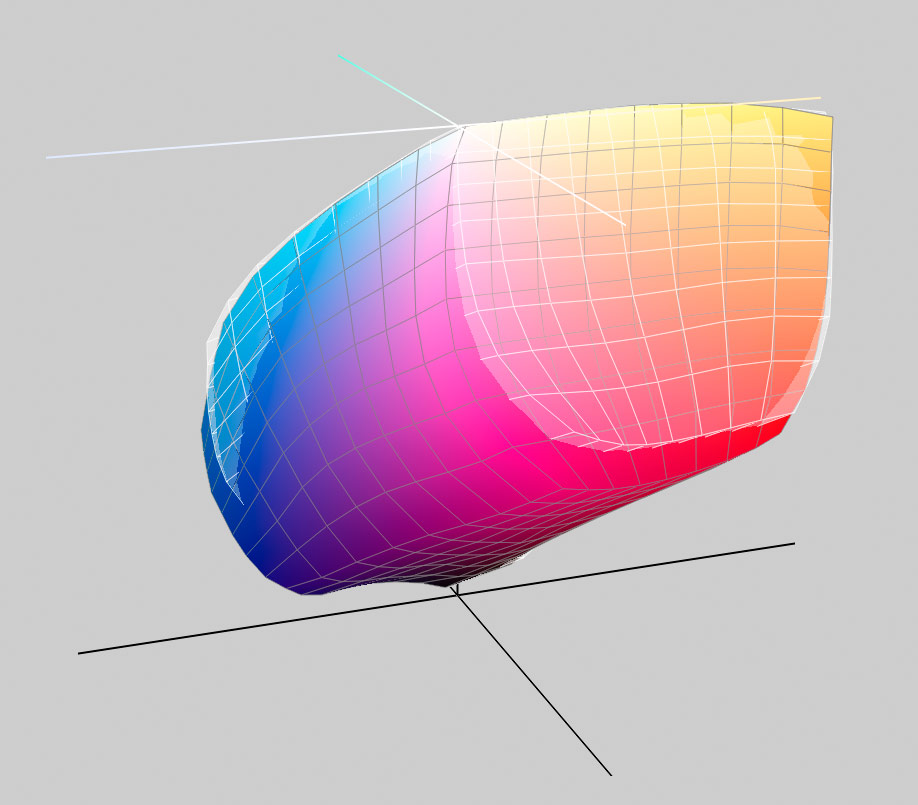
PFAS on Canon PRO-310 Solid

PFAS on 300 Solid
There is a small improvement in DMax too from 1.75 to 1.78 – negligible, but coupled with the better range of dark colours, noticeable on some images in a direct side by side comparison.
This behaviour is seen with most papers I profiled, to varying degrees. How noticeable is it?
If I was to put two very colourful prints next to each other under optimal lighting, then I suspect many could see difference – with the right images. Put the two prints at opposite ends of the room, still with optimal lighting and the number of people able to tell which is which drops much closer to 50/50
Don’t get me wrong though – give me a choice between making a print on the Canon PRO-310 or 300, I’m going to pick the Canon PRO-310…
Canon PRO-310 inks and scratch resistance?
Yes, there was the improved ‘scratch resistance’ mentioned in Canon’s notes about the new inks as well…
Sorry, I could not see this in any clear way. Probably more of use if you don’t handle big prints carefully [this ink set is used on Canon’s bigger printers]. Large prints [A1 and above] need handling with real care.
B&W on the Canon PRO-310
The printer driver offers a special black and white print mode – this would be my preferred choice for B&W.
This makes use of different ink combinations and generally provides a more neutral black and white print option.
The easiest way to explore this is to use the Canon PPL software.
Here’s a version [click to enlarge] of my B&W test image loaded into it. In this example, I’ve called it from the Automate menu in Photoshop, but it can work fine in standalone mode.

Read the PPL manual when it offers it on start-up. There are many layout and sizing options which are straightforward to use, when you understand what the settings do! Experiment on plain paper if layout matters.
Switching to the ‘colour’ settings, allows fine control of the tone/tint of the print, along with the ability to load correction, linearisation curves. See the written article below for more, since in this respect the Canon PRO-310 is identical to the PRO-300.

There is also much more detail in my Canon PRO-1100 review,
PRO-310/1100 Greyscale media type
There is a rather thinly documented new greyscale printing media type in the 310/1100
I looked at it in more detail in my PRO-1100 review
I’d hoped there would have been more info about this, nearly a year after looking at the PRO-1100, but no, it’s still largely unknown in exactly why it is there [it uses no colour inks for example].
Pattern print
The Pattern Print function can produce small versions of the image at different toning settings. It works with colour images too, but I find the B&W version of most use.

The Canon PRO-310 with it’s pigment ink set is a good choice for B&W, although for photo papers, do look at the CO ink options, since highlights can show a gloss differential on the ‘Auto’ setting. this is where the ‘darken white areas’ option in the ‘Colour Options’ settings above, can help.
Directly related B&W articles
- B&W Printer test image
- B&W printer linearisation check using the i1iSis
- Black and white printing on the PRO-300 [and Canon PRO-310]
Canon software
I normally use Photoshop for preparing images and often my printing as well. In the past I used Canon’s print plugin for my 44″ iPF8300. The current PPL software and plugin is very good, and offers a lot of functionality, including basic soft proofing.
The Canon Professional Print and Layout software can work stand-alone or (as I did) as a plugin application for Photoshop. The current version is often my first choice now, for the better Canon printers.
Ignore the clunky language – the software is really useful…

The version I downloaded included an installer to use the software as a plugin for Photoshop/Lightroom/Elements, after I’d installed the application itself.

Even if you’re happy using LR or Photoshop to print, give the Canon software a go. I found it quite easy to adapt to.
Canon camera specific functions
The PPL print software includes options for HDR Print and other Canon camera specific functionality such as DPRAW Print. This requires a wholly different workflow to how I’d normally work as a photographer.
So, whilst I can see how it looks good to be able to offer an ‘end to end’ Canon camera to print solution, I have difficulty in seeing how I’d actually make use of any of it, since it’s all stuff I’d want to do in Photoshop or some other software.
The print/layout software includes a sharpening option that has no controls or preview – not something I’d be happy with.
Fortunately this stuff doesn’t get in the way of the software being rather useful, and definitely worth looking at.
Printing on the Canon PRO-310
During my testing I’ve created quite a few prints, using a variety of Canon and third party papers.
I’ve created a number of high quality ICC profiles. As ever, my profiles are available on request – I just ask for a KoFi donation.
These included:
- Canon Pro Platinum Gloss [PT101]
- Canon Pro Luster
- Canon Fine Art Smooth
- Canon PM101 matte
Other papers included
- Hahnemuhle Matt Baryta 308
- Hahnemuhle Sustainable Photo Satin 220
- Fotospeed Natural Smooth 310
- Fotospeed Platinum Etching Cotton 305
Several Epson papers
- Velvet Fine Art
- Premium Semigloss PP
- Premium Lustre PP
- Premium Glossy PP
- Traditional Photo Paper [aka Exhibition Fibre]
- Fine Art Cotton [4 off] – Smooth and Textured [aka Hot/Cold Press] – Bright and Natural
- Std. Proofing paper
- Archival Matte
Printing times
See the printer specs for more, but I did time a few prints from when the printer first started printing to when the paper was ejected when comparing two printers.
The Canon PRO-310 printed at pretty much the same speed as the PRO-300. Not surprising, since if it was faster, you would see it in Canon’s marketing copy.
I’ve this PRO-300 example, since I didn’t time many!
An A3 print of this photo on Canon Pro Platinum paper took 4m 35s at the standard setting and 6m 04s at the highest quality setting.

Borderless printing on the Canon PRO-310
Borderless is available for more paper sizes on the Canon PRO-310 but still not arbitrary or ‘custom’ paper sizes.
Remember that borderless is achieved by printing beyond the edge of the paper, this means that you will get a cropped image and there will be some overspray [borderless makes a mess inside printers if you do it a lot and don’t clean them].
The simplest way was from PPL.

I’ve a more detailed look at borderless printing in this video.
Note that attempting to exactly fit an image to a piece of paper, without fine white borders rarely works. If you need precise borderless, print on larger paper and invest in a good roller cutter.
Panoramic
The Canon PRO-300 has a maximum custom page size up to 990mm or around 39″. The Canon PRO-310 ups this to 1800mm [with normal media settings].
I tested this from the Canon PPL software.

For more details and settings see this video.
The printer driver now supports even longer panoramic prints, but only if you select the ‘long form’ media settings.
Canon PRO-310 conclusions
“Still a great quality printer”
Compared to the previous PRO-300, visible changes are relatively minor, and apart from the improved ink set [which now closely matches the larger PRO printers, such as the 1100 and 2600] it would not be unreasonable to see many of the other changes as ones which could have been introduced as a firmware update.
In general, from a print quality and paper handling POV, the Canon PRO-310 is an excellent printer. It’s a printer, which if you get duff prints out of it, it is almost certainly a limitation of yours, not the printer. It gives great prints from great images…
The printer comms and connectivity have been updated [although listed as only 2.4GHz WiFi and 100M Ethernet]. If we look at the PRO-200S which was introduced at the same time, we see a clue in Canon’s naming conventions. The predecessor of the PRO-300 was the PRO-10, which was updated during its life to PRO-10S with improved comms. The 300>310 change likely reflects mainly the change in inks.
The new Canon PRO-310 paper sizes and borderless options fix some arbitrary limits of the PRO-300 and may well make it a better choice for printing cards and the like where the already excellent paper handling is continued.
The two new types of media settings [greyscale and long paper] are potentially useful but give a bit of a ‘tacked on’ feel as I noted in more detail in my PRO-1100 review.
Any downsides? If you see the Canon PRO-310 as a development of the PRO-300 then all is well and moving the right direction. However, the Canon PRO-300 is a five year old product, and things like the non-touch enabled relatively low resolution screen already seemed a tad dated in 2020, with the 300. The continuing use of 14.4ml disposable ink carts in the Canon PRO-310 means that it will never be cheap to run, whilst the built in ‘end of life’ from not having a replaceable maintenance cart might concern some potential users, although, I’m minded to suggest, at a level of use where you really should have considered a bigger printer.
Are such concerns an issue for you? – Something you will have to balance against its excellent paper handling and print quality with Canon’s latest pigment inks, as well as its generally better than average ability to be left unused longer than you would normally want for an inkjet printer.
Should you update your Canon PRO-300?
Whilst there are differences in image quality, they are at a level where if you are satisfied with your PRO-300 output then there is no pressing need to change.
The Canon PRO-310 does introduce a media type for longer paper and a greyscale media type – both of these are not matched to any existing media, potentially limiting their use somewhat.
The new paper sizes may be useful [A5 borderless for example].
PRO-300 inks should be available for several years, and if you have a stock, then the need to change is lessened further. PRO-300 and Canon PRO-310 ink carts are not interchangeable. They remain at a rather small ~14.4ml per cart.
Both models do not have a replaceable maintenance tank or cartridge and if you do a lot of borderless printing then there is also the overspray collection pad which will fill up. Neither of these are user replaceable options, although it should be many 10’s of thousands of prints before any issues show. If you use a 300 for heavy use and are happy with ink usage, then at some point the Canon PRO-310 will be its replacement.
However note that 300 and Canon PRO-310 ICC profiles are not interchangeable, so you may need to factor that in as well.
Mac users, using older systems should note that Canon does not offer any drivers for system before MacOS 11. So if you have a PRO-300 on a 10.15 Mac, the Canon PRO-310 will not be supported.
Canon PRO-310 summary
- 13″ width/A3+ Pigment ink printer
- 10 ink channels, including Color Optimiser
- WiFi/USB/Ethernet/WiFi Direct
- 14.4kg / 31.8lb
- Wide range of paper sizes, two feed slots.
- CD/DVD printing tray
I’ve related PRO-300 articles that may be of interest, since the two printers really are so similar.
- Canon PRO-300 printer initial setup
- Black and white photo printing on the Canon PRO-300/310
- Custom media settings for the Canon PRO-300/310
—
Thanks to Canon UK for loaning me the printer. I have no business relationship with Canon other than using their cameras for my work as a professional photographer.
See also the Canon UK info page for the Canon PRO-310
Order your printer from Adorama | B&H
Canon PRO-310 Full Specifications
Info From Canon UK
- Number of Nozzles: Total 7,680 nozzles
- (MBK/PBK/C/M/Y/PC/PM/GY/R/CO) each 768 nozzles x 10
- Number of Ink Tanks 10
- Colours – MBK/PBK/C/M/Y/PC/PM/GY/R/CO
- Maximum Print Resolution 4800 (horizontal)1 x 2400 (vertical)2dpi
- Print speed Photo(11″x14″ image on A3+ with Border)3
- Color/PT-101: approx.4 m 15s
- Black/PT-101: approx.4 m 15s
- Top Tray (width) Up to 329 mm (A3+)Borderless Printing
- Manual Feed (width) Up to 330.2 mm Custom (length) 1800mm
- Borderless Printing Top/Bottom/Right/Left margin: each 0 mm
- Bordered Printing Top margin:3 mm, Bottom margin:5 mm, Left/Right margin: each 3.4 mm (Sizes other than Letter or Legal) or Square 5” Top/Bottom/Right/Left margin: each 6.0mm,
- Recommended Top/Bottom margin for Fine Art Paper: each 25mm
- Top Tray Plain Paper/ Photo Paper Pro Platinum (PT-101)/Photo Paper Plus Glossy II (PP-201)/ Photo Paper Pro Luster (LU-101)/ Photo Paper Plus Semi-gloss (SG-201)/ Matte Photo Paper (MP-101) / Lightweight Photo Paper/ Heavyweight Fine Art Paper / Canvas / Photo Paper (Grayscale Printing) /Photo Paper (Long-form Printing)/ Fine Art Paper (Long-form Print) /Greeting Card Manual Feed Photo Paper Pro Platinum (PT-101) / Photo Paper Plus Glossy II (PP-201)/Photo Paper Pro Luster (LU-101)/ Photo Paper Plus Semi-gloss (SG-201)/ Matte Photo Paper (MP-101)/ Photo Paper Pro Premium Matte (PM-101)/ Premium Fine Art Smooth(FA-SM)/ Premium Fine Art Rough/ Lightweight Photo Paper/ Heavyweight Photo Paper / Heavyweight Fine Art Paper / Extra Heavyweight Fine Art Paper/Highest Density Fine Art Paper / Canvas / Baryta Photo Paper / Photo Paper (Grayscale Printing) /Fine Art Paper (Grayscale Print) / Photo Paper (Long-form Printing) / Fine Art Paper (Long-form Print) /Greeting Card Multi-Purpose Tray Printable Disk
- Top Tray (Maximum Number) A5/A4/A3/ A3+/B5/B4/ 4″x6″(KG) / 5″×7″ / 7″×10″ / 8″×10″/ 9″ x13″ / 11″ x14″ / 10″×12″ / 12″x12″ / Square 5″ (127x127mm)
- Custom size(width 89mm – 329.0mm, length 127mm – 990.6mm or 1800mm) Manual Feed (Maximum Number) A5/A4/A3/A3+/B4/ 9″x13″ / 11″x14″/13″x19″ /8″x10″/ 10″x 12″/ 12″x12″
- Custom size (width 203.2mm – 330.2mm, length 254.0mm – 990.6 mm or 1800mm)
- Multi-Purpose Tray Printable Disc 120 x120 mm
- Paper Size (Borderless) A5/A4/A3/A3+/B5/B4 / 4″x6″ (KG) / 5″×7″ / Square 5″ (127x127mm) / 7″×10″ / 8″x10″ / 10″×12″ / 11″x14″/ 12″×12″/ 13″x19″ /
- Top Tray Plain Paper: A4/A5/B5 = 100 A3 = 50
- Photo Paper Pro Platinum (PT-101): 4″x6″ (KG) = 20 A3/A4/2L/8″×10″ = 10 10″×12″/A3+ = 1
- Photo Paper Plus Glossy II (PP-201): 4″x6″ (KG)/ Hagaki/Square 5″ (127×127 mm) = 20 A3/A4 8″×10″/5”x7” = 10 A3+ = 1
- Photo Paper Pro Luster (LU-101): A4 /A3 = 10 A3+ = 1
- Photo Paper Plus Semi-gloss (SG-201): 4″x6″ (KG) = 20 A4 /A3/5×7/8″×10″ = 10 10″×12″/A3+ = 1
- Matte Photo Paper (MP-101): 4″x6″ (KG) = 20 A4 /A3 = 10 A3+ = 1 Manual Feed Photo Paper Pro Platinum (PT-101): A3/A4/8″×10″ /10″×12″/A3+ = 1
- Photo Paper Plus Glossy II (PP-201): A4/A3/A3+ = 1
- Photo Paper Pro Luster (LU-101): A4/A3/A3+ = 1
- Photo Paper Plus Semi-gloss (SG-201): A4/A3/8″×10″ /10″×12″/A3+ = 1
- Matte Photo Paper (MP-101): A4/A3/A3+ = 1
- Photo Paper Pro Premium Matte (PM-101): A4/A3/A3+ = 1
- Premium Fine Art Smooth (FA-SM): A4/A3/A3+ = 1
- Premium Fine Art Rough (FA-RG1): A4/A3/A3+ = 1 Multi-Purpose Tray 1 (Multi-purpose Tray)
- Top Tray Plain Paper: 64-105 g/m2
- Speciality paper: Up to 380 g/m2
- Manual Feed Paper Thickness 0.1 ~0.6mm or less
- Ink Model LUCIA PRO II
- Ink Tanks: PFI-5100
- MBK/PBK/C/M/Y/PC/PM/GY/R/CO Page yield (4×6″ PT-101) Number of 10x15cm photos4
- Matte Black (MBK): 1679 photos*
- Photo Black (PBK): 450 photos
- Grey (GY): 233 photos
- Cyan (C): 842 photos*
- Photo Cyan (PC): 704 photos*
- Magenta (M): 610 photos*
- Photo Magenta (PM): 430 photos*
- Yellow (Y): 551 photos*
- Red (R): 969 photos*
- Chroma Optimizer (CO): 256 photos
- * Estimated Supplemental Yield Page yield (A3+ PT-101) Number of A3+ photos5
- Matte Black (MBK): 244 photos*
- Photo Black (PBK): 41 photos*
- Grey (GY): 48 photos*
- Cyan (C): 82 photos
- Photo Cyan (PC): 119 photos*
- Magenta (M): 100 photos*
- Photo Magenta (PM): 76 photos
- Yellow (Y): 108 photos
- Red (R): 134 photos*
- Chroma Optimizer (CO): 66 photos*
* Estimated Supplemental Yield
- Protocols SNMP/HTTP/TCP/IP(IPv4/IPv6) Interface USB B Port: Hi-Speed USB Wired LAN Network Type: IEEE 802.3 10base-T / IEEE 802.3u 100base-TX
- Data Rate: 10Mbps/100Mbps(Auto switching)
- Security: IEEE 802.1X(EAP-TLS/EAP-TTLS/PEAP) Wireless LAN Network Type: IEEE802.11n/IEEE802.11g/IEEE802.11b IEEE802.11a
- Frequency Band: 2.4GHz
- Range: Indoor 50 m depends on the transmission speed and conditions
- Security:
- WPA-PSK(AES)
- WPA2-PSK(AES)
- WPA3-SAE(AES)
- WPA-EAP(AES)*
- WPA2-EAP(AES)*
- WPA3-EAP(AES)*
* IEEE802.1X(EAP-TLS/EAP-TTLS/PEAP) available Direct connection (Wireless LAN) Available
- Supported Operating Systems Windows 7 SP1, Windows 8.1, Windows 10, Windows 11
- Windows Server 2008 R2 SP16, Windows Server 2012 R2,
- Windows Server 2016, Windows Server 2019, Windows Server 2022
- Mac OS OS11.7.10 – OS15
- Chrome OS Supported
- Mobile Systems iOS Android
- Canon Professional Print & Layout
- Adobe Photoshop / Lightroom Supported via Canon PPL Plugin
- Canon PRINT AirPrint Mopria Canon Print Service (for Android) Cloud Link
- Display 3.0 inch/7.5cm LCD(Display Panel, Colour)
- Language:
33 Languages Selectable: Japanese/English(mm &inch) /German/French/Italian/Spanish/Dutch/Portuguese/Norwegian/Swedish /Danish/Finnish /Russian/Czech/Hungarian/ Polish/Slovene/Turkish/Greek/
Simplified Chinese/Traditional Chinese/ Korean/Indonesian/Slovakian /Estonian/Latvian/Lithuanian/ Ukrainian/Romanian/Bulgarian/Thai/Croatian/Vietnamese
- Acoustic Noise Plain Paper(A4, Color)7: Approx. 40.5dB(A)
- Photo Paper Pro Platinum (PT-101)(4×6,Color, borderless): Approx.38.5dB(A)
- Quiet Mode Available
- Power Power AC 100 – 240 V 50 /60 Hz
- Power consumption Standby (Minimum) (USB Connection to PC) Approx. 1.0W*
- OFF Approx. 0.05W Printing (USB Connection to PC) Approx. 16W Standby (Sleep) for ErP Lot 26 regulation>: Approx. 2.3W Time to enter Standby Mode for ErP Lot 26 regulation> : Approx. 15 minutes
*The wait time for standby cannot be changed.
- Dimensions W x D x L With the trays retracted approx. 639 x 379 x 200 mm
- With the trays extended approx. 639 x 837 x 416 mm
- Weight Approx. 14.4 kg
- Operating Environment Temperature: 5~35 ℃ Humidity: 10~90 %RH (no dew condensation)8 Recommended Environment Temperature: 15~30 ℃ Humidity: 10~80 %RH (no dew condensation)9 Storage Environment Temperature: 0~40 ℃ Humidity: 5~95 %RH (no dew condensation) Environment Energy saving: ErP Lot 6/26(EU)
- Resource saving/Recycle: WEEE(EU)
- Elimination of harmful substances: RoHS(Mainly EU), REACH(EU)
- Prints with a pitch of 1/2400 inch (ink droplets) at minimum.
- Prints with a pitch of 1/2400 inch (ink droplets) at minimum.
- Print speed is based on the default setting using ISO/JIS-SCID N2 and does not take into account data processing time on host computer. Print speed may vary depending on system configuration, interface, software, document complexity, print mode, page coverage, type of paper used etc.
- Declared yield value in accordance with ISO/IEC 29102. Values obtained by continuous printing. Right-click the image on Windows 10 and select “Print” from the menu to print.
- When printing ISO/JIS-SCID N2 test file at 11″ x 14″ continuously on A3+ , with the default settings of testing paper using Windows 10 printer driver and Photoshop CC.
- Minimum system reguirements is according to that of OS and application software used.
- Acoustic Noise is measured based on ISO7779 standard with default setting.
- Print quality may deteriorate depending on temperature and humidity
- Refer to the paper package or the instruction manual supplied with the paper for temperature and humidity conditions of photo printing paper, etc.
Never miss a new article or review - Sign up for our occasional (ad-free) Newsletter
and please do subscribe to Keith's YouTube Channel

Other areas of our site that may be of interest...
All the latest articles/reviews and photo news items appear on Keith's Photo blog

Keith explains tilt and shift lenses
Keith has written a book that looks at the many ways that tilt/shift lenses can benefit your photography from a technical and creative point of view. If not in the UK check for import issues and maybe try an on-line bookshop. Keith has no connection with sales of the book.
ISBN 9781785007712
There is also a specific index page on the site with links to all Keith's articles, reviews and videos about using tilt and shift.
We've a whole section of the site devoted to Digital Black and White photography and printing. It covers all of Keith's specialist articles and reviews. Other sections include Colour management and Keith's camera hacks - there are over 1200 articles/reviews here...
Adverts removed
Keith | Oct 13, 2026 at 2:03 pm
Test it with Canon PPL – shows if things are set up OK
Jen Barnes | Oct 3, 2026 at 2:14 pm
Hi Keith, have watched many of your utubes on printing which are very knowledgeable. I have recently upgraded Canon Imageprograf 300 to a 310. My question relates to ICC profiles. When I go to print from Photoshop and choose Photoshop to manage colours with the correct profile for the canon paper, I always tick the box for a print preview. The preview I see is way oversaturated and if I print the file thats exactly what I get, an oversaturated image. If,however I select Canon IJ Printer Profile 2015 the preview looks exactly like my image and prints successfully.
Don’t understand what is going on – can you please clarify?
Anette de Bruijn | Aug 15, 2026 at 4:15 pm
Thank you Keith! I much appreciate your thoughts.
Keith | Jul 17, 2026 at 9:20 pm
Should work fine. You can of course make custom media types [based on the media choice, but adjusted for thickness].
I’ve some of this paper and still never properly tested it…
I just don’t want the paper barging in to my images in such a noticeable way. To me it kills the image – YMMV of course ;-) :-)
Anette de Bruijn | Jul 11, 2026 at 9:39 pm
Hi Keith, reading this with interes as I’m about to pull the trigger on a 310 (birthday present). Question to you is, I plan to use non-standard papers, such as unknown japanese, tissue papers (adhered to a backing sheet) and handmade papers (tested in an Epson Ecotank). And hopefully transparency and tracing paper. Do you think the 310 might handle such challenges? Will I be able to manually adjust the head height if it catches on the paper?
For such applications I would not be too worried about the exact colour rendition and such – it’s more to take my photographic images further in my fine art/printmaking process. But I don’t want to worry about damaging the print head for example. Would be great to see a post on this but failing that, what are your thoughts?
Thanks so much, best, Anette de Bruijn (Switzerland)
Keith | Jan 5, 2026 at 2:57 pm
No, the pro-1100 is quite different in this respect. I would not expect it to be nearly so forgiving.
Richard Wright | Jan 4, 2026 at 10:43 pm
In a recent video you spoke about turning on your Pro-300 after leaving it turned off for 10 months. It was in working order once turned on, which seems impressive to me. I would have expected it to have clogged jets after that amount of time, but I’m no expert.
Do you think the Pro-1000/1100 would behave in the same way? I had been under the impression that these printers needed to be used on a regular basis rather than turned off.