


Epson WF-C8960 printer review
Epson WF-C8690 printer review
Art prints and photos on the office printer

No more Google ads. Too many deceptive and irritating adverts.
Any ad links left are non tracking, to companies we know, trust and we've worked with for years [Park Cameras]
Ads helped pay for site running costs, so if you found something useful, please
...Make small KoFi donation?
...Subscribe to Keith's YouTube Channel
...Get Keith's book about how to use tilt/shift lenses
Our site contains affiliate links - these help support the site. See our Advertising policies for more
Keith has written this Epson WF-C8690 printer review specifically looking at whether the printer is useful for printing artwork, photos and cards.
The 11″ x 17″ scanner is also tested to see if it’s any use for scanning artwork.
It is not a review of the printer as an office printer, so this does not cover basic plain paper printing, document scanning/copying or fax use.

Videos
I’ve made a few short YouTube videos to go along with my Epson WF-C8690 printer review
The Epson WF-C8690 printer review
A review of the printer looking at its uses for scanning, artwork, canvas, photos and cards.
Shown here with some of my test prints and targets used for making ICC printer profiles.

>Click on images to see larger versions<
What you get
The printer is a four colour pigment ink based printer (Durabrite inks)
The headline specs are obviously aimed at someone looking for an office printer:
Powered by PrecisionCore printing technology, the WorkForce Pro WF-C8690 features the next generation of inkjet printing technology. Easy on the budget, this A3 multifunction printer saves you up to 35 percent on printing costs vs. color laser.
Plus, it features auto duplexing for greater productivity. A true workhorse, the WF-C8690 offers print speeds of 24 ISO ppm (black/color), a fast first page out, and fast scan speeds. With a paper capacity up to 1,830 sheets, you’ll replace paper less often. Ideal for busy workgroups, the printer also includes PCL1 and PostScript 3 support, plus compatibility with ISV and third-party software solutions.
- 4-in-1 with Wireless, Ethernet & PCL/PS: Print / Copy / Scan / Fax
- Ink: 4-color DURABrite Pro pigment ink
- The printer is designed for use with Epson cartridges only.
- ISO Print Speed: Black: 24 ISO ppm; Color: 24 ISO ppm
See the full [US] specifications at the end of this article
The printer was tested over a wireless setup – If you want to use USB or Ethernet to connect, you’ll need a suitable cable.
Epson WF-C8690 printer review setup
The printer was kindly loaned to us by Epson UK.
Setup is pretty straightforward – I have a video looking at it in more detail.

As with any Epson printer – there is a lot of blue tape to remove…
Using the basic Epson installer, the printer was initialised, with those ink carts just slotted into the front.

Since I was setting up from my laptop (on the wireless network), it was a pretty straightforward process to get the printer connected.

If the printer is already on the network, then add it to your printers after installing the driver.
BUT… on Macs make sure you do NOT connect the AirPrint driver. It is effectively useless for any serious printing from your computer.

It’s meant for phones and iPads – if you are printing from them, then I’m afraid you are not really concerned with getting optimal print quality…
After setup, I also checked for new firmware – always worth doing, since your printer may have spent some time since when it was made, and firmware is regularly updated.

The printer has its own built-in web server, giving access to a lot of functionality.
This is from after printing a collection of ICC profiling test targets.

Why at this point? – the colour ink carts were all showing as low. There appears to be a relitively small amount of colour ink in the carts once initialisation is completed. Expect to get some new colour carts relatively soon, if you plan on printing much colour work.
As with all Epson printers it’s worth running a initial alignment check. Got to Settings>Maintenance>Printquality adjustment and follow the on-screen instructions.
This particular printer required no adjustment when set up.
Space for the printer
The printer is a robust device. At ~45kg, it needs two people to move it.
Since I was making bigger prints (A3+ or 13″ x 19″), I ended up turning the printer by 90 degrees to allow for the rear feed and output.

If you plan on using the large 11″ x 17″ scanner, then make sure you have space to open the lid.

Connectivity
The printer has Ethernet (10/100/1000), USB (3) and WiFI connectivity. The wired ports are at the rear.

Note the connection for the fax – this was not tested at all.
The display
The touchscreen display on the front is crisp and bright enough in most lighting conditions

Here’s the paper setting screen. Feed C1 is the multipurpose (plain paper) feed tray. B1 is the rear feed I used exclusively for all the photo and art media I was testing.

There is a chunky keyboard to the right of the screen – I did have to remind myself that most people using this printer would be doing office type stuff…

Changing inks
I’ll discuss ink usage in the conclusions, but at a certain point ink carts will be flagged as low or empty. This happened pretty quickly with this printer.
The carts just slot in, and when they are listed as empty, they really are.
I only used Epson inks with this printer. I never use cheaper inks for a range of reasons, but if you’re not in charge of ink replacement for this printer, just be aware that using cheap ink may suit the office beancounters, but will likely effect colour print quality in a bad way. it will render all my custom ICC profiles of limited use.
If you’re going to be doing a lot of printing, the larger XXL carts may be of benefit

- 202ml for the black
- 69ml per colour cart
Maintenance box
The maintenance box fills with ink from cleaning operations. It’s accessed at the rear of the printer, by opening the rear panel (also accessed for paper jam removal). and replacing the [grey] box. I’ve not used the printer enough to know how long this lasts, but they typically are not an item to keep in stock

Removing the box.

Media
The printer has two paper feed paths (more if you’ve the floor standing version of the printer, with multiple paper trays).
Front feed tray
The one you’ll use for the office…
I’ve removed the rather solid output tray first.

You can see the large tray. There is A4 paper in it at this point.

Here’s the tray extended. It takes up to 11″ x 17″ paper.
Don’t get the idea of putting anything but lightweight photo paper in this tray – the feed path will potentially cause problems with any higher quality papers.

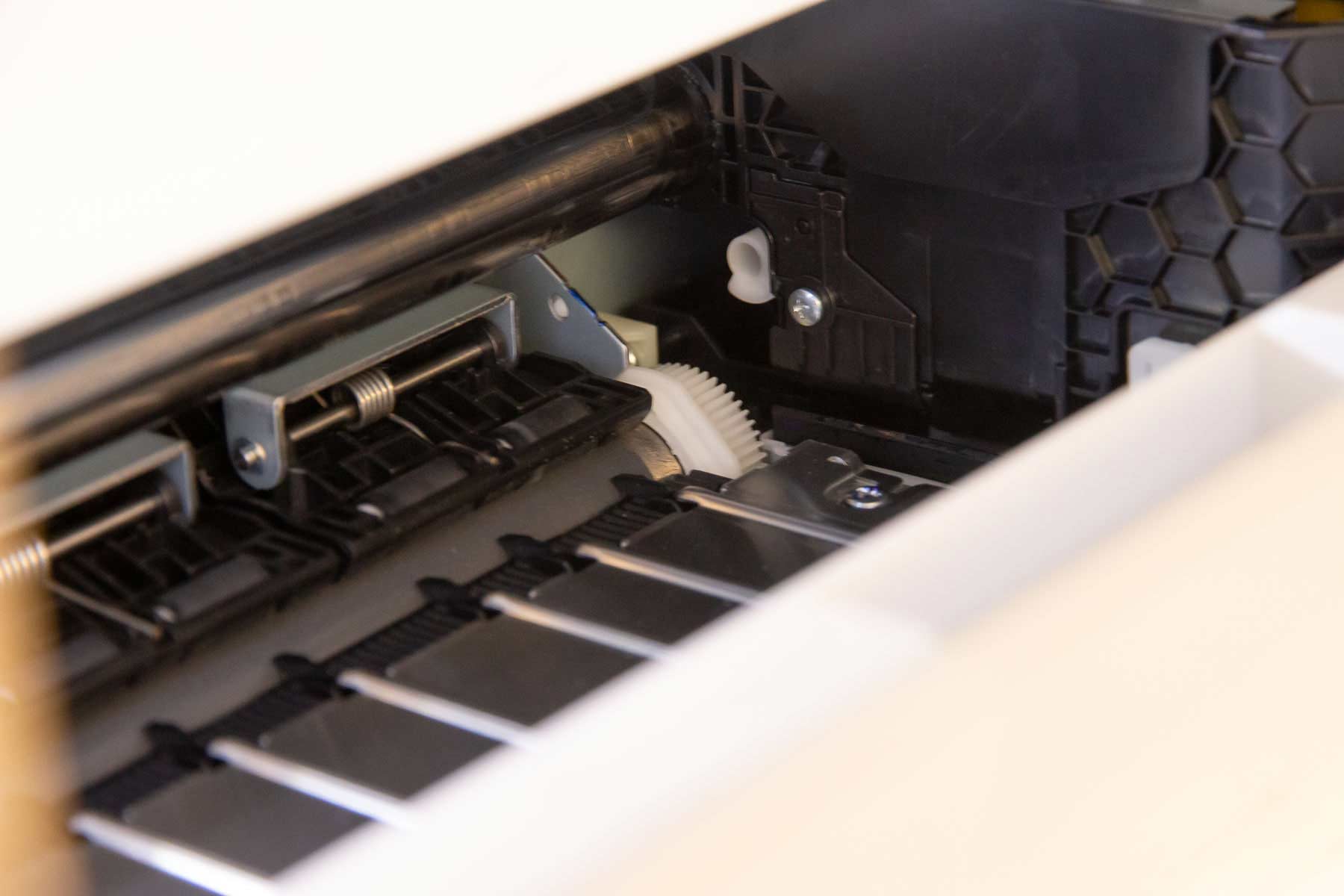
Just above this area is where the printing happens.
There is very limited access to where the print head rests.
Rear paper feed
The top feed is where I loaded sheets of photo paper and heavier media such as rag papers and even canvas.
it’s very robust and happily took 10 sheets of 310-350 gsm card – from A3+ right down to A6.
If you’re trying new media, always start with just a few sheets.

The mechanism is a centre feed, with adjustable ‘wings’ either side to guide paper.
When using some 13″ photo paper cut from a roll, the curl prevented easy loading. The solution was to use an A3+ sheet of card (from a pack of paper) to form a guide. This is shown in the panoramic print video.

Custom media sizes
Paper sizes can be specified as needed, if one of the default sizes won’t do. For myself this most often arises when making panoramic prints, whether from roll paper or some of the panoramic paper sizes now available.
The maximum print length is 1.2 metres – see the specs at the end of the article and panoramic printing notes below for the range of settings.
Epson WF-C8690 printer review test prints
With any new printer I’ve a series of known test images that I always start off printing, I know what these images look like on different types of paper and many different printers. It’s a quick way of seeing if the printer is up to more detailed testing, since if it can’t manage one of these images, it’s not going to suddenly look better with others.
I always suggest using such images when testing new papers, rather than your own favourite photos. If you can print an image you like the quality of, from these, then it makes refining the printing of your own work so much easier.
The images (and many others) are available for free download on this site.
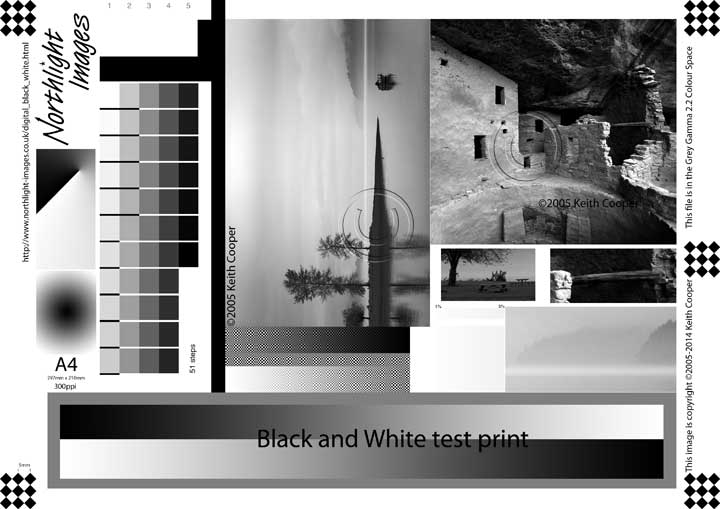

Both images have lots of components to specifically test different aspects of printer performance.
I also use both for testing the performance of printer profiles. If you make use of them, then do be sure to read the explanatory notes that go with them.
I normally never bother looking at the ‘printer manages colour’ option for printing photos, but it’s always good for giving a feel for the basic quality of the printer.

Here’s a comparison between a print on a matte art paper made with a custom ICC profile and a smaller one using the basic driver settings.

The most obvious difference is in the B&W section of the image. The custom profile makes for moderately good B&W printing, but with one black and three colour inks, this printer is never going to be a natural choice for B&W photos.
Colour Management
There are no ICC printer profiles supplied with the printer, and you will be very unlikely to find any on any paper supplier’s web site.
That means making your own, or having them made for you.
I’ve created quite a few profiles for this printer, by printing out target sheets and measuring them with a spectrophotometer. I’m using the i1iSis XL with i1Profiler to make the profiles, with up to 3000 patches for some media.
I’ve created most profiles at whatever is the best quality setting for a media type. There is relatively little change in going to the ‘normal’ print quality levels, except a faster print speed.

Blacks are fairly dense and the straight line of the graph suggests that illuminant metamerism from changes in viewing lighting is more likely from the paper than the ink set.

A look at the profiling data for a matte canvas shows the pronounced peak you see from the presence of optical brighteners in the media coating.

Black and White
There is no B&W print mode. Getting acceptable results will depend on good profiling and media choices.
The brighter the paper, the more likely you are to see slight colour tints to B&W prints in some lighting.
Scanning
The office side of the 8690 has an autofeed for documents (ADF)

However I’m more interested in the large flat-bed scanner underneath the ADF unit.
At 11″ x 17″ it’s much bigger than most normal desktop scanners or the one I looked at for art scanning with the Epson ET-8550
It has an optical resolution of 1200ppi, although the scan software shows up to 1200 x 9600 through interpolation.
The 1200 setting is OK for scanning artwork if you don’t intend for significant enlargement.
As with all flatbed scanners, the relative position of the light source is fixed, so results with reflective artwork may vary.
The scanner is advertised over the network, so even Apple’s basic scan software will work with it, or you can scan to a memory stick the USB port at the front.

For scanning and getting better colour accuracy, it’s worth profiling the scanner.
Ideally I’d use an IT8U target for this, but the ColorChecker SG card will work with i1Profiler for me [more details in my SG Card review]

Whilst the standard Epson scanning software is fairly good, I’ve long recommended VueScan for driving scanners.
Here’s the scan of the SG Card.
Note the black and white point settings – after some more experimentation I found that setting the white and black to 0 improved rendition of highlights.

Saving the image as a TIFF file (uncompressed), I opened it in i1Profiler.

The software creates a profile. This is assigned to the scanned image after opening it in Photoshop.
My ICC profile is available on request for non-commercial use, as with the the paper profiles [see below].
How much difference does a profile make? – here’s the before after image of the SG card.

I scanned several pictures, including this watercolour.
After a bit of editing, the reduced image was placed on one of my card templates and printed on a cotton etching style card.

This is the example shown in my short video about artwork scanning with the WF-C8690
Printing
For my printing I’ve used Photoshop (2022) – the Epson Print Layout software I’ve used with many Epson desktop printers does not support the WF-C8690.
Amongst papers and card types I tested were:
Epson papers:
- Premium Premium Lustre
Along with:
- Fotospeed Platinum Cotton 305gsm
- Fotospeed Platinum Etching 285gsm
- HP Matte artist canvas 380gsm
- HP Watercolour 210gsm
- Innova Cold Press Bright White IFA116
- Innova Hot Press Bright White IFA 115
- Pinnacle Cotton Fibre Gloss 320gsm
- Pinnacle Cotton Rag 310 bright white
- Pinnacle Etching 310gsm
- Pinnacle Lustre 300gsm
- Pinnacle Matte 120gsm
- Pinnacle Matte 240gsm
- Pinnacle Photo Gloss 240gsm
- Pinnacle Premium Matte 300gsm
- Pinnacle SemiGloss 300 gsm
Many profiles are available at different media settings – the setting is included in the profile name.
The ICC profiles for these papers/cards are available for experimental non commercial use on written request. If you want to use them for any business purposes, they are available at minimal cost.
Media types
There is quite a range of media types available.
As ever, media designed for inkjet use work better – the inks do not dry properly on vinyl stickers, unless they are specifically intended for desktop inkjet printer use.

With thick media like Canvas, I first tried the thick-3 setting, but then tried the Epson Matte setting.
Both worked fine, but I noticed the amount of ink put down on the media is less with thick-3. For many media types, I’ve made profiles at different media settings – this may help if you’re experimenting and trying out a media which takes less/more ink.
A quick look at the profile gamut views for a 310gsm etching type art paper shows how using the Matte paper setting gives a larger gamut in many areas. The actual results were very dependent on the media, so two seemingly similar art papers may look quite different – but that’s true for most printers.

Borderless printing
Borderless printing is not available.
Your custom page sizes will insist on a margin of ~3 millimetres.
Mobile devices
Yes, you can print from phones and tablets. This process is not amenable to any significant use of colour management.
This means that it might look OK or it might not – if you try it and get good results, attribute it mainly to luck…
Panoramic prints
The printer allows for custom paper sizes (not borderless) of up to 1.2m long. Here’s one set up for the large print I show in the video.

I’ve defined a page size of 1200x330mm. I noted that with the custom size I was only able to print at the ‘Normal’ print setting, not the fine or best available for some other media.

If you try to create a size beyond the printer limits, it won’t let you.

I would note that the max length is set via the printer PPD file – if you know how to edit these it might be possible to extend that 1200mm. However, editing PPD files is not something to try unless you know what you are doing…
Here’s my long print.

I also tried ‘Double A4 panoramic sheets (half an A2 sheet). One slight issue with pre-cut paper is that it defines your aspect ratio. If you print on the double A4 with a 10mm margin, you get ~3:1 aspect ratio

Print Quality and settings
My usual advice is to print at medium levels and test whether better setting make any difference.
However, most media I looked at in this Epson WF-C8690 printer review only have two settings – go for the best, unless you are in a real hurry…
Software
Most software for this printer supports office functionality – there is no specific photo printing software supplied.
I printed directly form Photoshop, using the profiles I’d created. If you’re after a more cost effective solution for editing images – try Affinity Photo. Whatever you use, it needs to support the use of ICC printer profiles if you are concerned about print quality.
The Epson Scan software is usable, but I prefer VueScan.
Just one other thing – do not edit your images in CMYK. It’s pretty much guaranteed to result in reduced print quality and other issues. I have a video covering aspects of this:
- Say no to CMYK – why it’s rarely what you should be using
Canvas printing
The Canvas I tested was a 380gsm Matte canvas (A3+ 13″ x 19″). After profiling, I ran off a few prints, including stacking several sheets of canvas in the rear feed.
There are some more details in the short video about Canvas printing on the 8690.

Colours are quite vibrant for a matte canvas – these would look good if sprayed or brushed with a varnish.

Cards
I had quite a range of pre-creased greeting cards and postcards to try.
These are A6 sized postcards. Note the border.
This printer does not do borderless printing.

The prints are somewhat resistant to handling, but don’t think they will take a trip.
There are printer profiles for all of these.

Card feeding was very robust, with no feed issues, even with a dozen sheets stacked up.
Epson WF-C8690 printer review conclusions
As a professional photographer who uses some pretty expensive kit for printing, why bother with an Epson WF-C8690 printer review?
Well, after my testing of printers like the ET-8550 or P700, I get a lot of enquiries about using printers for producing your own cards and artwork for sale. The problem is that if your volume of business rises you are going to pend a lot of time loading sheets of card into a printer one at a time and waiting for them to print.
Those other printers may produce excellent results, but they are not made for commercial levels of printing. So I had a word with some people at Epson UK and they suggested I might like to do this Epson WF-C8690 printer review.
I have quite deliberately ignored the office functionality of this printer – I’m sure you’ll find in in assorted “2022 best office printers” type reviews.
BTW I use the term ‘review’ in its broadest sense, since few of these so called reviews show any sign of actually having used the printers they mention… ;-)
What’s it like?
It’s really easy to use, and the rear paper feed seems to take almost anything. That said you do need to make sure media is flat and with no turned up corners.
It’s heavy (45kg) and quite bulky, so perhaps not something to sit on your desk. It’s quiet enough though not to warrant living in its own ‘print room’.
For photocopying and basic text documents it passed my ‘would I send this to a client’ test of quality – but remember, I don’t review office printers, so that test is not based on much…
B&W printing
With a good profile and the right media choices, B&W is not bad, but having only the four inks does make the lighter tones a bit coarse or grainy. If you want the best B&W get a pigment printer with more inks.
Print quality
Generally good if used with profiles. The pigment inks give a reasonable gamut on good papers, but obviously not up to the level of multi-ink printers like the P700.
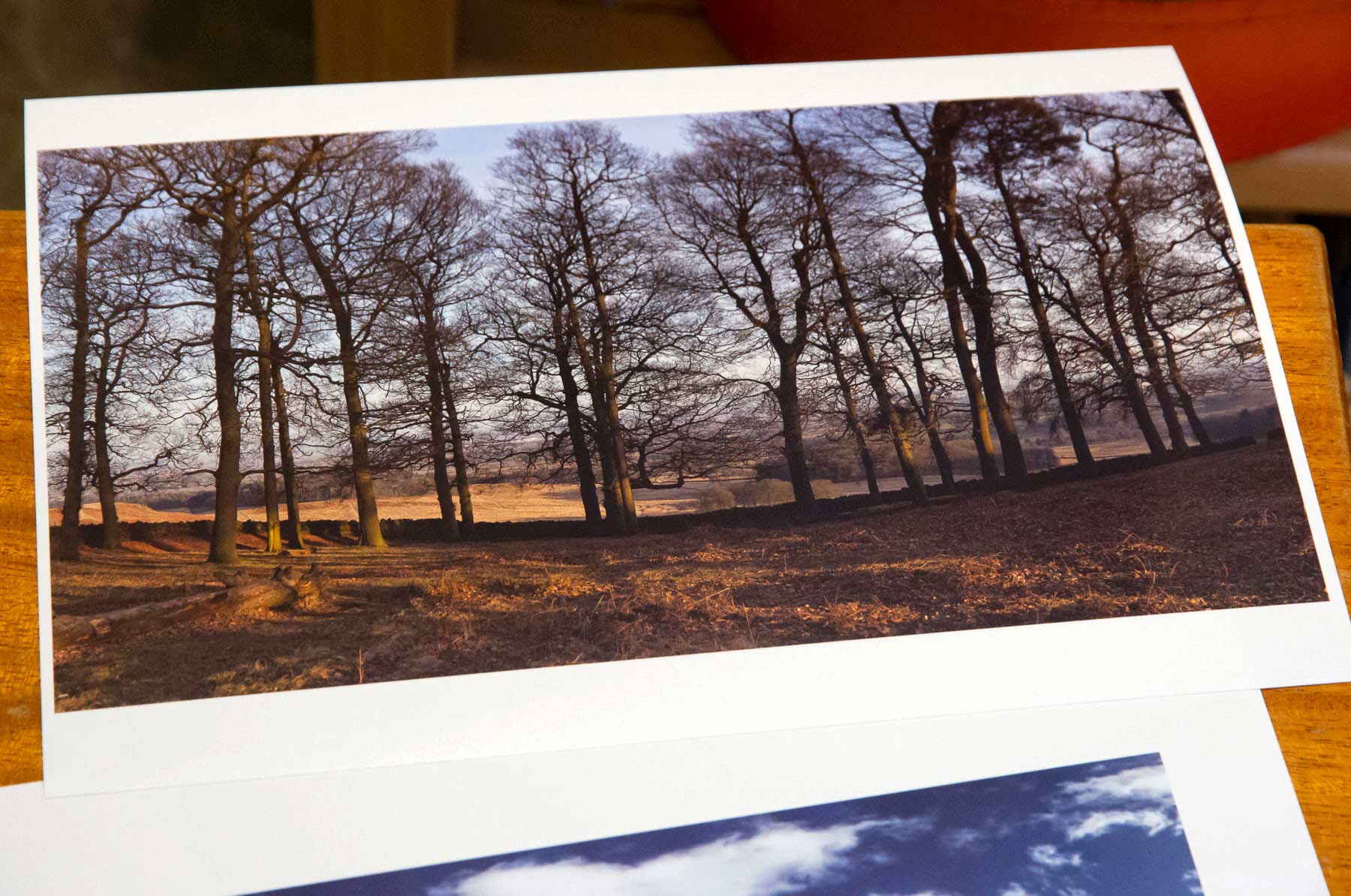
The dark browns/greens of the print above can be tricky with limited ink sets. However a custom profile for the Epson Lustre paper used here gives detail even in these quite tricky areas.
There is a bit of gloss differential if you get the light at the right angle, but it’s at a level I’m happy with, and is less on some papers than I saw with the Epson P700/900

Underexposed to show detail of the reflection.
Profiling makes a big difference to the neutrality of greys, as well as improving general colour rendition.
The screen
A good clear touch screen – easy to use and navigate, but definitely aimed at office users. Apart from setting media types and sizes when loading paper at the back, I simply didn’t need to use it much.
Ink usage
The ink carts look big, but don’t have huge amounts of ink in them. Printers can use a fair bit of ink for setup, but I’ll admit I was surprised when ink level warnings appeared after some 40 odd large prints.
Now, these are profiling targets, which explains (somewhat) why the colour inks have gone down so quickly, however it seems that the setup ink carts are aimed very much at office users (mostly black ink use).
However, do note the ‘ink yield’ section of the detailed printer specs below – I’d not studied the details, where you will see that the colour starter cartridges are well below normal capacity.

I was able to carry on printing for quite some time after an initial warning appeared.
If you’re going to be doing a fair bit of colour printing with this printer, get some replacement colour carts to keep in stock when you first get it. Subsequent carts (especially the higher capacity ones) should last a lot longer.
The higher capacity ones should last a lot longer – note how much larger the black XXL cart is.
As to ongoing ink costs and usage – I don’t have enough data to give any figures. However, those numbers on the carts – they are most definitely not for printing the heavy, ink rich images I’ve been testing (see the specs for below for more on those numbers).
Looking a supply costs though, my suspicion is that ink usage costs will be somewhat lower than small desktop printers, especially if they have ink cartridges. That said, if precise ink costs are part of your business model for cards/artwork, then you’re working at what I’m minded to consider the dangerously low margin end of the business.
- Business – matters. See all my videos/articles covering the business aspects of photography and printing
So – is it good for artwork?
Yes, but that very much depends on the quality you are after and the level you are pitching your products at. If you only want to print from phones/tablets and ‘just print’ without taking time to understand the process, then move along, and find someone to do it for you.
Is it good enough for prints for an exhibition – Maybe not
Is it good enough for cards and merchandise at the exhibition – quite possibly.
It’s very easy to set up, and works just like any smaller printer you may be used to.
For best results you will need to print from an editing package on a computer. If colour accuracy and quality matter, then colour management (profiles etc.) should also be a key part of your printing setup.
Overall I was quite impressed by the results I could get from this printer. It’s not one I’d ever have considered looking at for my own work, so thanks Epson, for suggesting it and the loan.
–ooOoo–
If you’ve questions or comments, please do feel free to email me at Northlight, or use the comments section here, or on YouTube.
Videos for my Epson WF-C8690 printer review
- Setting up the WF-C8690
- Art and card printing
- Scanning artwork
- Canvas printing
- A 1.2m long pano photo print
- Printing postcards
- WF-C8690 review

Specifications
Print:
Printing Technology:PrecisionCoreTM 4S print head 4-color inkjet
Maximum Print Resolution:4800 x 1200 dpi
ISO Print Speed:
- Black: 24 ISO ppm†
- Color: 24 ISO ppm†
2-Sided ISO Print Speed:
- Black: 16 ISO ppm†
- Color: 16 ISO ppm†
Maximum Draft Print Speed:
- Black 35 ppm††
- Color 35 ppm†††
Minimum Ink Droplet Size:3 droplet sizes, as small as 3.7 picoliters
Ink:
Note:This printer is designed for use with Epson cartridges only, not third-party cartridges or ink.
- Ink Type:DURABrite Pro pigment ink
- Ink Palette:Cyan, Magenta, Yellow and Black
- Ink Configuration:4 individual ink cartridges
Replacement Ink:
- 912 Standard-capacity Black, Cyan, Magenta, Yellow6
- 912 High-capacity Black, Cyan, Magenta, Yellow6
- 912 Extra High-capacity Black, Cyan, Magenta, Yellow6
- 912 Standard-capacity Yield: ISO pages – Black: 2,900, Colour: 1,700)6
- 912 High-capacity Yield: ISO pages – Black: 5,800, Colour: 4,6006
- 912 Extra High-capacity Yield: ISO pages – Black: 11,500, Colour: 8,0006
- Initial ink capacity Black, Cyan, Magenta, Yellow (Pages – Black: 2,200, Colour: 1,100)6
NOTE The initial ink capacity is quite low – this is why i ran low on ink relatively quickly in my testing.
General:
Operating Systems:
- Windows 10 (32-bit, 64-bit)
- Windows 8/8.1 (32-bit, 64-bit)
- Windows 7 (32-bit, 64-bit)
- Windows Vista (32-bit, 64-bit)
- Mac OS X 10.6.8 – macOS 10.13.x11
Server Systems:
- Windows Server 201610 (32-bit, 64-bit)
- Windows Server 2012 R210
- Windows Server 201210
- Windows Server 2008 R210
- Windows Server 200810
- Windows Server 2003 R210
- Windows Server 2003 SP210
Temperature:
- Operating: 50° to 95° F (10° to 35° C)
- Storage: -4° to 104° F (-20° to 40° C)
Humidity:
- Operating: 20 – 80% RH
- Storage: 5 – 85% RH (no condensation)
Sound Level:
- Power: 6.8 B(A)
- Pressure: 51 dB(A)
Dimensions:
- Printing: 24.1″ x 34.1″ x 22.5″
- Storage: 24.1″ x 29.7″ x 19.4″
Weight:101.0 lb
Security:
- PIN number certification for job release
- User control access
- Printer and network settings via Web Config using printer’s IP address
- SSL/TLS security
- IPsec
Safety Approvals:Safety standards UL60950, CSA C22.2 No. 60950 EMI FCC Part 15 subpart B class B, CAN/CSA-CEI/IEC CISPR 22 class B
Country of Origin:Indonesia
Warranty:As of October 1, 2019, this product comes with a standard 2-year limited warranty. Please visit www.Epson.com/support for more details.**
Copy:
ISO Copy Speed:
- Black 22 ISO cpm†††
- Color 21 ISO cpm†††
Copy Quality:Color/Black-and-White: Text/Text and Image Standard/Best
Copy Quantity:1 – 999 (PC-free)
Maximum Copy Size:11″ x 17″
Copy Features:
- Auto 2-sided
- Preview
- Resize
- Collate
- Adjustable Copy Density
Specifications Scanner:
- Scanner Type:Color flatbed / Auto 2-sided ADF
- Photoelectric Device:Color CIS line sensor
- Optical Resolution:1200 dpi
- Hardware Resolution:1200 x 2400 dpi
- Maximum Resolution:9600 x 9600 dpi interpolated
- Color Bit Depth:30-bit colour / 24-bit output
- Scan Bed Size:11.7″ x 17″
Scan Features:
Other:
- Scan to PC via Document Capture Pro
- Scan to Cloud (including email)8
- Memory Device
- Password Protected PDFs
- Address Book via LDAP
Automatic Document Feeder:
Capacity:50 sheets
Fax:
- Fax Settings:Black-and-white and colour
- Fax Speed:33.6 Kbps — as fast as 3 sec per page
- Memory:Up to 550 pages
- Speed Dials:200 (max.)
- PC Fax:Supported
Features:
- Auto Redial
- Address Book
- Delay Send
- Broadcast Fax
Connectivity:
Standard Connectivity:
- SuperSpeed USB (compatible with USB 3.0 specification)
- Wireless LAN IEEE (802.11 b/g/n)9
- Wired Ethernet (1000 Base-T/100 Base-TX/10 Base-T)
- Wi-Fi Direct®9
Network Protocols:TCP/IP v4/v6
Network Printing Protocols:IPP, LDP, Port 9100, WSD
Network Management Protocols:SNMP, HTTP, DHCP, BOOTP, APIPA, DDNS, mDNS, SNTP, Ping, SLP, WSD, LLTD
WLAN Security:WEP 64 Bit, WEP 128 Bit, WPA PSK (AES)
Mobile Printing ‘Solutions’:
Epson Connect:Epson Email Print7, Epson iPrint Mobile App7, Epson Remote Print7
Other:Apple AirPrint, Google Cloud Print, Fire OS
Paper Handling:
PC-Free Paper Support:3.5″ x 5″, 4″ x 6″, 5″ x 7″, Letter, Legal, 11″ x 17″, A3, A4, A5, A6, B5
Paper Sizes:3.5″ x 5″, 4″ x 6″, 5″ x 7″, 8″ x 10″, 8.5″ x 11″, 8.5″ x 14″, A3, A4, A5, A6, B4, B5, half letter, executive, 11″ x 17″, 13″ x 19″, user definable (3.5″ – 47.2″ in length)
Maximum Paper Size:13″ x 47.5″
Paper Types:
- Plain paper
- Epson Bright White Paper
- Epson Presentation Paper Matte
- Epson Premium Presentation Paper Matte
- Epson Premium Presentation Paper Matte Double-sided
- Epson Premium Photo Paper Glossy
- Epson Ultra Premium Photo Paper Glossy
- Epson Premium Photo Paper Semi-gloss
- Eson Ultra Premium Photo Paper Luster
Automatic Document Feeder:50 sheets
Envelope Types:
- No. 10
- Plain paper
- Bond paper
- Air mail
Paper Capacity:
- 1835 sheets plain paper (250 sheets plain paper x 3 trays)
- 500 sheets plain paper optional trays
- Rear feed: 85 sheets
Envelope Capacity:10 envelopes
Printer Details:
- Display:5″ colour touchscreen
- Printer Language:Epson ESC/P®-R, PCL 5 emulation8,PCL 6 emulation8, PostScript 3
- Software Included:Epson printer driver, PCL 5 driver emulation8, PCL 6 driver emulation8, PostScript 3,Document Capture Pro See Note10
- Monthly Duty Cycle:Up to 75,000 pages (Recommended monthly page volume: up to 5000 pages)5
- Telecom Regulations:FCC Part 68 (U.S.A.), IC/CS03 (Canada)
Power:
Rated Voltage:AC 100 – 240V Universal (Automatic)
Rated Frequency:50 – 60 Hz
Rated Current:1.3A – 0.7 A
Power Consumption:
- Approx. 39 W ISO 24712 (Standalone copy printing)
- Approx. 18 W (Standby)
- Approx. 1.4 W (Sleep)
- Approx. 0.25 W (Power off)
- ENERGY STAR qualified
Notes:
*This product uses only genuine Epson-brand cartridges. Other brands of ink cartridges and ink supplies are not compatible and, even if described as compatible, may not function properly.
** As of October 1, 2019, this product comes with a standard 2-year limited warranty. Please visit www.Epson.com/support for more details.
† Black and colour print speeds are measured in accordance with ISO/IEC 24734. Actual print times will vary based on factors including system configuration, software, and page complexity. For more information, visit www.epson.com/printspeed
1 Not all media types are supported for PCL printing.
2 Based on printing costs with the WF-C8190 and WF-C8690 printers and highest-capacity replacement ink compared with the costs of printing equivalent ISO pages with best-selling, similarly featured A3 colour laser printers priced at $2,499 USD or lower with speeds of 30 ppm or lower as of December 2017.
Toner and ink costs based on manufacturer’s highest-capacity yields and pricing; printer costs based on average selling price per industry-available data as of December 2017. Actual savings will vary based on usage conditions.
3 Standard paper capacity of 330 sheets; up to 1,830-sheet capacity with three optional 500-sheet paper trays.
4 Based on 200 dpi, letter-size, in black-and-white or colour.
5 Monthly duty cycle up to 75,000 is the highest duty a user could expect in a month, based on near-constant operation of a device of this kind. It is not recommended that the device be run at this duty. For best device performance, run the device at the recommended duty of 7,000 pages a month.
6 Replacement cartridge yields are based on ISO/IEC 24711 tests in Default Mode printing continuously. Cartridge yields vary considerably for reasons including images printed, print settings, temperature and humidity. Yields may be lower when printing infrequently or predominantly with one ink colour.
All ink colours are used for printing and printer maintenance, and all colours have to be installed for printing. For print quality, part of the ink from the included cartridges is used for printer startup and a variable amount of ink remains in the cartridges after the “replace cartridge” signal.
The included cartridges have a yield of about 2,200 pages black, and 1,100 pages colour after ink is used for printer start up, determined with ISO/IEC 24712 test patterns and Epson’s test methodologies. For details, see www.epson.com/inkinfo
7 Compared with similarly featured A3 colour laser printers priced at $2,499 USD or lower with speeds of 30 ppm or lower as of December 2017. Actual power savings will vary by product model and usage.
8 For convenient and reasonable recycling options, visit www.epson.com/recycle
9 SmartWay is an innovative partnership of the U.S. Environmental Protection Agency that reduces greenhouse gases and other air pollutants and improves fuel efficiency.
Specification Notes:
*This product uses only genuine Epson-brand cartridges. Other brands of ink cartridges and ink supplies are not compatible and, even if described as compatible, may not function properly.
† Black and colour print speeds are measured in accordance with ISO/IEC 24734. Actual print times will vary based on factors including system configuration, software, and page complexity. For more information, visit www.epson.com/printspeed
‡ Maximum print speeds are measured with text patterns in Draft Mode on plain paper. Actual print times will vary based on factors including system configuration, software, and page complexity.
††† Black and colour copy speeds are determined in accordance with ISO/IEC 29183. Actual copy times will vary based on factors including system configuration and page complexity. For more information, visit www.epson.com/copyspeed
1 Not all media types are supported for PCL printing.
2 Based on printing costs with the WF-C8190 and WF-C8690 printers and highest-capacity replacement ink compared with the costs of printing equivalent ISO pages with best-selling, similarly featured A3 colour laser printers priced at $2,499 USD or lower with speeds of 30 ppm or lower as of December 2017.
Toner and ink costs based on manufacturer’s highest-capacity yields and pricing; printer costs based on average selling price per industry-available data as of December 2017. Actual savings will vary based on usage conditions.
3 Standard paper capacity of 330 sheets; up to 1,830-sheet capacity with three optional 500-sheet paper trays.
4 Based on 200 dpi, letter-size, in black-and-white or colour.
5 Monthly duty cycle up to 75,000 is the highest duty a user could expect in a month, based on near-constant operation of a device of this kind. It is not recommended that the device be run at this duty. For best device performance, run the device at the recommended duty of 7,000 pages a month.
6 Replacement cartridge yields are based on ISO/IEC 24711 tests in Default Mode printing continuously. Cartridge yields vary considerably for reasons including images printed, print settings, temperature and humidity. Yields may be lower when printing infrequently or predominantly with one ink colour.
All ink colours are used for printing and printer maintenance, and all colours have to be installed for printing. For print quality, part of the ink from the included cartridges is used for printer startup and a variable amount of ink remains in the cartridges after the “replace cartridge” signal.
The included cartridges have a yield of about 2,200 pages black, and 1,100 pages colour after ink is used for printer start up, determined with ISO/IEC 24712 test patterns and Epson’s test methodologies.For details, see www.epson.com/inkinfo
7 Most features require an Internet connection to the printer, as well as an Internetand/or email-enabled device. For a list of Epson Connect enabled printers and compatible devices and apps, visit www.epson.com/connect
8 Requires an internet connection, a free Epson Connect account and a destination email address or cloud storage account. For a list of supported cloud services, visit www.epson.com/connect
9 Wi-Fi CERTIFIED; level of performance subject to the range of the router being used. Wi-Fi Direct may require printer software.
10 Only printing and scanning are supported under Windows Server OS.
11 Some applications and/or functions may not be supported under Mac OS X.
12 Based on ENERGY STAR TEC measurement methodology; 288 prints/day; actual electricity consumption may vary depending on printer use. For more information, see www.energystar.gov
13 Internet access is required to install OS X drivers and software.
14 Compared with similarly featured A3 colour laser printers priced at $2,499 USD or lower with speeds of 30 ppm or lower as of December 2017. Actual power savings will vary by product model and usage.
15 For convenient and reasonable recycling options, visit www.epson.com/recycle
16 SmartWay is an innovative partnership of the U.S. Environmental Protection Agency that reduces greenhouse gases and other air pollutants and improves fuel efficiency.
Never miss a new article or review - Sign up for our occasional (ad-free) Newsletter
and please do subscribe to Keith's YouTube Channel

Other areas of our site that may be of interest...
All the latest articles/reviews and photo news items appear on Keith's Photo blog

Keith explains tilt and shift lenses
Keith has written a book that looks at the many ways that tilt/shift lenses can benefit your photography from a technical and creative point of view. If not in the UK check for import issues and maybe try an on-line bookshop. Keith has no connection with sales of the book.
ISBN 9781785007712
There is also a specific index page on the site with links to all Keith's articles, reviews and videos about using tilt and shift.
We've a whole section of the site devoted to Digital Black and White photography and printing. It covers all of Keith's specialist articles and reviews. Other sections include Colour management and Keith's camera hacks - there are over 1200 articles/reviews here...
Adverts removed