


Moving a Canon PRO-2000 printer
Moving a Canon PRO-2000 or PRO-4000 printer
Procedures for shipping large format printers with ink in them

No more Google ads. Too many deceptive and irritating adverts.
Any ad links left are non tracking, to companies we know, trust and we've worked with for years [Park Cameras]
Ads helped pay for site running costs, so if you found something useful, please
...Make small KoFi donation?
...Subscribe to Keith's YouTube Channel
...Get Keith's book about how to use tilt/shift lenses
Our site contains affiliate links - these help support the site. See our Advertising policies for more
After an extended period testing Canon’s PRO-2000 24″ large format printer, it was time for it to go back.
These short notes address some of the issues you should think about if moving a printer (2000 or the larger 4000) that has ink in it, i.e. a working printer. Moving a Canon PRO-2000 printer any distance is not a trivial matter.
Depending on how much it needs tilting, you may find that quite a bit of ink is used up preparing the printer for transport.
So, if you want to move your printer at a later date, take care in where you put it.
This article completes Keith’s review of the PRO-2000

Moving a Canon PRO-2000 printer (PRO-4000 too)
When the PRO-2000 was first bought here, it was the second to turn up, since the first had been shipped already set up, and couldn’t be tilted to get it into our house.
See my PRO-2000 setup and installation articles for more details.
Update: See the notes at the foot of the page if you get the ‘consumables required’ message
Here’s the printer and the door it has to leave by.

I know that ‘several’ maintenance carts may be required, so I check the status of the current cart.
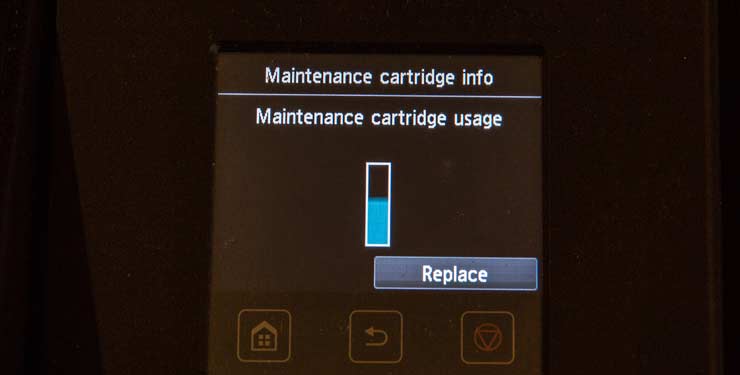
This is still the original cart that came with the printer – every ink cart has been replaced at some point during testing.
I’ve made a lot of prints.
The menu has three options for shipping.

The first just locks the print head assembly, the second does a bit more (and clears a bit of ink) whilst the third is effectively a full drain.
I’m told that when moving printers to trade shows, the first option is all that people a Canon UK use.
Unfortunately, the printer is going to need quite a bit of twisting and tipping to get out of the house, so it’s the full drain…
First, we need to remove the ink carts (no ink lost here)

The carts are self sealing, so just go in a box.

Once completed, the printer will drain ink from the lines, subtanks and printhead.
This goes into the maintenance tank.
I’ve actually weighed all the empty/full carts, so will have a total ink ‘lost’ at the end.
After a few minutes, my part filled tank is full.
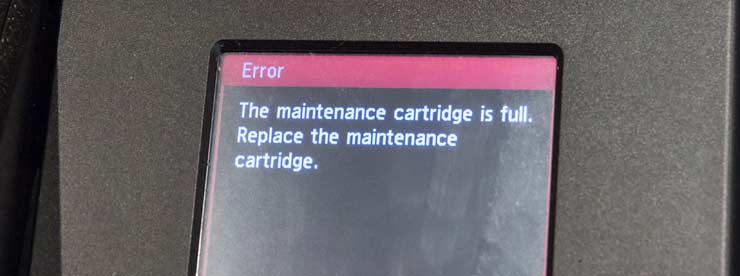
Another pristine cart is inserted.
This then fills … you can see the ink in it, before it’s absorbed into the padding
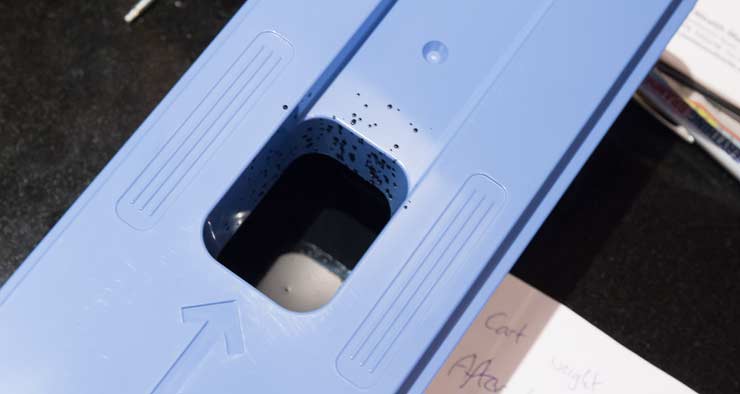
A third cart is part filled.
So, essentially you need two new maintenance carts for the shipping.
We are now running on fumes, so the printer is good to go.
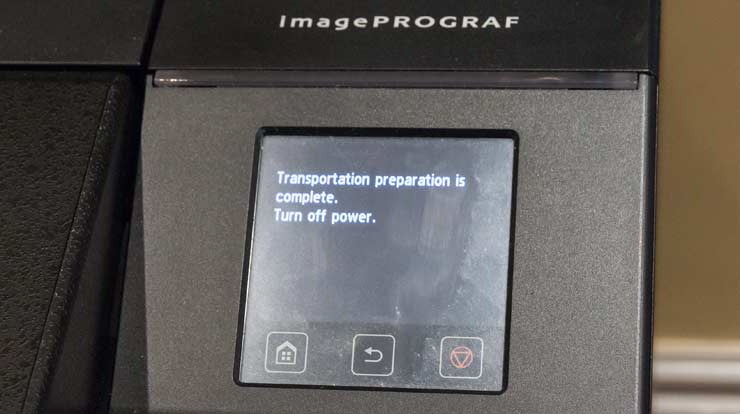
It can be lifted off the stand, but still needs rotating by 90 degrees (along its length axis) to get through my doorway

Fortunately not to be lifted by me…
Actually moving a Canon PRO-2000 printer
This doorway is 74cm (~29 inches) wide.

Then tipping on its end to get out to the hallway and round the corner to the left.
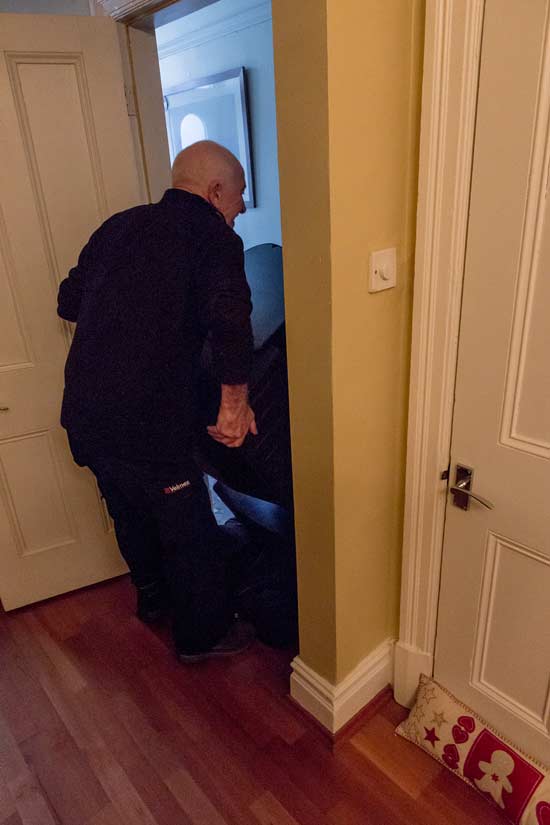
Finally out of the house, back on the stand and into a van.
So, the printer is ready to go.
UPDATE Consumables need replacing
Normally the printer just requires maintenance carts for the drain/move process.
Sometimes the dreaded extra warning appears:
“If consumables must be replaced, a message appears on the touch screen, and preparation is disabled. If the message appears, tap OK and contact your Canon dealer for assistance.”
The best info I’ve found was:
“…for a printer that has been used in situ for a time, it could mean the WIA (waste ink absorbers), these like a lot of parts in the printer have a life cycle and if they are close to that then the printer will flag that message when an attempt to initiate the move print function is actioned.
The only sure-fire way to know what is needed, would be to complete a print info from the printers service mode as this shows the parts counters current status”
Starting up in service mode [info from a post on LL]
1. Press and hold the Power button while touching Area4 (lower left) of the operation panel. (DO NOT release the buttons.) [ Area4 is the lower left quadrant of the touch panel, not including the home/back/stop button area]
2. When the Canon logo is displayed on the operation panel, release the finger touching Area4 (lower left) while holding the Power button, touch in order of Area2 (lower right,) Area3 (upper left,) and Area1 (upper right) of the operation panel, release the finger from Area1 (upper right) and finally release the Power button within two seconds.
[ Those are just touch/releases of area2, area3, area1 in order, followed by releasing the power buttom. It seems that from the time you release area4 until you release the power button must be less than 2 seconds]
Note that when you do all of this right, there is no immediate feedback. The system goes through its normal boot cycle and appears to have just started up as normal. However, if service mode is entered, there’ll be an extra menu item, “SERVICE” at the bottom. Also, even if there was a hard error preventing normal user boot up, the system should still get to the menu if service mode is engaged.
Just be careful, when in service mode!
Ink usage
I weighed all the carts, so have a good idea of what was flushed out (and will be needed to re-install the printer wherever it ends up)
An empty cart weighs 570g
The part filled cart was 967g at the start and weighed 1218g when changed.
Cart #1 had 251g of ink added.
Cart #2 was empty to start and weighed 1615g when full.
Cart #2 had 1045g of ink added.
Cart #3 was empty to start and weighed 700g when the printer was flagged as ready to move.
Cart #3 had 130g of ink added.
Total ink drained 1426g
Assuming that the density of the pigment ink is no more than a bit more than water, we’re looking at a total of just under one and a half litres of ink.
The PRO-4000 has longer ink lines so the figure would be slightly higher, but not that much, since most of the ink drained was in the sub-tanks.
Moving your printer
My take away observation for this is that if you ever want to move your large format printer, install it in a place where it can be moved without tipping very much.
Thanks to the guys at Velmex for their patience whilst I did the weighing and photos.
The PRO-2000 is an excellent printer in day to day use – see my printer setup article and full PRO-2000 review for more.
-- --
Never miss a new article or review - Sign up for our Newsletter (2-4 a month max.)More print related information from Keith
...or use the search box at the top of any pageReference pages and test images
- Printer Test Images
- B&W printer test image
- Printer cleaning
- Paper reviews
- Printer info/news/speculation Canon | Epson
Adverts removed
Keith | Aug 21, 2021 at 9:08 am
It refers to the spare maintenance tanks that you need, to drain the ink into
Salar Elyasi | Aug 21, 2021 at 12:32 am
Hi,
I soon need to move my canon pro-4000 and need a full drain. When i click on transport outdoors, this message appears (replacement of a consumable part is required). I have no idea what’s that mean.
I really appreciate it, if you advice me what to do.
Thanks in advance
Matt Nuttall | Sep 9, 2020 at 10:27 am
Great information Keith. I’m just about to move my Canon pro 2000 so will be reading your article again.