


Media settings – Printer Test Images
Media settings – Printer Test Images
Optimal media settings – getting the best out of your prints

Keith has removed all Google ads. Too many deceptive and irritating adverts.
Any ad links left are non tracking, to companies we know, trust and we've worked with for years [Park Cameras]
Ads helped pay for site running costs, so if you found something useful, please
...Make small KoFi donation?
...Subscribe to Keith's YouTube Channel
...Get Keith's book about how to use tilt/shift lenses
Our site contains affiliate links - these help support the site. See our Advertising policies for more
We’ve got quite a few printer test images on this site. The ones on this page are specifically for help in choosing your printer driver media settings before profiling.
If you have a media settings test image on your site that you’d like us to mention, please feel free to drop us an email.
If you don’t know why this is important then have a read of our Media Settings article…
Article Index

Test Images
Once you’ve built a profile, our printer test images collection have examples specifically designed to show up print quality problem areas in profiles (print and screen).
Basic Media check
Inkjet printer drivers have a lot of paper settings – if you are using a third party ink/paper then the best paper settings in the driver may not be the choice you’d first think of.
Save the PNG image below, and print at whatever size you need to fit on your paper. Note that this image is -not- colour managed. If you open it in photoshop, and you have profile warnings turned on [always a good idea IMHO] then make sure that you leave it as not colour managed.
Print it with all colour management turned off. You should be able to print four copies of this on an A4 sheet.
Remember to write down all your printer driver settings!
This is similar to the image used to test prints in the Media Settings article

Getting your correct driver media settings can make the difference between a reasonable printer profile and a great printer profile. Don’t just assume that a similar sounding type of paper will automatically give the best results.
For a Canon photo paper in an Epson 1160 with ‘compatible inks’, the best profile came from using the Plain Paper driver setting. It really looked a lot better than using the ‘photo paper’ setting.
This is especially true when using third party (replacement) inks or papers.
Don’t forget too, that a clean inkjet printer produces better prints – see how we use a common cleaner from the supermarket for cleaning inkjet printers.
Colour Confidence media test chart
Available for download, with instructions, from Colour Confidence

Onsight media evaluation
 This 5×7 color image (right) can be used to determine a media’s optimal media selection prior to the profiling process.
From Onsight (there is also a short article covering its use)
PDI Test Image – for image evaluation
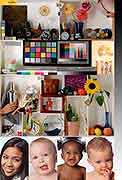 When evaluating printer profiles it is important to use a known image, not just a photo you like the look of.
The information below is about the PDI test image and is quoted from the PrintFIX PRO on-line help.
… all those things in the PDI test picture are there for a reason!
The original comes from http://www.photodisc.com — we have a copy available for download)
A newer test image and detailed commentary on its use can be found on the printer test images page
- A Smooth even gray ramp on the right of the image, without visible colour casts or breaks in the gradient.
- Good skin tone colour throughout the range of different skin types and their shadow areas, especially the difficult pink skin tones in the second face, and the areas where the skin transitions into the hair on the third face.
- Dark areas in the hair of the first model that show detail without clogging.
- Bright, saturated, colours without loss of detail in the robot, the beta fish, and the coloured beads.
- Good deep tone detail in the purple sand in the fish bowl and the background of the tapestry.
- Bright sunflower yellows in the sunflower, distinct from the lemon yellows of the lemon.
- Good saturated blues in the vase and its stem.
- No problem tones in the dark areas of the lemon, the peach, the orange, and the apple.
- A rich range of greens in the cactus and the sunflower leaves.
- Rich brown tones in the binocular case, transitioning well into the dark areas.
- A good range of varying warm highlights in most areas.
- The tint of each shadowbox section is effected subtly by the contents of each box.
- Cool blue highlights on the optically brightened golf balls.
- Good detail in the coloured areas on the elephant, without bleeding from the blacks.
Bill Atkinson’s test images
Lab test image (warning – lots of out of gamut colours) to print with a profile. To see just how your profile handles things…

This and others used to be available from Bill Atkinson’s Mac.com page. Unfortunately, Mac.com has gone and with it the download link.
I do still have copies of the LAB test files from my original download. email me for more…

These are printed -with- a profile.
The ones below are printed without a profile to see how the basic printer driver is handling things.

-- --
Never miss a new article or review - Sign up for our Newsletter (2-4 a month max.)More print related information from Keith
...or use the search box at the top of any pageReference pages and test images
- Printer Test Images
- B&W printer test image
- Printer cleaning
- Paper reviews
- Printer info/news/speculation Canon | Epson
We're an Amazon.com affiliate, so receive payment if you buy via Amazon US
Keith | Aug 18, 2022 at 10:41 am
Thanks for this
Link added in main text
Steven Noon | Aug 15, 2022 at 6:50 am
Bills test file are available at his dropbox
https://www.dropbox.com/sh/ka35g3gtyd10823/DfQqZRYNsW
Keith | Nov 10, 2021 at 9:44 am
This page is for checking media settings – part of the paper profiling process
You need the main Datacolor colour image on the test image page
https://www.northlight-images.co.uk/printer-test-images/
john conlin | Nov 9, 2021 at 11:18 pm
hi just starting to learn to print my photos using a canon pro 300 with canon pro platinum paper and a asus pa278qv monitor but not sure which one of the test images to download can you help thanks