


Detailed Canon G550 printer review
Canon G550 printer review
A4 MegaTank printer (also G620/G650)

Keith has removed all Google ads. Too many deceptive and irritating adverts.
Any ad links left are non tracking, to companies we know, trust and we've worked with for years [Park Cameras]
Ads helped pay for site running costs, so if you found something useful, please
...Make small KoFi donation?
...Subscribe to Keith's YouTube Channel
...Get Keith's book about how to use tilt/shift lenses
Our site contains affiliate links - these help support the site. See our Advertising policies for more
Keith Cooper looks at the Canon G550 printer.
Although this is specifically a G550 printer review, the observation on print quality apply to the G650 (G620 in the US), which is the same printer, but with a scanner.
Keith looks at printer performance on different media and why proper selection of media and colour management are key to getting optimal results
The review is complemented with a range of short YouTube videos exploring aspects of using the printer.
ICC Paper Profiles: I’ve created several icc paper profiles for this review [see below]. They are available on request. a Kofi donation is all I’d ever request for them… https://ko-fi.com/keithcooper [Thanks to all who have!]. Take care to note how and WHY I created them.
Article Index
- Printer features
- Setup
- Connectivity
- Ink refilling
- Media handling
- Office functions
- Colour management
- Black and White
- Printing
- Canon software
- Choosing papers
- Conclusions
- Full Specifications

Keith’s G550 videos
- G550 Review
- G550 setup
- G550 Glossy borderless print
- G550 Choosing papers
- G550 Panoramic printing
- G550 Greeting card printing
- G550 Making printer profiles
- G550 Black and white prints
Is this printer good enough?
UPDATE
Looking at the G550 (and G650 – print functionality)
The A4 sized six ink MegaTank printer is filled from individual bottles of dye based With black / grey / red / cyan / magenta / yellow inks. This detailed Canon G550 printer review concentrates on its use to print high quality photo prints.
The G650 is the same printer but with a 600 x 1200 dpi flatbed scanner on top, giving scanning and copying functions. It is also a bit higher at 167mm, compared the G550’s 136mm. Both measure 445mm x 340mm
Printer features
It’s a six ink printer with WiFi and USB connectivity. Maximum sheet size is A4, but a wide range of paper sizes are available (see the specs at the foot of the article). Borderless printing is supported at certain sizes.
There is no duplex unit or paper tray – not a problem from my POV, since I am definitely not looking at this as an ‘Office’ printer. Canon’s specs suggest several thousand 6″x4″ prints can be expected from an ink bottle. Some rough estimates put the price of printing your 6″ x 4″ snaps at a few pence for ink – much less than with a larger conventional cartridge type printer,
In terms of speeds, an A4 photo take a couple of minutes at normal quality, and just below 5 mins at the very best quality.
There are a number of templates buried away in the menu system for things like graph paper (borderless) and other useful layouts (it saves me buying musical score paper when I’m testing one of these printers).
It connects very easily with our phones and iPads, if you really want to print directly…
The two-line LCD on top of the printer is small, and has no backlight – I needed to swap to reading glasses to be able to read it. In dim home lighting, the screen is unreadable for anyone with even mild visual impairment.
Here I’m setting the paper size and media type after loading a sheet of paper.
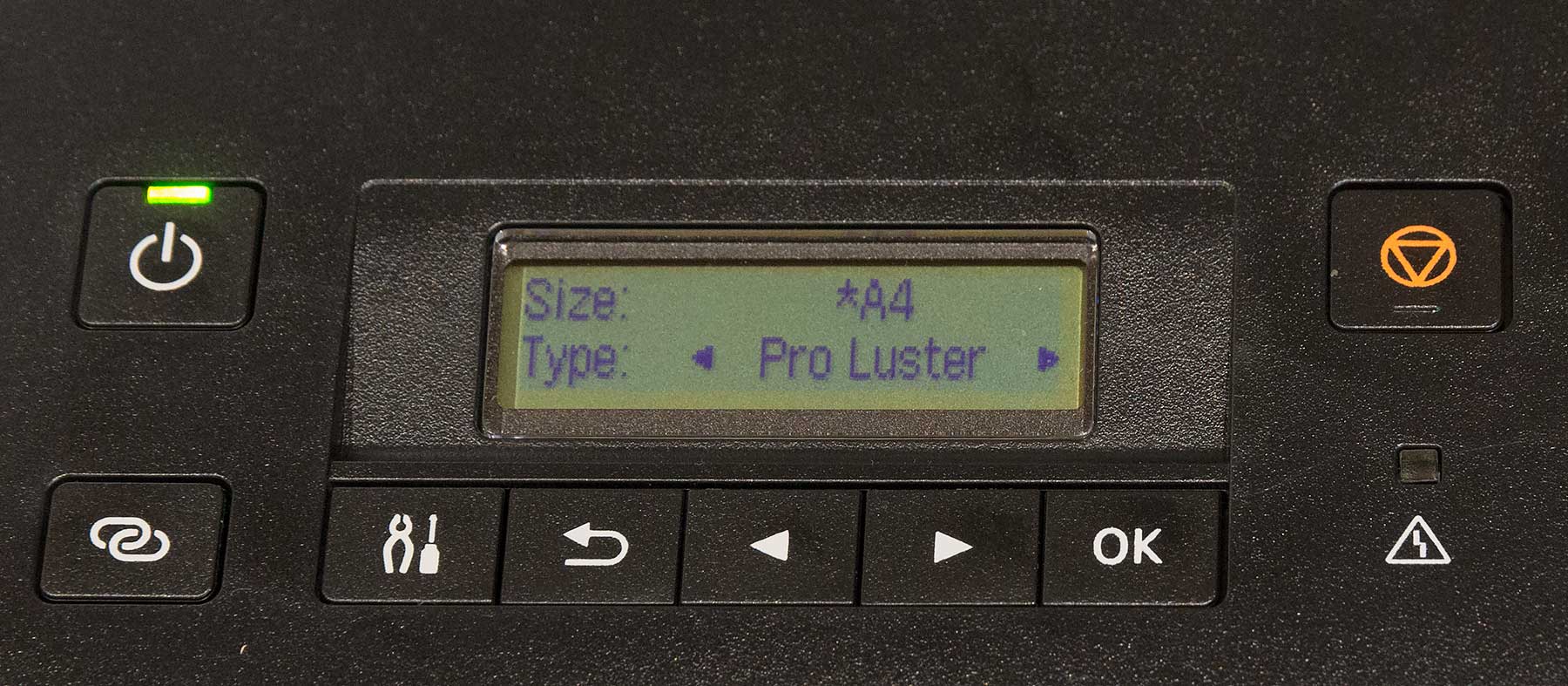
It’s well thought out and the simple menu system is easy to navigate, but it is small.
BTW I particularly like the masterful example of meaningless marketing speak from Canon where it is referred to as a “Full Dot LCD display”
No cartridges
You fill ink tanks from bottles (60ml ~£85 for a full set). The ink from the bottles is used to fill the tanks from above.
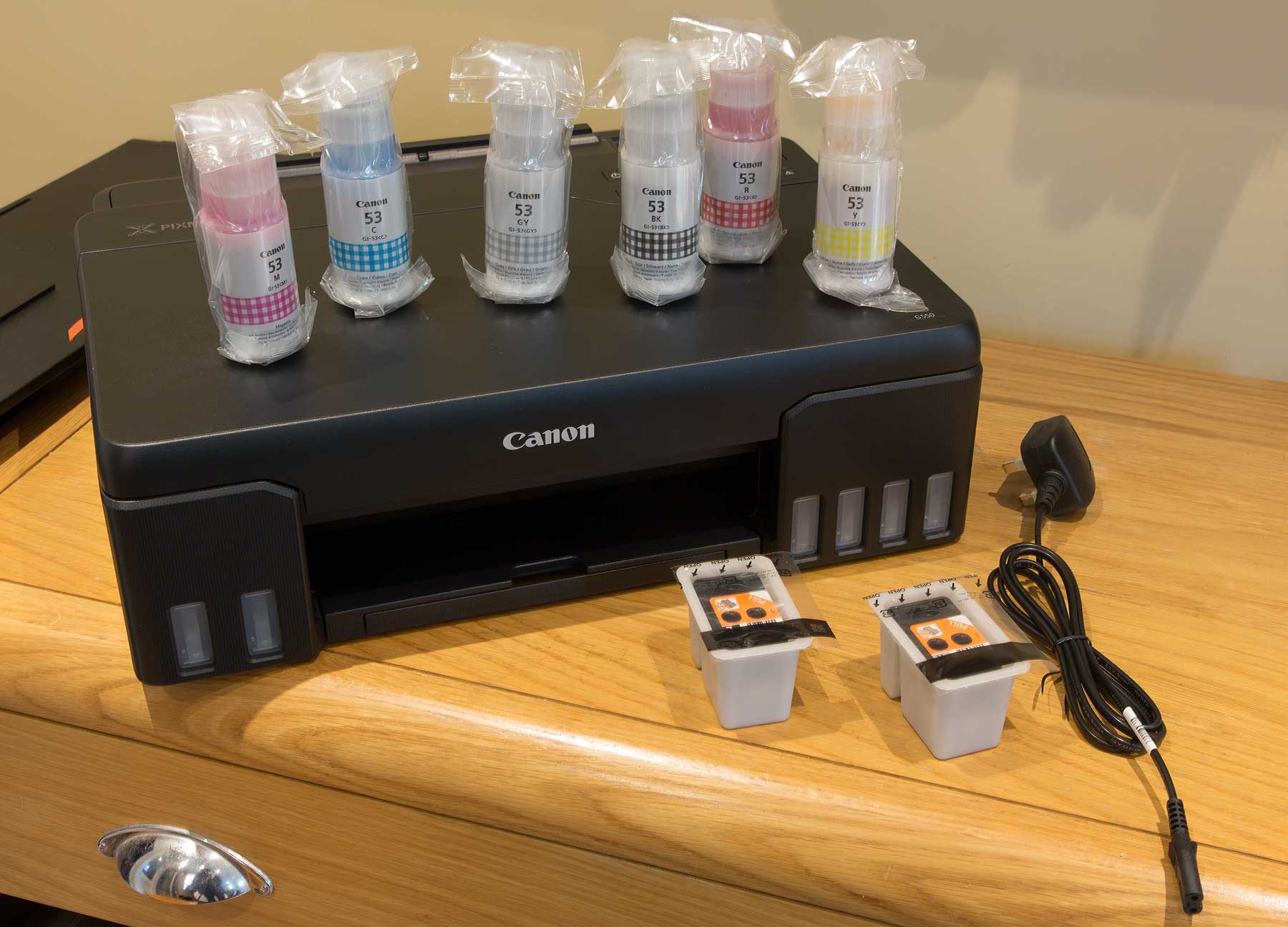
Here’s what’s in the box. Six ink bottles and two print heads.
Printer setup
Follow the online guide or instructions in the box. I’d note that mine was a test unit, so didn’t have any instructions – I set it up just fine though.
The manual and other setup info are found if you enter the model number at http://ij.start.canon
I have a video covering the full set-up process.
Just make sure you remove all the orange packing tape.
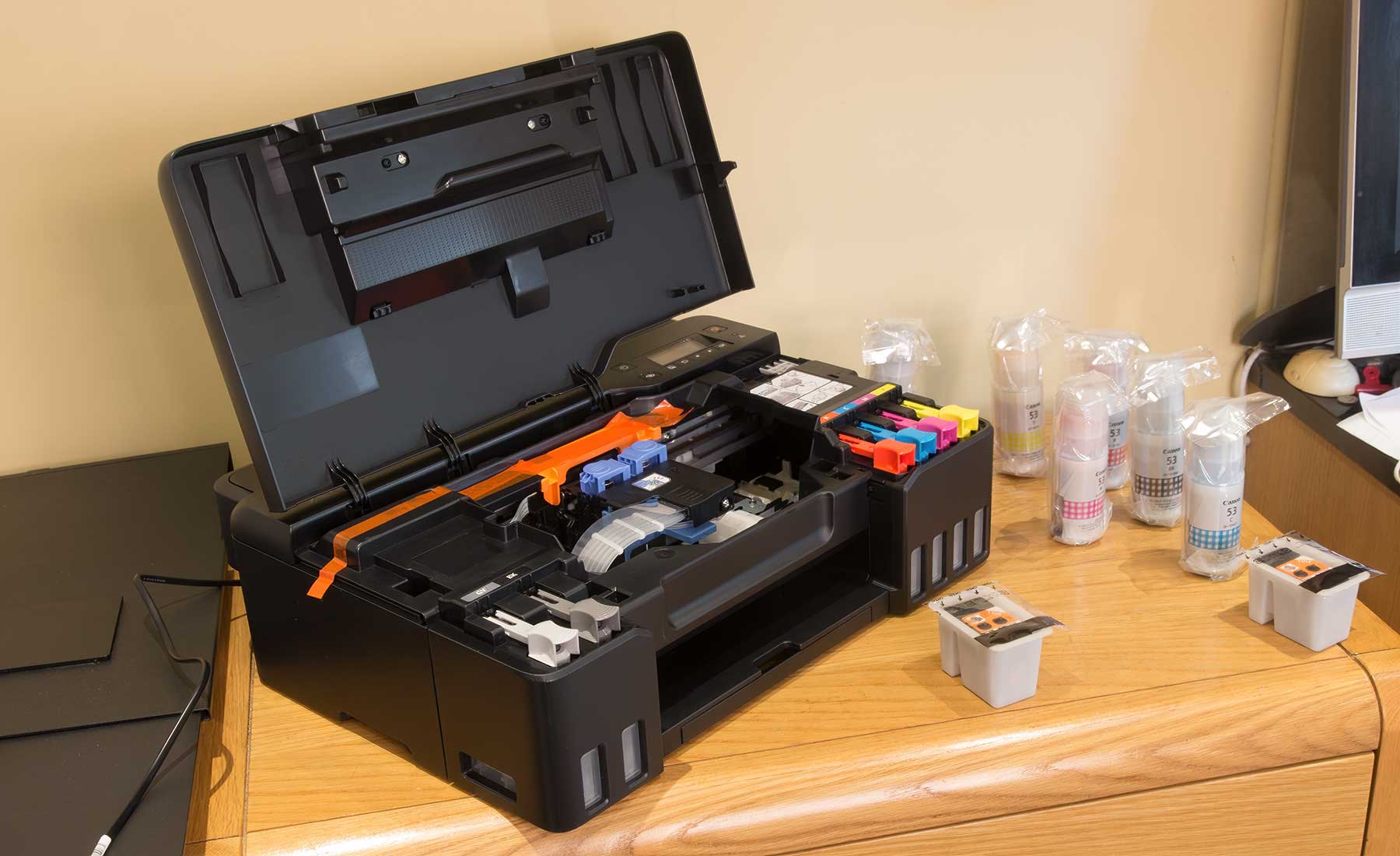
The two print heads just clip into place in the head assembly. Once in place just press the two blue locking buttons and all is set.
Filling the ink
The six ink bottles have a physical ‘key’ built into the top, to prevent attaching the wrong ink to any fill port.
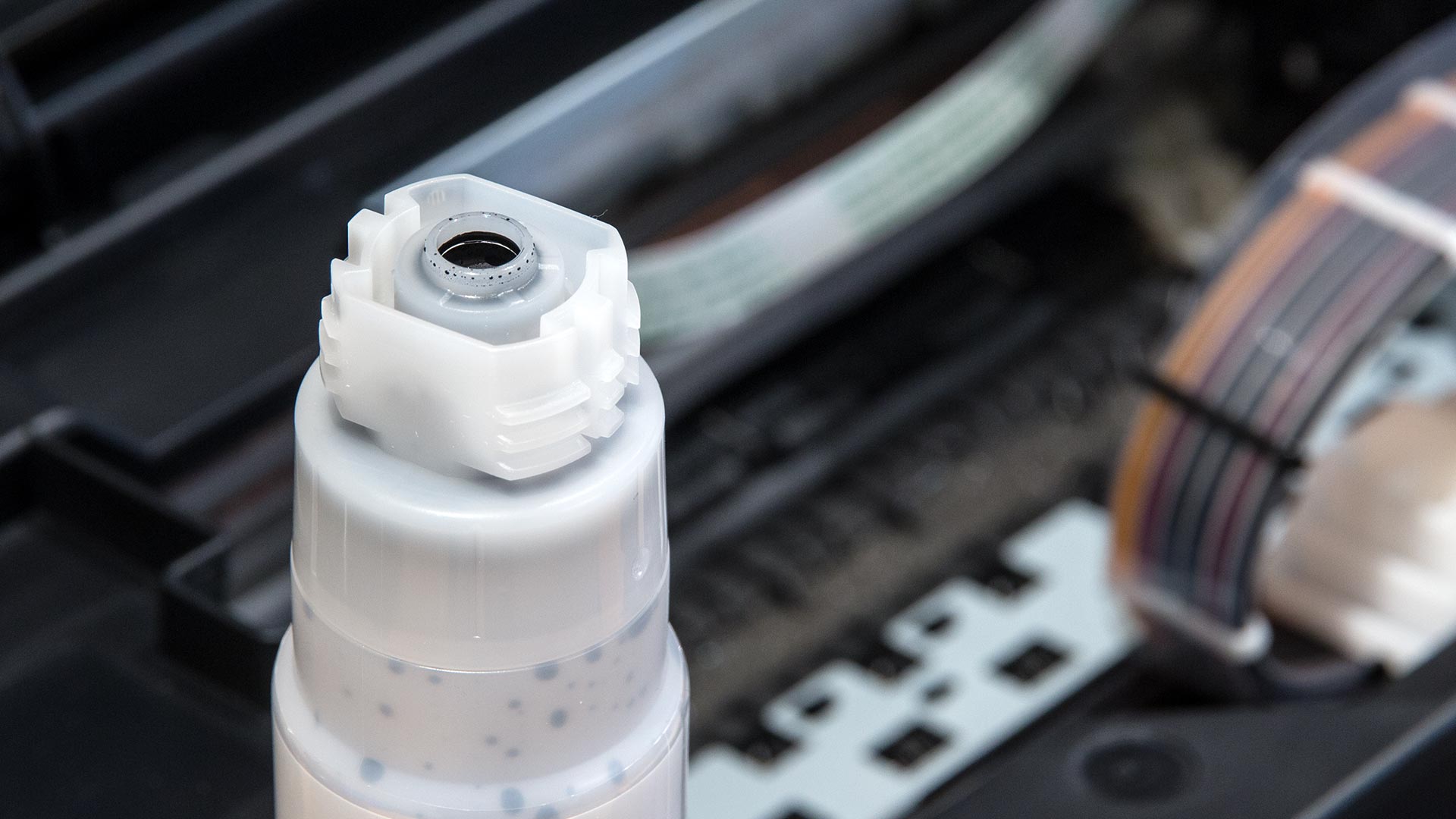
Each tank has a flip up cap which seals the ink tank when lowered. There is a pressure equalising system built into it, so the cart can empty as ink is used up.
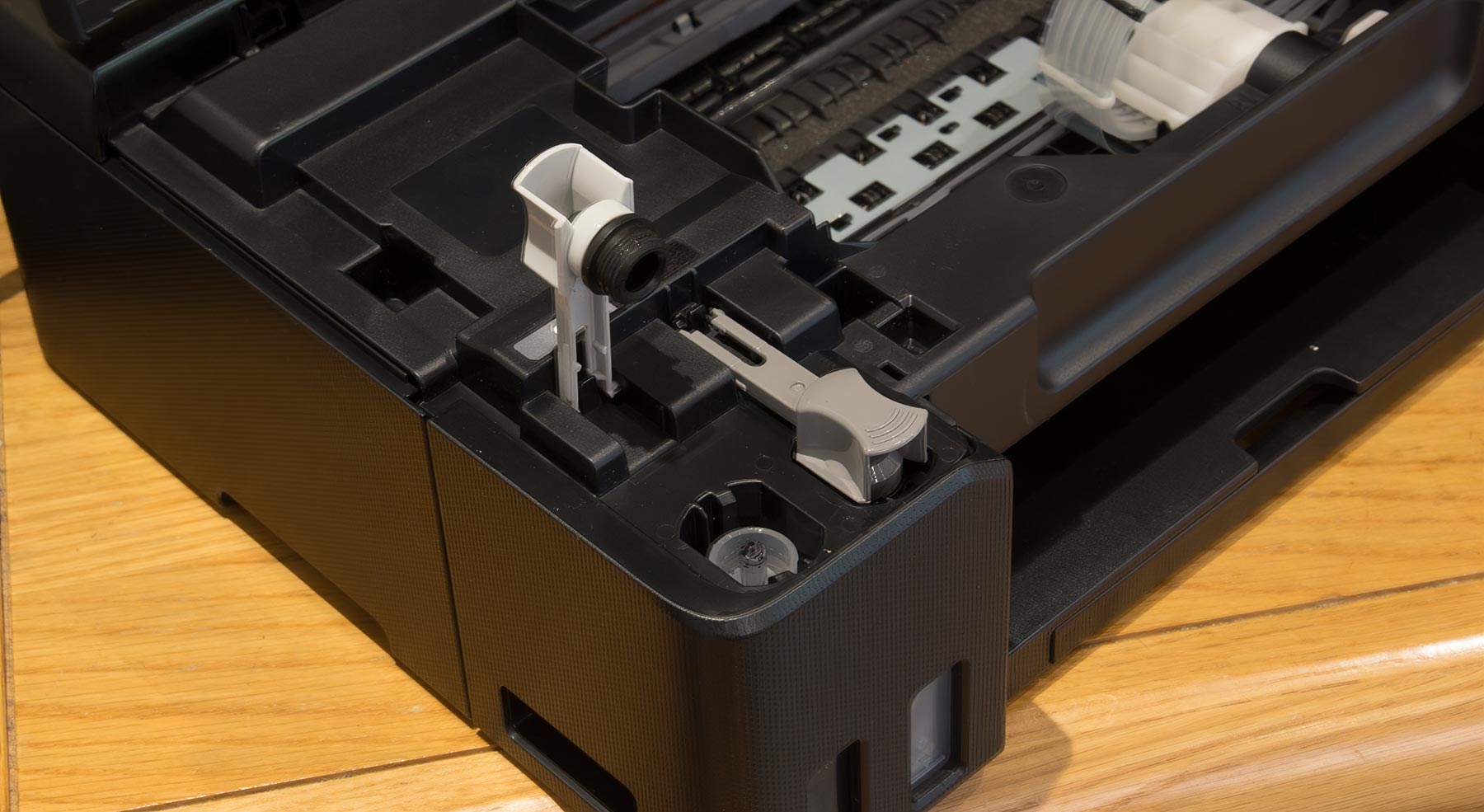
The (60ml) bottles just empty into the tanks – if you listen carefully you can hear the process, which takes some 30 seconds or so. Don’t squeeze the bottles, just let them empty of their own accord.
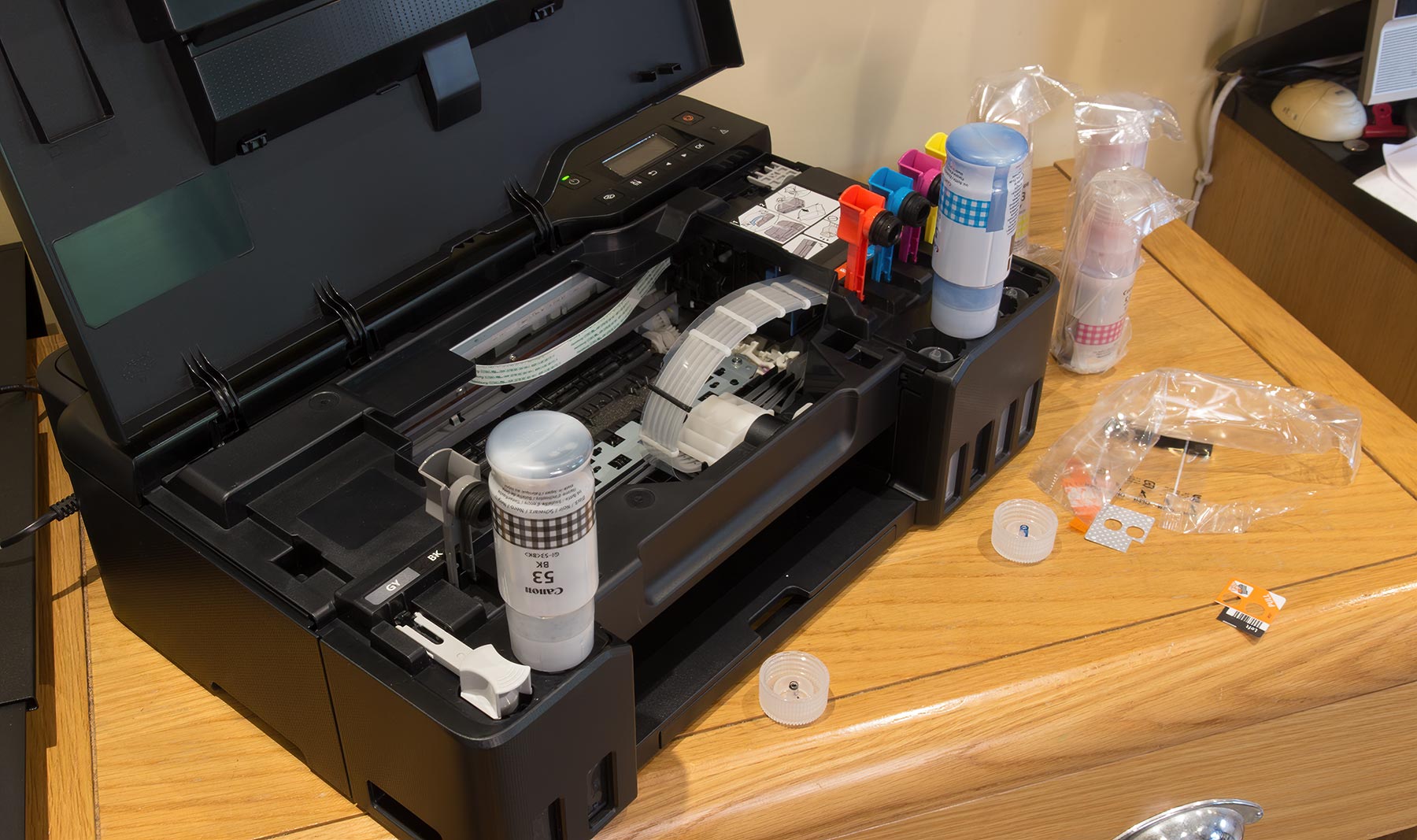
You do need to tell the printer when tanks are full – it has no way of measuring the amount of ink in a tank.
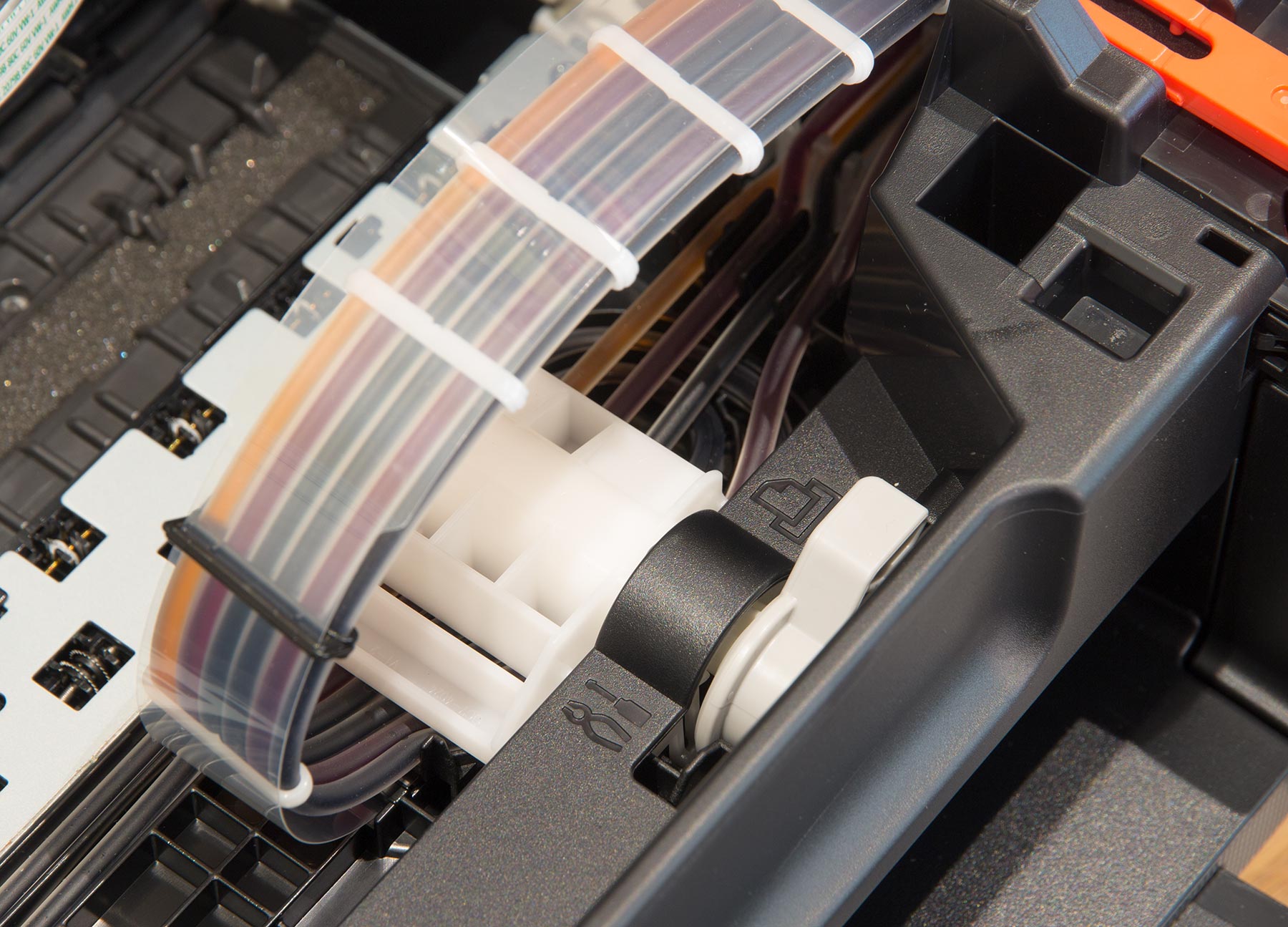
Take note of the service valve. This lever seems to compress the ink tubing and is used for stopping ink syphoning through when replacing heads or transporting the printer.
However do remember that any printer like this should not be tilted a lot when shipping with inks installed.
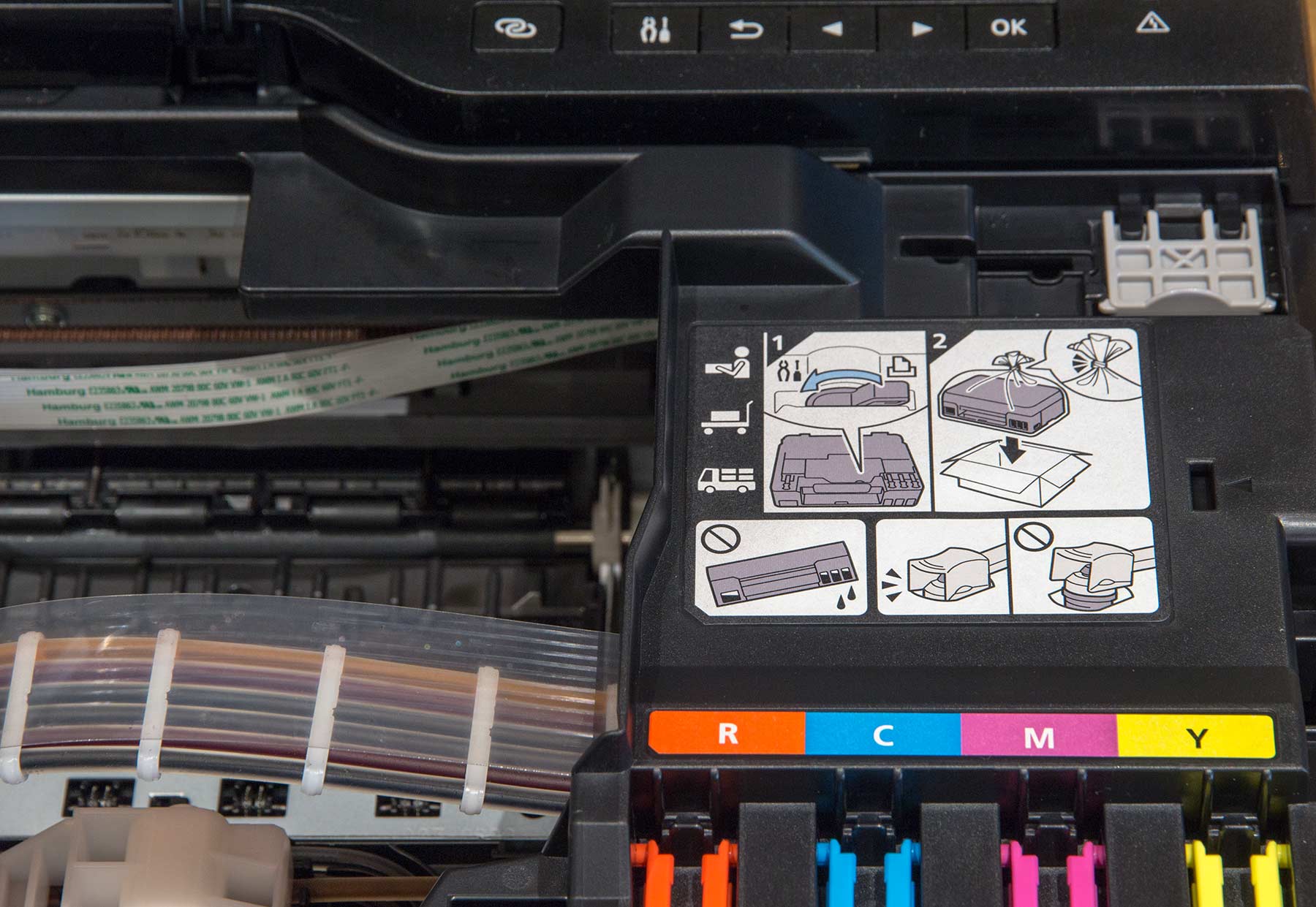
There is a guide to shipping (including using the supplied plastic bag) inside the printer.
Maintenance cartridge
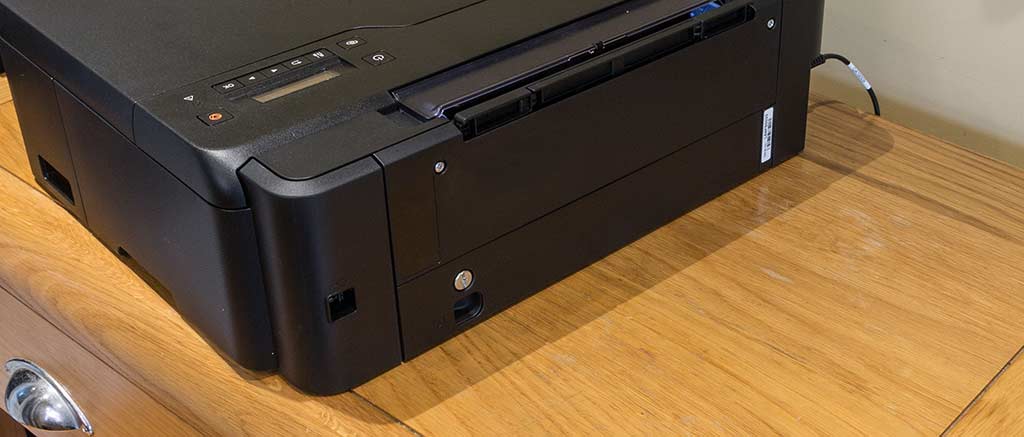
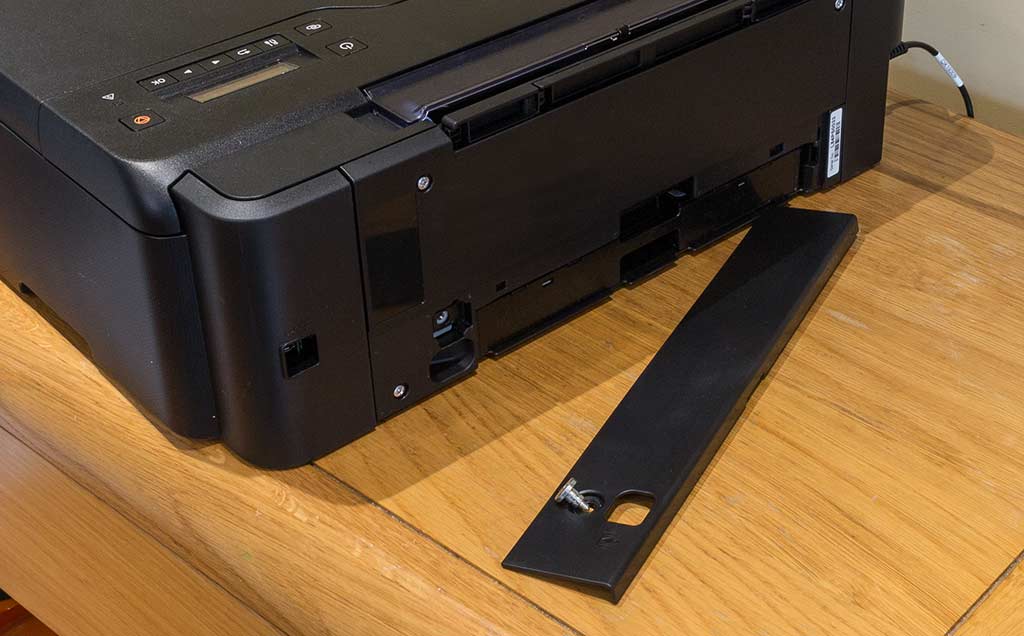
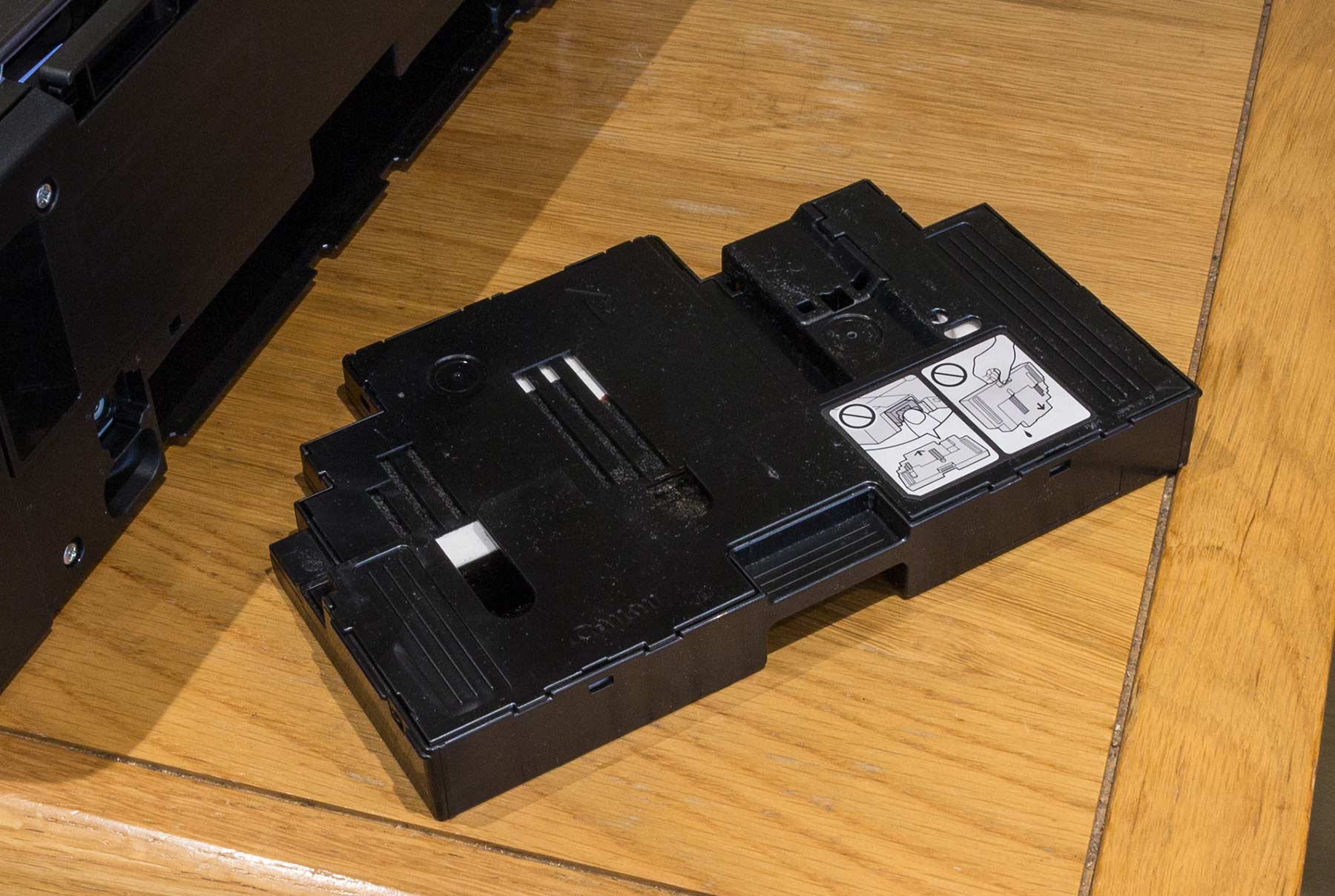
There is a replaceable maintenance cartridge [MC-G02] which slots under the printer from the back. After significant use, the printer will want this replacing. I note that with a list price of only £8.69 it’s relatively inexpensive as such carts go.
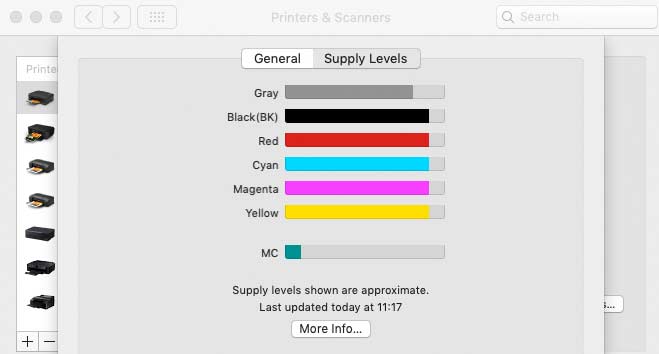
I’ve no idea how long it last, but you can check via the printer driver setup. This is after a hundred sheets or so, but includes some ink from the setup process.
The cart is accessed by removing a panel and pulling the cart out.
Connectivity
I set this printer up for wireless use right from the start, connecting to my MacBook Pro via our house network. Note that the printer only works on the 2.4GHz band.
I’m using the Canon IJ Network device setup utility, which is downloaded as part of the web based setup.

As well as the wireless option I’m using for testing, the printer has a USB-B connections at the back.
The setup seemed to think the WiFi signal was a bit weak, but it worked just fine in actual use.
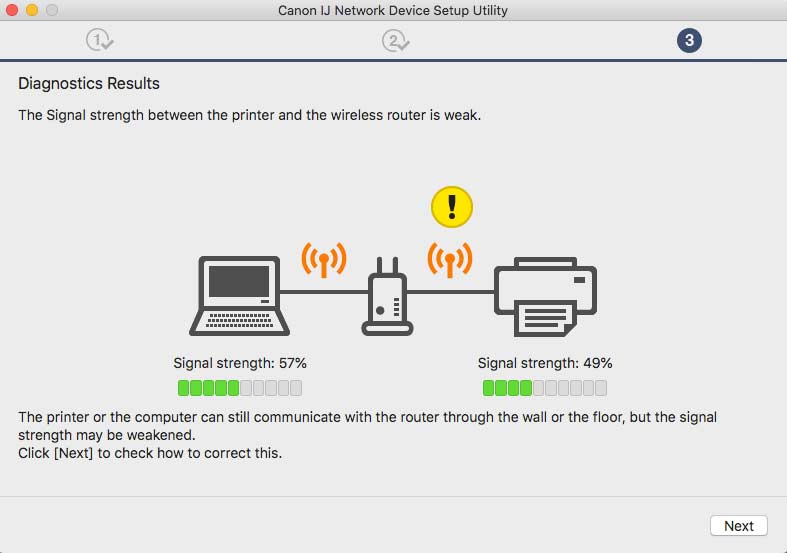
Note that you can have multiple connection methods for an individual computer, but each one will appear as a ‘different’ instance of the printer.
The printer driver…
At this point I normally install the printer driver on my Mac and make warnings about not accidentally selecting the AirPrint Driver, since it’s a significantly dumbed down printer interface, and widely regarded as unsuitable for any serious printing.

If I was using a Windows PC, I get a proper driver, but on the Mac, there is no driver.
It was at this point I seriously considered cutting testing short, since AirPrint allows for no real colour management. No use of ICC printer profiles – something I consider essential for effective use of Canon and non-Canon papers.
However, I persisted and have to report that yes you can make good colour managed prints on a Mac (we have no PCs here at all). It takes some effort, but it can be done.
Printer web pages
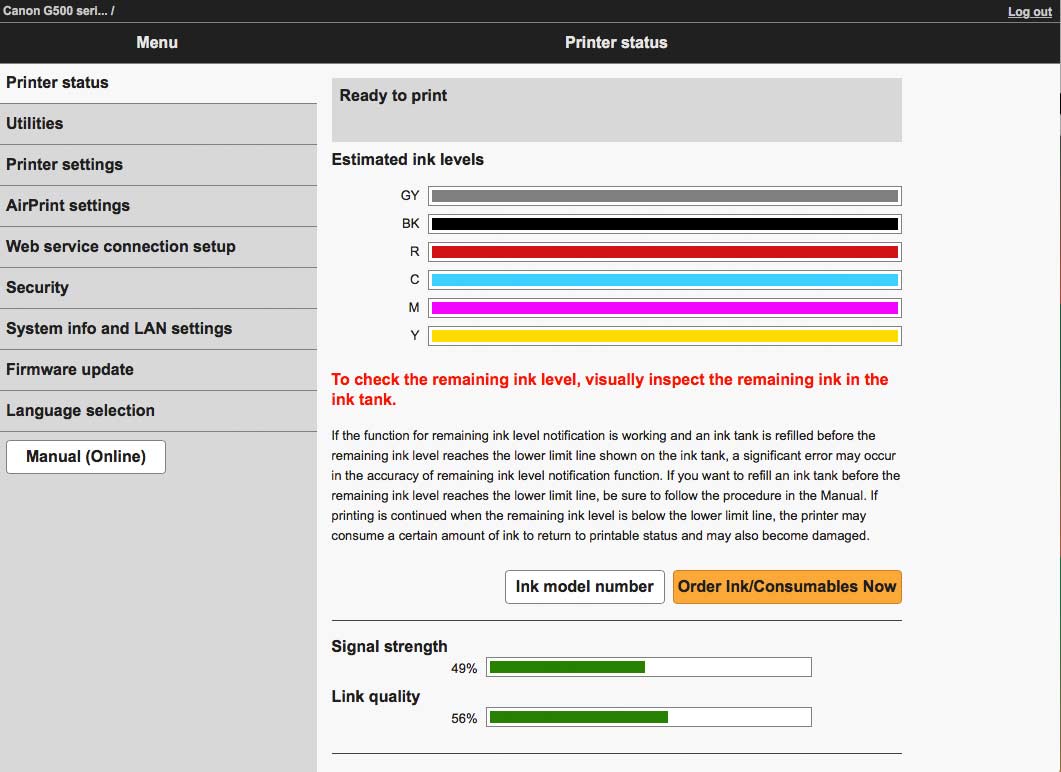
The printer does have an inbuilt web server, which makes several tasks easier than using the small LCD.
There’s also much more detail…
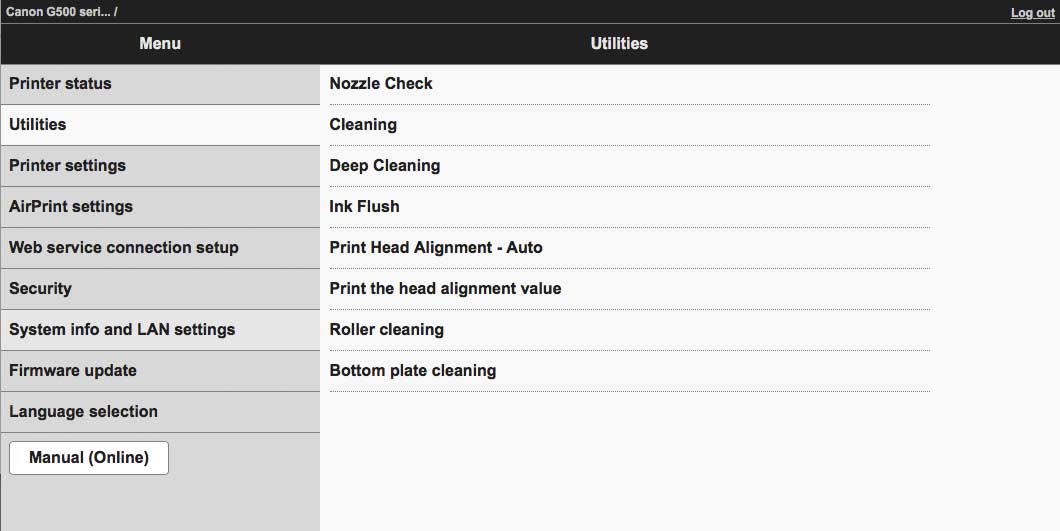
Note the warning about the ink levels though.
If stuck, the on-line manual is pretty good.

Ink refilling
One of the key features of the G550 is that you get to refill the ink tanks once they get low. Note that although the printer will warn you when it thinks inks are low, you will need to tell it that any particular tank has been filled via the printer menu [Setup | Ink level]
Head alignment
With the print heads being installed as part of the setup process, they can be out of alignment very slightly. This is corrected/adjusted by running a print head alignment, which will use two sheets of A4 paper. It’s an automatic process and should not need running again unless you need to change the print heads.
You can do this during the setup process (it will run after the inks are fully installed) or leave till later, but you do need to do it.
Media handling
All paper is loaded via the top slot – this works just fine. I’m looking at this as a photo printer, so really don’t care about duplex/trays/cassettes and the like. If I wanted an office printer I’d get one.
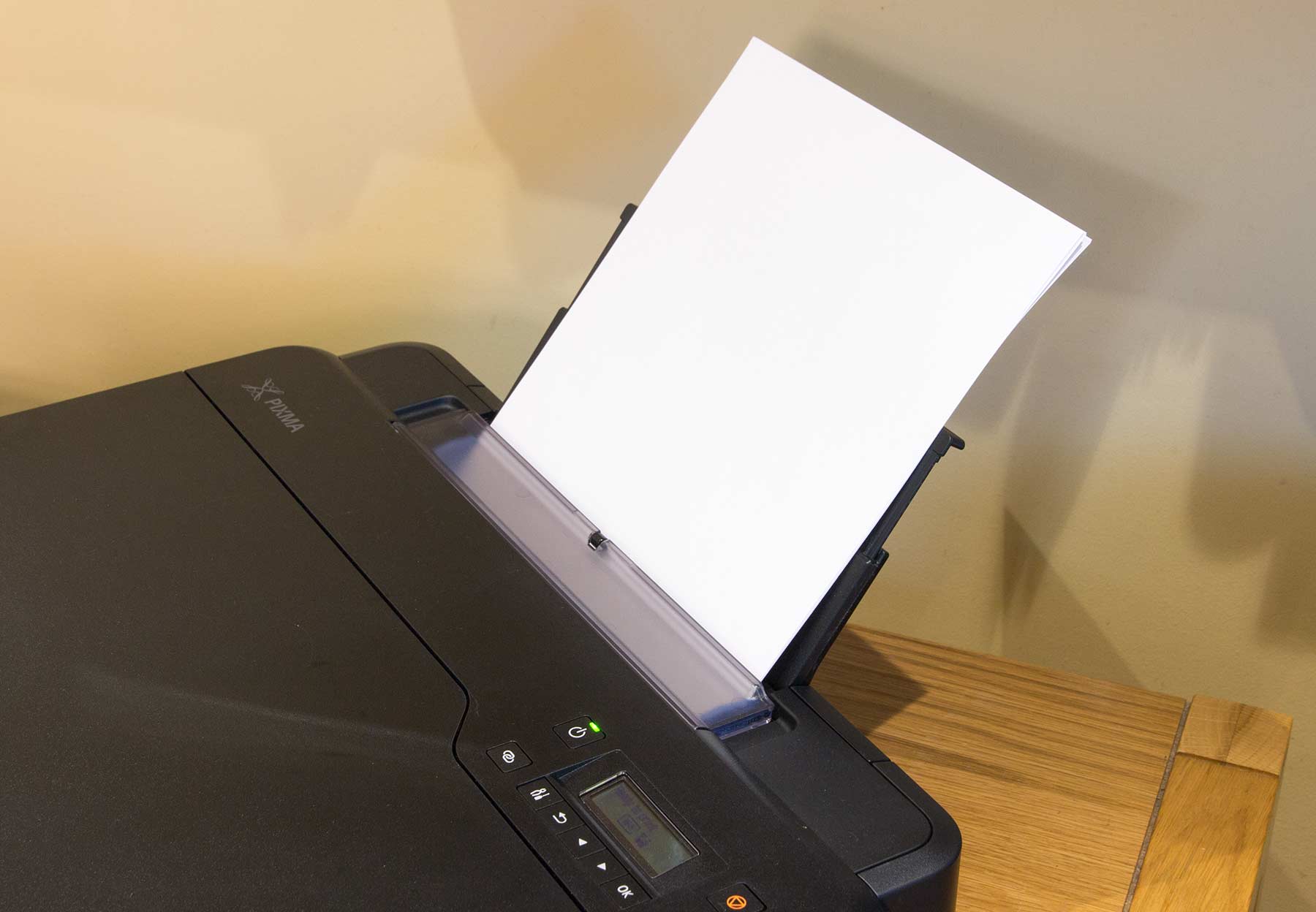
The paper is a centre feed and worked extremely well with papers ranging in thickness from copier paper right up to thin card at over 350gsm. With the card I had no trouble stacking several sheets.
Smaller paper and borderless
The printer supports a number of smaller paper sizes which may be used for cards and the like. Borderless printing is available for some paper sizes, but not others (A5 and A6 for example).
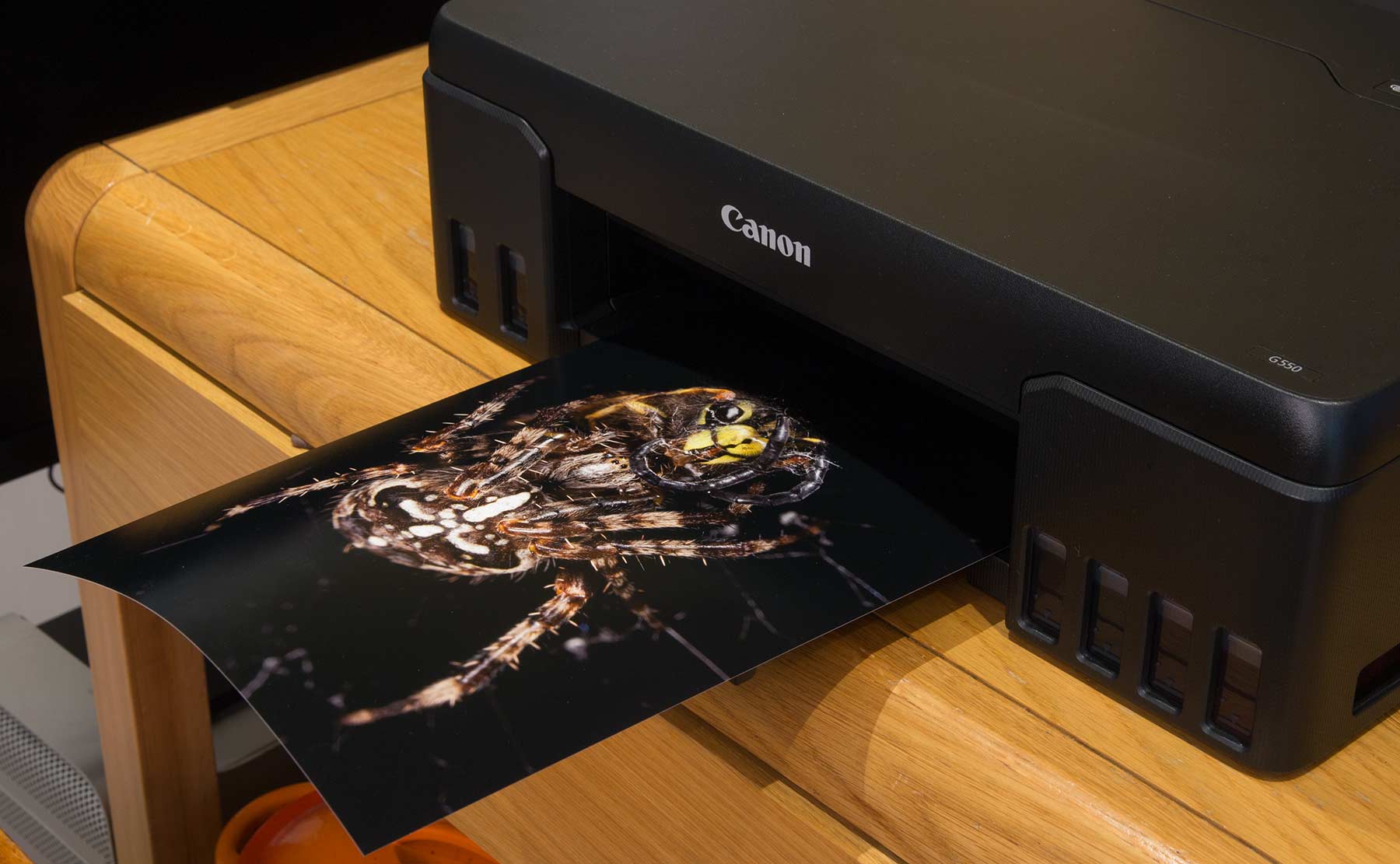
Available paper sizes
This from Canon’s own printer specs.
A4, A5, B5,A6, LTR, LGL, 4″” x 6″” (10x15cm), 5″” x 7″” (13x18cm), 7″” x 10″” (18x25cm), 8″” x 10″” (20x25cm), Square 5″” x 5″” (127mm x 127mm), Square 3.5″” x 3.5″” (89 mm x 89 mm), Card Size 55mm x 91 mm (2.17″”x3.58″”)Envelopes(DL, COM10, C5, Monarch),
Custom paper sizes
Custom paper sizes can be set at:
- width 55 – 216 mm
- length 89 – 1200 mm
This means that with suitable paper trimmed from a roll, you can make wide panoramic prints. I’m printing from Photoshop with a 203mm x 1000mm custom paper size.
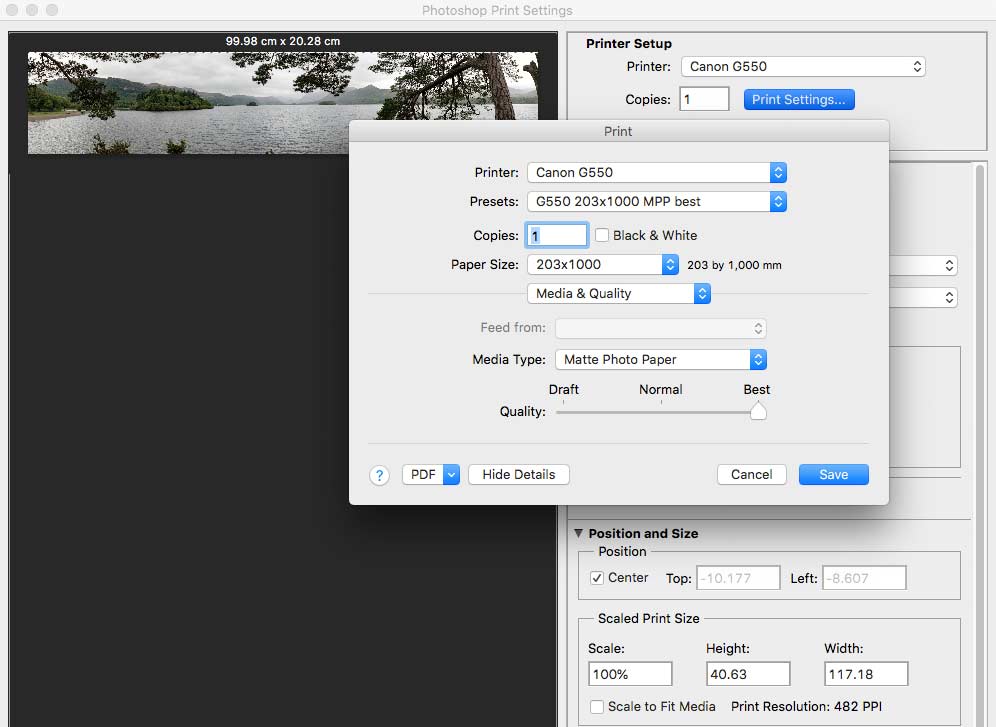
Here’s the print
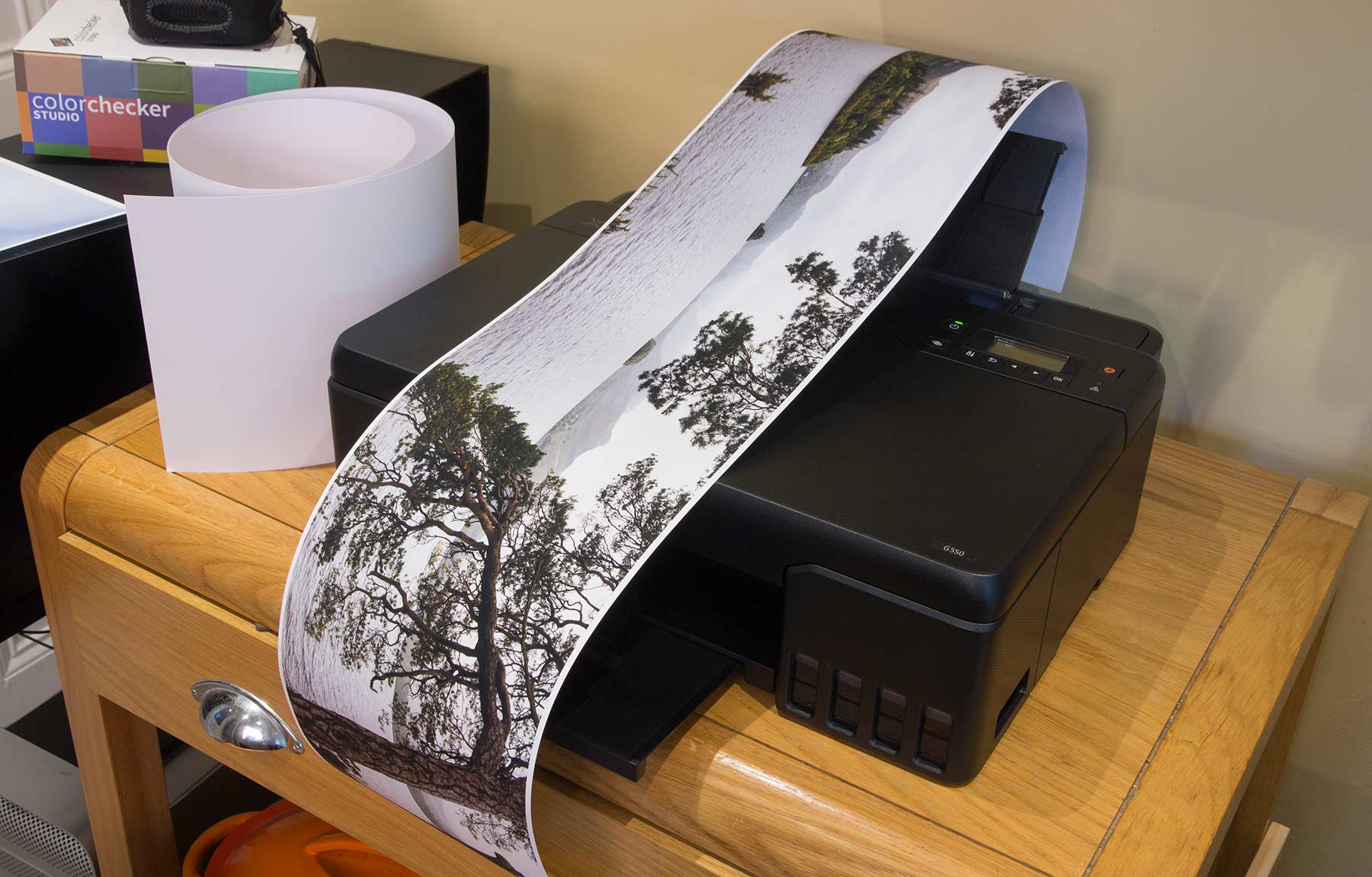
Take care with paper feeding though – it won’t stay like this once the paper loads
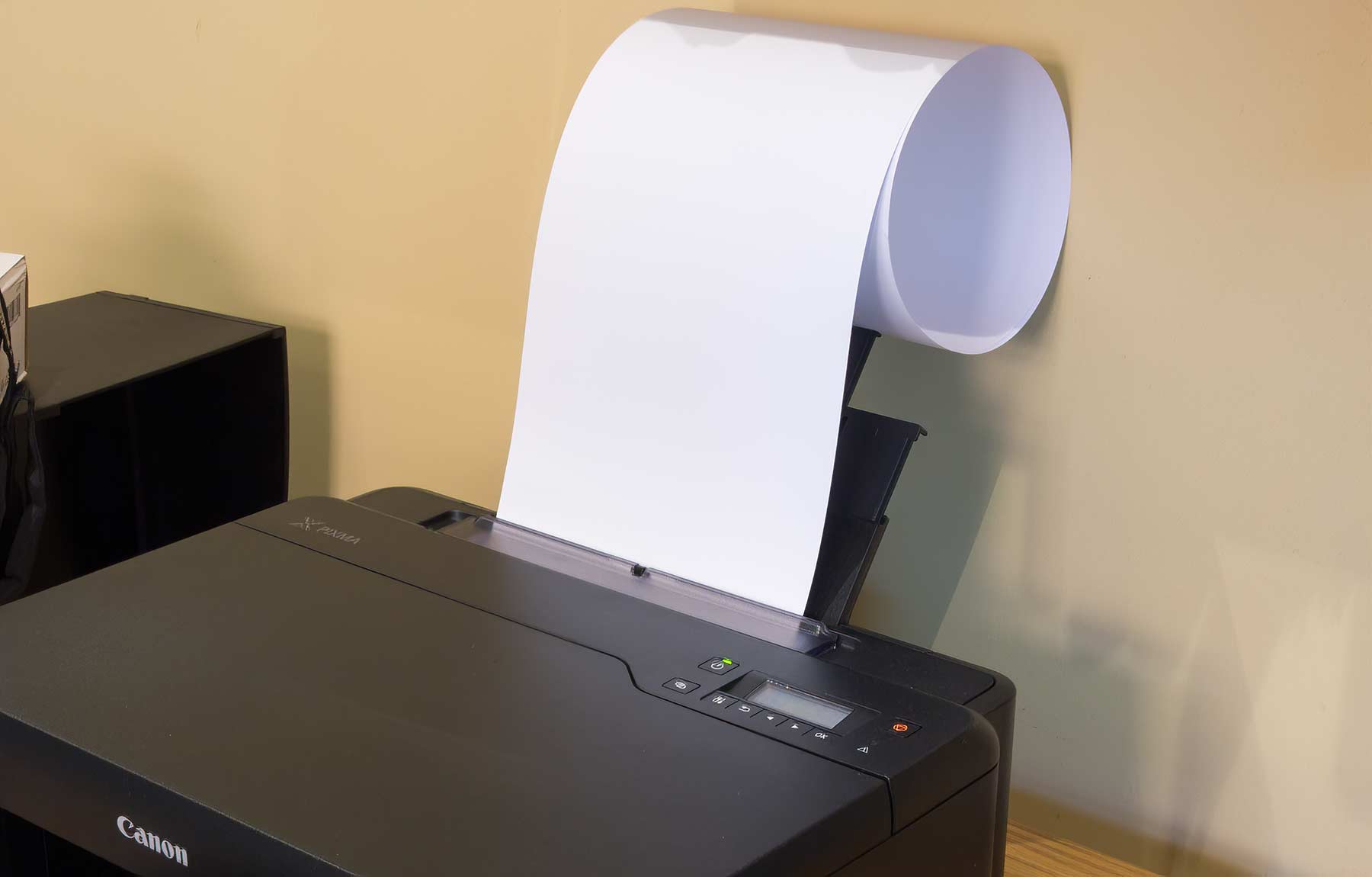
I have a video covering the process (here with 8″ width paper).
If you’re going to print very often, then think very carefully about ensuring smooth paper feeding – use high print quality too, since the faster mode is more jerky in its feed and that is more likely to give issues with the mass/inertia of big long sheets.
Greeting cards
The printer works well on inkjet media, and benefitted from the custom profiles I made (see below). Feeding was no trouble whatsoever and you could stack several cards.
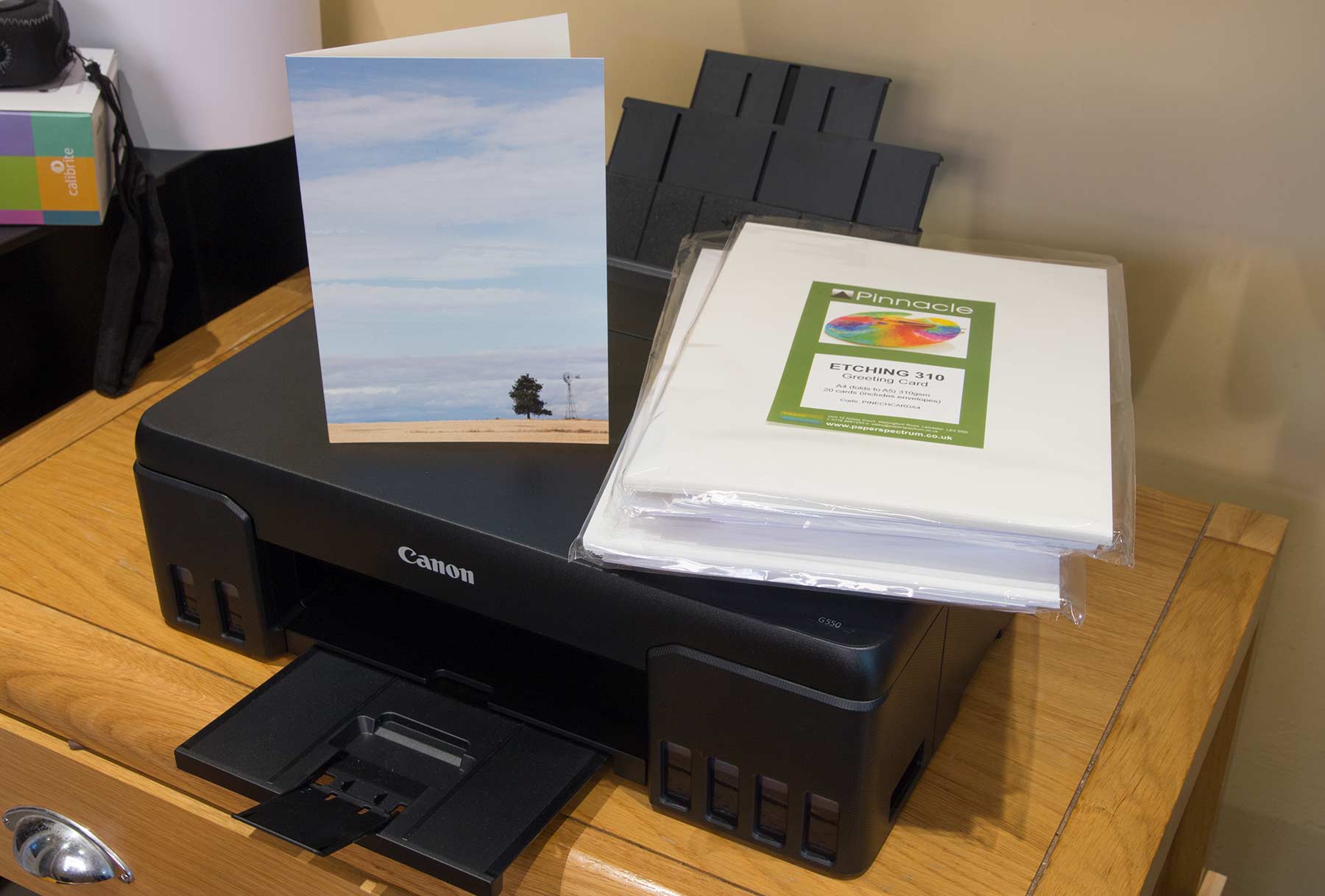
I’ve made a video looking at this aspect of using the G550:
The card templates are discussed and available for download at:
Printer test images are discussed and available for download at:
Office functions
Ok, it prints nicely enough on plain paper – not super sharp, and colour images on plain paper look much as you’d expect.
The G650 has a scanner for use as a copier, but the G550 is a straightforward top loading printer for photos and the like.
If you’re looking at any more than occasional office type printing, then move along. Canon have loads of other printers that fill that requirement.
Test prints
With any new printer I’ve a series of known test images that I always start off printing, I know what these images look like on different types of paper and many different printers. It’s a quick way of seeing if the printer is up to more detailed testing, since if it can’t manage one of these images, it’s not going to suddenly look better with others.
I always suggest using such images when testing new papers, rather than your own favourite photos. If you can print an image you like the quality of, from these, then it makes refining the printing of your own work so much easier.
The images (and many others) are available for free download on this site.
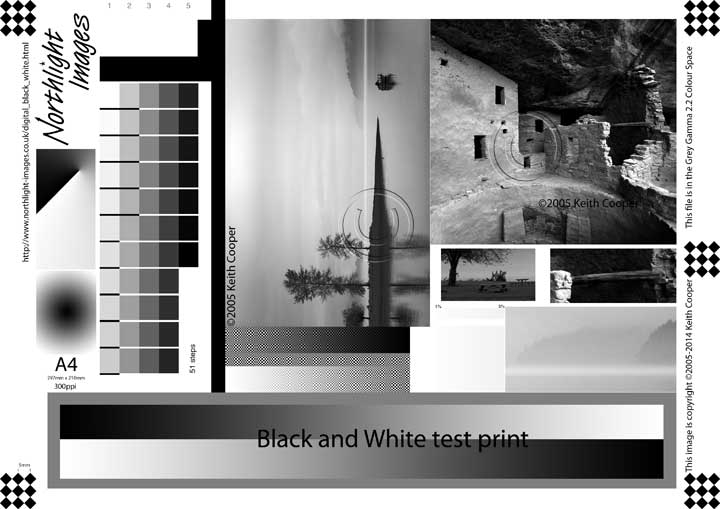

Both images have lots of components to specifically test different aspects of printer performance.
I also use both for testing the performance of printer profiles. If you make use of them, then do be sure to read the explanatory notes that go with them.
Colour management
The essence of high quality photo printing is sound colour management, right through editing and calibration of your monitor to using the right profiles and media settings for your prints.
Making profiles – Mac or PC?
On a Windows setup, you’re fine, it works as with every other printer (Mac or PC) I’ve reviewed for many years.
You specify a profile when printing. If you want to make your own profiles then you print a profiling target, with no colour management applied, scan the target and use the data to make a profile.

Two types of profiling target
It really is quite a simple process and many paper suppliers (here in the UK) will even make you profiles if you buy some paper.
However… On a Mac, the AirPrint driver has no means of turning colour management off, so you can’t print as you would normally from the likes of Photoshop, Affinity Photo, or Lightroom.
Superficially this seems like a dead end for use with Macs. However it is still possible to print the targets, but using whatever is going on inside the AirPrint driver when set to a particular media type.
It’s important to realise that any profiles I’ve created are just for Mac/AirPrint use – they don’t profile at a low enough level to match normal ICC profiles, so they won’t work on Windows systems (normally they are interchangeable). [UPDATE video: Using Keith’s Mac ICC profiles on Windows ]
The question, is whether this imperfect profiling process works?
My print results suggest it does. The profiles are also maybe dependent on the version of MacOS in use. I have quite old kit, which is unlikely to change any time soon, but some tests from people who have tried the profiles suggests they may be of use to Mac users in general. If you have a paper similar to one of those here and are using a Mac, one of my profiles may well work for you.
Profiles created for my G550 printer review (Mac only!)
- Canon Fine Art Rough
- Canon LU-101
- Canon PT-101
- Pinacle Lustre 300
PermaJet papers [PermaJet]
- PermaJet Artist Watercolour 250
- PermaJet Matte 240
- PermaJet Oyster 271
- PermaJet Titanium Gloss 300
Extra profiles made during testing of paper/card for greeting cards [Paper Spectrum]
- Pinnacle Semi Gloss 300
- Pinnacle Photo Gloss 240
- Pinnacle Double sided Matte 300
- Pinnacle Etching 310
Profiles available on request [email] All I ask for them is a Kofi donation if they are of help
UPDATE Video
If you’re curious about making your own profiles for the G550 (Windows or Mac), I have a video about this:
There are quite a range of media settings available with the G550
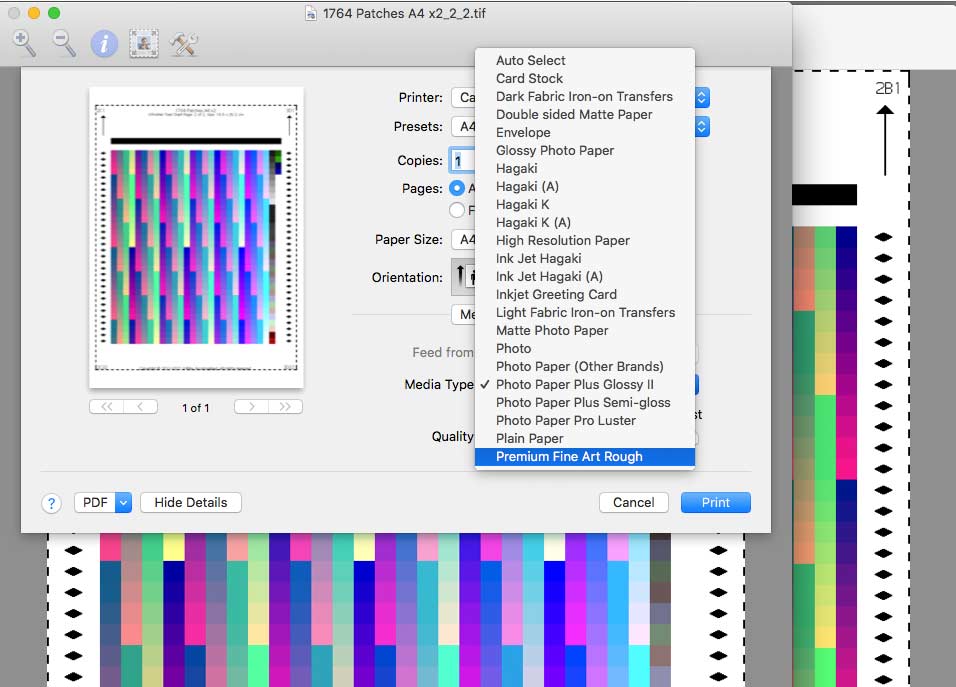
When printing on third party paper or card, it’s important to try printing known test images or profiling targets with different media settings to see which is the best starting point.
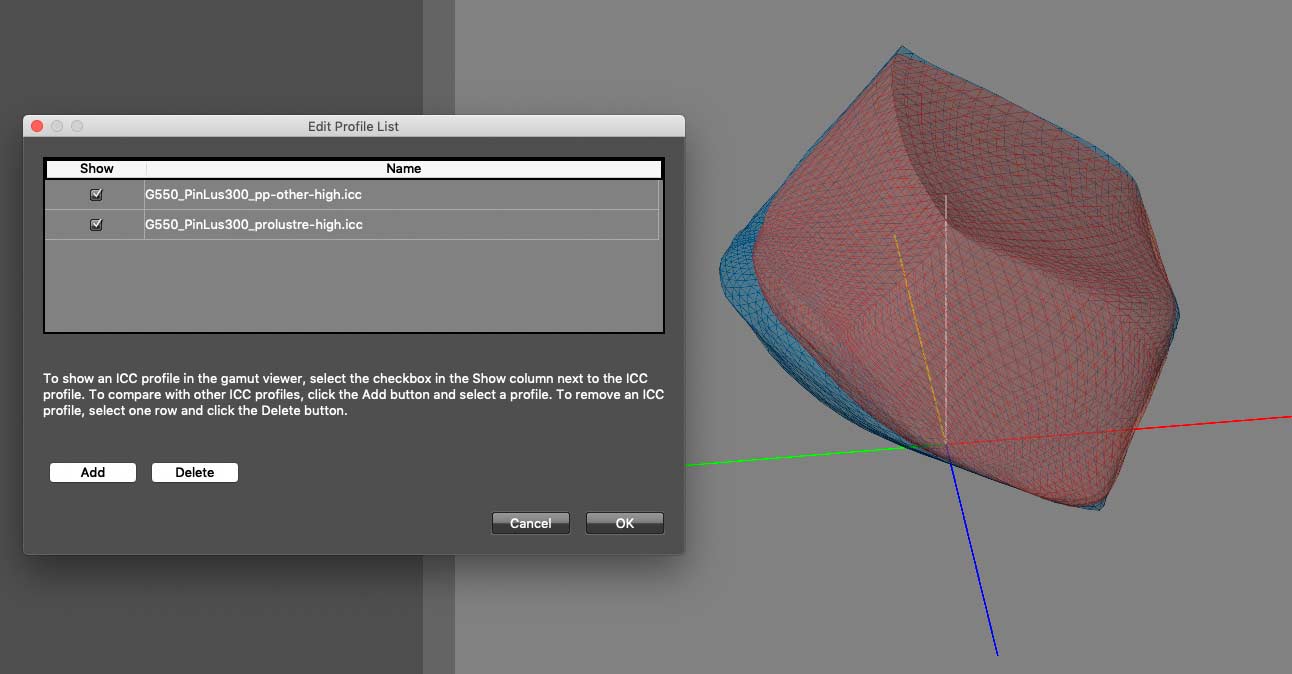
An example taken from my i1profiler profiling software, shows the gamut volume comparison between using the Pro-Luster (red) and Other Photo Paper (blue) media settings.
Without a proper printer driver for the Mac, this is bound to be a little experimental, but results showed it could work.
Here’s a comparison of two test images – the one on the left is using my profile.

The profile gives better strong colours and a more neutral black and white.
Black and White
Normally, if there is a ‘Black and White’ option in the printer driver it’s usually the best choice for B&W prints.
I’ve no idea about Windows, but on a Mac, for the G550, it isn’t.
I’ve tested several papers and in every case, the B&W results from using one of my ‘Mac profiles’ is better – I suspect this would be the case with Windows as well…
Even Canon papers work better with my profiles (LU-101 and Fine Art Rough shown here).
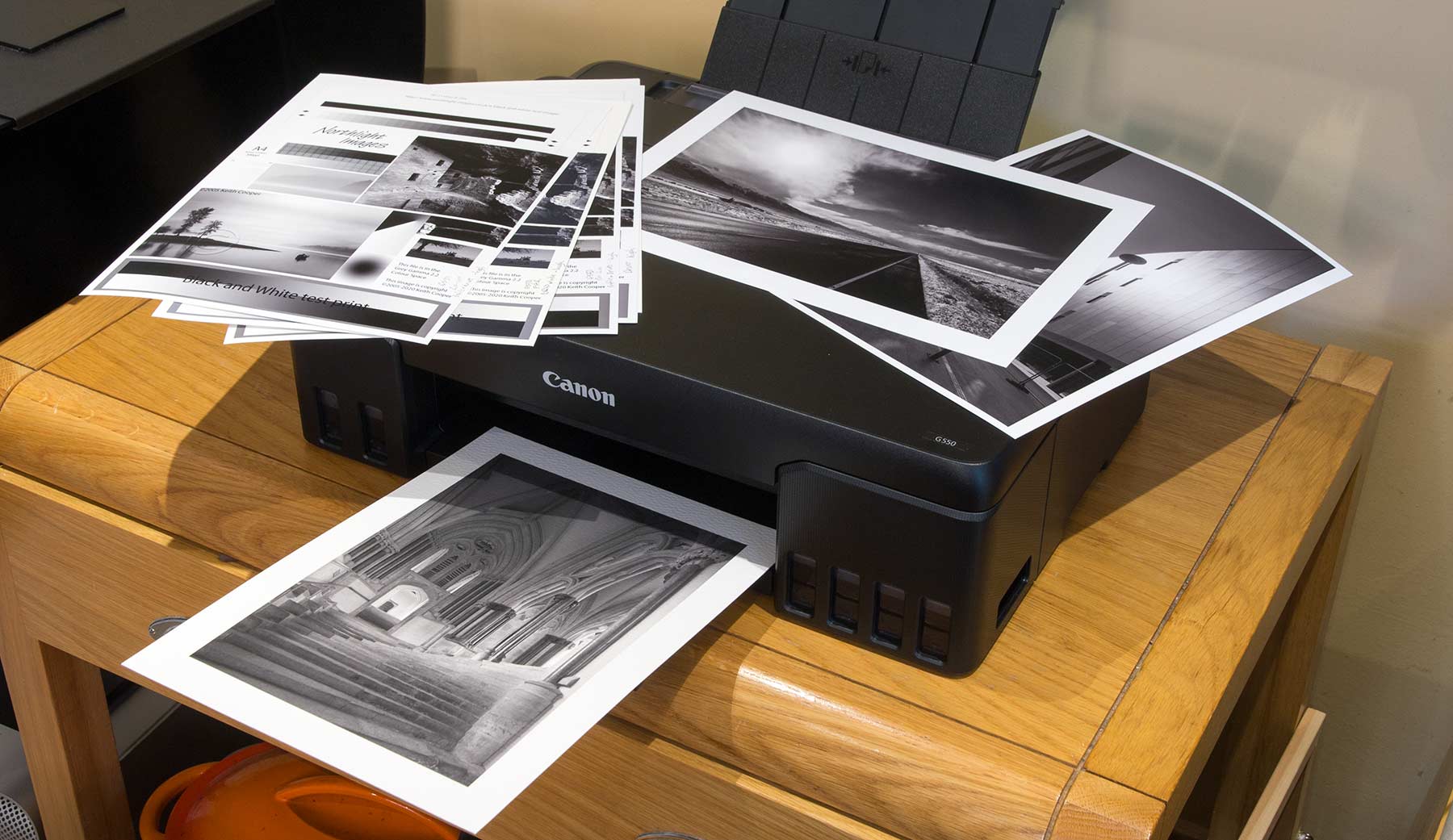
As part of my testing I printed dozens of A4 test images. This particular version of my B&W test image is designed for quick measurement with an i1iSis spectrophotometer, but I have many other versions of the test image freely available.
The B&W print mode did manage to produce fractionally deeper blacks, but at the cost of very poor neutrality compared to my profiles.
One issue with the dye inks of the G550, is that the black ink is relatively weak in some respects. This is a problem with all dye based printers, but the fact that the G550 uses the older Chromalife 100 inks rather than the Chromalife 100+ ones found in the PRO-200 [see my review] doesn’t help.
This screenshot shows measurements for 100% black on Canon FA rough paper (click to expand)
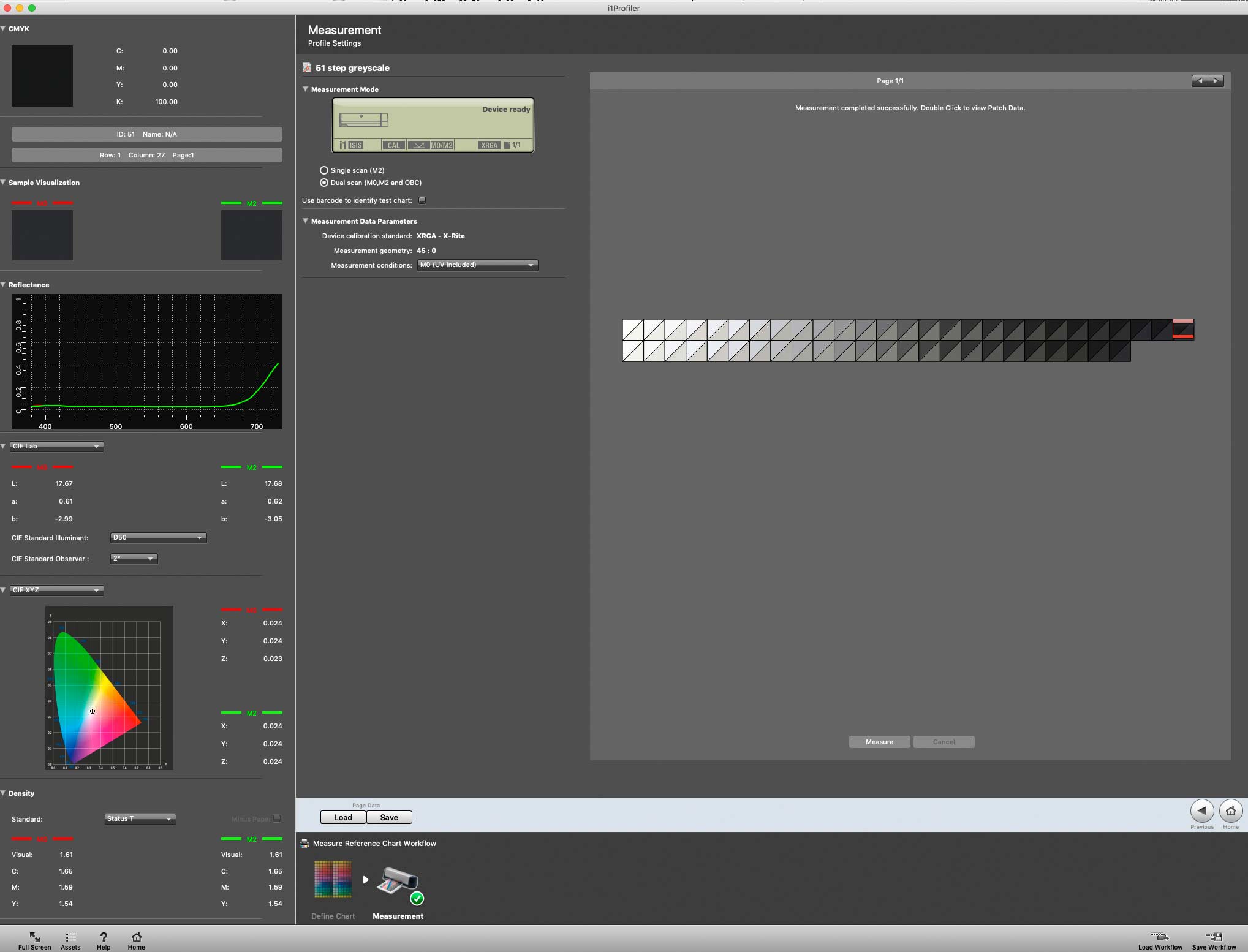
The key point is where the (green) spectral response curve lifts up in the far red. In other words, the black ink just isn’t nearly so black under red light. This contributes to B&W prints changing tint under different lighting types.
Now, don’t get me wrong, I was able to get some pleasant looking B&W prints from the G550, but as someone who chooses (more expensive) pigment inks for printing B&W, there were issues.
The upshot of my testing is that the ink set of the G550 is capable of creating moderately good looking B&W prints, but once again you need to see whether your paper is OK for your needs.
Much as I’d love to give an ‘approved’ list of papers for B&W, I can’t. I get a steady stream of people from the US asking if paper X or Y is OK? Sorry, I’m in the UK and only get to test papers available here – even then, some companies have never asked me to look at their papers and especially in current times I can’t afford to buy rolls/boxes of expensive paper on a whim…
As part of my G550 printer review, I have a video covering B&W printing:
Printing
Most images during my testing were printed from Photoshop – albeit an old version (CS6).
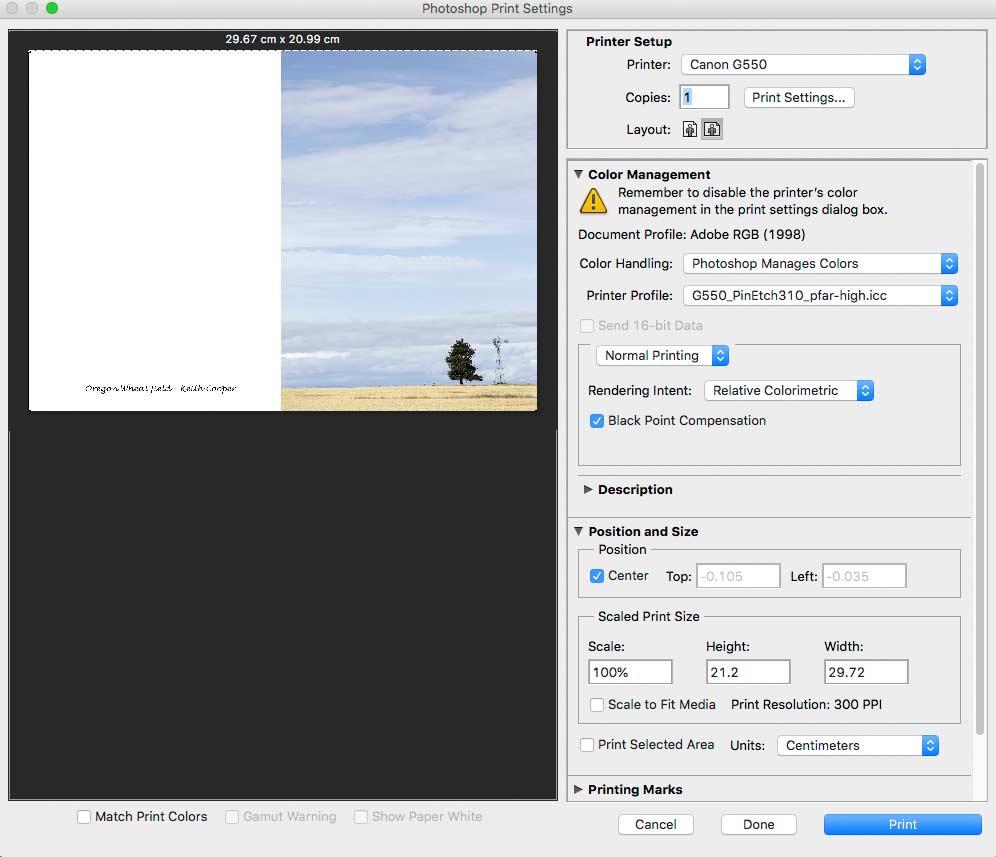
I’ve selected my profile to use here. If you don’t have a profile, then it’s set to ‘printer manages colour’ giving you the colour management roulette of AirPrint.
Colour prints come out rather well (with profile).

This video looks at taking a relatively low quality phone picture and processing it to produce a reasonable looking print at A4 size.
Image quality and speed
With larger printers I’ve often found that using the very highest quality settings does very little for image quality. You just get slower printing.
However I always say to test this for your own images and paper. As a result I find that the highest quality setting (~5 mins) does give an improvement in fine detail over the standard setting (~2 mins). This is at a level I can see with my strongest reading glasses, without needing to get the hand lens or USB microscope out ;-)
The dot pattern with this printer is relatively coarse but not something most people are ever going to spot – during testing I had to keep reminding myself that this is a £200 consumer grade photo printer not a £900 fine art printer.
Canon software
Unfortunately, this software won’t work with the Canon PPL software – no doubt a deliberate decision, but unfortunate, since the software that does work is so simplified I found it somewhat irksome to try and use.
That’s not really a complaint – I’m a working professional photographer and use Photoshop most days. A very different set of expectations for print software.
The manual and software are found if you enter the model number at http://ij.start.canon
Testing the Canon software on an iPad and iPhone showed it was easy to set up and print from your photos. With the lack of colour management in such a system, it’s best to start off with some experiments on Canon paper.
In printing one of Karen’s iPhone photos, the image looked reasonable, but after importing it into Photoshop and editing on a colour managed system, and printing with one of my profiles, the results were a lot better.
Of course I guess people printing directly from a phone are not concerned with this. High quality photography and printing is my job, so I am… just bear that in mind if you think I’m being a little critical in some areas ;-)
Choosing papers
With any printer I always start off with OEM papers – so, Canon paper for this G550 printer review.
It’s also important to try some known good test images, to get a feel for if your print process/workflow is working OK
I’m hindered by the lack of colour management for the Mac here, but prints using just the printer driver and Canon paper all looked OK. Using profiles gave me prints that looked quite good.
Using third party papers and printer driver settings was a mixed bag – you need to take care in selecting a matching media type. Art papers generally looked best on the Fine Art Rough setting, whilst the ‘Photo Paper – others’ setting produced good results when used with my profiles. However, you will need to experiment.
Here’s a short video covering paper selection:
G550 printer review conclusions
Quite a few people have asked just why I’d look at such a low-end printer, given the sort of photo printing I do? Why bother with a G550 printer review?
Well, partly it was a challenge to see just what I could produce with this little printer. With its extra grey and red inks, what could I get from it?
As you’ve no doubt guessed I was immensely disappointed with Canon’s decision to eschew a proper printer driver and use AirPrint on the Mac – for the first time in 20 years of printer testing I almost wished I had a Windows PC here to check things… The small Canon printers related to the G550 have broken colour management on Macs – but if I’m honest they are aimed at a market using phones and iPads, where colour accuracy is more of a vague desire, rather than anything you do something about ;-)
However, I was able to get very reasonable looking prints from it that easily passed the ‘Would I stick this on my office wall’ test, with bright colourful images, especially on some very glossy papers.
The prints did not pass the ‘Would I put my name to this and sell it’ test. The black and white prints showed the sort of variation in underlaying tint that I’ve fought against for many years (it’s why I use pigment ink based printers). Not bad, but I could see it.
The dye based inks are the older Chromalife 100 inks, not the Chromalife 100+ inks found in the PRO-200 I reviewed a while ago – they are not archival enough for work I’d sell.
Well… not quite true. I got some very acceptable results on the various greeting cards papers I tested – Yes, I’d happily sell those. Whilst mentioning cards – you need suitable inkjet card. If you print on cheap card stock you will likely get poor results. I get asked about this a lot and the response to my answers often suggests that this isn’t the answer that was wanted – sorry… cheap card, rubbish prints ;-)
From a convenience and cost point of view, the G550 is excellent – If Canon were to make an A3+ version I’m sure it would sell massively, but it would need a real printer driver and be supported with software such as the excellent Canon PPL print software. Of course, all of this is dependent on how Canon wants to ‘position’ its products and not have upstarts like this tread on the toes of larger ‘Professional’ printers.
To answer some assorted questions I’ve been asked after some of my videos:
- No it doesn’t work with dye-sub inks (you could try, but not with my printer)
- If you want to print cards on cheap card stock, the results will look awful (sure I already mentioned this?)
- No it doesn’t print vinyl stickers – it needs media designed for aqueous inkjet printing
Who is it for
Ah, now that is the key question…
There’s the obvious consumer photo printer market – people who just want to print their photos and do it more cheaply than using a lab. For this it mostly works. It’s particularly good in its handling of small print sizes, where it’s fast enough and will churn out a lot of snaps to hand round.
If you need an office printer, then get one – even the G650 with its scanner/copier is not really pushing this area.
Now we come to an area where the answer becomes less clear – the so called ‘photo enthusiast’.
If you’re looking at getting into printing your photos, then the printer is a good starting point at its cost. The relative cheapness of printing makes it easy to experiment. The lack of profiles, and absence of colour management on the Mac will limit this in the long run, but by then you are perhaps more likely to want to make the occasional larger print on a better printer. Yes, you’ll pay more, but hopefully all your experience with something like the G550 will give a more solid basis for your printing and save on wasted paper/ink.
So, did you like it?
Yes, it was a fun exercise to do… I’d happily use it (with my profiles) if I needed a stack of small prints for relatives/friends from an event. That and Karen liked it for printing some of her iPhone/iPad photos.
–oOo–
Questions are always welcome – email me at Northlight.
All of my G550 videos
- G550 Review
- G550 setup
- G550 Glossy borderless print
- G550 Choosing papers
- G550 Panoramic printing
- G550 Greeting card printing
- G550 Making printer profiles
- G550 Black and white prints
Interested in printing your photographs?
I’ve lots of articles and videos that expand on all the different aspects of printing, in particular:
UPDATE
Full specifications
From Canon
General Specifications
- Model Number: PIXMA G550
- Functions: Wi-Fi, Print & Cloud
Printer Specifications
- Print Resolution:Up to 4800 x 1200 dpi1
- Print Technology: 2 FINE Print Heads (Left : BK/R/Gy, Right : C/M/Y)Refillable ink tank printer
- Mono Print Speed: approx. 3.9 ipm2
- Colour Print Speed: approx. 3.9 ipm3
- Photo Print Speed: Borderless 4″ x 6″ (10x15cm) : Approx. 47 seconds4
- Borderless Printing: YesA4, LTR, 4″” x 6″” (10x15cm), 5″” x 7″” (13x18cm), 7″” x 10″” (18x25cm), 8″” x 10″” (20x25cm), Square 5″” x 5″” (127mm x 127mm), Square 3.5″” x 3.5″” (89 mm x 89 mm), Card Size 55mm x 91 mm (2.17″” x 3.58″”)5
- Two Sided Printing: Manual operation
Consumables and Yields
- Standard Ink BottlesGI-53 <BK>
GI-53 <C>
GI-53 <M>
GI-53 <Y>
GI-53 <R>
GI-53 <GY> - Maintenance Cartridge: MC-G02 (User Replaceable)
- Bottle Yield (Plain Paper): A4 colour documents printing6Black: 3,700 pages 7
Colour: 8,000 pages
* Estimated supplemental yield - Bottle Yield (Photo Paper): 4″” x 6″” (10x15cm) colour photo printing8Colour: 3,800 photos
* Estimated supplemental yield
Paper Support
- Paper TypesPlain Paper
Photo Paper Pro Luster (LU-101),
Photo Paper Plus Glossy II (PP-201)
Matte Photo Paper (MP-101),
Glossy Photo Paper “”Everyday Use”” (GP-501)
High Resolution Paper (HR-101N),
Photo Paper Plus Semi-gloss (SG-201),
Premium Fine Art Rough <FA-RG1>
Restickable Photo Paper(RP-101)
Magnetic Photo Paper(MG-101)
Dark Fabric Iron on Transfers (DF-101),
Light Fabric Iron on Transfers (LF-101),
Double sided Matte Paper (MP-101D)
Greeting Card (manufactured by Avery and RedRiverPaper),
Cardstock (manufactured by Neenah Paper and INKPRESS),
Canon Red Label Superior(WOP111)
Canon Oce Office Colour Paper(SAT213) - Maximum Paper Input: Rear Tray: Max. 100 sheets: A4 (plain paper) Please refer to online manual for a detailed list of paper load limits, which will vary depending on media type and page size selected.
- Paper Sizes: A4, A5, B5,A6, LTR, LGL, 4″” x 6″” (10x15cm), 5″” x 7″” (13x18cm), 7″” x 10″” (18x25cm), 8″” x 10″” (20x25cm), Square 5″” x 5″” (127mm x 127mm), Square 3.5″” x 3.5″” (89 mm x 89 mm), Card Size 55mm x 91 mm (2.17″”x3.58″”)Envelopes(DL, COM10, C5, Monarch),
[Custom size] : width 55 – 216 mm, length 89 – 1200 mm - Paper Weight: Rear Tray: Plain paper: 64 – 105 g/m² or supported genuine Canon papers
Interface
- Display Type & Size: Full Dot LCD (Monochrome)
Connectivity
- Standard Interface: Hi-Speed USB (USB B Port)Wi-Fi: IEEE802.11 b/g/n/a9
Wi-Fi Security: WPA-PSK, WPA2-PSK, WEP, Administration password
Wireless LAN Frequency Band: 2.4 GHz
PictBridge Wi-Fi 10 - Mobile Apps: Canon PRINT Inkjet/SELPHY app11Creative Park app12
Easy-PhotoPrint Editor app13 - Printer Features: Easy-PhotoPrint Editor Software14PIXMA Cloud Link (print – from smartphone or tablet only)15
Canon Print Service Plugin (Android)16
Apple AirPrint17
Wireless Direct18
Mopria (Android)19 - Smart Assistant & Automation Support: Amazon Alexa™20, Google Assistant™21
Software
- Supported Operating SystemsWindows 10、Windows 8.1、Windows 7 SP1
Operation can only be guaranteed on a PC with pre-installed Windows 7or later.
Printer driver and IJ Printer Assistant Tool are available with following OS.
Windows Server 2008 R2 SP1、Windows Server 2012 R2、Windows Server 2016、Windows Server 2019
Mac: OS X 10.12.6 ~ macOS 10.15
Chrome OS
Mobile Operating Systems: iOS®, iPadOS, Android™22
*OS compatibility confirmed at time of launch, please check the Canon Download Centre for support of subsequently released OS’s for this product. - Minimum System RequirementsWindows: 1.5GB or more
Note: for bundled software installation. The necessary amount of hard disk space required. - Software IncludedPrinter Driver
IJ Printer Assistant Tool
Easy-PhotoPrint Editor (download)
Physical Features
- Weight :approx. 5.1Kg
- Dimensions (W x D x H): approx. 445 x 340 x 136mm (trays retracted)approx. 445 x 564 x 249mm (trays extended)
- Acoustic Noise Levels: approx. 50.5dB(A)23
- Recommended Operating Environment: Temperature: 5-35°C, Humidity: 10-90%RH (no dew condensation)
- Power Source: AC 100-240V, 50/60Hz
- Power Consumption: Off: Approx. 0.2WStandby (USB connection to PC): Approx. 0.6W
Standby (all ports connected): Approx. 1.2W
Time to enter Standby mode: 4 minutes 4sec*
Printing: Approx. 14W
*The wait time for standby cannot be changed - Typical Electricity Consumption: 0.18 kWh24
Notes
- Ink droplets can be placed with a minimum pitch of 1/4800 inch
- A4 document print speed on plain paper is measured based on average of ESAT in Office Category Test of ISO/IEC 24734 standard.
- A4 document print speed on plain paper is measured based on average of ESAT in Office Category Test of ISO/IEC 24734 standard.
- Photo print speed is based on default driver setting using ISO/JIS-SCID N2 standard on Canon Photo Paper Plus Glossy II and does not take into account data processing time on host computer.
- Paper types NOT supported for borderless printing are as follows: Envelope, High Resolution Paper, T-Shirt Transfer, Photo Stickers
- Page Yield is the estimated value based on Canon individual test method using the ISO/IEC 24712 chart and continuous printing simulation with the replacement after initial setup.
- The economy mode reduces the black ink consumption by lowering the density, 26% more pages than the standard mode can be printed
- Page Yield is the estimated value based on Canon individual test method using the ISO/IEC 29103 chart and continuous printing simulation with the replacement after initial setup.
- Wireless printing requires a working network with wireless 802.11b/g/n or ad capability, operating at 2.4GHz. Wireless performance may vary based on terrain and distance between the printer and wireless network clients.
- DPS over IP compatible device required.
- Requires an Internet connection and the Canon PRINT Inkjet/SELPHY app, available for free on the App Store and at Google Play. Compatible with iPad, iPhone 3GS or later, and iPod touch 3rd generation or later devices running iOS 7.0 or later, and Android mobile devices running Android 2.3.3 or later. Your device must be connected to the same working network with wireless 802.11 b/g/n capability as your printer. Requires a compatible social media account and is subject to that social media accounts Terms of Service. Certain exceptions may apply.
- Requires an Internet connection and the Creative Park app, available for free on the App Store and at Google Play. Compatible with iOS 12.0 or later/Android OS 5.0 or later operating systems. You must have a Canon ID and a Canon inkjet printer to use this app.
- The Easy-PhotoPrint Editor software requires an Internet connection and is compatible with the following operating systems; Microsoft Windows 10 (64-bit/32-bit), Microsoft Windows 8.1 (64-bit/32-bit), Microsoft Windows 7 SP1 (64-bit/32-bit), macOS High Sierra v10.13, macOS Sierra v10.12, Mac OS X El Capitan v10.11 and Mac OS X El Capitan v10.10.5. Minimum Windows and macOS/Mac OS X requirements are: 2GB of RAM and a monitor with 1024×768 resolution. The Easy-PhotoPrint Editor mobile application requires an Internet connection and the Easy-PhotoPrint Editor app v1.1.0, available for free on the App Store and at Google Play. Compatible with iPad Air2 (2nd Generation), iPad Mini 4 and iPhone 6s or later devices running iOS 10 or later, and Android mobile devices running Android 5.x or later. Certain exceptions may apply. The following file formats are supported: JPEG, PNG, HEIF (devices running iOS 11 and mac OS v10.13 or later), DLP save data, Poster Artist export data, EasyPhoto+ export data, Easy-PhotoPrint Editor export data.
- The Easy-PhotoPrint Editor software requires an Internet connection and is compatible with the following operating systems; Microsoft Windows 10 (64-bit/32-bit), Microsoft Windows 8.1 (64-bit/32-bit), Microsoft Windows 7 SP1 (64-bit/32-bit), macOS High Sierra v10.13, macOS Sierra v10.12, Mac OS X El Capitan v10.11 and Mac OS X El Capitan v10.10.5. Minimum Windows and macOS/Mac OS X requirements are: 2GB of RAM and a monitor with 1024×768 resolution. The Easy-PhotoPrint Editor mobile application requires an Internet connection and the Easy-PhotoPrint Editor app v1.1.0, available for free on the App Store and at Google Play. Compatible with iPad Air2 (2nd Generation), iPad Mini 4 and iPhone 6s or later devices running iOS 10 or later, and Android mobile devices running Android 5.x or later. Certain exceptions may apply. The following file formats are supported: JPEG, PNG, HEIF (devices running iOS 11 and mac OS v10.13 or later), DLP save data, Poster Artist export data, EasyPhoto+ export data, Easy-PhotoPrint Editor export data.
- Requires an Internet connection and the Canon PRINT Inkjet/SELPHY app, available for free on the App Store and at Google Play. Compatible with iPad, iPhone 3GS or later, and iPod touch 3rd generation or later devices running iOS 7.0 or later, and Android mobile devices running Android 2.3.3 or later. Your device must be connected to the same working network with wireless 802.11 b/g/n capability as your printer. Requires a compatible social media account and is subject to that social media accounts Terms of Service. Certain exceptions may apply.
- Canon Print Service is a print plug-in for Android smart devices, which enables printing from Android v4.4 – v5.0 devices to many Canon printers via a Wi-Fi network. The plug-in does not work as a standalone app. Available for free at Google Play.
- AirPrint functionality requires a compatible iPad, iPhone, or iPod Touch device running iOS 7.0 or later, and an AirPrint-enabled printer connected to the same network as your iOS device. A printer connected to the USB port of your Mac, PC, AirPort Base station, or Time Capsule is not supported.
- Requires a smart device with the Canon PRINT Inkjet/SELPHY app installed and connected to the desired active wireless network to complete cableless setup.
- Requires Android mobile device with Android 4.4 operating system or later with the Mopria Print Service pre-loaded with that device and the compatible PIXMA printer on the same wireless network. The Mopria experience is also available on Android 4.4 mobile devices with a download of the Mopria Print Service from Google Play.
- Requires an active smart assistant account linked and accompanying app enabled, the smart device and printer to be actively connected with permission to the Canon Inkjet Cloud Printing Center, and the required action(s), skill(s), or applet(s) available/enabled to the compatible printer. Voice commands can not be displayed as text on Amazon smart devices with screens. Only English, French and German supported.
- Requires an active smart assistant account linked and accompanying app enabled, the smart device and printer to be actively connected with permission to the Canon Inkjet Cloud Printing Center, and the required action(s), skill(s), or applet(s) available/enabled to the compatible printer. Voice commands can not be displayed as text on Amazon smart devices with screens. Only English, French and German supported.
- Some functions may not be available with these Operating Systems. Please refer to the manual or website for details.
- Plain Paper(A4, B/W). Acoustic Noise is measured based on ISO7779 standard.
- Typical Electricity Consumption (TEC) value: TEC value was calculated assuming the unit will be constantly switched among operational mode, sleep mode, and power-off mode for 5 days, and that it will be either in sleep or power-off mode for the remaining 2 days within the same week. The TEC value of this product is calculated by Canon on their own accord using TEC measurement procedure regulated in International ENERGY STAR Program.
Never miss a new article or review - Sign up for our occasional (ad-free) Newsletter
and please do subscribe to Keith's YouTube Channel

Other areas of our site that may be of interest...
All the latest articles/reviews and photo news items appear on Keith's Photo blog

Keith explains tilt and shift lenses
Keith has written a book that looks at the many ways that tilt/shift lenses can benefit your photography from a technical and creative point of view. If not in the UK check for import issues and maybe try an on-line bookshop. Keith has no connection with sales of the book.
ISBN 9781785007712
There is also a specific index page on the site with links to all Keith's articles, reviews and videos about using tilt and shift.
We've a whole section of the site devoted to Digital Black and White photography and printing. It covers all of Keith's specialist articles and reviews. Other sections include Colour management and Keith's camera hacks - there are over 1200 articles/reviews here...
We're an Amazon.com affiliate, so receive payment if you buy via Amazon US
Keith | Dec 2, 2025 at 8:44 am
You need to email me – see the ICC Profiles page on the site
Matteo Stecca | Nov 30, 2025 at 9:42 pm
Hello. I just bought a Canon g650. Is it possible to have icc profiles to make the best use of it? Thank you very much.
Keith | Feb 6, 2024 at 1:50 pm
I don’t know – I’ve not used this printer at all since writing the article.
The profiles were generated as much because the printer driver annoyed me as anything else ;-)
This is the only printer I cannot recommend to Mac users because of Canon’s choice to break colour management.
Mickael | Feb 5, 2024 at 7:23 pm
Salut Keith,
Quel logiciel d’impression utiliser avec vos profils pour contourner l’impression aérienne si vous n’avez pas photoshop. Merci. Sincèrement.
Steve Watson | Jan 25, 2024 at 4:15 pm
Thank you for the very quick response..!!
I didn’t look at the 8500 but a quick look at prices and as the 8500 is about £530 and the 8550 is £620, it looks worth the extra £90 for the A3..!!
I have mostly canon camera gear, but not swayed by a name, I know the results from the big canon printers are very good, but for a printer i want to use really regularly I wanted something with an ink tank to keep the costs low even if initial cost is high and I the G650 and 1855 seem to be the closest to each other.
I had read somewhere that the G650 had been upgraded to the newer Chromalife100+ but as the ET8550 has the life in your review then I’m not overly concerned. And as I will almost certainly do a mix of black and white and colour, then I think that rules out the 18100.
Thanks again, your site is now bookmarked..!!
Keith | Jan 25, 2024 at 3:30 pm
For myself I’d pick the ET-8550 any day – mainly due to the issues I noted ;-)
Did you see the et-8500 review? Same as the 8550, but letter/A4
Ignoring that, the red ink seems to make very little difference in reality – some say it makes a measurable difference, one however which eludes me in my testing. I come across rather too many who see a brand and then align with ‘benefits’ one way or the other to fit their preferences ;-)
Both the Canon and Epson need good profiles and care with media selection to produce strong colours reliably
Steve Watson | Jan 25, 2024 at 3:08 pm
I’ve been looking at this and the Epson ET-8550, I realise they’re very different price points and the 8550 offers A3+ but I don’t really need A3 printing at the moment (will likely get a large format printer later), don’t get me wrong, I’m sure if i had the capability then I would, but it’s not a deciding factor.
As you’ve reviewed both I wondered which one produces the better prints in terms of colour?
The extra Red ink in this one has me wondering if it might be better, especially for automotive prints (because people like red cars…) or if the Epson manages the colours better.
One thing I am interested in is the fact you can print on posterboard with the Epson I assume you can’t on the Canon. I run a windows PC so not concerned about the driver issues you’ve mentioned.
Great articles by the way, glad I stumbled on to your page.
Keith | Jul 3, 2023 at 5:08 pm
Email me – different computer system…
Peter Smith | Jul 3, 2023 at 3:04 pm
Hi Keith, phenomenal review! May I ask you to email me the icc file so I can use it to improve my print? Thank you!
Keith | Jan 14, 2023 at 1:23 pm
Sorry – no way of knowing.
If it says inkjet then it will probably work, but I don’t actually know at all…
Anna | Jan 14, 2023 at 12:53 pm
Hi Keith,
Thank you so much for posting such detailed information on this printer. I recently bought it and I’m struggling a bit with the settings and papers, etc. I’d like to print stickers. I’m wondering if this paper would work for this printer?
Or do you think I should choose the non-weatherproof versions? And would both matte and glossy work? Thank you!
Anna.
Keith | Nov 7, 2022 at 11:54 am
email me – different system…
Joe Zander | Nov 7, 2022 at 10:50 am
Hello Keith, i´m Joe from Germany. First i have to say that you make a very good work! I have a Canon G6050 and would like to test your printer profiles with this. The printer prints color fotos in a good way, but in black/white i get a magenta stitch even if i set the driver to black & white. In the moment i use Fuji Premium Plus 235 Super Glossy, but i will switch the paper to the profiled ones.
Thank you in advance,
Best Regards,
Joe