


Epson EcoTank ET-8550 printer setup
Setup: Epson EcoTank ET-8550 printer
A3+ multifunction printer setup

No more Google ads. Too many deceptive and irritating adverts.
Any ad links left are non tracking, to companies we know, trust and we've worked with for years [Park Cameras]
Ads helped pay for site running costs, so if you found something useful, please
...Make small KoFi donation?
...Subscribe to Keith's YouTube Channel
...Get Keith's book about how to use tilt/shift lenses
Our site contains affiliate links - these help support the site. See our Advertising policies for more
Keith Cooper looks at the initial out of the box setup for the Epson ET-8550 EcoTank printer.
The 13″ width A3+ printer is the first ‘cartridge free’ or tank based printer Keith has looked at for a detailed review.
Keith has also written a detailed 8550 review, with a particular emphasis on colour and B&W print quality on different media types used with the printer.
The review is complemented with a range of short YouTube videos exploring aspects of using the printer.
Keith has a video (25m) covering the setup process >

Setting up the ET-8550
The ET-8550 is a 6 ink A3+ (13″ width) multifunction printer. What sets it apart is that you fill internal ink tanks with ink from bottles rather than use the usual cartridges. I’ll be looking at its performance and picture quality in other articles – this one just covers initial setup.
There is a printed guide and instructions are displayed on the screen.
The web based setup guide is a good one and I’d generally recommend following it through.
This is accessed via epson.sn
You can use it to install just a driver, by skipping through sections

The physical setup is shown too.

Out of the box
It is well packed – as well as the usual instruction sheet, there is a (Win only) CD installer, and a large plastic bag.
This is, it seems for, shipping. I’ll come back to moving the printer later.

There is a large amount of blue tape to remove.
The six ink bottles open easily for loading.
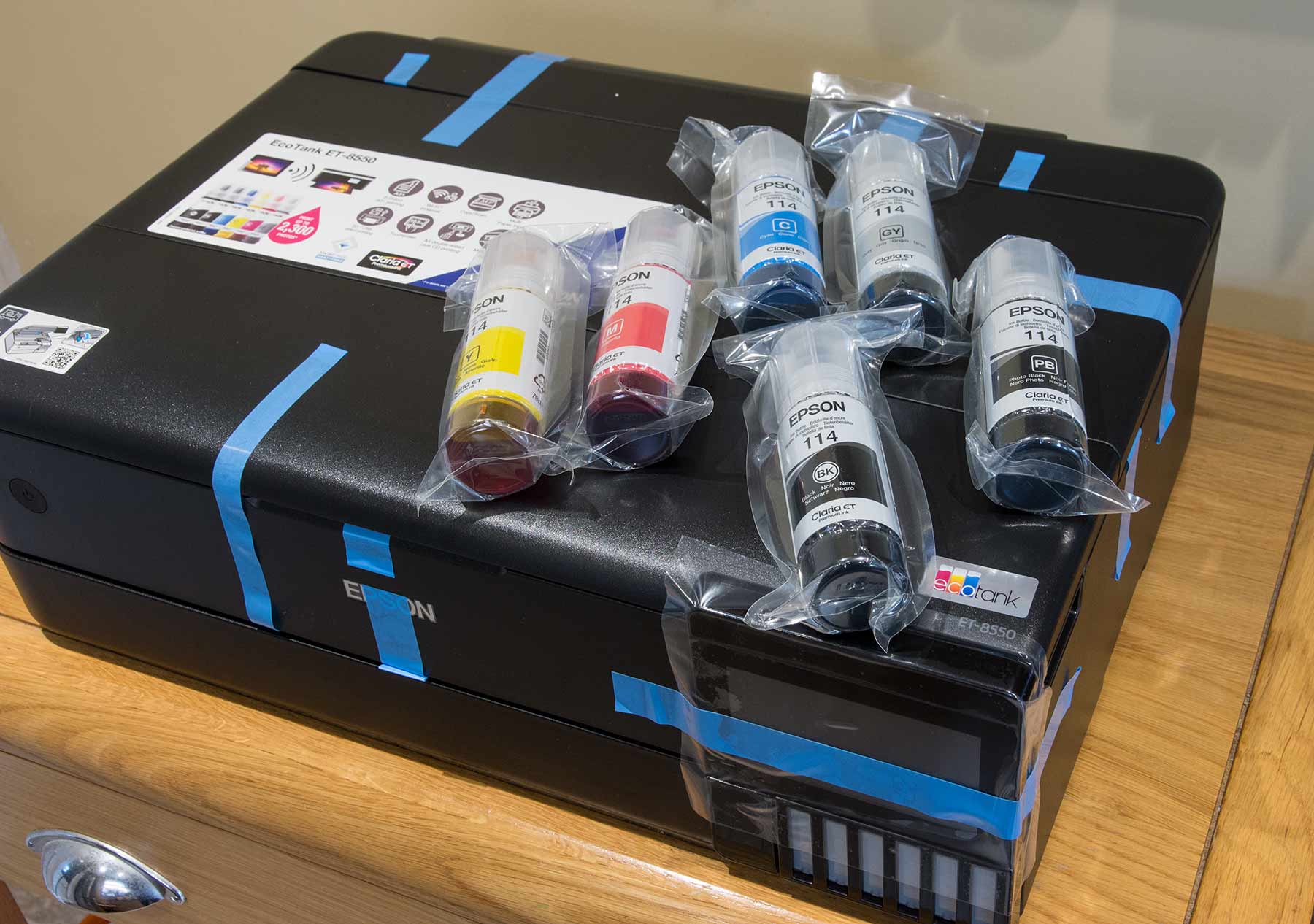
The first black is a pigment black, used for text printing and with the others on some media.
The other five inks are dye based, giving the usual CMYK range with a grey ink for more even tonality and light colours

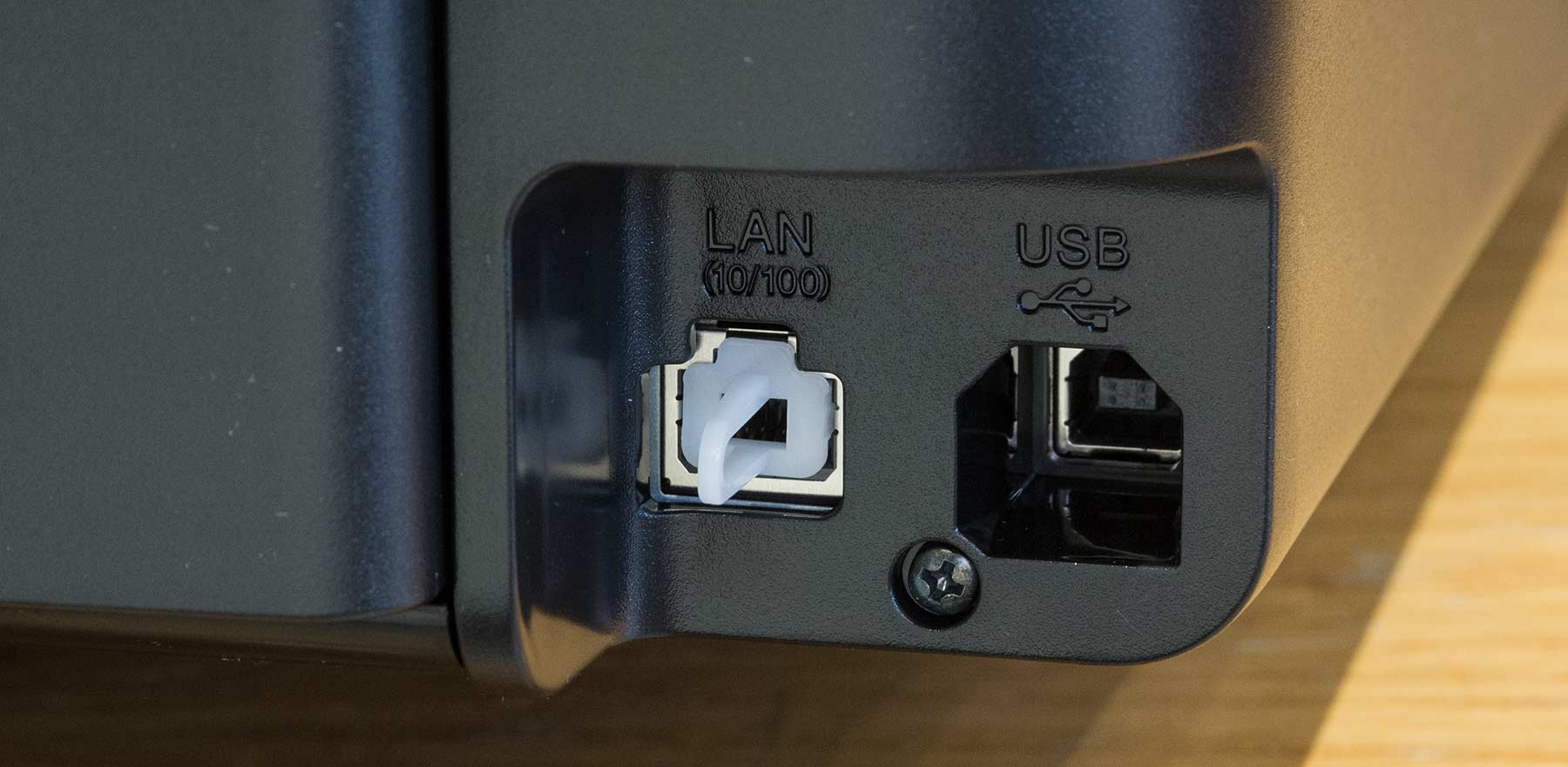
Note the wired ports USB/Ethernet at the back.
Do not connect up either of these at this stage.
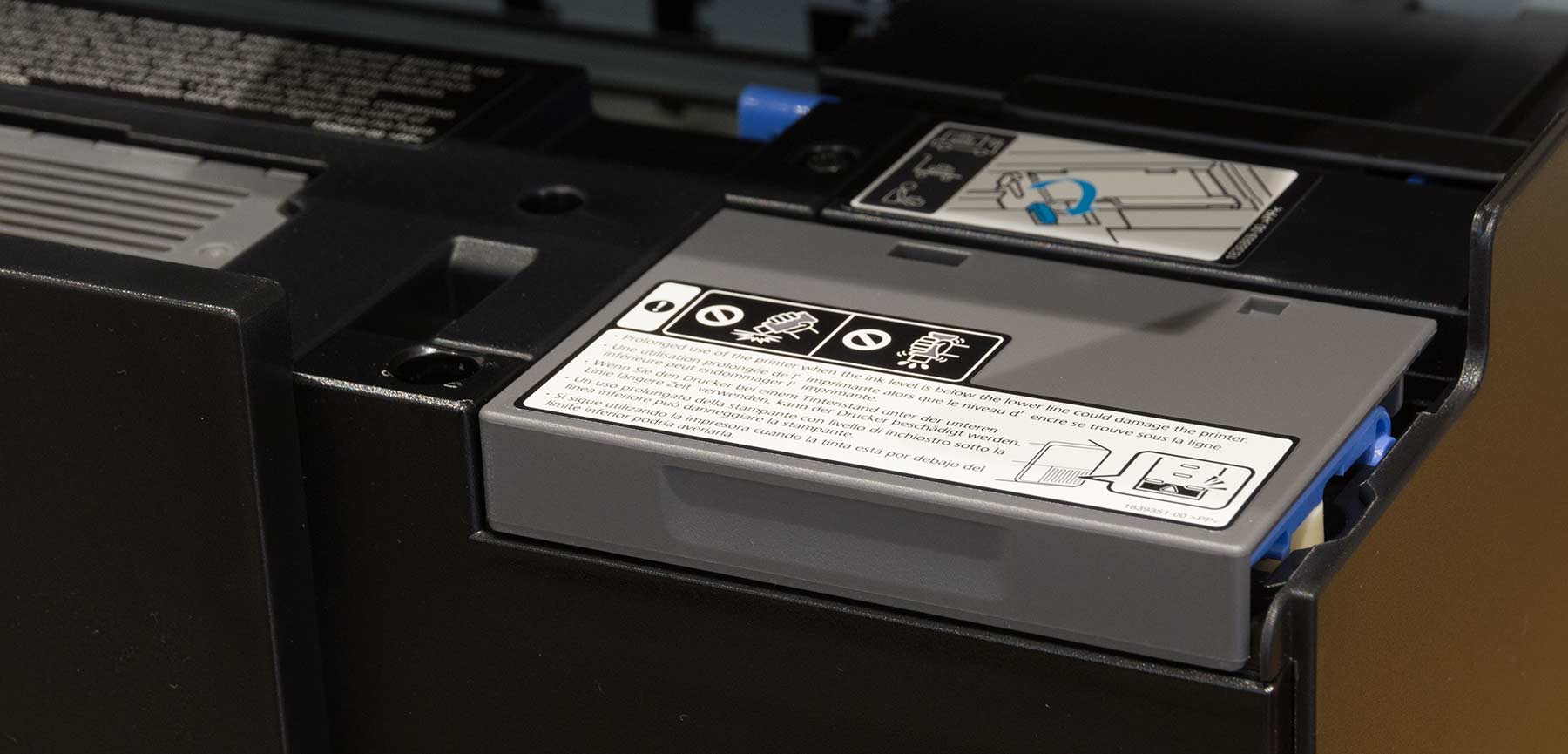
Lifting the lid (that’s both the scanner and main top cover) shows a cover over where the inks are to be installed.
Powering up and ink fill
Once it’s all unpacked, you can plug in the printer and fire it up.
The screen will guide you through steps needed.
Under the grey panel are the covers for each ink tank
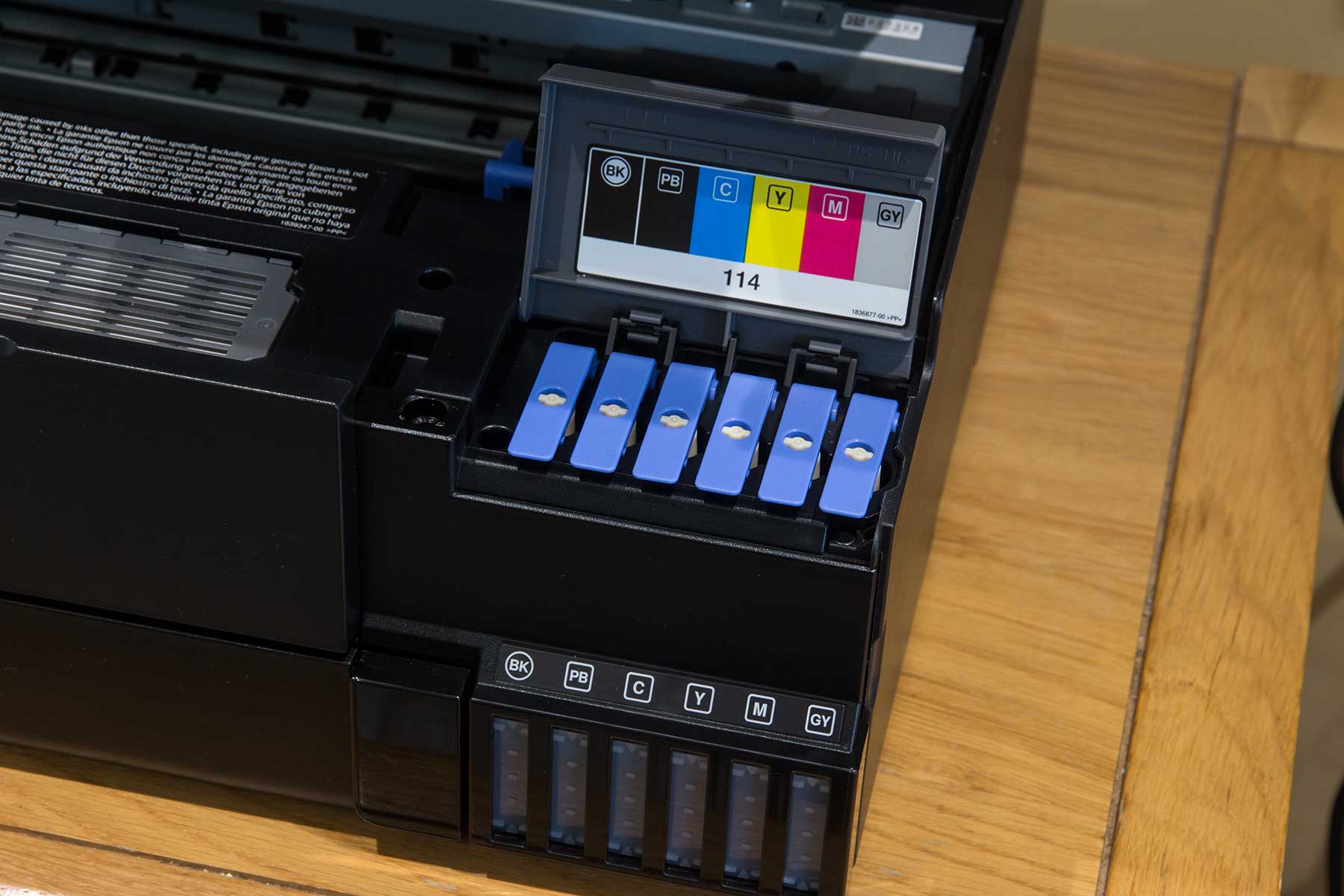
These flip up to allow filling.
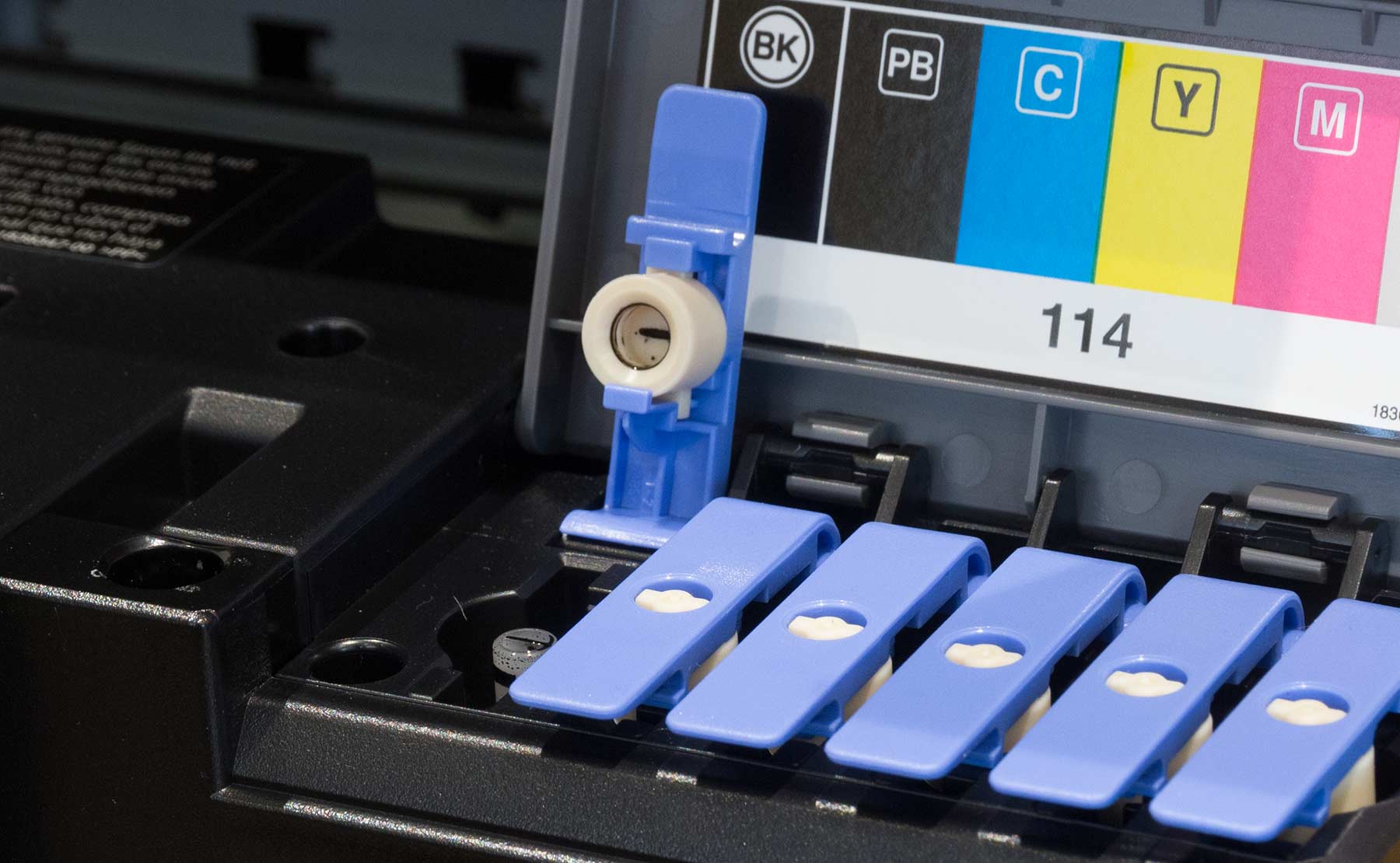
Loading ink
There are warnings to make sure you use the right inks.
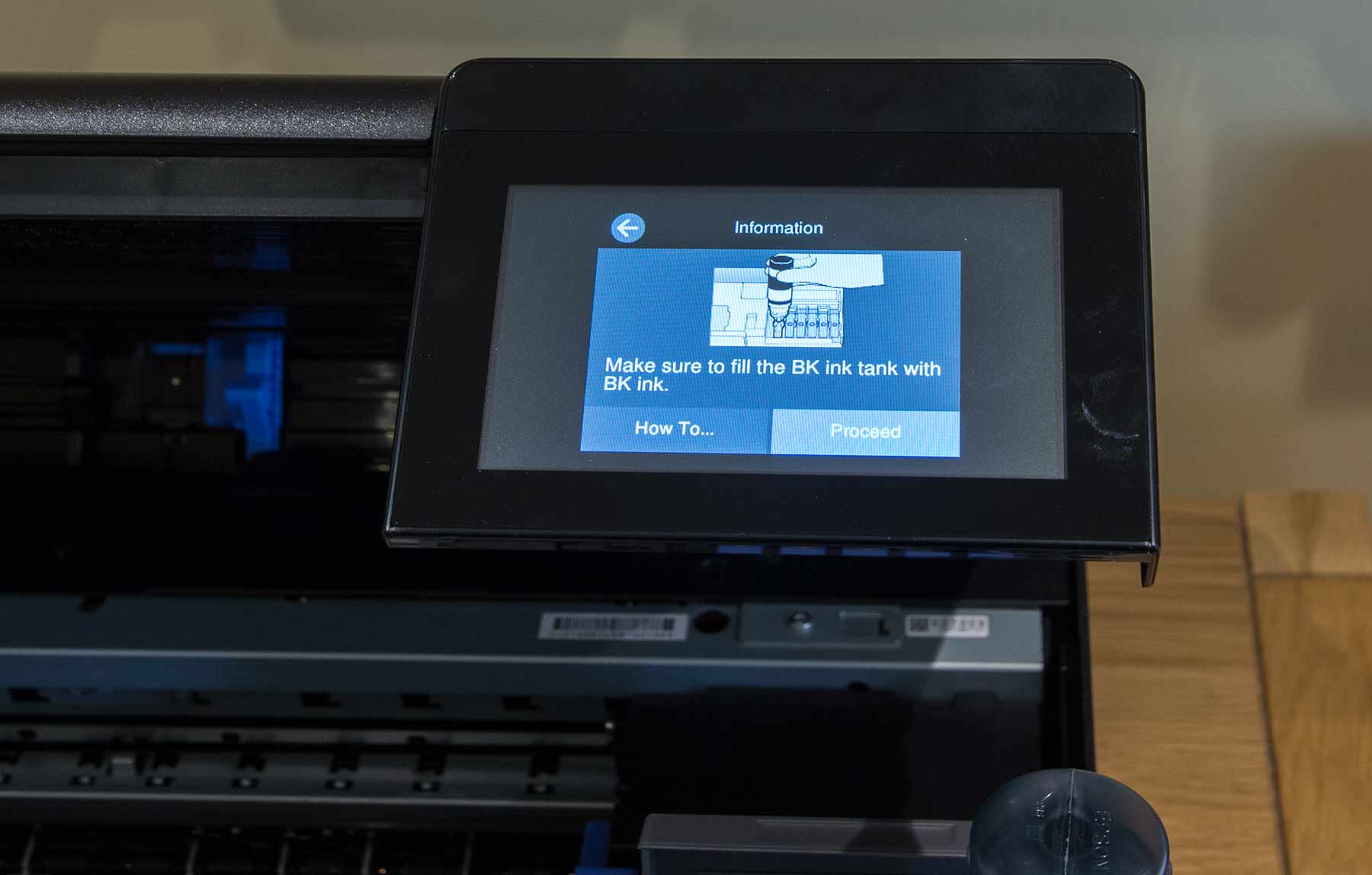
Fortunately, the bottles are also physically ‘keyed’ to only fit in the right position.

First up is the black. You can actually hear a quiet ‘glugging’ noise as the ink flows.
DO NOT squeeze the bottle
You can see the ink level below, just before showing as full (the top mark).

There is some ink left over after the fill – I’ll come back to this later. At the moment, just replace the lid and carry on filling all carts.
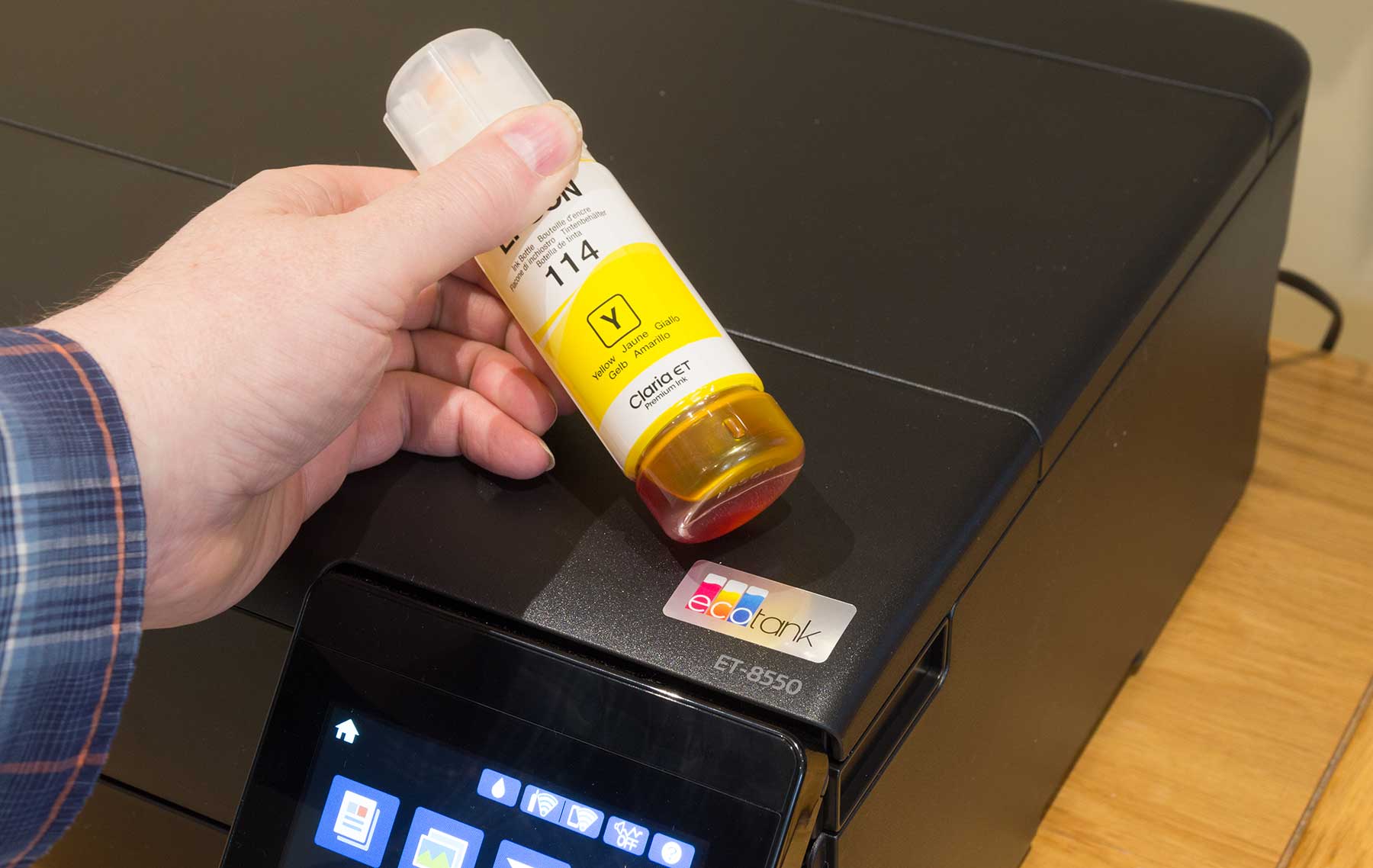
Here’s the last one – grey.

Initialisation
Once all the inks are loaded, the printer needs to fill the ink lines and the print head.

This takes a few minutes and is accompanied by assorted noises from the printer.
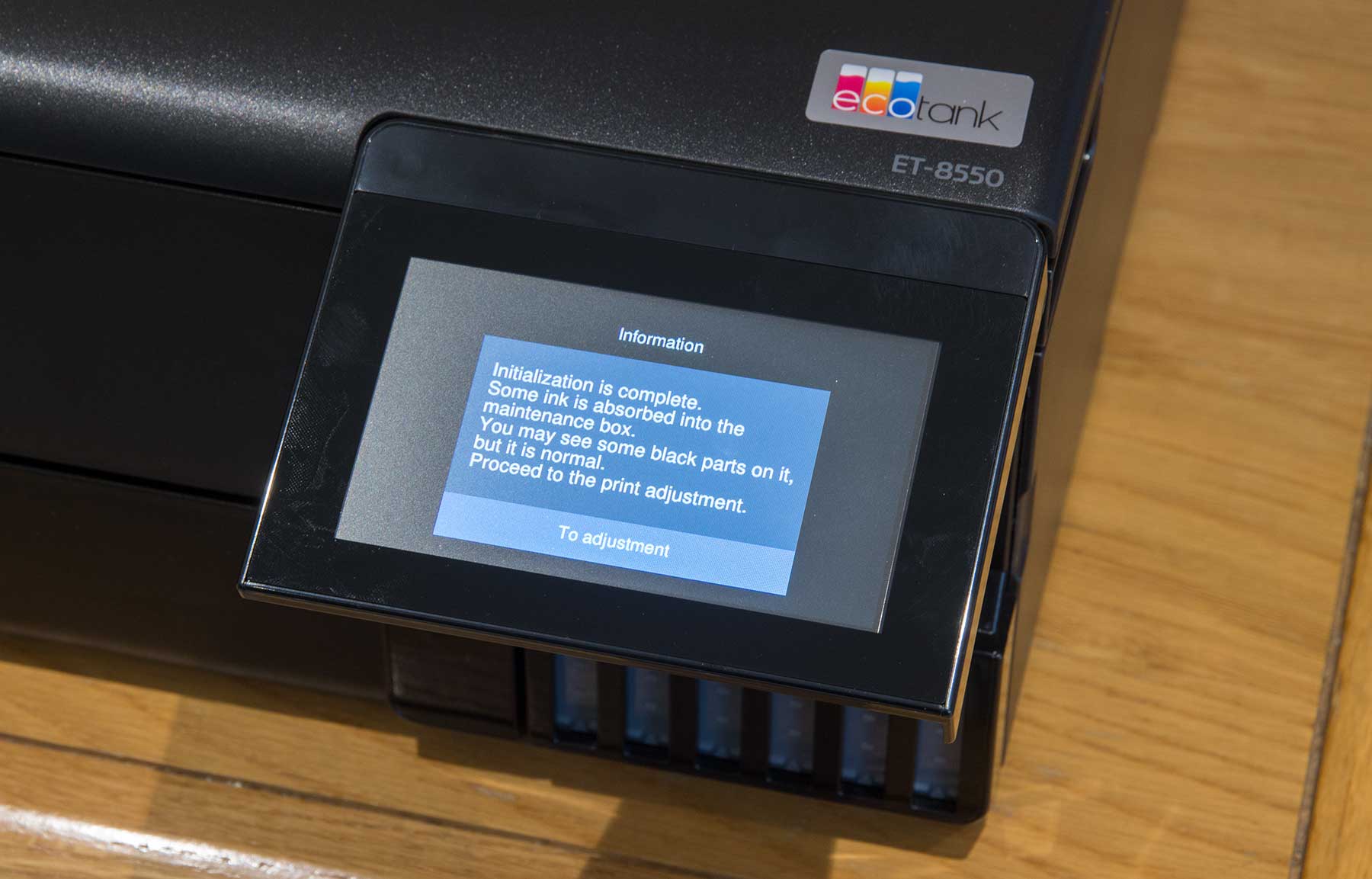
There is a maintenance cart already fitted to the printer for waste ink. It’s unlikely to need replacing until you’ve done quite a lot of prints.

The printer will want to do a test print, which will need some plain paper loading in the main tray.

A nozzle check shows all is well.

You could also run the alignment check at this point, but it needs several sheets of paper. I left this until after I’d set up the printer.
Setting up networking and software
The next step is to connect the printer up to a computer some way, in order to print. There is the option earlier of downloading a remote control panel to a phone, so you could set up the printer that way. However I want to test photo printing quality, and that isn’t going to happen with mobile devices…
The setup web page I’ve connected to earlier offers to download the Epson install software – it’s similar for Win PCs but we don’t have any of them here.
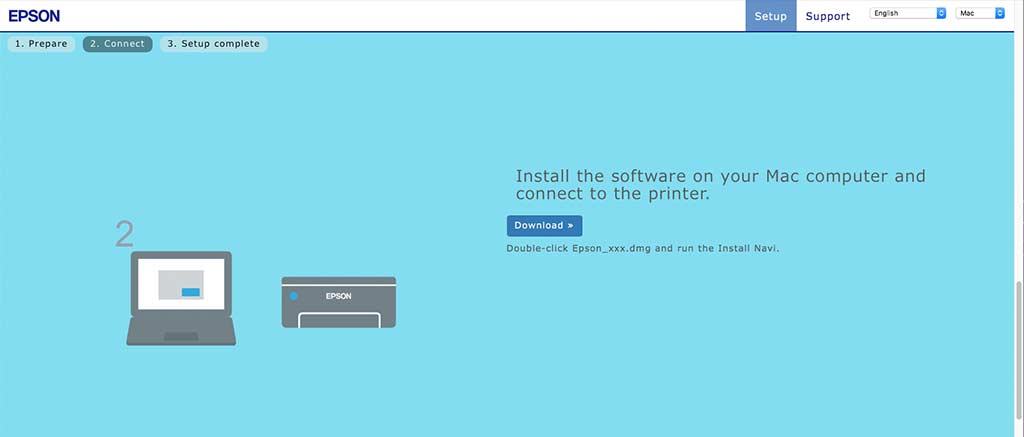
A double check about the ink.

The software checks to see what’s currently connected.
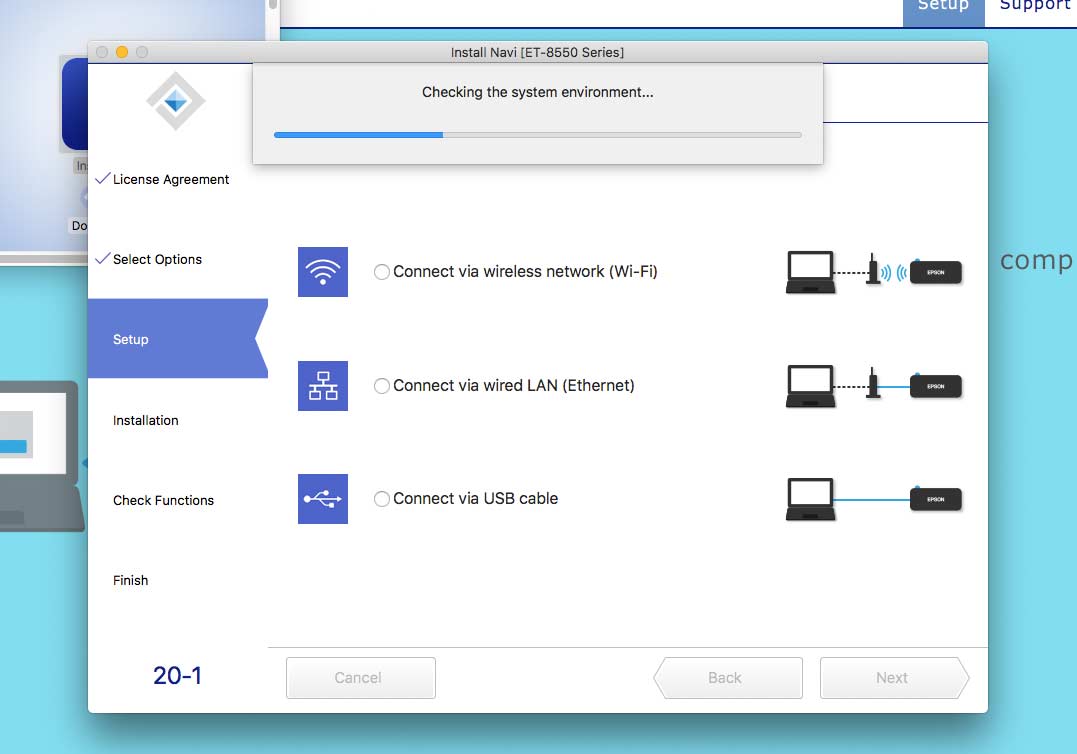
The printer is found via its WiFi connection.

I could at this point decide to use ethernet or USB, but wireless will suffice.
There’s quite a range of software available – I pick everything since it won’t duplicate what you already might have installed.
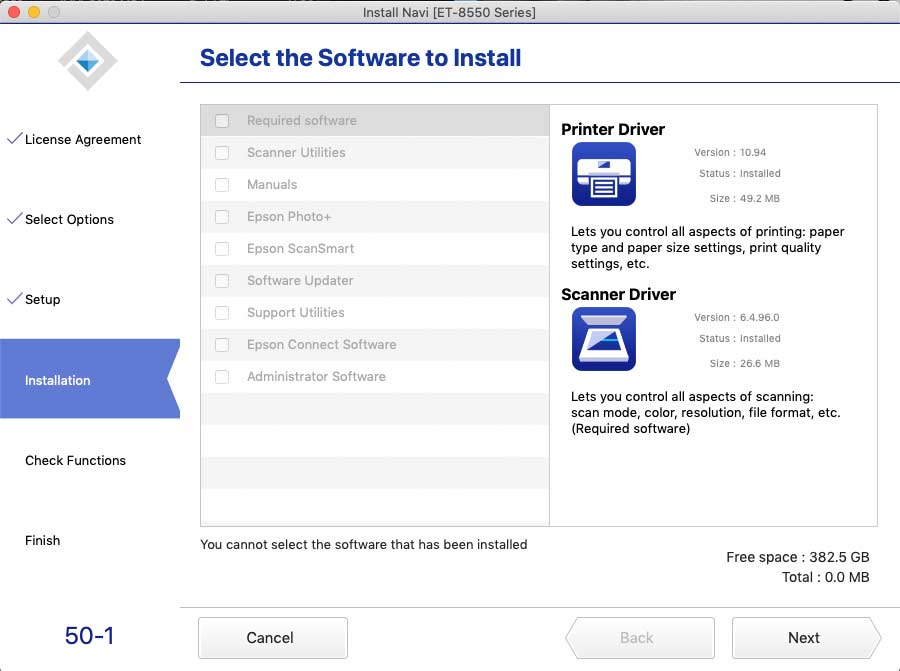
At this point I’d note that the Epson Print Layout software is not included here. This is actually very useful software which I’ll be using during some of my testing. I’ve used it with the Epson P700, P900 and XP-15000 recently – see the reviews and articles for more.
It can be downloaded here: Epson Print Layout
Note that this is the US link – the link on the UK site has had dead links on it several times
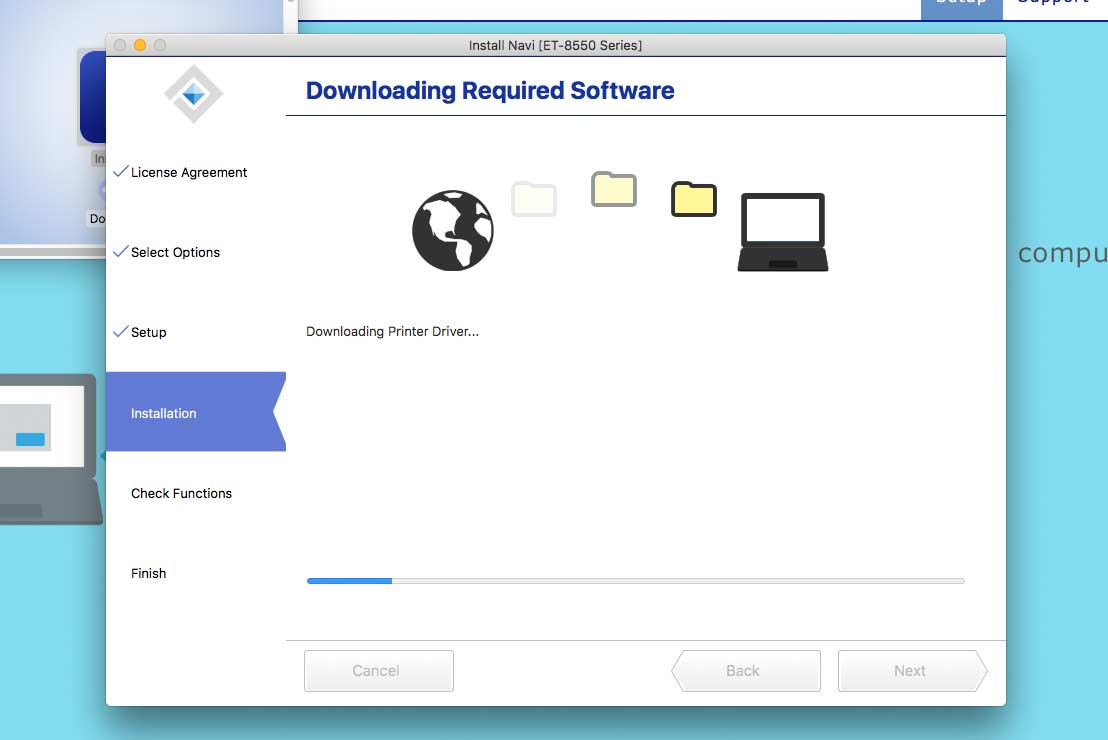
The driver will install and ask if you want to add the printer to the printers list.
Once this is completed, there is the option of printing a test page – always worthwhile checking.

Firmware updates?
During setup, you may be asked to download a firmware update – this is definitely worth doing, especially with a newly released printer, where there may well have been minor changes/updates since the printer left the factory.
The printer will download, install and restart itself. Just be sure not to power off the printer during the process.
Macs and the AirPrint driver problem
It’s possible to install a simplified ‘AirPrint’ driver on Macs, which usually shows up when people wonder why half the control settings have vanished from their printer dialogs.
The newer Epson installers are better at avoiding this but I did just check the system prefs to be sure. All is well.

Filling the ink tanks back to full
After setting up the printer, the levels in each tank have fallen, however I have some spare ink left.
This is visible in the printer and via the printer driver info.

The ink bottle is just re-applied to the printer to use the remaining ink (grey in this case).
Once again – do not squeeze the bottle – it will just flow as needed.
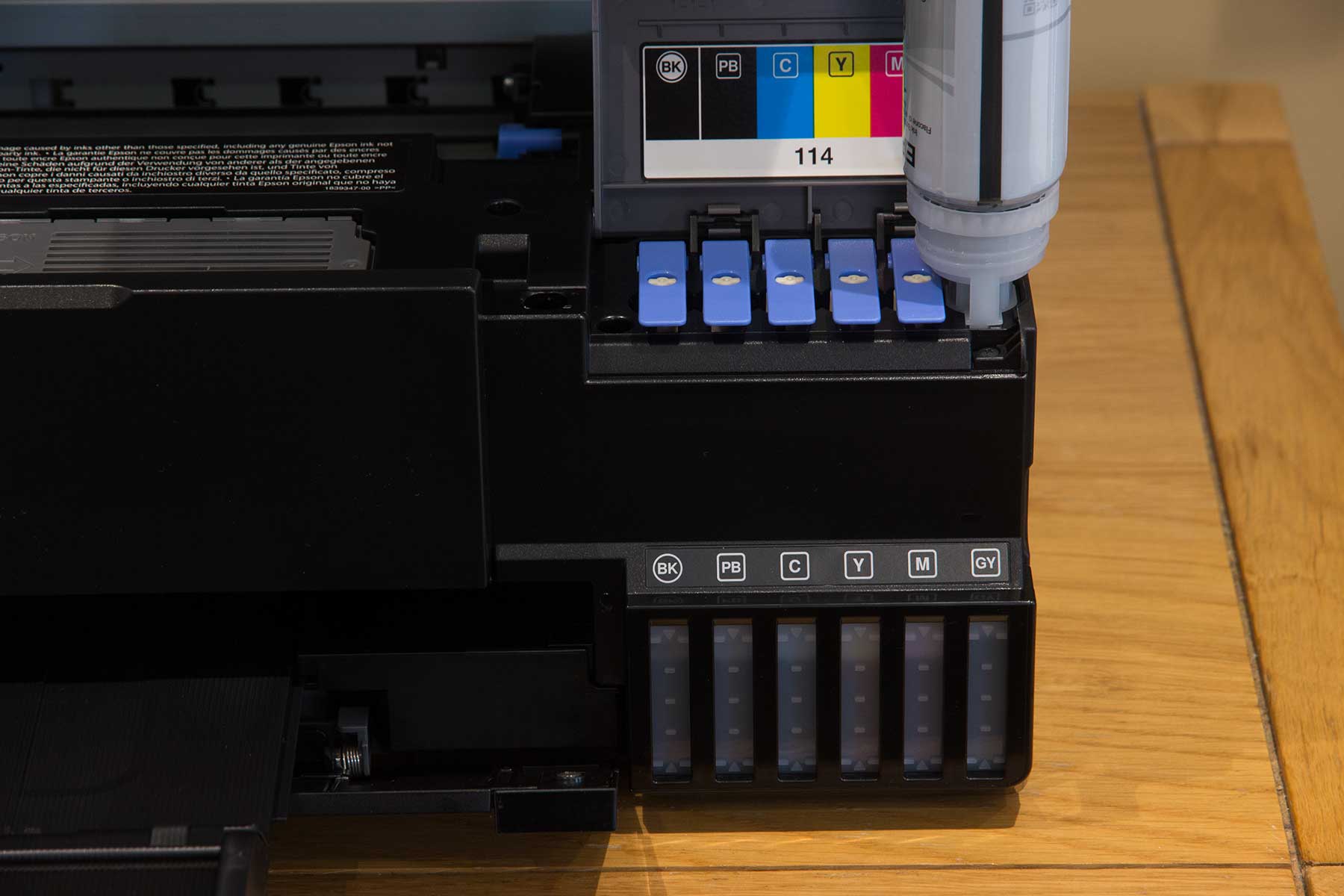
The levels are not particularly clear to photograph, but a flashlight off to one side helps.

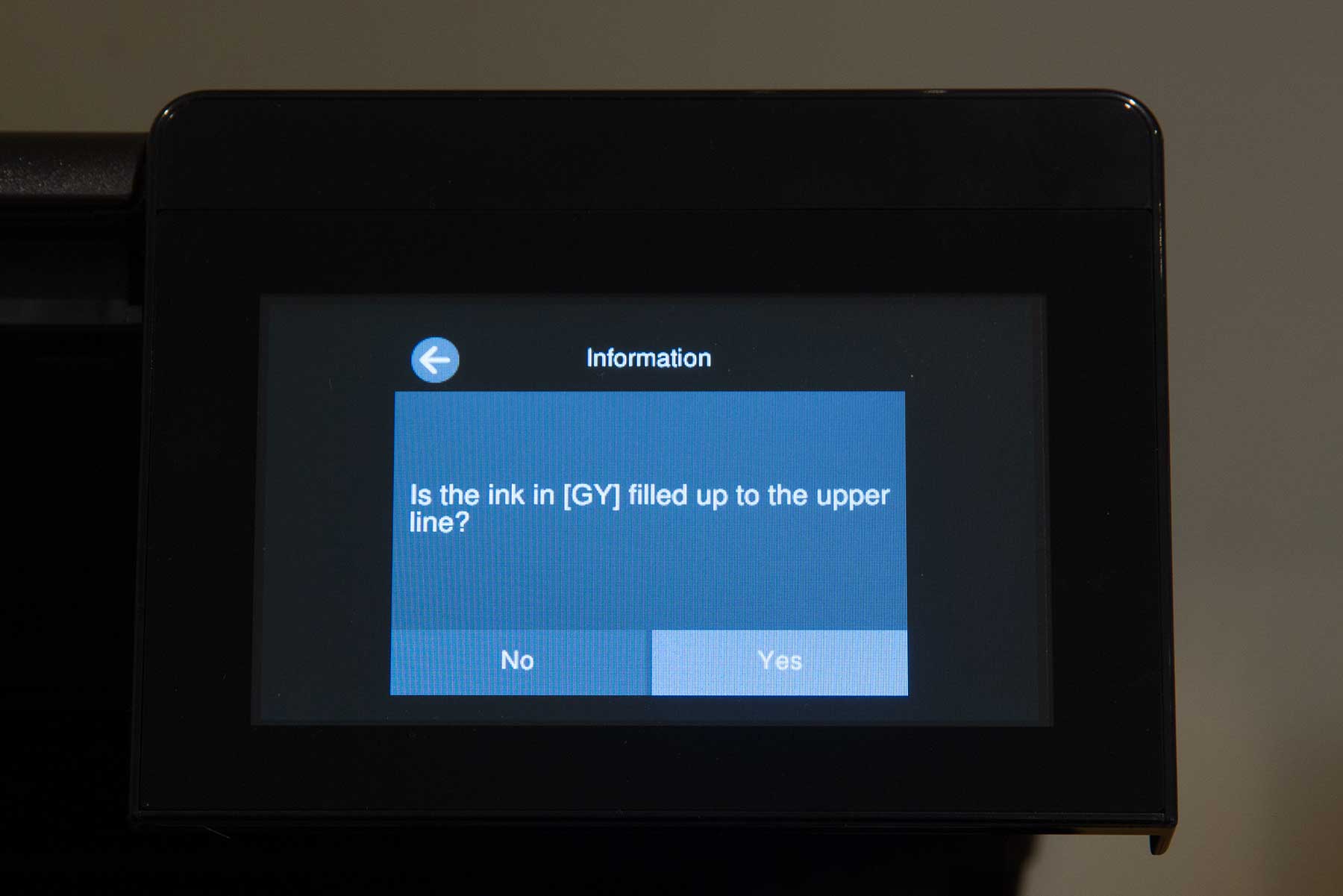
Now, if you check levels in the driver, it won’t show a change. You need to go to the refilling section in the printer maintenance section of the menu.
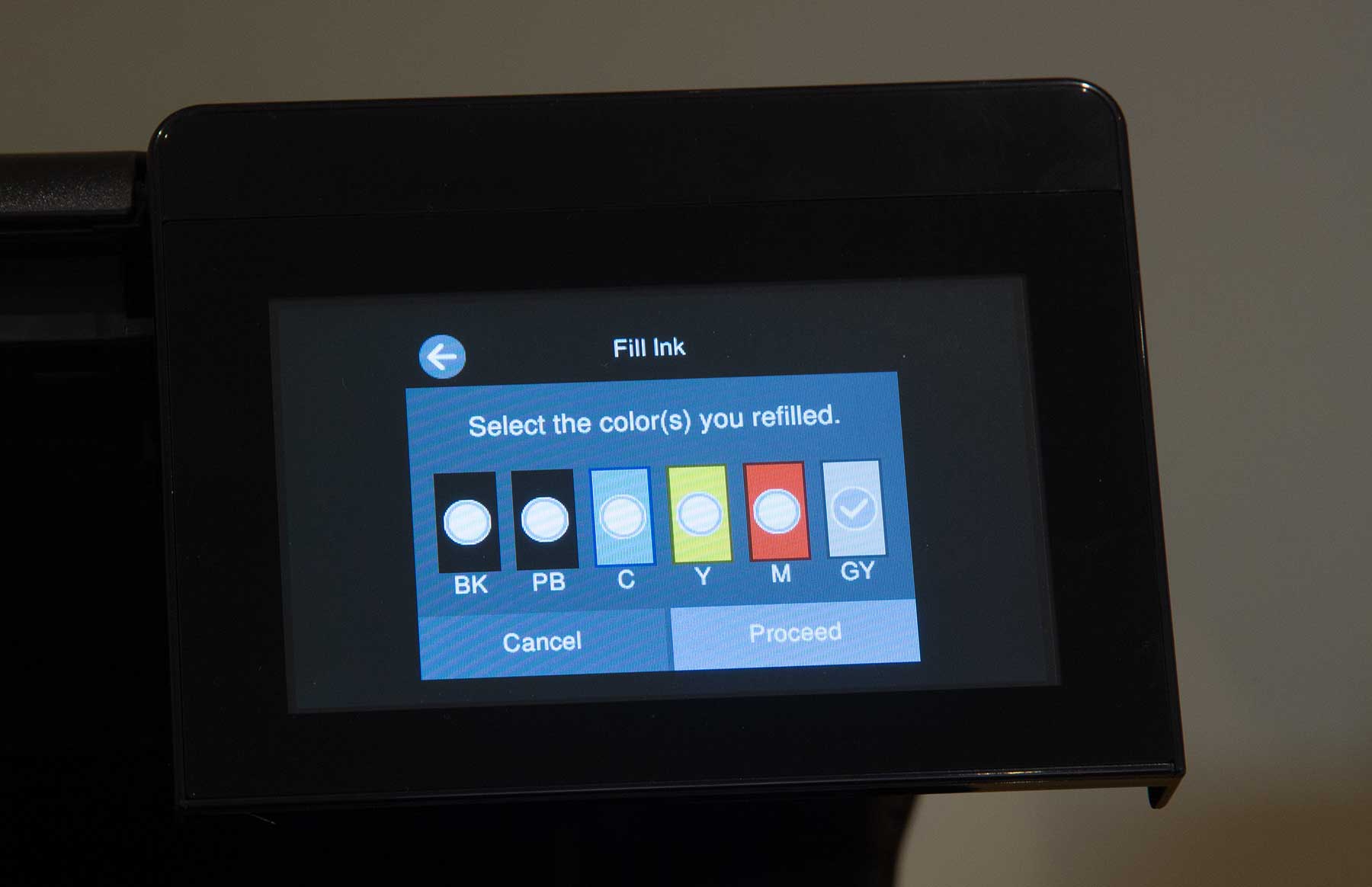
I’m just doing the grey at this point.

It now shows up in the driver.
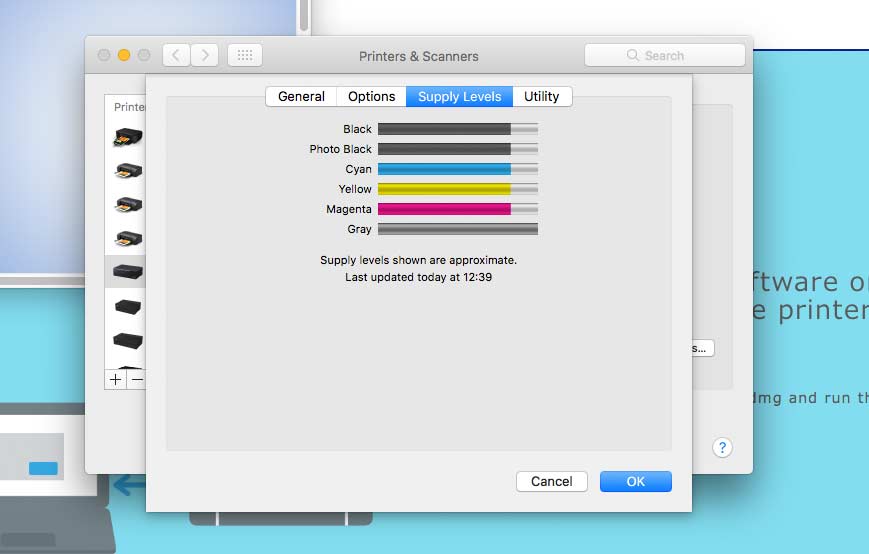
This disconnect from direct monitoring of levels is a significant change in how you think about ink use and is something I’ll come back to in the main review.
Moving the printer
The ink tanks need an air opening to allow for falling levels and changes in atmospheric pressure. This means that the printer will not take kindly to being tipped up much during shipping, and that there is a serious danger of the ink siphoning out.
It’s for this reason that it is very important to lock the print head when shipping. It’s also why there are several labels pointing this out.
There is a blue latch shown here in the normal operating position.

This is lifted up

and locks down to prevent head movement

There is also a large plastic bag provided, to wrap the printer in when shipping – just in case.
Specifications
Technology
- Printing Method: 6-colour inkjet printer
- Nozzle Configuration: 360 Nozzles Black, 180 Nozzles per Color
- Minimum Droplet Size: 1.5 pl, With Variable-Sized Droplet Technology
- Printing Resolution: 5,760 x 1,440 DPI
- Category: Home, Photo
- All-in-One Functions: Print, Scan, Copy
- Printing Speed ISO/IEC 24734: 16 pages/min Monochrome, 12 pages/min Colour
- Printing Speed: 32 pages/min Monochrome (plain paper 75 g/m²), 32 pages/min Colour (plain paper 75 g/m²), 25 Seconds per 10 x 15 cm photo (Epson Premium Glossy Photo Paper)
- Colours: Black, Photo Black, Cyan, Yellow, Magenta, Grey
Scan
- Optical Resolution: 1,200 DPI x 4,800 DPI (Horizontal x Vertical)
- Output formats: BMP, JPEG, TIFF, multi-TIFF, PDF, searchable PDF, PNG
- Scanner type: Contact image sensor (CIS)
Paper/Media handling
- Number of paper trays: 3
- Paper Formats: A3+, A3 (29.7×42.0 cm), A4 (21.0×29.7 cm), A5 (14.8×21.0 cm), A6 (10.5×14.8 cm), B5 (17.6×25.7 cm), B6 (12.5×17.6 cm), C6 (Envelope), DL (Envelope), No. 10 (Envelope), Letter, 10 x 15 cm, 13 x 18 cm, 100 x 148 mm, User defined, B4 (25.7×36.4 cm), Legal, Executive
- Duplex: Yes (A4, plain paper)
- Rear paper path (special media): Yes
- Media Handling: Automatic duplex (A4, plain paper), Borderless print, CD/DVD print, Fine Art Paper Path, Rear specialty media feed, Thick Media Support
General
- Energy Use: 17 Watt (standalone copying, ISO/IEC 24712 pattern), 0.8 Watt (sleep mode), 7.5 Watt (Ready), 0.3 Watt (Power off), TEC 0.16 kWh/week
- Supply Voltage: AC 220 V – 240 V, 50 Hz – 60 Hz
- Product dimensions: 523 x 379 x 169 mm (Width x Depth x Height)
- Product weight: 11.1 kg
- Noise Level: 5 B (A) with Epson Premium Glossy Photo Paper / Photo RPM mode – 37 dB (A) with Epson Premium Glossy Photo Paper / Photo RPM mode
- Compatible Operating Systems: Mac OS X 10.6.8 or later, Windows 10 (32/64 bit), Windows 7 (32/64 bit), Windows 8 (32/64 bit), Windows 8.1 (32/64 bit), Windows Vista, Windows XP Professional x64 Edition SP2 or later, Windows XP SP3 or later (32-bit),
- Included Software: Epson Photo+, Epson ScanSmart, EpsonNet Config
- Interfaces: USB, Ethernet, Wireless LAN IEEE 802.11a/b/g/n/ac, Wi-Fi Direct, USB host, SD Card Slot
- Mobile and Cloud printing services: Apple AirPrint
- What’s in the box: AC cable, Ink set, Quick Start Guide, Warranty document
- Colour: Black
Other Features
- Panel: Type: Color, Touchscreen, Diagonal: 10.9 cm
- Memory Cards: SD, SDHC, SDXC, MicroSD*, MicroSDHC*, MicroSDXC*, MiniSD*, MiniSDHC*, Mini SDXC* (* Adaptor required, not supplied in box)
- Features: Touchscreen, PictBridge, Direct Print, Direct print from USB
Never miss a new article or review - Sign up for our occasional (ad-free) Newsletter
and please do subscribe to Keith's YouTube Channel

Other areas of our site that may be of interest...
All the latest articles/reviews and photo news items appear on Keith's Photo blog

Keith explains tilt and shift lenses
Keith has written a book that looks at the many ways that tilt/shift lenses can benefit your photography from a technical and creative point of view. If not in the UK check for import issues and maybe try an on-line bookshop. Keith has no connection with sales of the book.
ISBN 9781785007712
There is also a specific index page on the site with links to all Keith's articles, reviews and videos about using tilt and shift.
We've a whole section of the site devoted to Digital Black and White photography and printing. It covers all of Keith's specialist articles and reviews. Other sections include Colour management and Keith's camera hacks - there are over 1200 articles/reviews here...
Adverts removed
Fabian | Dec 3, 2025 at 3:27 pm
I just completed the initial setup using the app, and here’s my experience.
The process on the phone resembles a chat interface. The setup displays small message bubbles with instructions (text and pictures) and questions with selectable options. I liked the look and feel until I encountered problems. After an error during the process, the app crashed. Reopening it caused an immediate crash. To continue, I had to clear the app’s storage and restart the printer. I made three attempts: the first two failed before the 7-minute ink pumping, and the third failed right after. I didn’t dare try it again. The printer was usable afterward, but I had to manually perform the calibrations*.
Don’t use the app for the initial setup.
*I did the nozzle check and the head alignments.
Rick | Jun 9, 2025 at 11:13 pm
I bought the Et-8550 after your excellent review to replace a 3880. The cost of the entire printer here is almost $100 less than a set of 3880 inks.
Of course it installed Airprint, had to delete that, not like it offers you much choice. Ironically this was with Ethernet as the data source – you would think if you are not using wifi to print by setting up with ethernet, then Airprint is a quite illogical default setting.
Note the bottles can drop a bit of ink, if that happens Windex (here in Canada) window cleaner with ammonia as the main ingredient works a treat, same as with the Epson 3880 inks.
One observation as tempting as it is to load photo paper glossy side up, don’t. Horror ensues. You really need to remember that it comes around a bend to face up. As I discovered with it in the wrong way.
Keith | Jul 3, 2021 at 1:26 pm
11×14 is not supported borderless AFAIK
Barry Lane | Jul 1, 2021 at 10:19 pm
Hi Keith. I have watched your YouTube presentation on the Epson ET-8550 several times. Thank you for the presentation. I do have a question. I am looking to purchase an ET-8550, and I intend to primarily print 11″ x 14″ color images on photo paper, primarily glossy photo paper. Will the ET-8550 print borderless 11″ x 14″ color images on photo paper? Best regards.
Keith | Jun 16, 2021 at 4:11 pm
Thanks!
Sergio Tovar | Jun 14, 2021 at 4:01 pm
I’ve recently ordered the ET8550 to try my hand at printing my photos, and your video reviews were awesome sources of information! Looking forward to seeing the full review and get the full scoop on paper selection and profiles.
Regards,
Sergio
kasra | Jun 10, 2021 at 11:22 am
Thank you very much!
Looking forward to reading your full review.
Kind regards,
Kasra
Keith | Jun 9, 2021 at 11:24 am
Yes – I’ll have B&W info when I finish the written review – see also the YT video. You just need to be careful in choosing papers
kasra yousefi | Jun 8, 2021 at 1:30 pm
Hi Keith,
Thank you very much for your informative reviews and advice about printing and photography. I’ve learnt a lot about choices of paper and printer from your YouTube channel. In particular, I enjoyed your recent ET-8550 review and black and white photography video.
I’m planning to purchase ET-8550 to practice black and white printing and “viewing my work” without worrying about the cost of cartridges.
While I plan to use it primarily for personal projects and gifts to friends, do you think it can produce black and white prints for sale or exhibitions?
Kind regards,
Kasra