


Epson ET-18100 printer review
Epson ET-18100 printer review
13″/A3+ EcoTank photo printer

No more Google ads. Too many deceptive and irritating adverts.
Any ad links left are non tracking, to companies we know, trust and we've worked with for years [Park Cameras]
Ads helped pay for site running costs, so if you found something useful, please
...Make small KoFi donation?
...Subscribe to Keith's YouTube Channel
...Get Keith's book about how to use tilt/shift lenses
Our site contains affiliate links - these help support the site. See our Advertising policies for more
Keith Cooper looks at the Epson ET-18100 [L18050] EcoTank printer.
The 13″ width A3 printer is an ink tank based printer. It has a dye based ink set.
The Epson ET-18100 printer review is complemented with a range of short YouTube videos exploring aspects of using the printer.
There are a number of icc profiles he’s produced for the ET-18100
These are available on request in return for a Ko-Fi donation.
The printer is one loaned by Epson – however as with our 20 year old review policy this review and the videos are not sponsored or controlled/directed in any way.
Article Index
- Printer features
- Setup
- Connectivity
- Ink refilling
- Media handling
- Colour management
- Black and White
- Printing
- Epson software
- Choosing papers
- Conclusions
- Full Specifications

ET-18100 printer review videos
[Also L18050 in some markets]
- Initial setup and overview
- Video review [30 mins]
- Why is the 18100 not available in the US yet?
- A glossy A3+ borderless ET-18100 print
- An A3+ ET-18100 colour print on art paper
- Paper choices and profiling the ET-18100
- Gloss/Metallic/baryta papers [ET-18100]
- ID card printing with the ET-18100
ET-18100 or ET-8550?
Video review [30 mins]
ET-18100 printer review – overview
The Epson EcoTank ET-18100 is a 6 ink A3+ (13″ width) inkjet printer. The dye based ink set is optimised for printing colour photos on RC type photo papers.
Printer features: ET-18100 Printer review
The ET-18100 is in many ways quite a basic printer. It has no LCD screen and just a few lights and buttons for an interface. No EtherNet networking and just the one top feed slot for paper.
Despite that it’s a very good printer for some usages – does that matter for what you need?
I’ve previously reviewed the more general purpose ET-8550 and do have a short [11min] 8550 vs 18100 comparison video
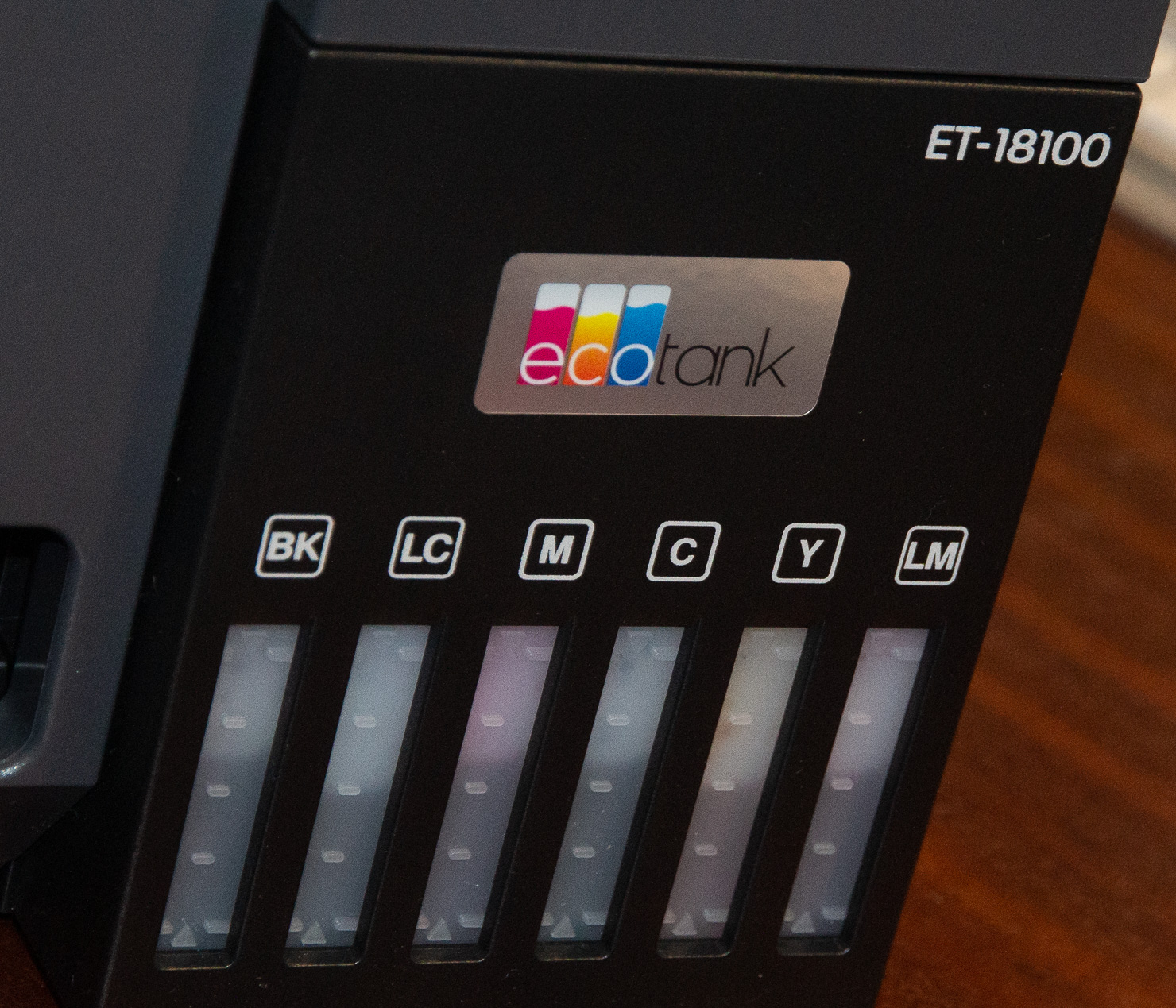
No cartridges
You fill ink tanks from bottles. Essentially the ink from bottles is used to fill the tanks from above,
This is how you check ink levels . DO NOT LET IT RUN DRY
The blue tabs seal the ink tanks.
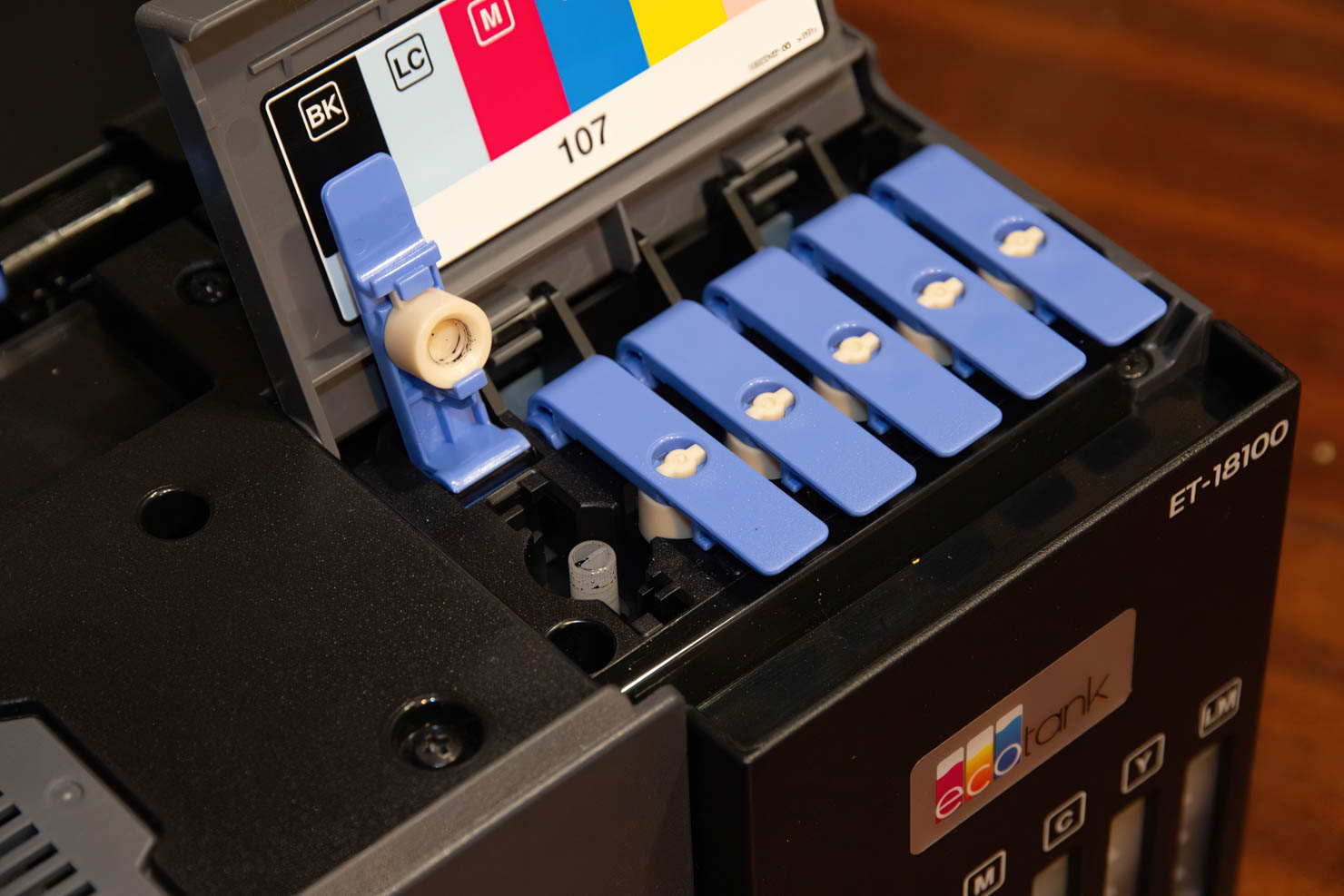
The bottles sit on top and freely drain to the correct fill level [do not squeeze them]
Dye ink set
The ink set [type 107] has a single black, with the three basic printing colours Cyan, Magenta and Yellow. These are augmented with light cyan and light magenta for printing lighter less saturated colours and generally improving the smoothness of printed output.
There is no ‘light yellow’ – it’s already a light colour.
The lack of any pigment black ink suggests this printer is not intended for document or art paper printing. The lack of any grey inks also suggests that if you like black and white, then this is not a printer for you.
ET-18100 printer review: What interface?
Unlike other printers I’ve looked at in the ecotank range, the ET-18100 has no display screen.
The control interface… It’s showing that the printer is working via Wi-Fi

So, just what do these mean? Even after several weeks of use, an unexpected set of lights left me flummoxed – needing to check the manual.

Seems I had not pulled the print drawer out enough at the front [it’s not motorised].
It takes 4 pages of the manual to list/explain all the functions of lights/buttons. Here’s a link to the online manual pages for the ET-18100 error codes
Suddenly I really appreciated the LCD screen on other printers…
Mobile use
The printer can pair with your mobile phone for direct printing, or via a local network. Use the Epson app for this and with supported papers, the results can look quite reasonable [for a direct print from a phone].
The Epson Smart panel app can control the printer and be used for initial setup. There is a QR code on the supplied setup sheet.
18100 Printer review setup
This particular printer was lent to me by Epson, and although new, had been set-up, so I can’t show ink filling.
Setup and first impressions:
Filling the ink
This is the different bit – no ink carts to load, just fill the six tanks from bottles.
Note that the ink bottles are physically keyed to fit the right fill ports. It would take some real effort to use the wrong inks

The filling automatically stops when the tank reaches its ‘full’ level.
After filling, there is ink left in the bottles. This can be used later to top off the tanks.
The Epson install software (on my MacBook Pro in this instance) is fairly smart, giving you a number of ways of connecting the printer.
If you need to set-up/install a printer, just go to Epson.sn and enter the model number – the interface is well thought through. The needed software will be downloaded.

On Macs – make sure you don’t accidentally select an AirPrint version of the driver – follow the instructions with care. I’ve got it wrong on occasions, because I just assumed I knew what I was doing!
Once set up, there is a range of software you can install in addition to the printer driver.
Note that during printer driver setup, various Epson paper ICC profiles will be installed on your system. I’ll come back to profiles later, when looking at colour management, since along with media choices, they are key to getting optimal photo printing results from the ET-18100
I’m going to suggest installing all of the options, since some of the software many be more useful that you’d thought.
Connectivity
As well as the wireless option I’m using for testing, the printer has a USB-B connection at the back. There is no Ethernet.
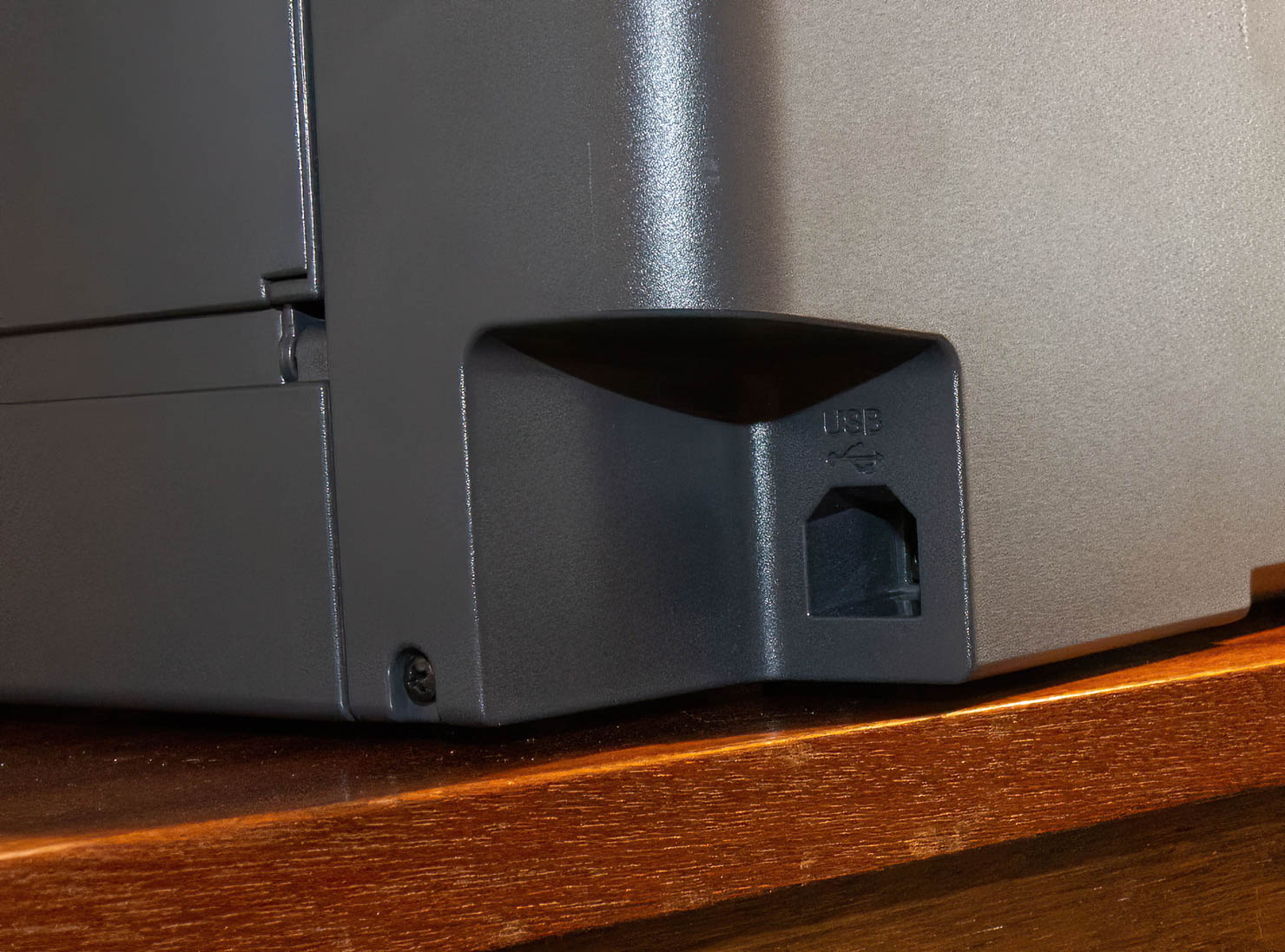
Note that you can have multiple connection methods for an individual computer, but each one will appear as a ‘different’ instance of the printer. So, since I also used USB when testing, I have two 18100 printers in my (MacBook) printer list – one USB and one on the network (wirelessly).
The printer has no SD card slot or USB socket for direct printing from cards/cameras
ET-18100 printer review: Ink refilling
One of the key features of the ET-18100 is that you get to refill the ink tanks once they get low.
You need to keep an eye on levels. Unlike the other ecotank printers there is no display telling you to mark a tank as ‘full’
The printer has no way of detecting ink levels. Even on the ET-8550, it is making its ‘best guess’ of remaining ink levels
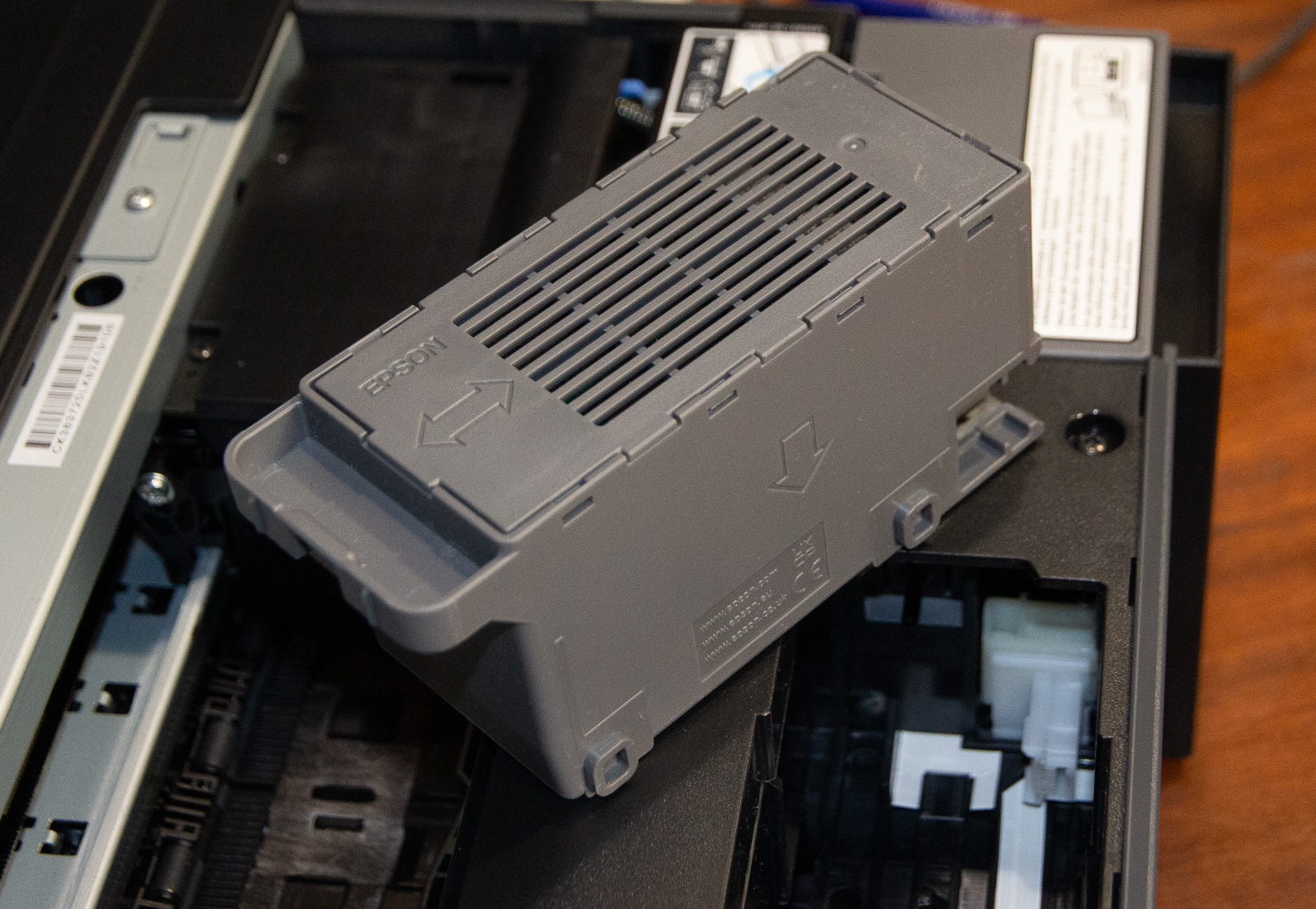
Maintenance cart [ET-18100/L18050]
There is a maintenance cart to the left of the ink tanks,designed to soak up ink used in cleaning over time. It is easily replaceable, but I suspect will last a long time – I’d not bother getting a spare until it started showing as very low in capacity.
Transport lock
With the ink feed system, you really don’t want the print head moving whilst transporting the printer. It’s possible for ink to syphon through the pipes and head if tilted too much.
So, there is a head locking mechanism which should be engaged if moving the printer


That does not mean you can now tip the printer on its side. It does make spills rather less likely. Interestingly enough, Epson supply a big plastic bag for transporting the printer – just in case.
Head alignment
After setting up the printer, it’s worth running through the head alignment process to optimise print quality. Although it’s possible to do this with plain paper, I found that using a photo paper made it easier to check the test prints. It can still be a quite fiddly process.
It’s carried out from the driver on the computer.
- Windows: Click Print Head Alignment on the printer driver’s Maintenance tab.
- Mac OS: Select System Preferences from the Apple menu > Printers & Scanners (or Print & Scan, Print & Fax), and then select the printer. Click Options & Supplies > Utility > Open Printer Utility, and then click Print Head Alignment.
Fortunately, this is only really needed the once.
It’s something that is of more benefit if you plan on printing at higher quality settings and with lots of detail in your images. The printer worked just fine before it, but I always carry out such adjustments if offered, with any printer I test.
Assorted ET-18100 printer settings
With no screen, there are no settings to alter from the printer.
There are two ways of setting things up.
First, the driver options – here on a Mac.

Leave these at defaults unless you know why. Unfortunately, the ‘thick paper’ setting did not reduce roller marks/dents on art papers.
Secondly, there is the printer’s own web page.

For some functions you need the Epson ET-18100 password
On the printer I had, the printer password is printed on an internal label. The manual suggests that not all printers will have this printed password label [other regions I suspect] so the serial number is used [but check the manual for this].
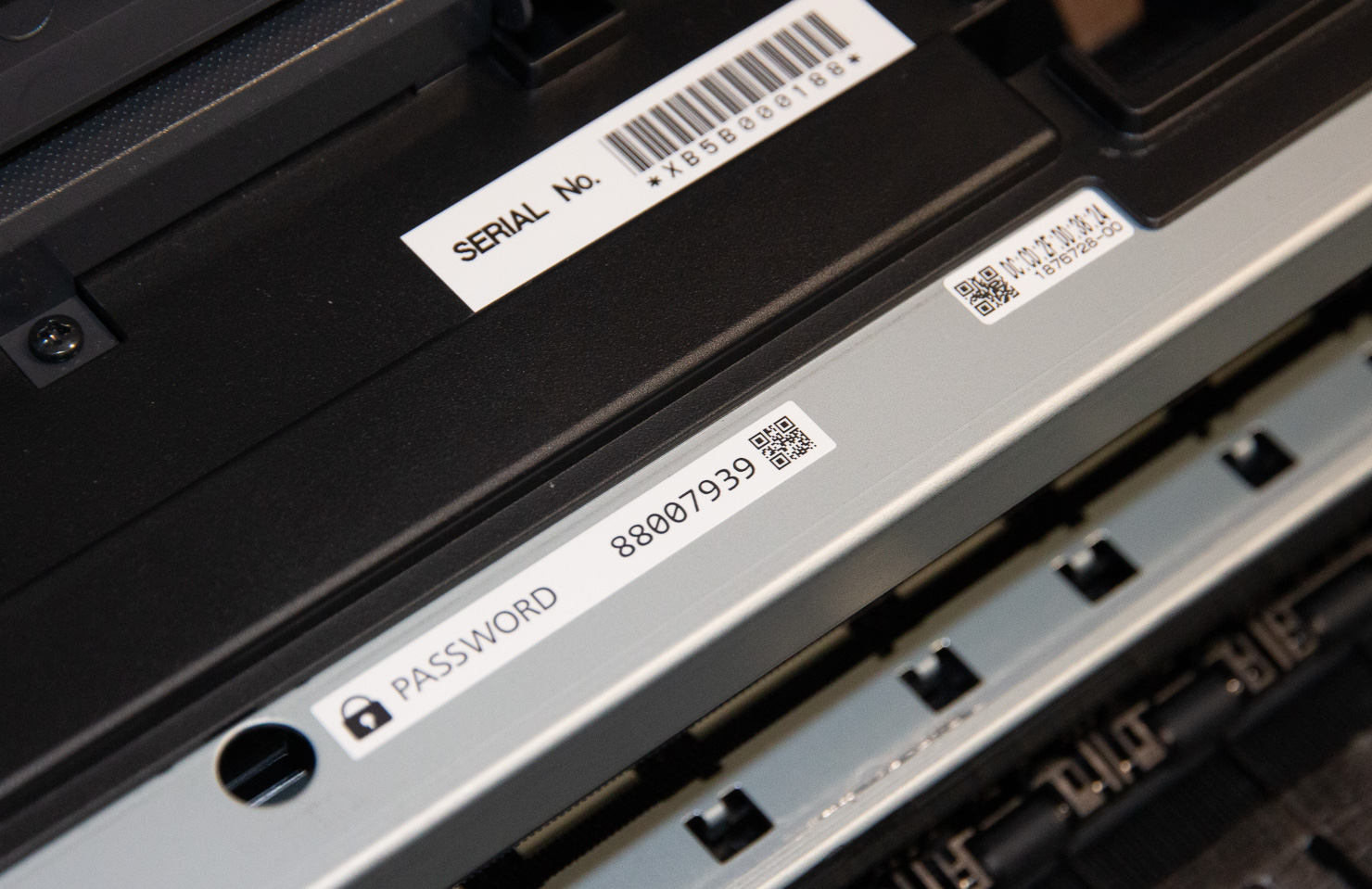
You can also use the phone control panel app for setting some aspects of the printer.
Media handling
The printer has a slot at the top for media and a plastic tray [loaded from the front] which holds blank CDs and ID cards.

The slot at the top will handle multiple sheets. See the manual for detailed listings.

The pick-up roller is also listed as a replaceable part – I’ve no idea how long it will last, but some Epson info suggests 50k prints.
I’ve never seen one wear that much…

The paper sizes and media types are set from the driver – there is no setting on the printer.
Smaller paper
The printer supports a number of smaller paper sizes which may be used for cards and the like. Borderless printing is available for some paper sizes, but not others (A5 and A6 for example).
Custom paper
The printer supports custom sheet sizes, but note that borderless printing is not available on any custom size.
My usual suggestion for starting out making good quality prints is to install the free Epson Print Layout software [EPL] – this works well on Mac and PC
Here’s the custom page for the pano print you can see below.

Here’s the custom size dialog from when I was printing directly from Photoshop. Note the minimum border setting.
[BTW if you are wondering about some of the very big sizes – they are for other larger printers – the list just lumps them all together]

Long pano prints
The manual shows long paper feeding, and I’ve a short video looking at making a pano print.
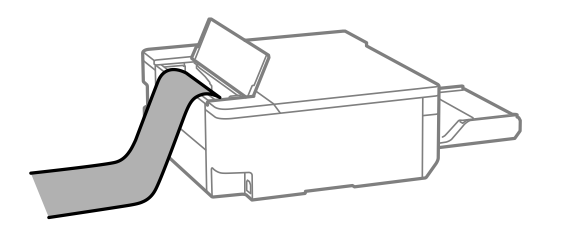
The print here is using a half A2 or double A4 sheet

The CD/ID card tray
The holder stores under the output tray. For printing with the holder, the tray is pushed in and used as a guide for the CD/ID tray.
Note that you have to send the print data to the printer and then insert the tray.

For accurate layout/positioning it’s best to use the Epson software to print to the CD/DVD or ID card slots.

ET-18100 printer review: Office functions
The printer works well with plain paper
Yup. that’s about it…
if you want duplex printing, copying, built-in calendars etc. then buy a more general purpose printer.
Colour management
The dye ink set profiles well and produces excellent results on lustre/gloss/metallic papers.
It actually prints well on art papers as well – BUT with papers of any thickness, internal roller marks [dents] appear on thicker papers.
The printer is OK with thinner art papers and it’s interesting to see variations in the gamut [and depth of black] between different papers.
So, in this comparison [from i1Profiler] between Epson Archival matte and Hahnemuhle Watercolour 210, the watercolour paper has a distinctly larger gamut and visibly better print quality.
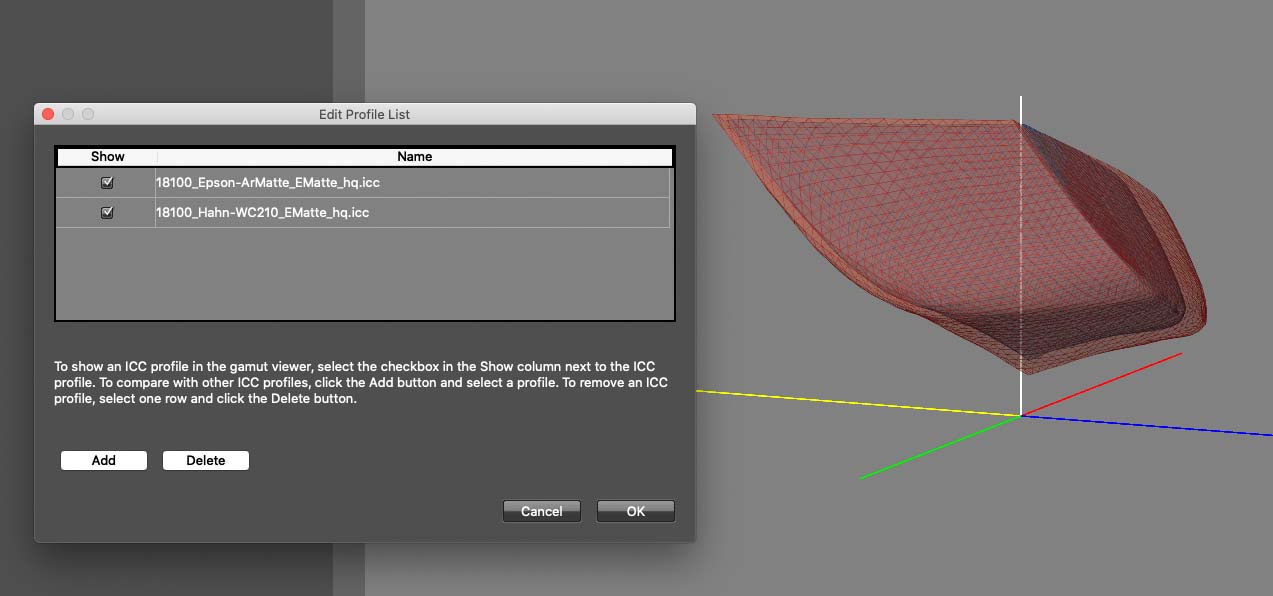
Making profiles for my ET-18100 printer review
The Epson installer places a range of Epson ICC profiles for different Epson media onto your computer.
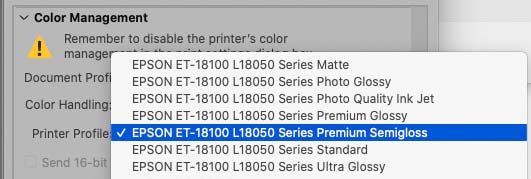
That’s fine, but I also wanted to test the printer with an assortment of other papers.
I used X-Rite i1Profiler with targets up to ~3k patches, read in with an i1iSis scanning spectrophotometer.
Looking at the measurement data for a black patch shows the typical ‘lift’ at the red/IR end of the spectrum with dye inks. [click to enlarge].
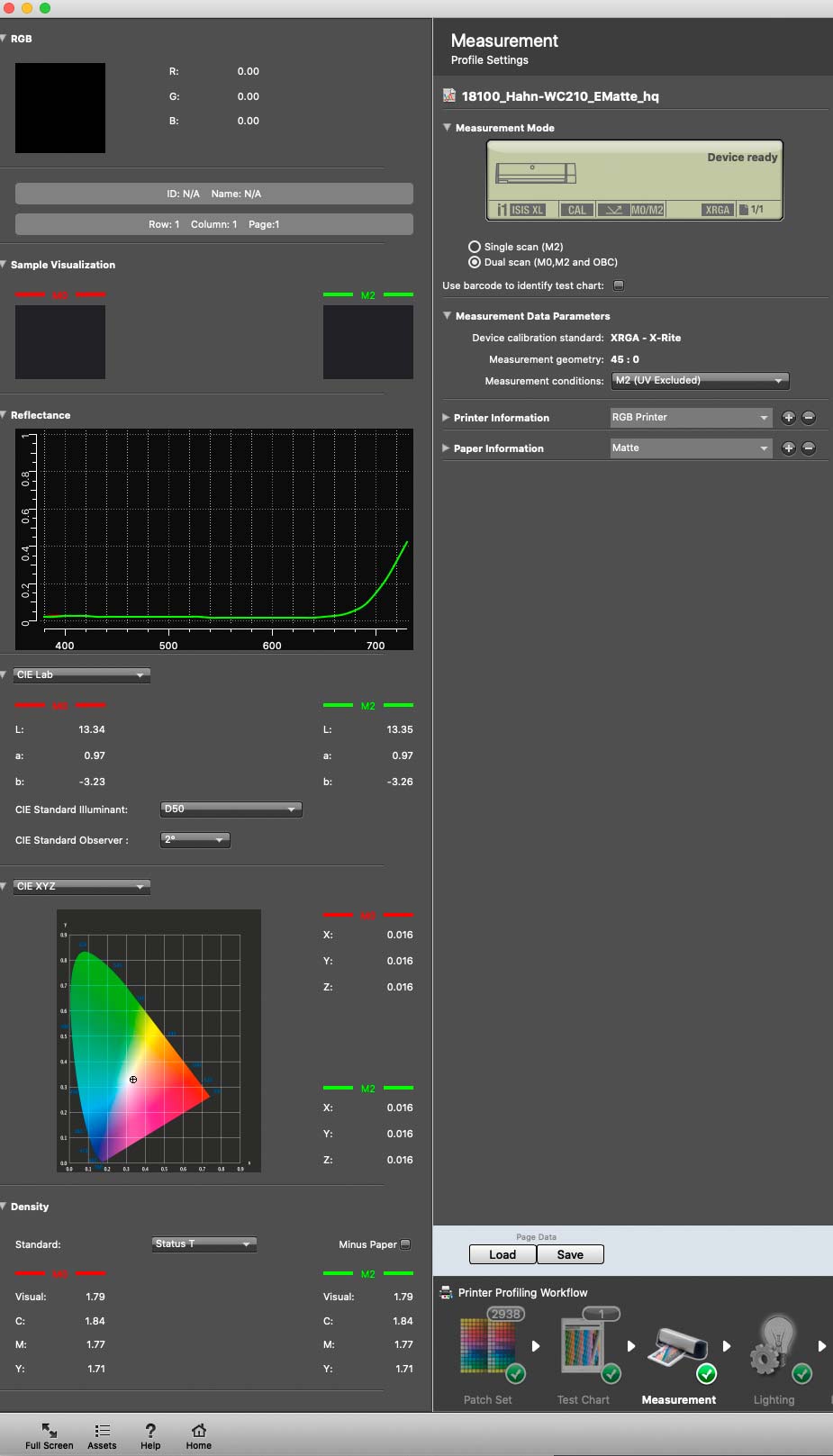
What does this tell me? First that the prints may look different under some lighting, especially tungsten or other incandescent types.
Secondly, the printer is going to be tricky to get good B&W prints from.
Profiles created for the ET-18100 printer review
Papers profiled
- Red River paper canvas 230
- Epson Archival Matte [EAM]
- Epson PGPP [Premium Glossy Photo Paper]
- Hahnemuhle Watercolour 210
- Epson Premium Lustre
- HP Artist Matte canvas 380
- Fotospeed Metallic Lustre 275
- RR Lustre Metallic 255
- RR Gloss Metallic 255
- PermaJet Titanium Gloss 300
- HP Aquarelle 240
- Pinnacle Etching 310 [use for testing thicker art papers, but watch fro grooves]
Profiles are available on request – email me for details. A Kofi donation is all I request for them…
https://ko-fi.com/keithcooper
Black and White
Sorry, but the ET-18100 is not made for B&W.
If B&W photography and printing is important to you, move along. I’ve seen people suggest that B&W output is ‘acceptable’ – not for me I’m afraid, even after my own custom profiling. YMMV, but once you do see the colour tints under some lighting, you can’t ‘unsee’ them. BTW, just adding a grey ink to a printer does not usually make it perform well for B&W – I have specific B&W test sections for most of my reviews.
There is a ‘greyscale’ mode in the printer, but nothing like the Epson ABW mode.

ET-18100 printer review: Printing
Most images during my testing were printed from Photoshop. Sometimes an old version (CS6), sometimes current.
Some were printed directly and others using the Epson EPL software.
Here’s a print on PermaJet Titanium gloss – one of the best papers I tested on this printer for bright colourful images – almost the look of transparencies and not a hint of gloss differential.
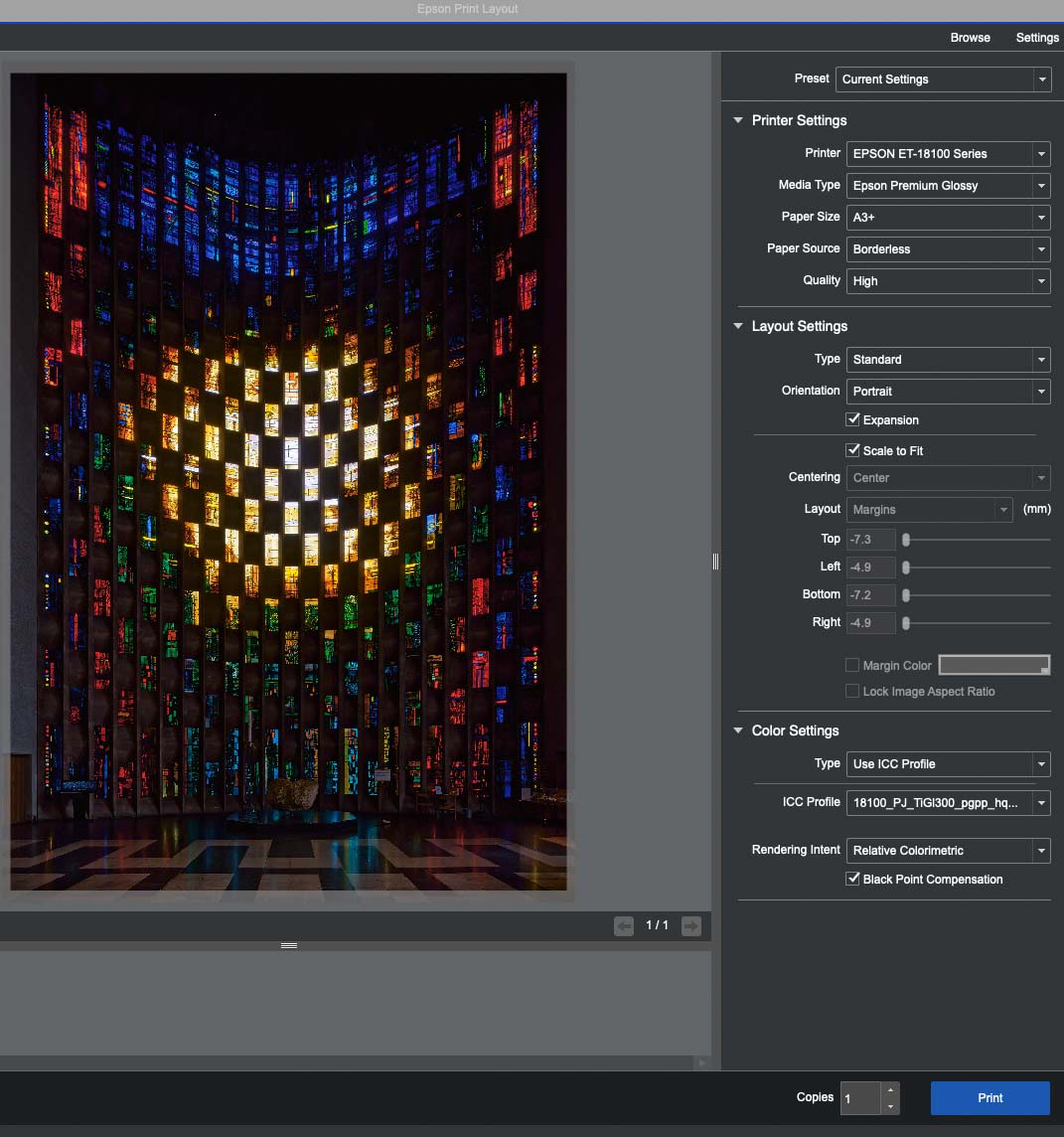
Borderless works well [for supported sizes], but do be careful with the image expansion. If you’re not careful, it’s possible to get a fine white margin. This didn’t happen with the EPL software, but you have to remember that borderless relies on expanding the image beyond the page edge.
Ticking the expansion box shows the bits of image beyond the paper above [Window at Coventry Cathedral]
Note that if you want to print a lot of borderless prints, there will be overspray, and you will need to clean the inside of the printer to prevent ink buildup. I used absorbent kitchen roll to dab the plastic and foam under the print area.
The ink overspray will build up over time in the absorbent pad – this will at some time be listed as ‘full’ and stop further borderless printing until the pad is replaced. This is not a user replaceable part – I suspect that for most people this will simply never happen, but if you intend printing many thousands of borderless prints then it might.
I’ve no idea just what the number is – Epson give no clue whatsoever.
Image quality and speed
The high quality setting was used for making most of my profiles and many prints it’s slower, but not enough to seriously bother me. At around a minute for a standard quality A4 borderless, it rises to over 4 minutes at the highest print quality setting.
If you’ve images with fine detail printed at high resolution it’s worth doing a few test prints to see if it makes a visible difference to your prints.
Custom sizes
The printer accepts custom paper sizes up to just short of a metre. Some printer marketing points to lengths up to 2m, but not on my Mac.
Epson software
The Epson Print Layout (EPL) print software is not installed with the driver, but is available directly from Epson
Now, it doesn’t mention the ET-18100 specifically and I did find some glitches in setting custom paper sizes, but when it worked it worked just fine.
Mac users – if you can’t see the printer listed, make sure you’ve not accidentally selected the AirPrint driver.
ID Cards
A new option for any printer I’ve tested. he printer takes up to two printable cards at a time in the loading tray.
I’ve made a short video covering this in more detail.
The Epson Photo+ software is really easy to use. I created this image in Photoshop and just placed it in the software.

If printing double sided, then I’d leave these cards for 15-20 mins to dry properly before printing the 2nd side – other cards may dry quicker.
Just remember to send the print data to the printer before inserting the holder. The cards are not meant for heavy duty, but put them in a holder/lanyard and they should work well. The ID cards I produced look excellent – just what I need when on a job and the client hasn’t informed all the security droids.
Choosing papers
The dye ink set works well on many types of paper – probably lowest quality comes with baryta types – they are meant for pigment inks. If you want to print on baryta style papers buy a printer which works well with them, don’t complain when a cheaper one doesn’t ;-)
My biggest issue with the ET-18100 was the way internal guide rollers dented thicker art papers, even when they looked just fine with the inks and profiled well. The ‘thicker paper’ setting made no difference to this.
This meant that it’s a paper for RC style photo papers and thinner matte papers. It printed just fine on 380gsm matte canvas…
Seriously, if this was my printer, I’d have been tempted to open it up and modify/remove those hard rollers ;-)
ET-18100 printer review conclusions
The more I used the printer, the more I appreciated the excellent display screen of the ET-8550 I tested a while ago. No, you may not need it often, but when lights flashed, it was irksome to have to go back to the manual.
That’s purely my own way of using printers though – there are many who find the need to use screens for settings and the like rather more irksome.
As to the print quality… on photo papers for colour prints, the printer worked a treat. In particular, glossy and metallic prints were excellent.
This is a bulk ink [colour] photo printer – it does what it does very well. The ID cards seem robust – this is not something I’ve tested in a printer before though.
It’s very easy to use, and the lack of complexity may well appeal to some.
Print costs are very difficult to estimate, given the very varied use and testing I do, but I’ve no reason to doubt Epson’s figures. A set of [107] inks currently costs just over £50 and likely make over 2000 6×4 prints so just 2-3pence in ink cost per print – with setup, it’ll be a bit higher for the initial set of inks.
Epson ET-18100 printer review: Who is it for
There is a lot of ‘value engineering’ gone into this model printer – it seems very much aimed at a market which ‘just wants colour photo prints’ – no fripperies, just good solid colour prints on photo papers.
This is a printer designed for low cost photo printing… That said, it’s not a cheap printer, so you’ll need to do quite a few prints before those ink cost savings kick in.
Try black and white prints or want duplex double sided printing, then this is not the printer you were looking for.
In fact the differences are that stark, I made an ET-18100 vs ET-8550 video [11 mins] discussing this further.
Incidentally, the ET-18100 [L18050 in some markets] has not yet been made available in the Americas.
If you want a great glossy colour photo ink-tank printer and live in the US – ask Epson what they are playing at, you are missing out on a very useful printer ;-)
ET-18100 printer review videos [Also L18050 in some markets]
- Initial setup and overview
- Video review [30 mins]
- Why is the 18100 not available in the US yet?
- A glossy A3+ borderless ET-18100 print
- An A3+ ET-18100 colour print on art paper
- Paper choices and profiling the ET-18100
- Gloss/Metallic/baryta papers [ET-18100]
- ID card printing with the ET-18100
ET-18100 or ET-8550?
–oOo–
Questions are always welcome – email me at Northlight.
Specifications
- Printing Method: 6-colour inkjet printer
- Nozzle Configuration: 180 Nozzles Black, 900 Nozzles per Color
- Minimum Droplet Size: 1.5 pl
- Print resolution: 5760 x 1440dpi [max]
- Ink Technology: Dye Ink
- Printing Resolution: 5,760 x 1,440 DPI
- Category – Photo
- All-in-One Functions – Print
- Number of colours: 6 colour
- Printing Speed ISO/IEC 24734: 8 pages/min Monochrome, 8 pages/min Colour
- Printing Speed: 22 pages/min Monochrome (plain paper 75 g/m²), 22 pages/min Colour (plain paper 75 g/m²), 25 Seconds per 10 x 15 cm photo (Epson Premium Glossy Photo Paper)
- First Page Out: Monochrome 14 Seconds, Colour 14 Seconds, According to IEEE/ISO 17629
- Print from: Mobile Device
- Colours: Black [Dye], Cyan [Dye], Light Cyan [Dye], Yellow [Dye], Magenta [Dye], Light Magenta [Dye]
- Colours Capacity: Black [70ml], Cyan [70ml], Light Cyan [70ml], Yellow [70ml], Magenta [70ml], Light Magenta [70ml]
Paper
- Number of paper trays: 1
- Paper Formats: A3+, A3 (29.7×42.0 cm), A4 (21.0×29.7 cm), A5 (14.8×21.0 cm), A6 (10.5×14.8 cm), B6, B5, B4, No. 10 (Envelope), DL (Envelope), C6 (Envelope), C4 (Envelope), 10 x 15 cm, 13 x 18 cm, Letter, Legal
- Output Tray Capacity: 100 Sheets
- Paper Tray Capacity: 80 Sheets Standard
- Compatible Paper Weight: 64 g/m² – 300 g/m²
- Media Handling: Borderless Print, CD/DVD print
General
- Recommended number of users: From: 1 To: 2
- Energy Use: 0.6 Watt (sleep mode), 19 Watt (Printing), 4.4 Watt (Ready), 0.2 Watt (Power off), TEC 0.13 kWh/week
- Supply Voltage: AC 100 V – 240 V, 50 Hz – 60 Hz
- Product dimensions: 523 x 369 x 150 mm (Width x Depth x Height)
- Product weight: 8 kg
- Noise Level: 5 B (A) with Epson Premium Glossy Photo Paper / Photo RPM mode – 40 dB (A) with Epson Premium Glossy Photo Paper / Photo RPM mode
- Compatible Operating Systems: Mac OS X 10.9.5 or later, Windows 10 (32/64 bit), Windows 11, Windows 7 (32/64 bit), Windows 8 (32/64 bit), Windows 8.1 (32/64 bit), Windows Server 2008 R2, Windows Server 2012 R2, Windows Server 2016, Windows Vista (32/64 bit), Windows XP Professional x64 Edition SP2 or later, Windows XP SP3 or later (32-bit), Windows Server 2003 R2, Windows Server 2003 SP2 or later
- Interfaces: USB, WiFi, Wi-Fi Direct
- WLAN Security: WEP 64 Bit, WEP 128 Bit, WPA PSK (TKIP), WPA2 PSK (AES), WPA3-SAE(AES)
- Mobile and Cloud printing services: Epson Smart Panel App, Epson Connect (Email Print, Remote Print Driver)
- Power supply: 220V, 240V
- What’s in the box: 6 x 70ml individual ink bottles (Bk,C,Y,M,Lc,LM), Power cable, Printer, Quick Start Guide
- Warranty: 12 months Carry in, 50,000 pages
Never miss a new article or review - Sign up for our occasional (ad-free) Newsletter
and please do subscribe to Keith's YouTube Channel

Other areas of our site that may be of interest...
All the latest articles/reviews and photo news items appear on Keith's Photo blog

Keith explains tilt and shift lenses
Keith has written a book that looks at the many ways that tilt/shift lenses can benefit your photography from a technical and creative point of view. If not in the UK check for import issues and maybe try an on-line bookshop. Keith has no connection with sales of the book.
ISBN 9781785007712
There is also a specific index page on the site with links to all Keith's articles, reviews and videos about using tilt and shift.
We've a whole section of the site devoted to Digital Black and White photography and printing. It covers all of Keith's specialist articles and reviews. Other sections include Colour management and Keith's camera hacks - there are over 1200 articles/reviews here...
Adverts removed
I. C. Corjan | Nov 23, 2025 at 6:02 am
Thank you, Keith, for this very competent lesson! It was very useful to me. After reading the text and watching the video I bought an Epson L18050 printer.
Keith | Sep 11, 2024 at 11:36 am
email me?
I don’t use the comments system at all
Charl Pantaleon | Sep 11, 2024 at 8:39 am
Hi Keith, I have the ET-18100 (L18050), and I’m having issues with prints showing banding where there are darker shades. Would you be able to help out? I’ve got photos describing the issues here:
Keith | Mar 7, 2024 at 3:29 pm
Thanks – I don’t have the printer here any more to do any more testing
Carlos Pineda | Mar 7, 2024 at 3:01 pm
Thank you for publishing this. Great info to know! Would it be possible to try the Epson PGPP and Archival Matte?